#
Email Template
#
Description
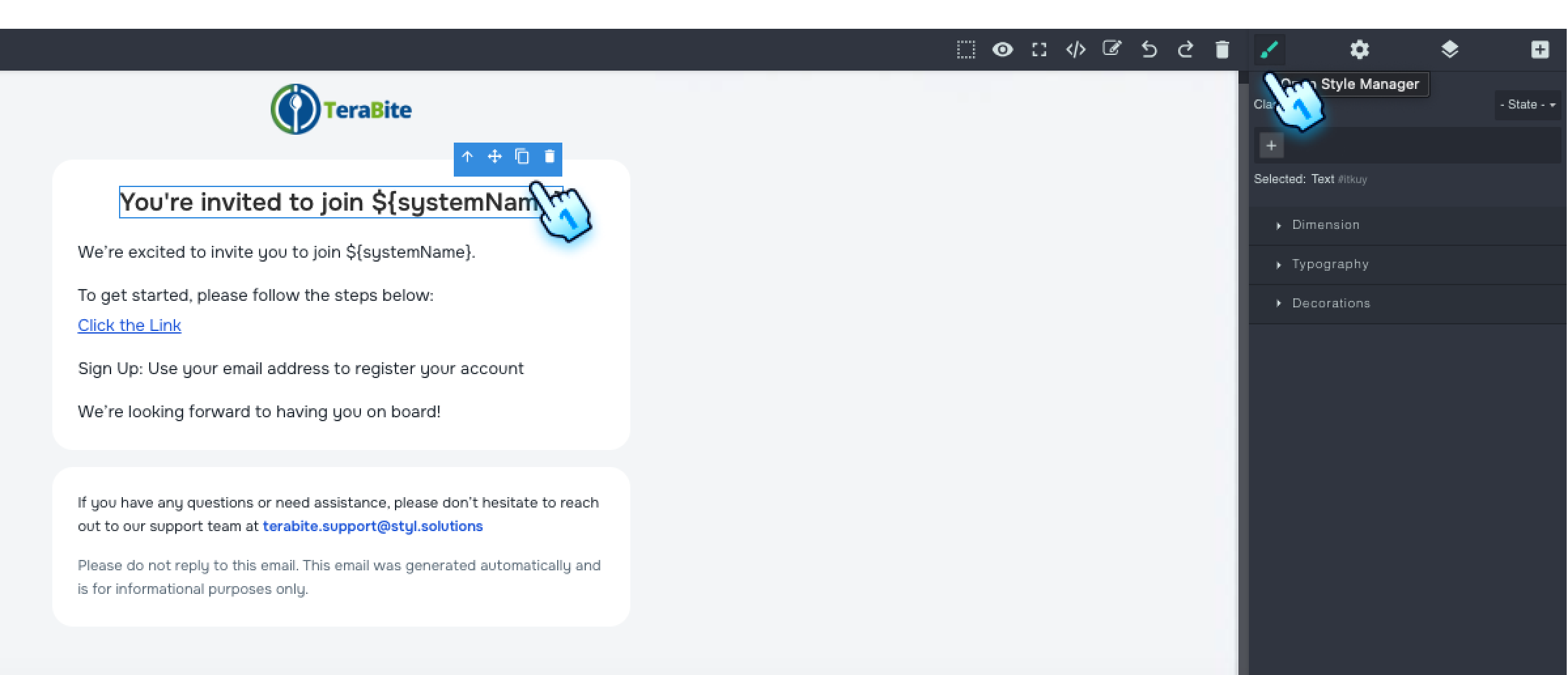
The system now offers a new Email Template configuration page, allowing you to customize email content with various components.
#
Accessing and Editing Templates
- Navigate to Email Templates
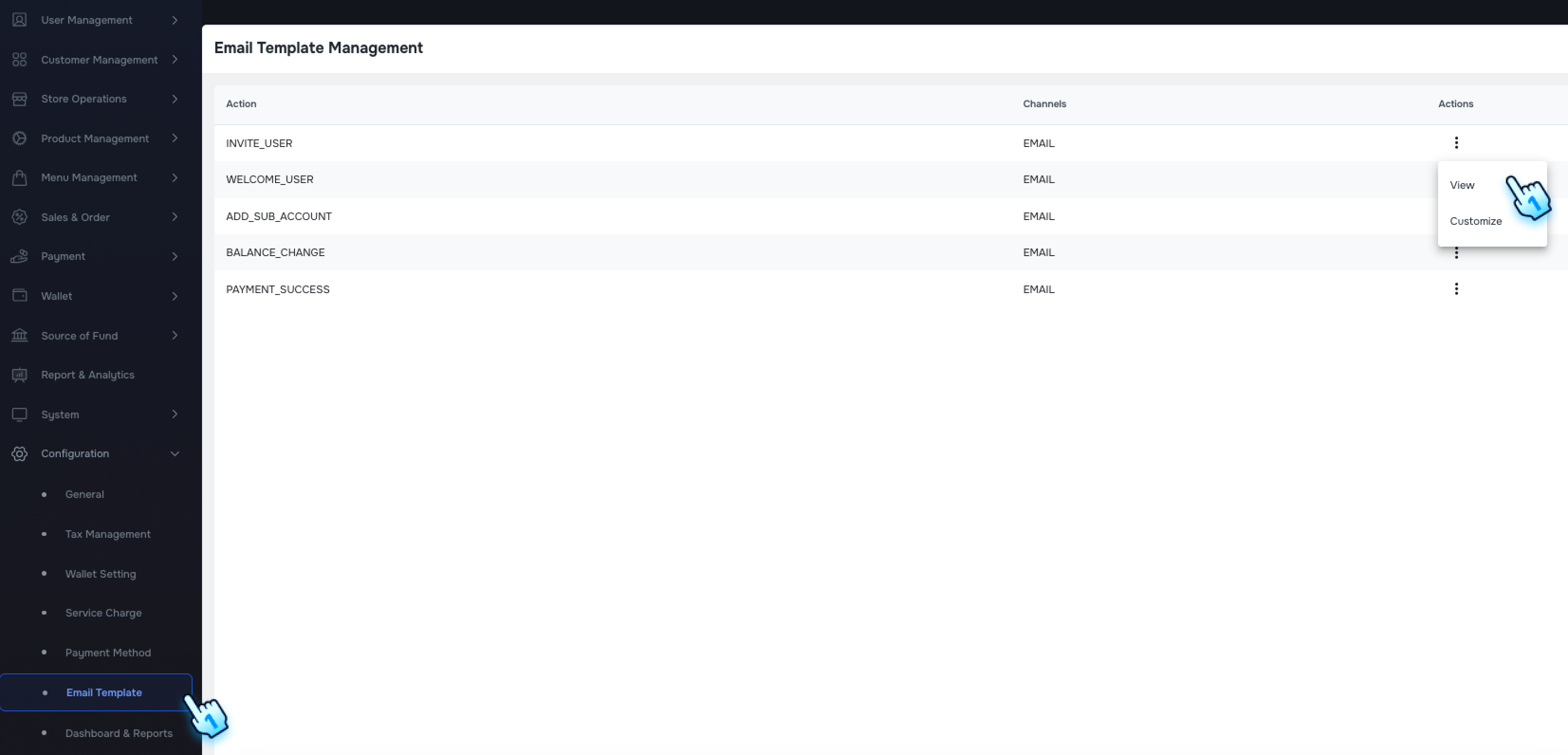
- Go to Configuration to access the new Email Template page.
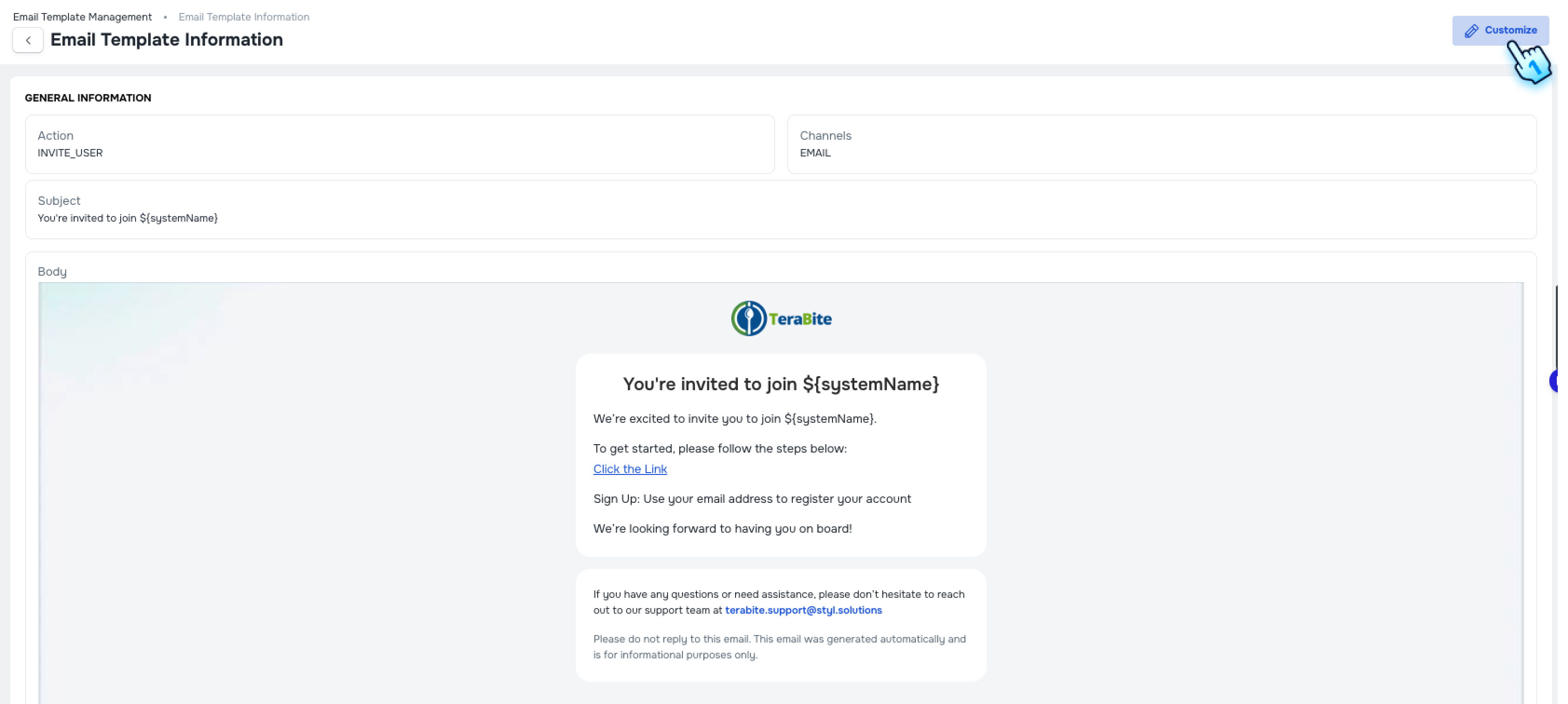
- Click "Customize" in the threedot menu or "Customize" button in the detail.
- Add Components
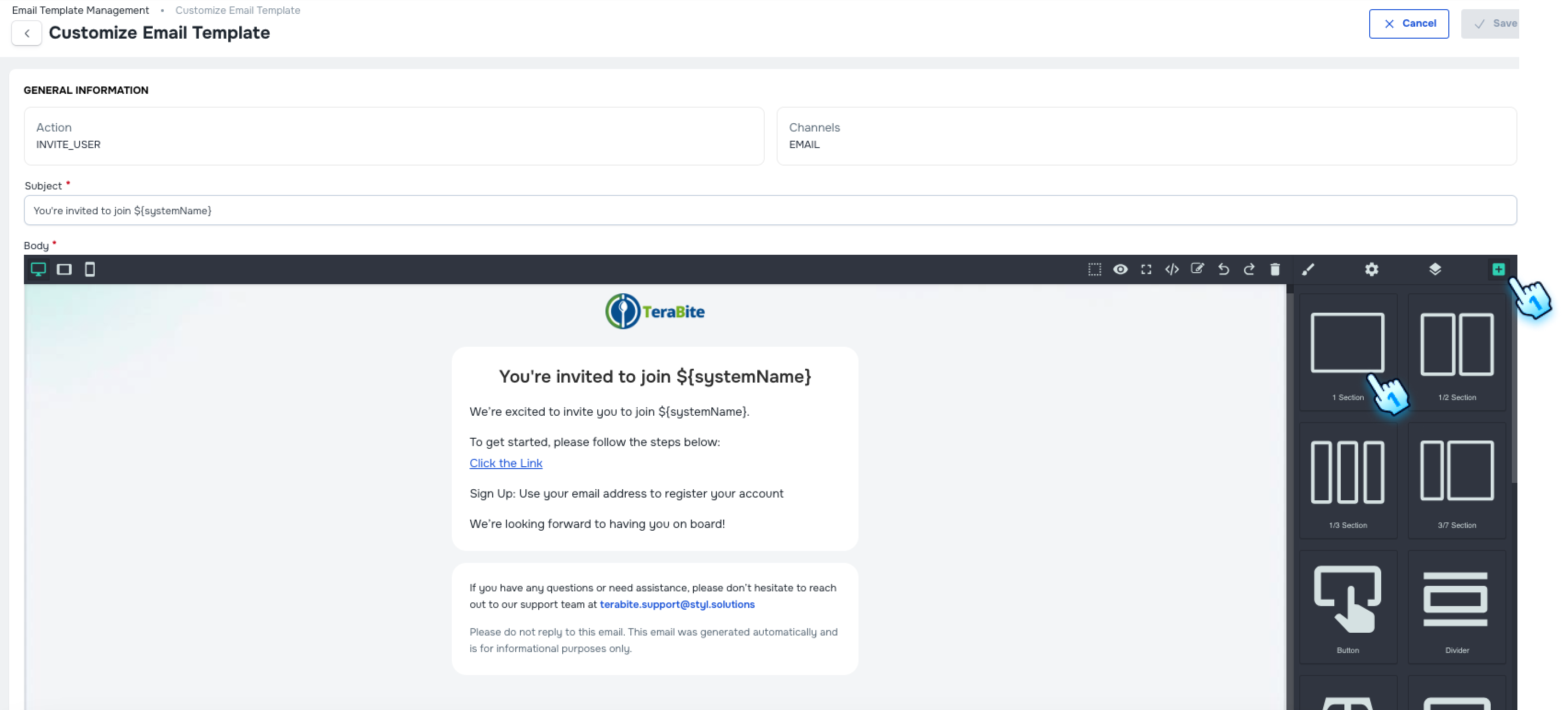
- Click the "+" button from the right bar to open the component menu.
- Drag and drop a component from the menu into your template.
- You can add the following components:
- Sections: Choose from pre-defined layouts like 1, 1/2, 1/3, and 3/7.
- Button: A button is added to the template.
- Divider: A divider is added to help separate content.
- Text: Add and format text within the template.
- Text Section: A dedicated section for text content is added.
- Image: Add an image to your template.
- Quote: Insert a quote into your email design.
- Link Holder: Add a clickable link to your template.
- Grid Item: Add a grid layout for your content.
- List Item: Add a list to your template.
- Customize Components
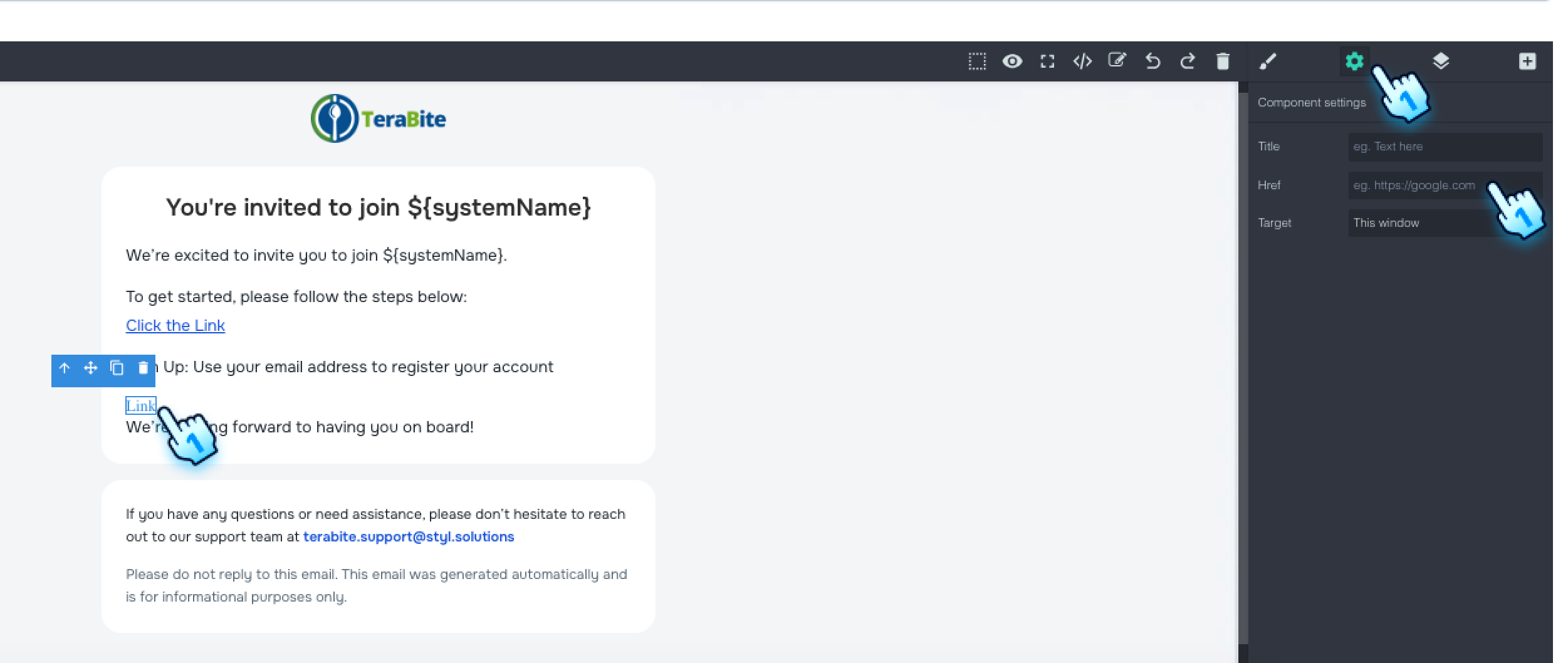
- Insert Links to Button or Link holder: To make a Button or Link Holder clickable, click the component and then click the gear icon to insert a link.
- Change Order: Drag and drop each component to rearrange the order in the template.
- Copy Components: Copy and paste a component to duplicate it.
- Edit Text: Click the pen icon on a text component to change its format. The changes will be saved automatically.
#
Conclusion
This new feature provides a powerful way to customize email content, ensuring that your communications are both visually appealing and professional. By using the available components and customization options, you can create effective email templates tailored to your specific needs.
#
Screen flow
#
Service Charge Configuration