#
Service Charge Management
#
Description
This document outlines the procedures for managing service charges within the application.
#
Service Charge Configuration
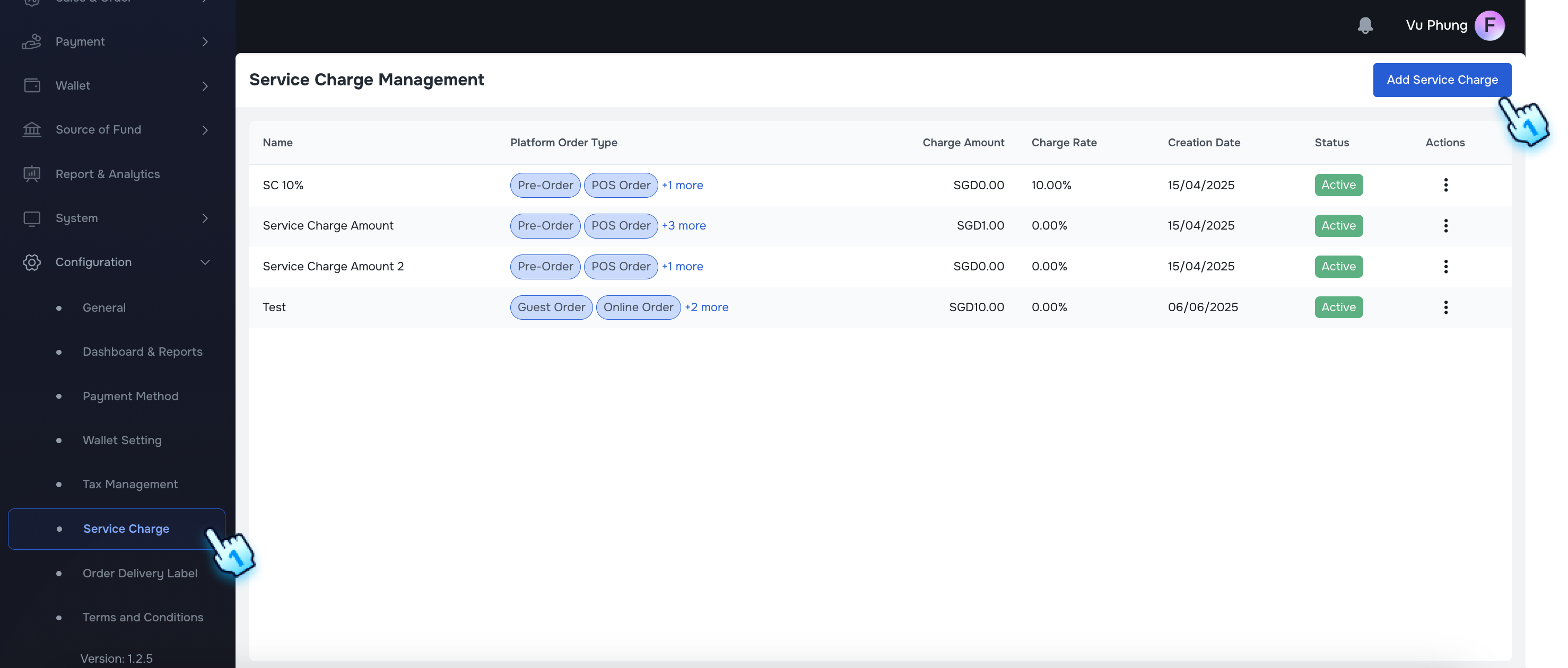
- Add New Service Charge Page
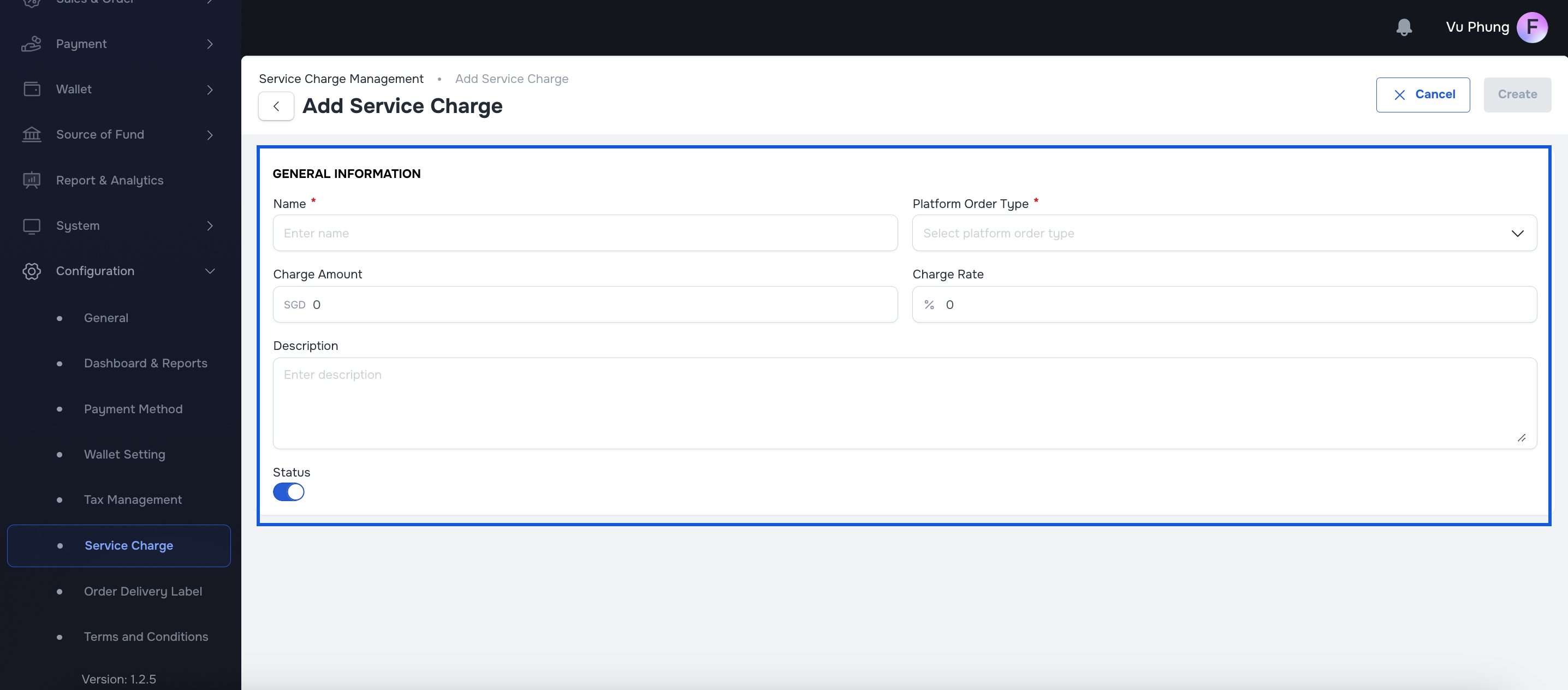
- Admin navigates to the service charge configuration page and adds a new service charge.
- Add New Service Charge Successfully
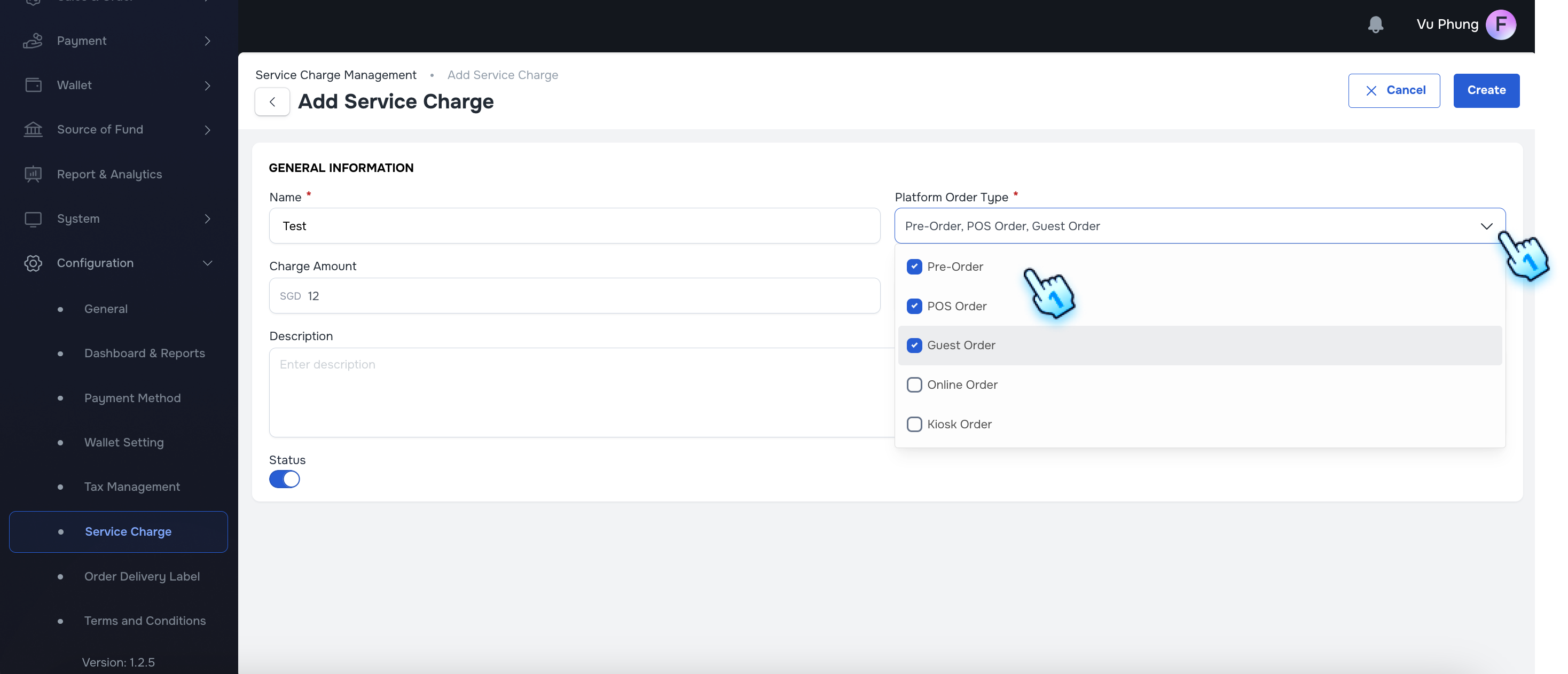
- Admin enters the required information and selects the Platform Order Type on the Add Service Charge page. Note: If Change Amount and Change Rate have value, the system will calculate the total amount of both value
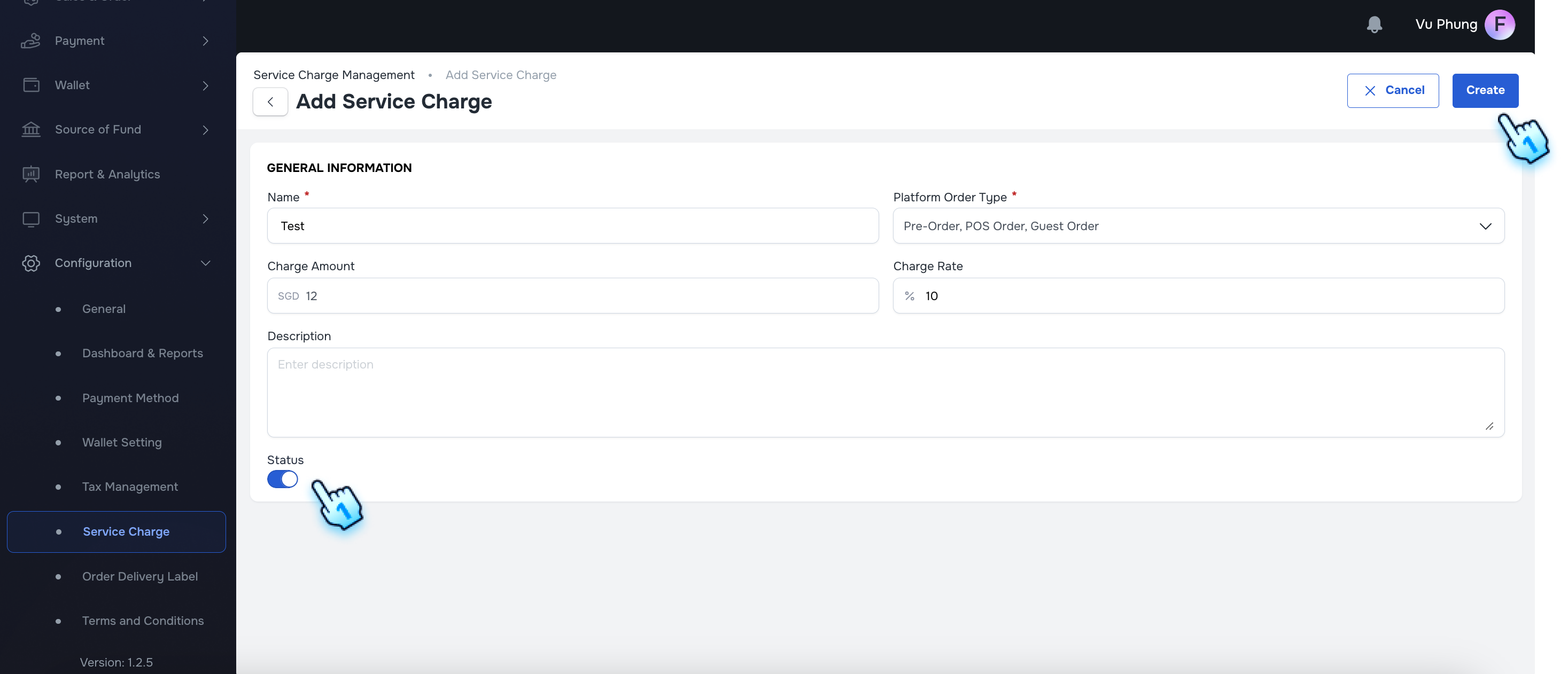
- Complete Creation
- Click "Create" button to complete
- The service charge is saved successfully. Note: If there are more than 1 Service Charge is activated for a device at the same time, the total Service Charge will be calculated by all active Service Charge
#
Service charge checking
- POS - Payment Calculates Service Charge
- During payment processing, the service charge is calculated based on the percentage or amount configured in the Back Office before taxes.
- POS - Receipt Displays Service Charge
- Upon printing the receipt after payment, the service charge is displayed along with the configured value from the Back Office.
- Order Details - Service Charge Display
- After an order is processed, the admin views the order details, and a new row shows the service charge with the exact amount for each transaction.
- Pre-Order Details - Service Charge Display
- When a pre-order is created, the admin views the pre-order details, and a new row shows the total service charge for the entire pre-order.
#
Conclusion
This document provides a structured approach for managing service charges within the application, ensuring accurate configuration, display, and processing across various functionalities.
#
Screen flow
#
Service Charge Configuration