#
Onsite Menu Item Import
#
Description
This section provides instructions for uploading menu items, including handling errors, updating existing menu items, and assigning menus to stores.
#
Import a Menu Items in Onsite Menu
- Access Import Functionality
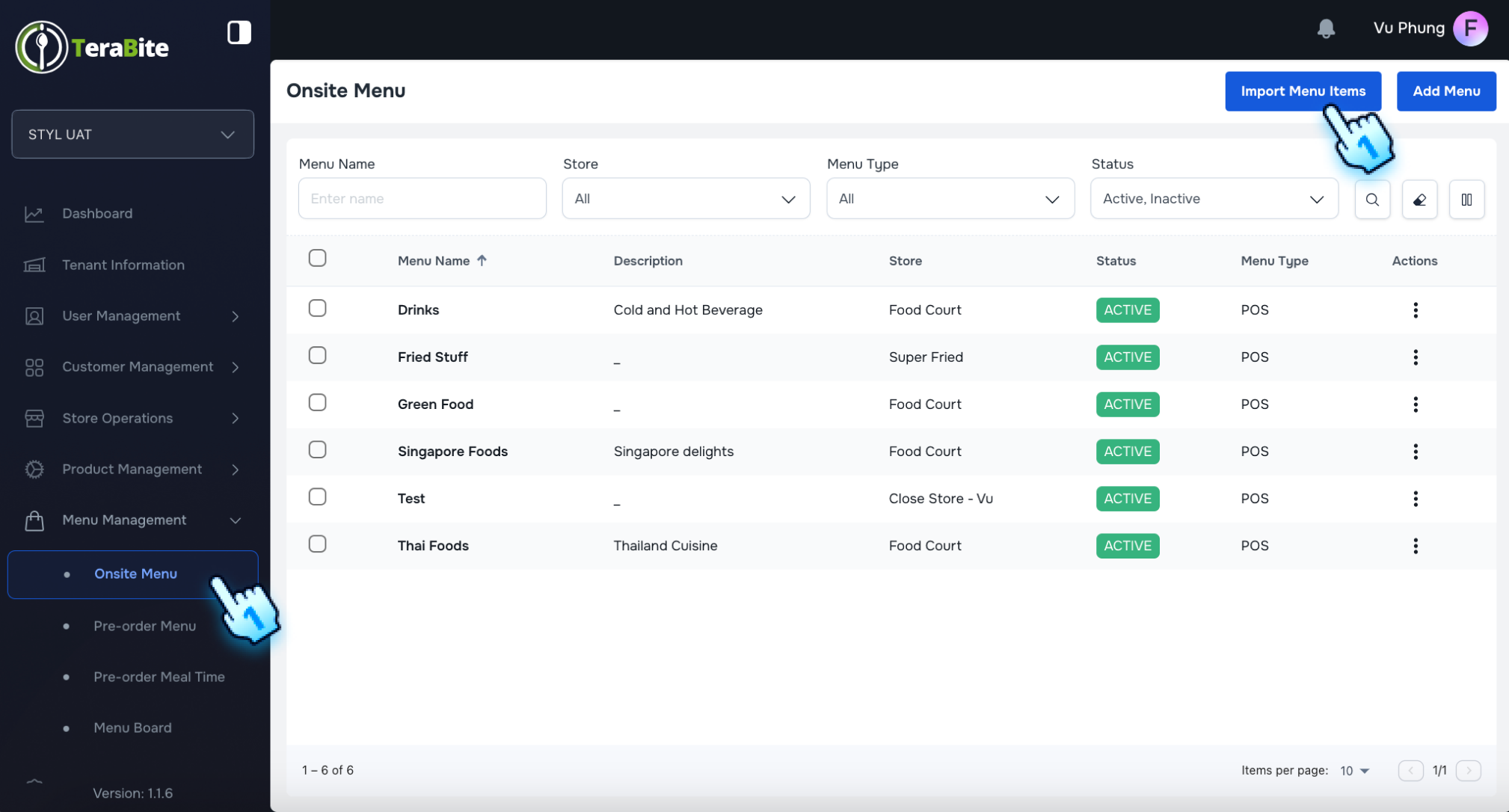
- Navigate to Onsite Menu section of Menu Management module
- Click on the "Import Menu Items" option.
- Download Sample File
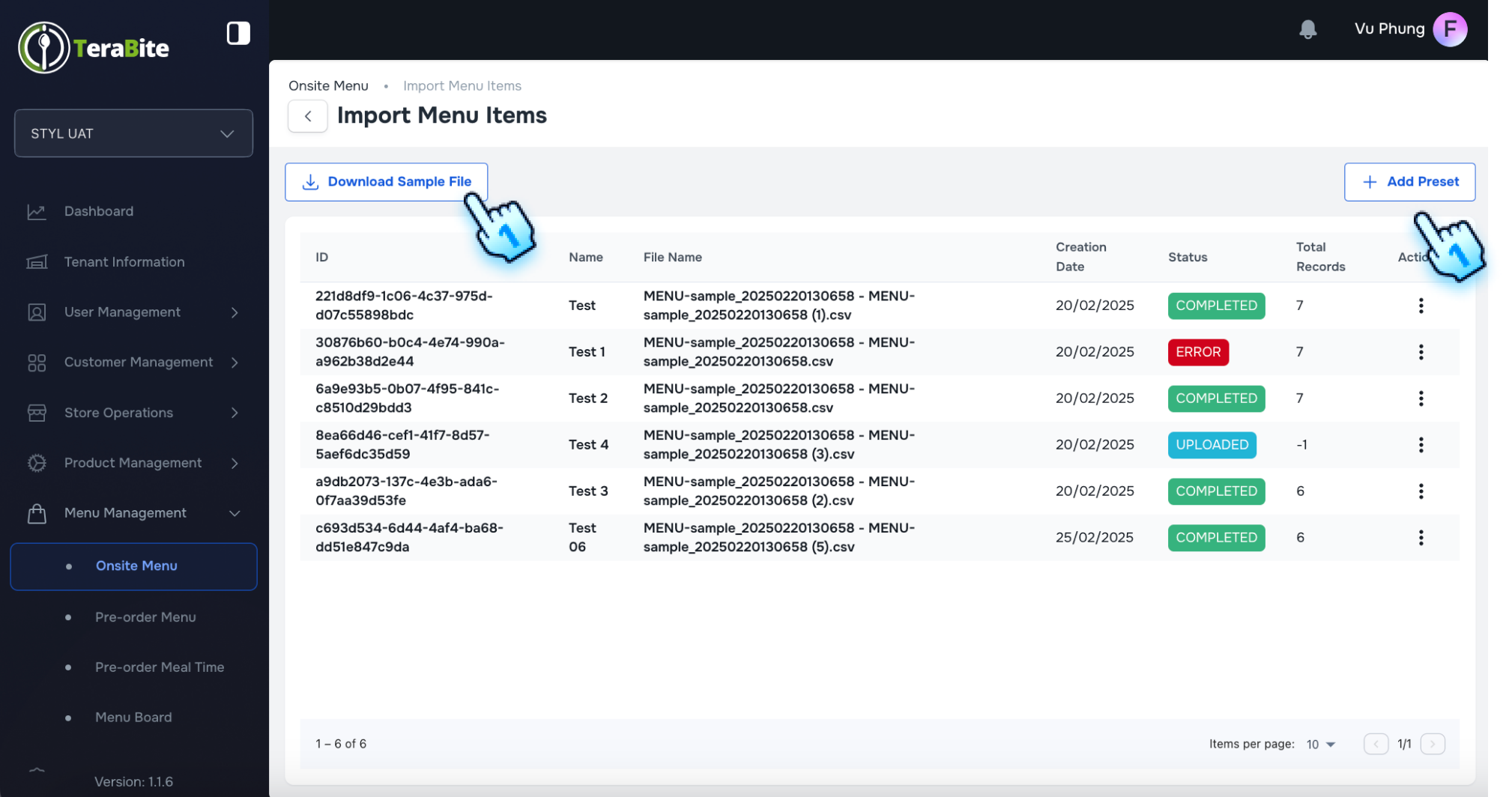
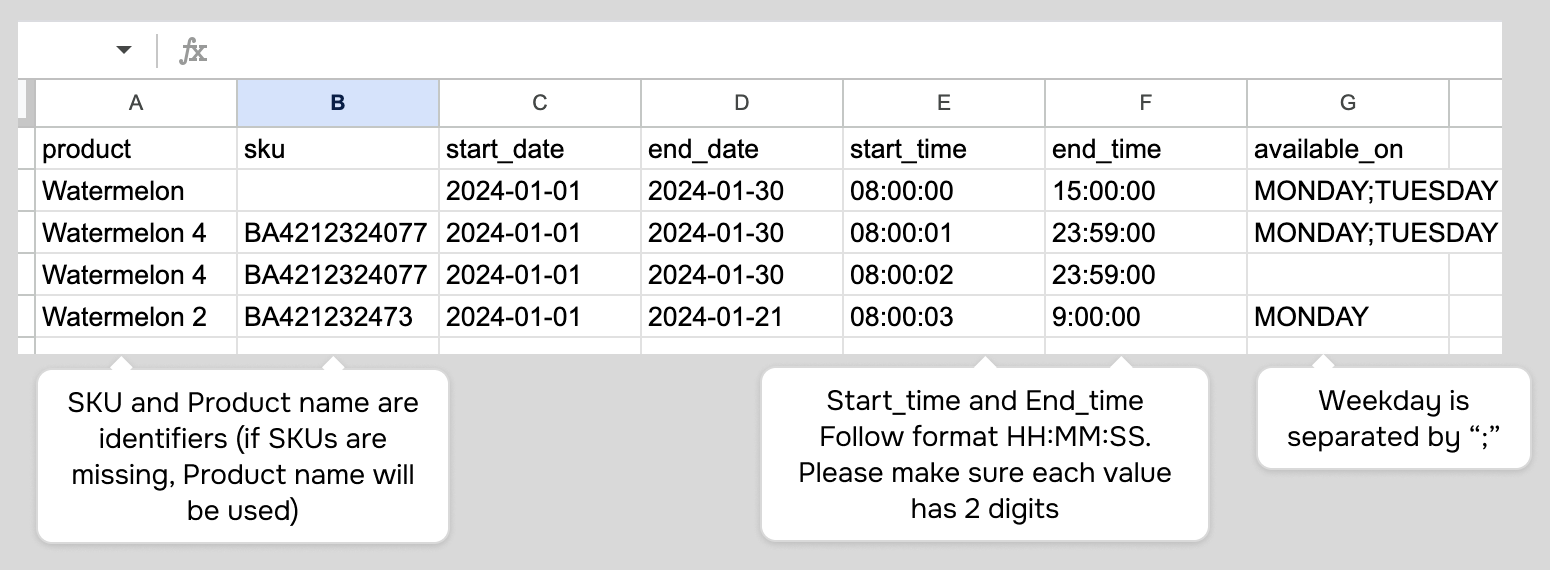
- Click on Download Sample File to fill required information as a Preset
- Add Preset
- Click on "Add Preset" button
- Upload File
- Click on the "Upload" button.
- Select File
- Choose the preset file from your device that filled with product information.
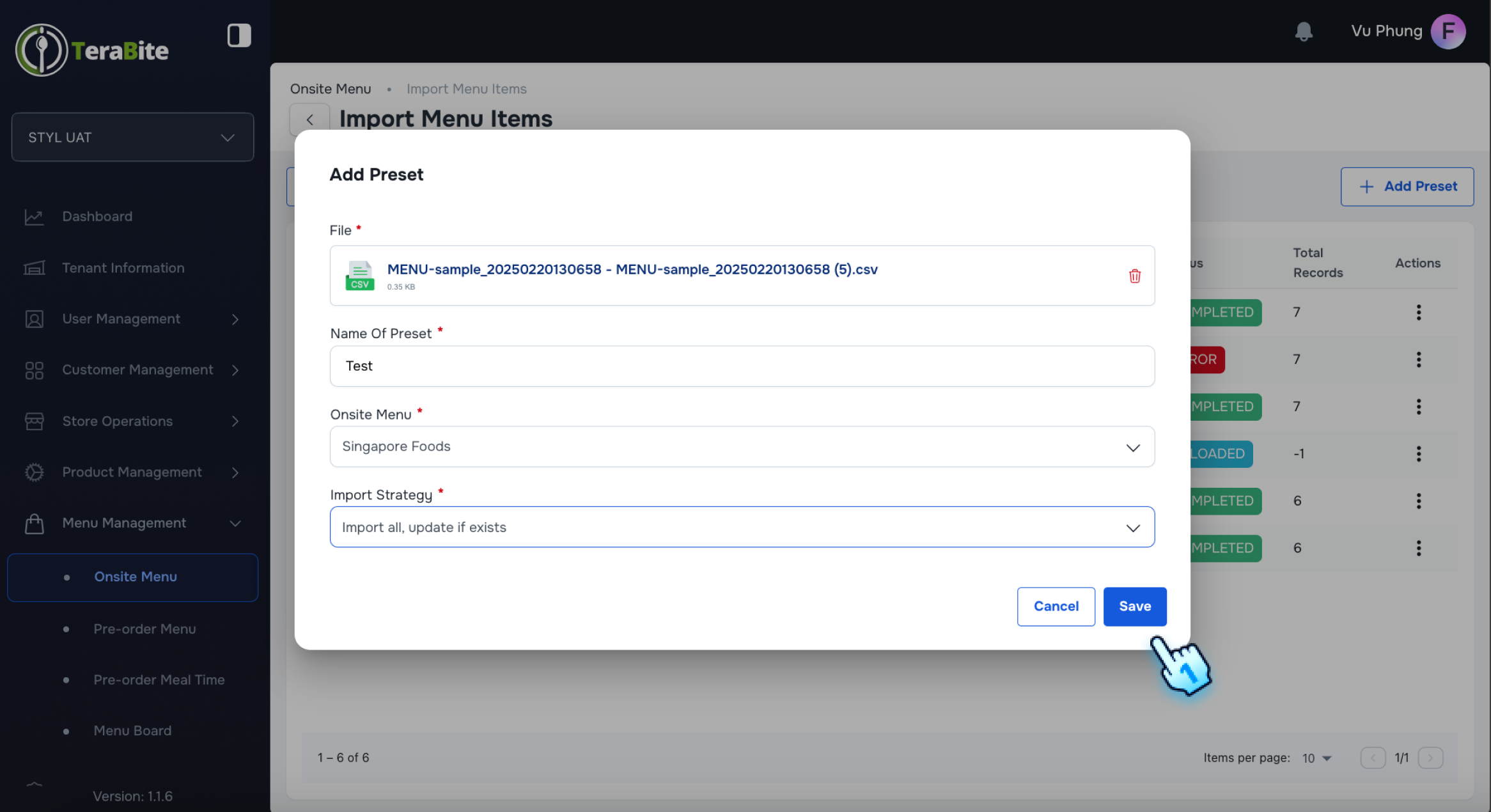
- Name and Select Import Strategy
- Name the preset and select an import strategy from the following options:
- Import All, Update if Exists
- Create New Only
- Update Existing Only
- Select Onsite menu Note: Please make sure the Store of Onsite Menu and Product is the same
- Save and Review
- Click the "Save" button to upload the preset only
- Import Preset
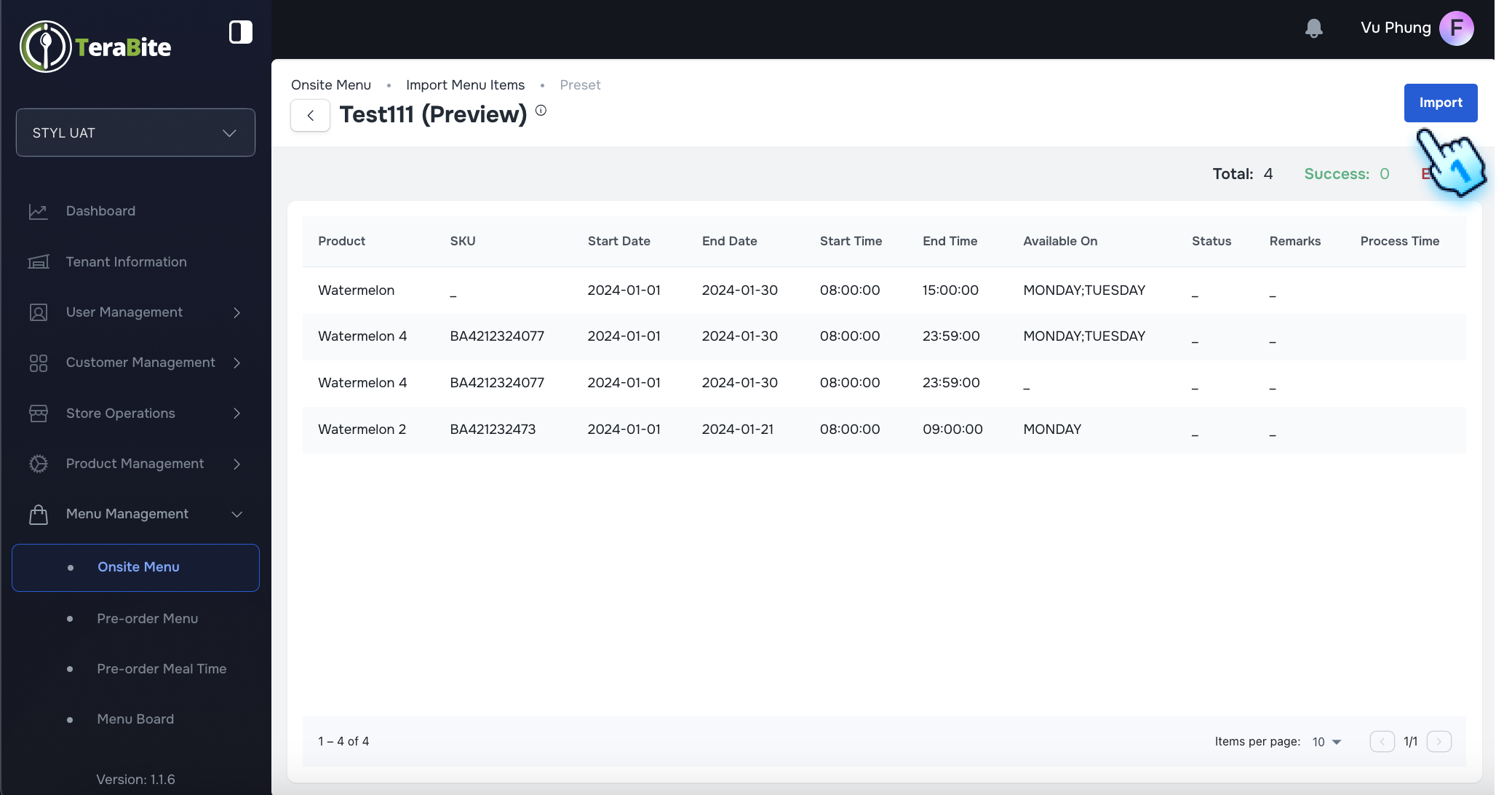
- Click Import button to import the preset
- Review Imported Preset Details
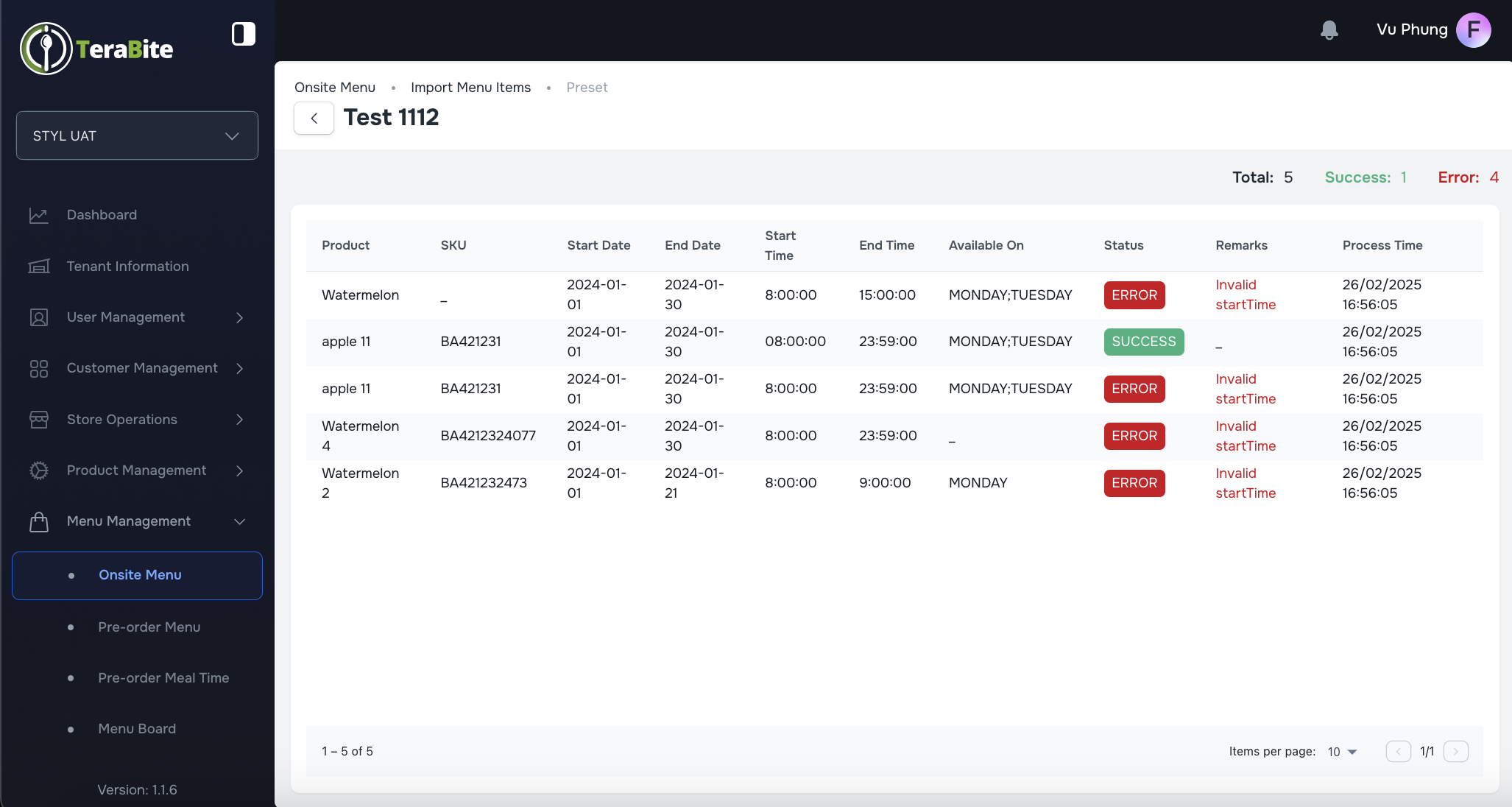
- After importing, review the product list in the preset, including any error messages for fail menu items that may appear along with the summary of the progress such as Total, Success, Fail.
- Data Update
- Success imported menu items data will be updated successfully.
- Verify Menu Assignment to Stores
- Navigate to the Onsite Menu edit page.
- Assign Menu to Store
- The menu will be assigned successfully and displayed in POS system
- Perform Actions Based on User Status
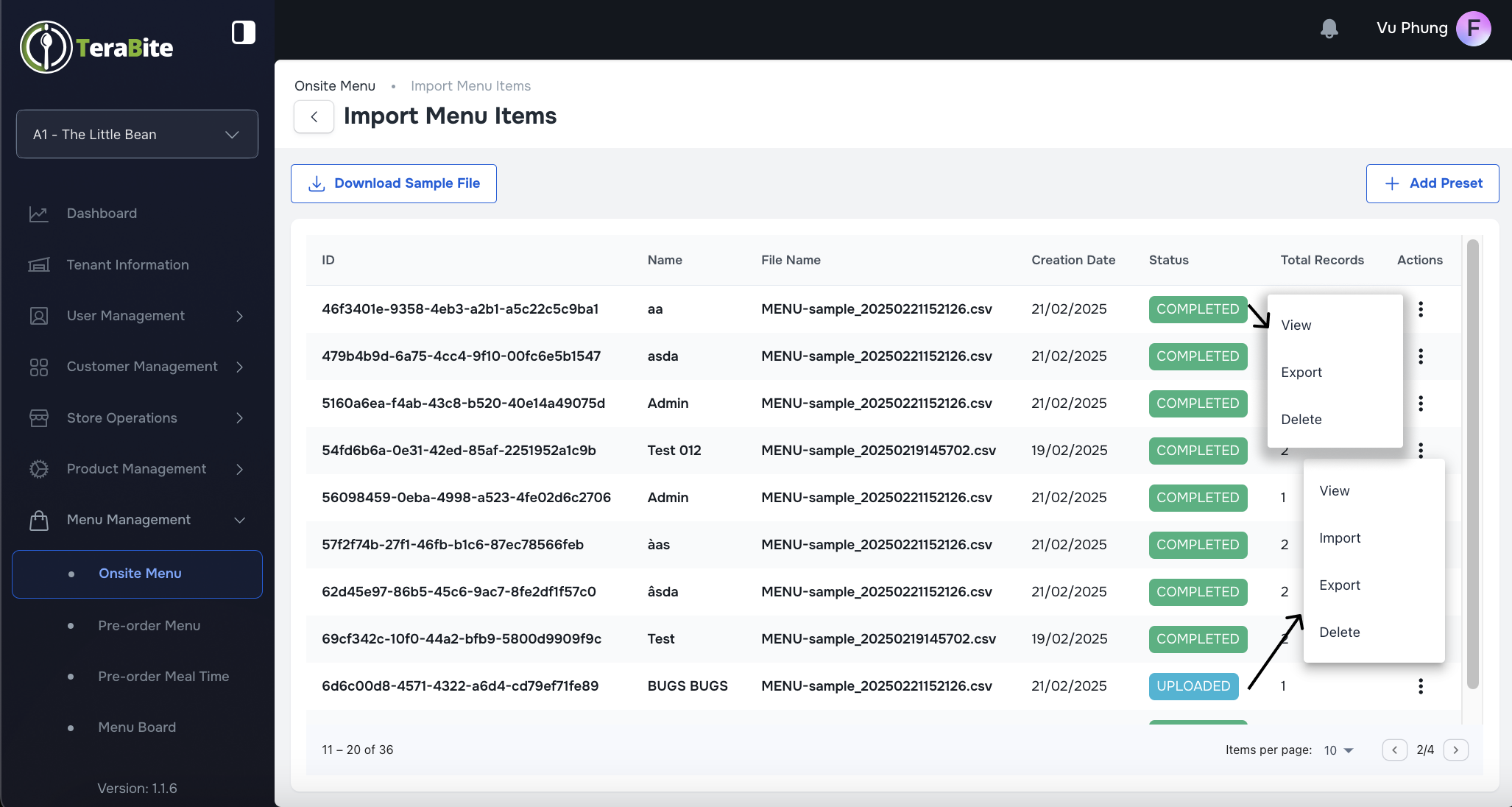
- Click on the three-dot menu in each row to reveal available actions for each user based on their status as below:
- Uploaded: Options are View, Import, Export, and Delete.
- Completed: Options are View, Export, and Delete.
- Error: Options are View, Export, and Delete.
#
Conclusion
The menu items upload process allows operators to efficiently manage menu items data by importing and updating menu items via CSV files. By following these steps, users can ensure accurate menu items information and seamless integration with the POS systems.
#
Screen flow
#
Add a New Product