#
Pre-order Menu Management
#
Description
This document outlines the procedures for creating pre-order menus, viewing the menu list, changing menu statuses, and managing meal times within the Pre-order Menu module.
#
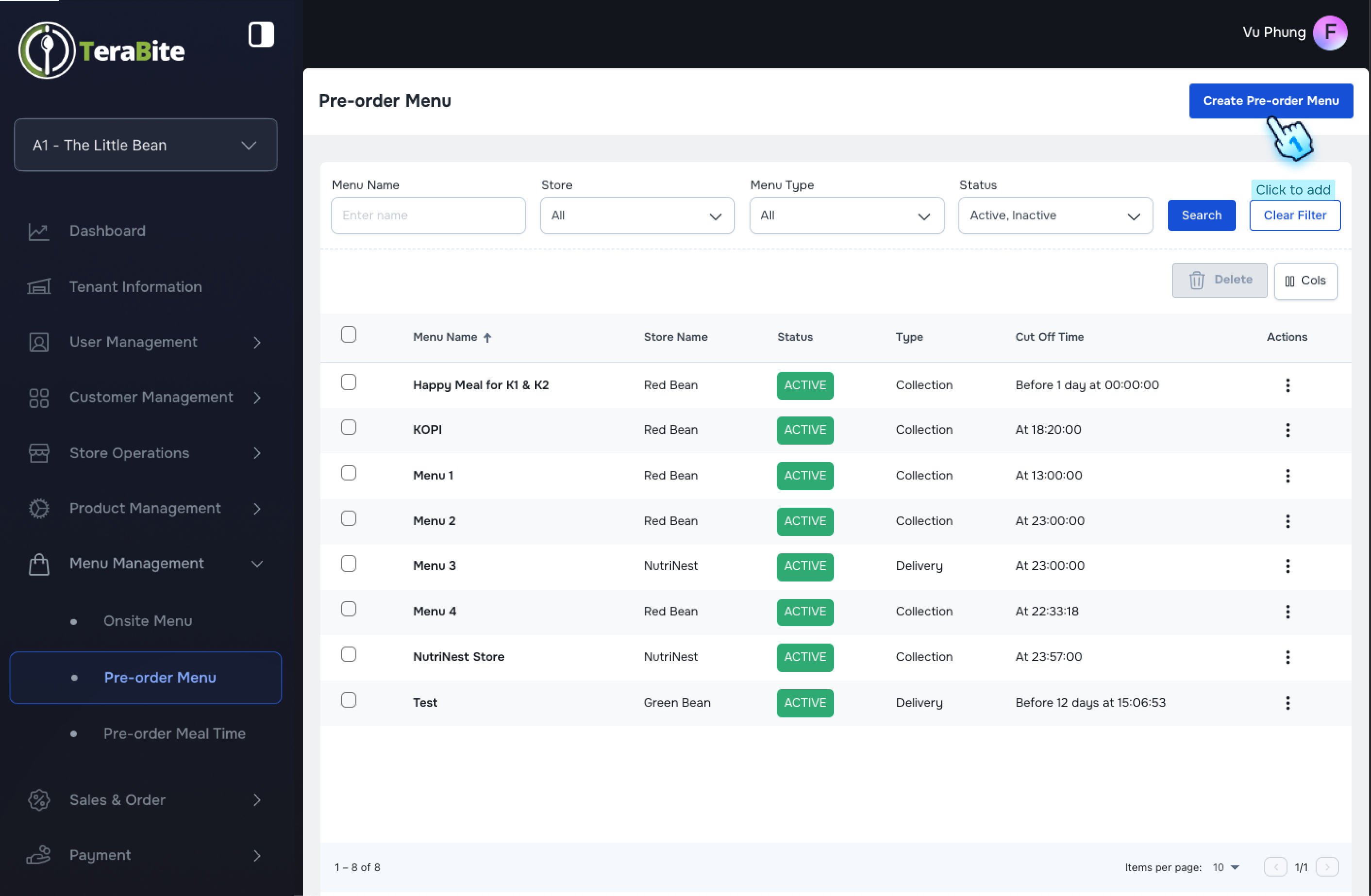
Create and Delete a Pre-order Menu
- Access Pre-order Menu
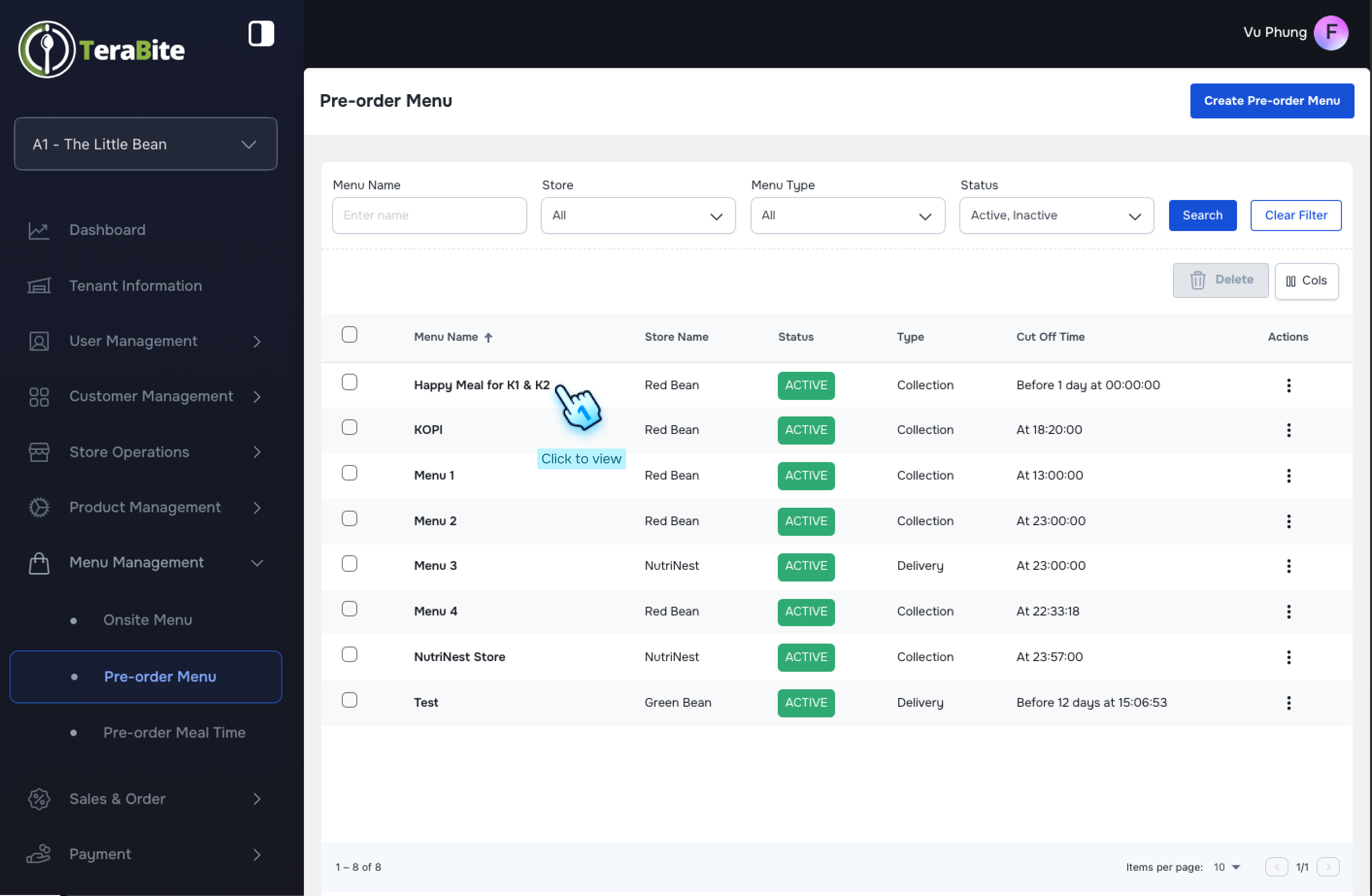
- Navigate to the Pre-order Menu section.
- Initiate Pre-order Menu Creation
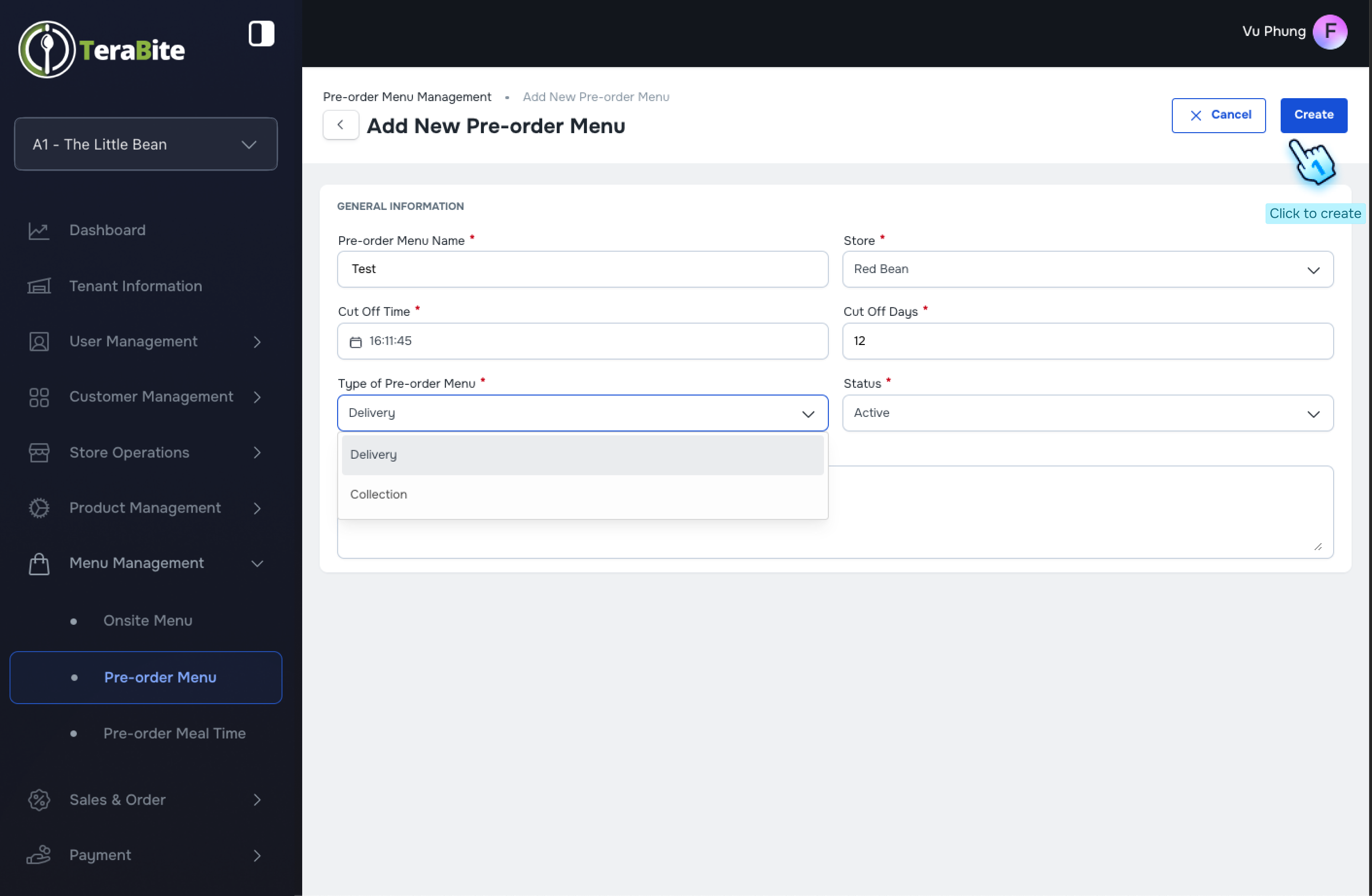
- Click the "Create Pre-order Menu" button.
- Fill Required Information
- Complete all required fields in the pre-order menu form.
- Submit Pre-order Menu Information
- Click the "Create" button.
#
View and Edit Pre-order Menu
- Review Added Items
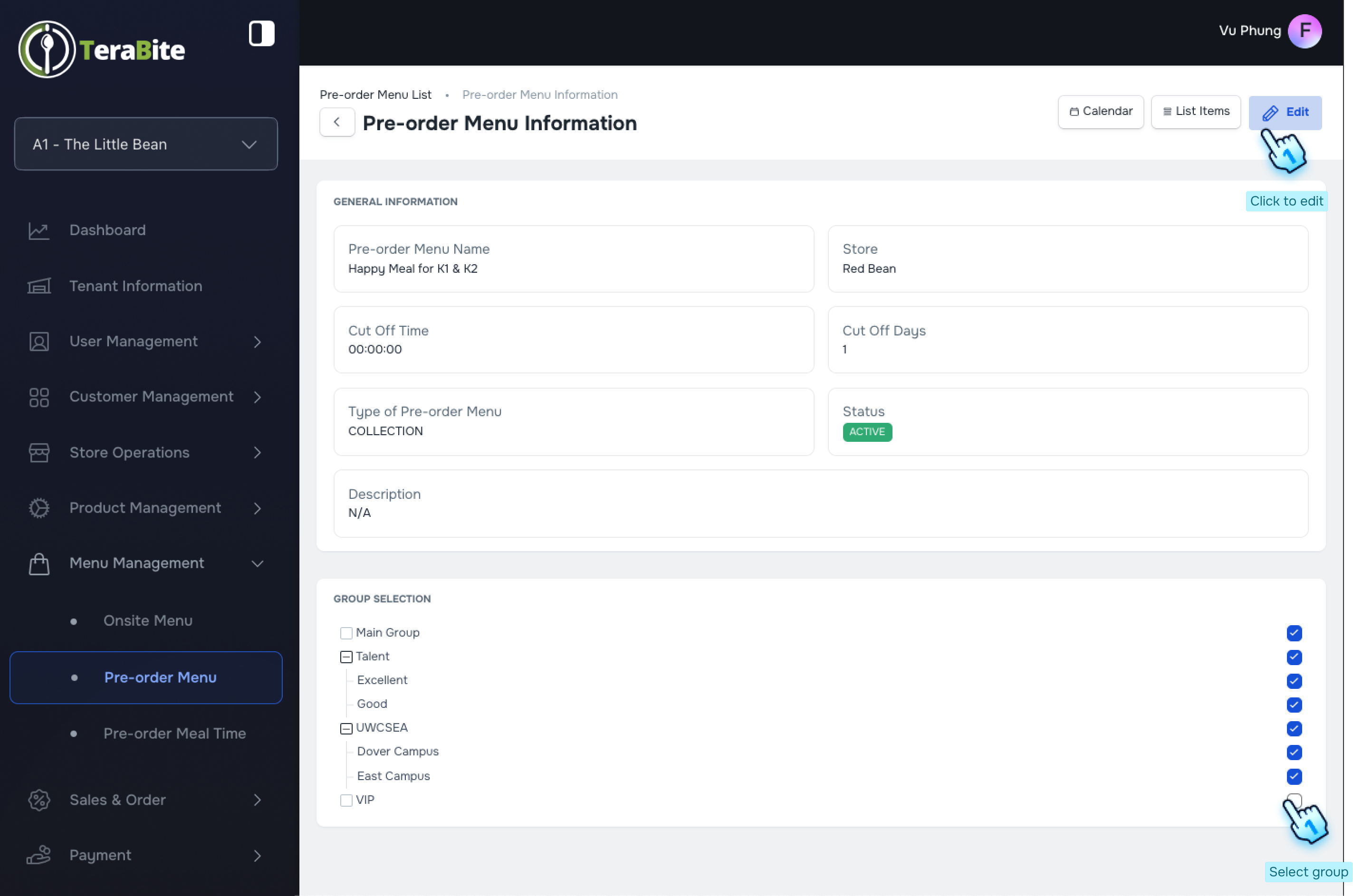
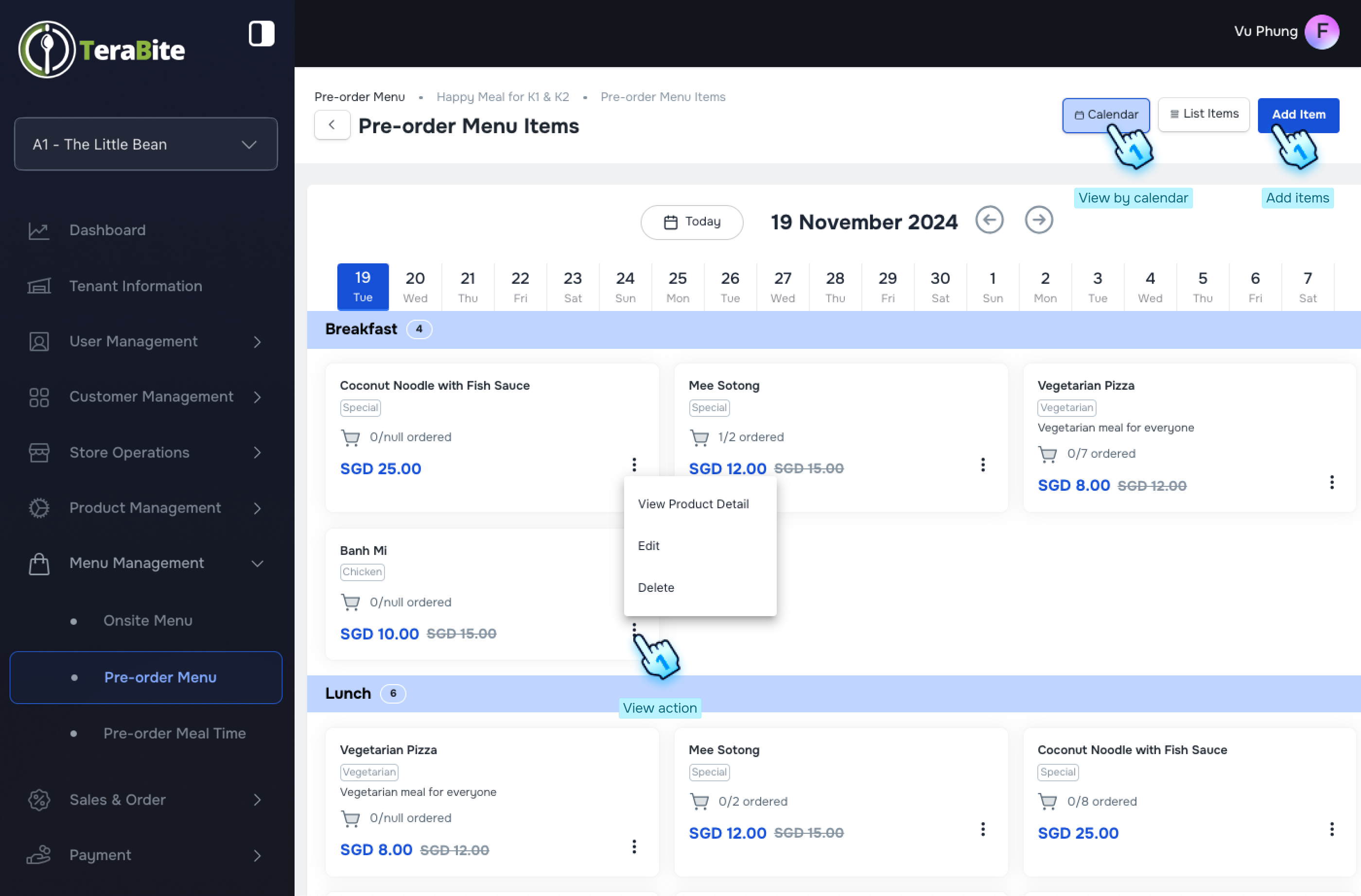
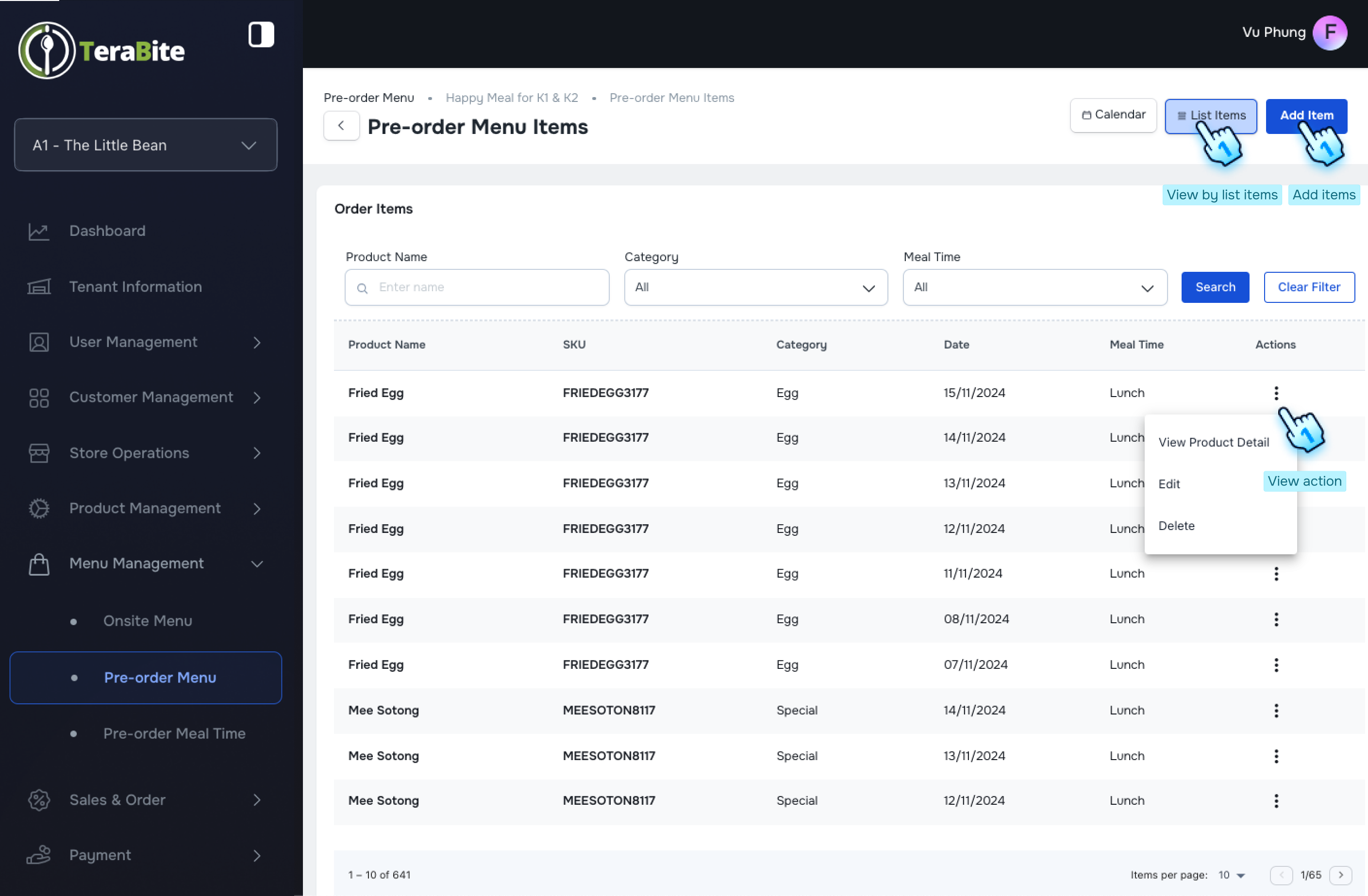
- Click on the Calendar or List Items button to review the items that have been added.
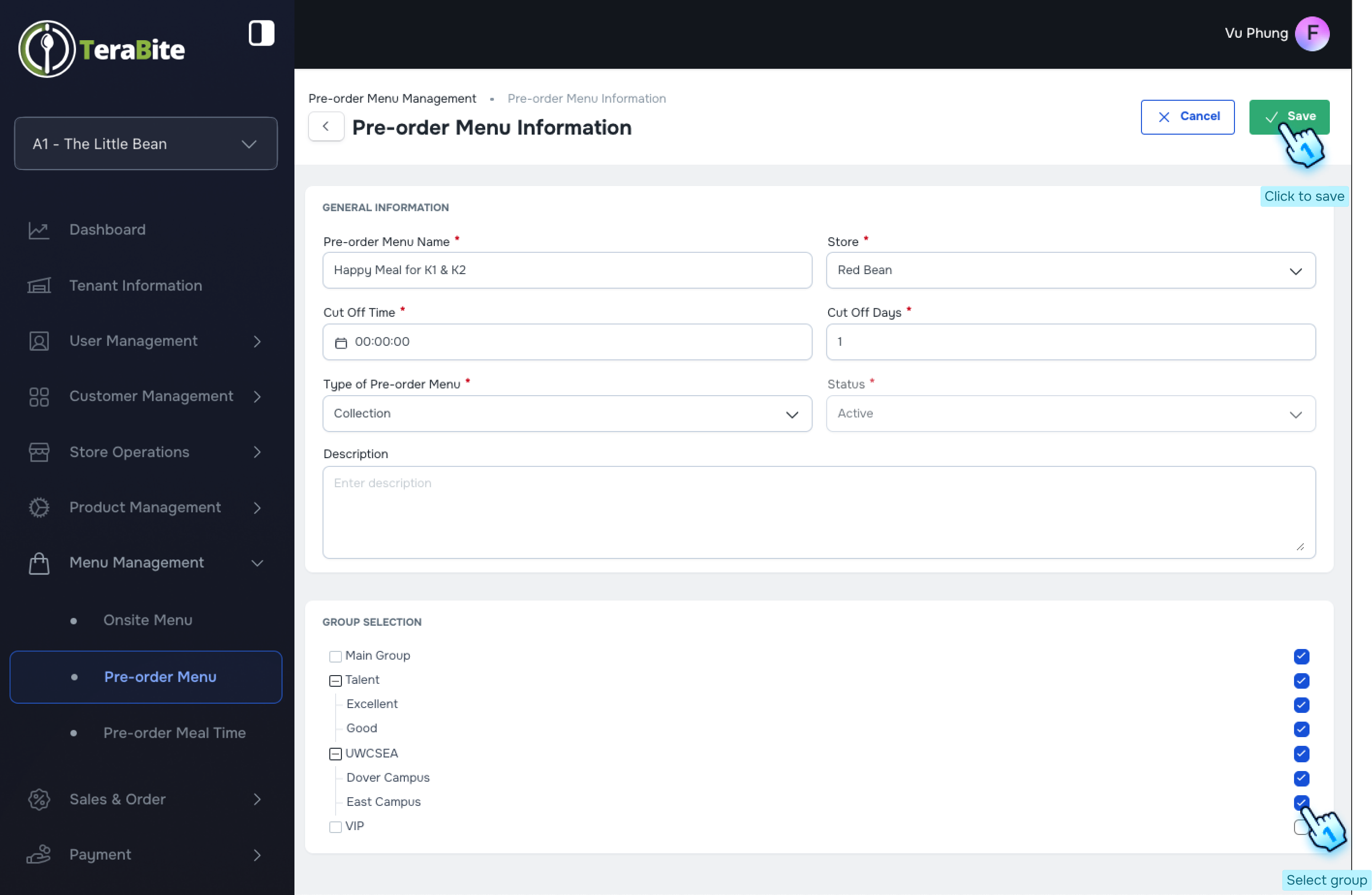
- Edit Pre-order menu
- Click on the Edit button to edit pre-order menu.
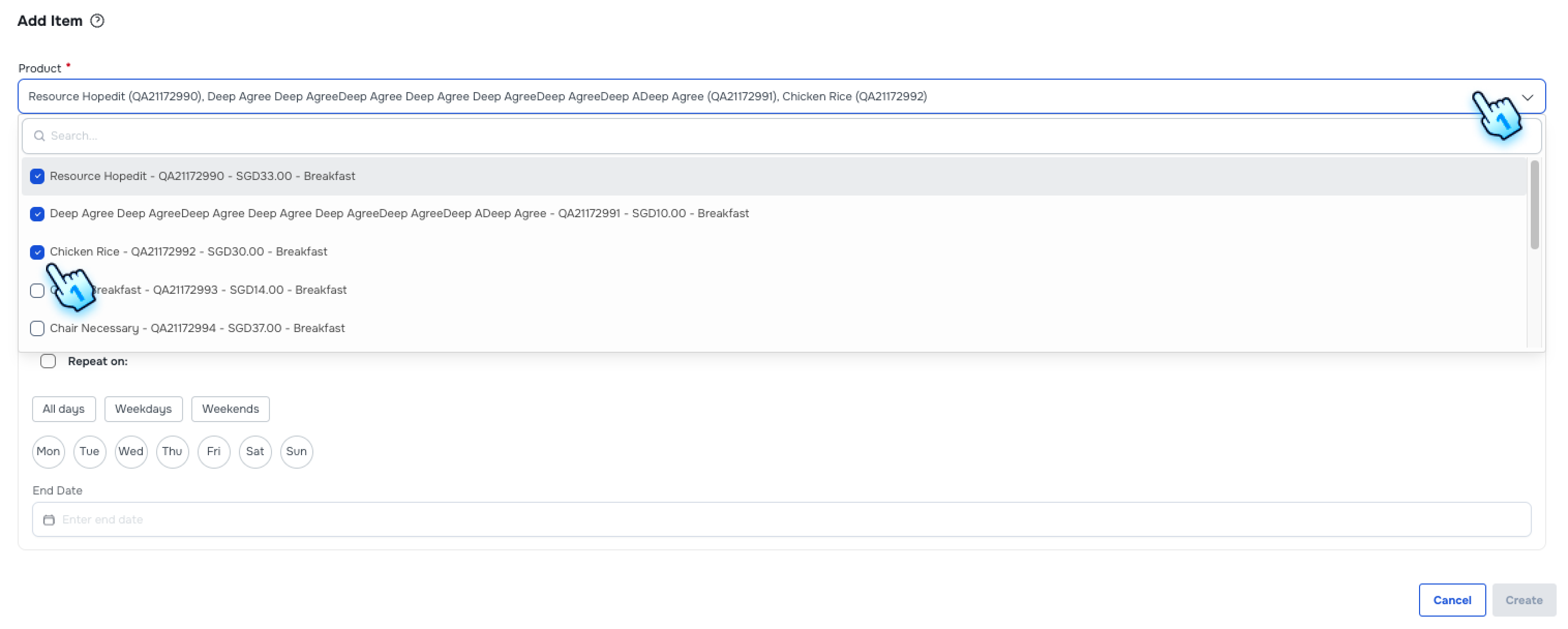
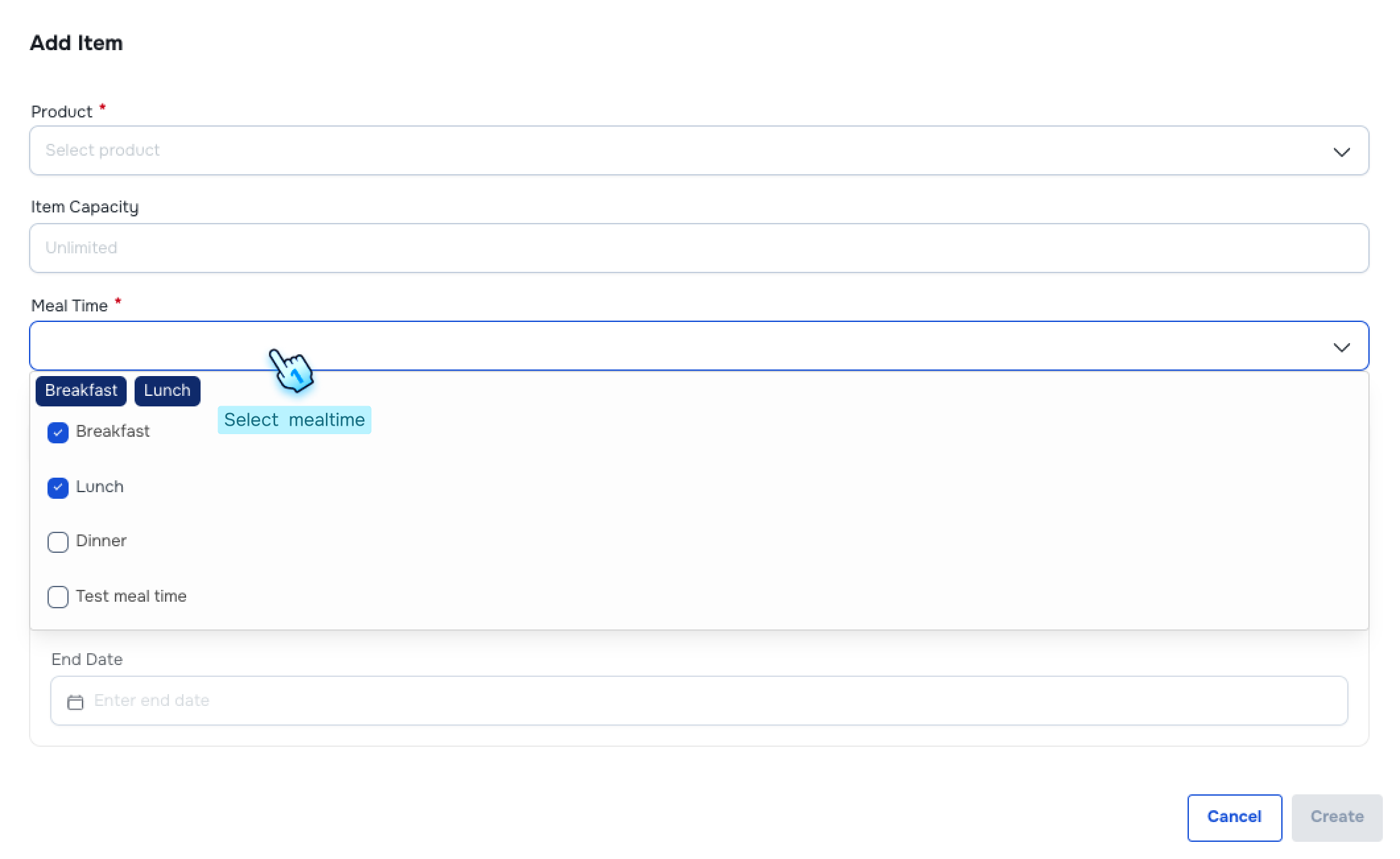
- Add Items to the Menu
- Click the "Add Items" button to include items in the menu.
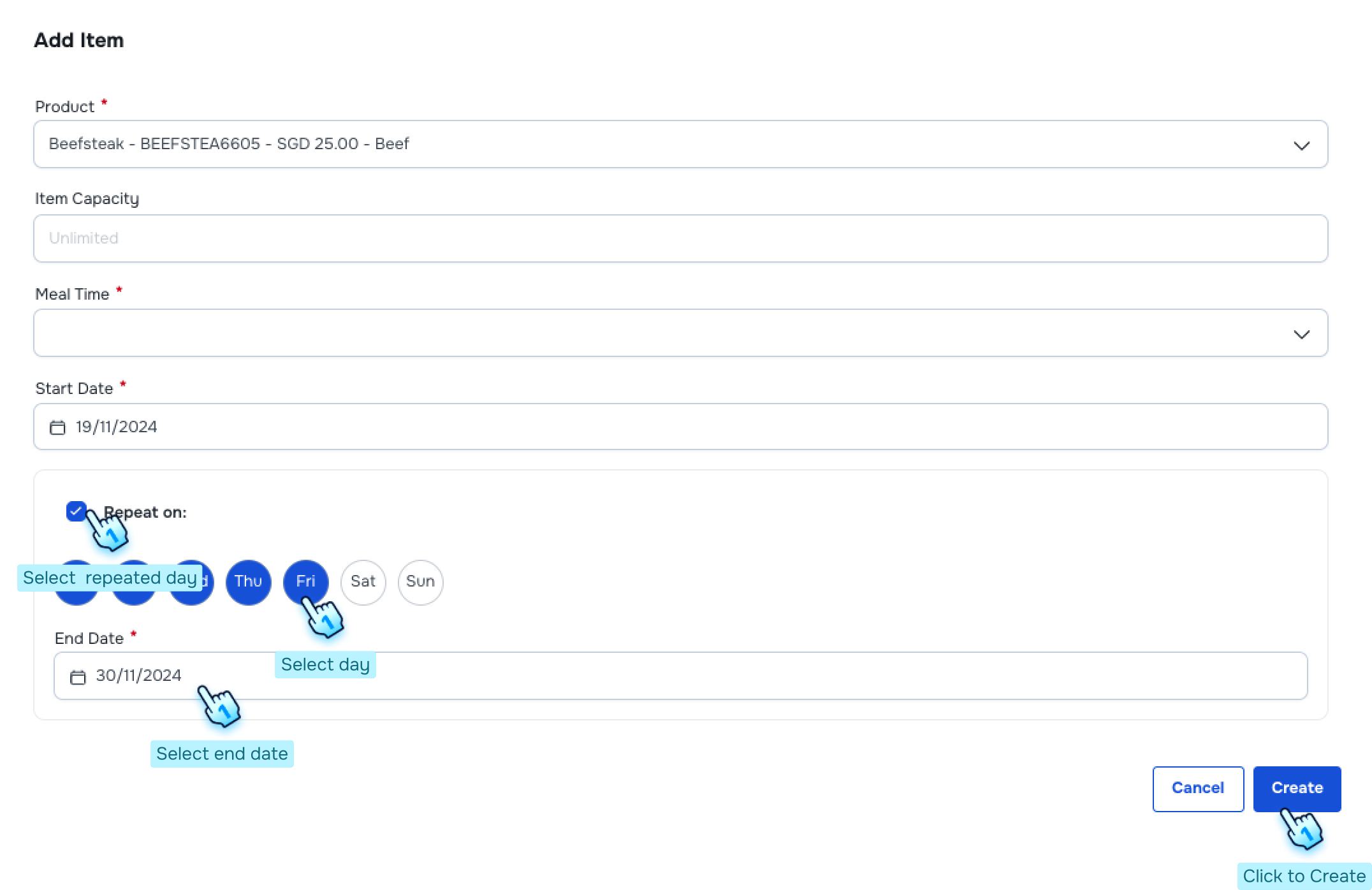
- Select Items and Enter Required Information
- Choose the items you want to add and fill in the required information.
- Finalize Item Addition
- Click the "Create" button to add the selected items to the menu.
- Return to Menu Overview
- Click the "Back" button to return to the previous page.
- Select Group
- Select the group in the bottom table that corresponds to your menu.
- Edit Group Information
- Click the "Edit" button to continue.
- Save Changes
- Click the "Save" button to finalize your changes.
#
View Product Detail, Edit, and Delete Items
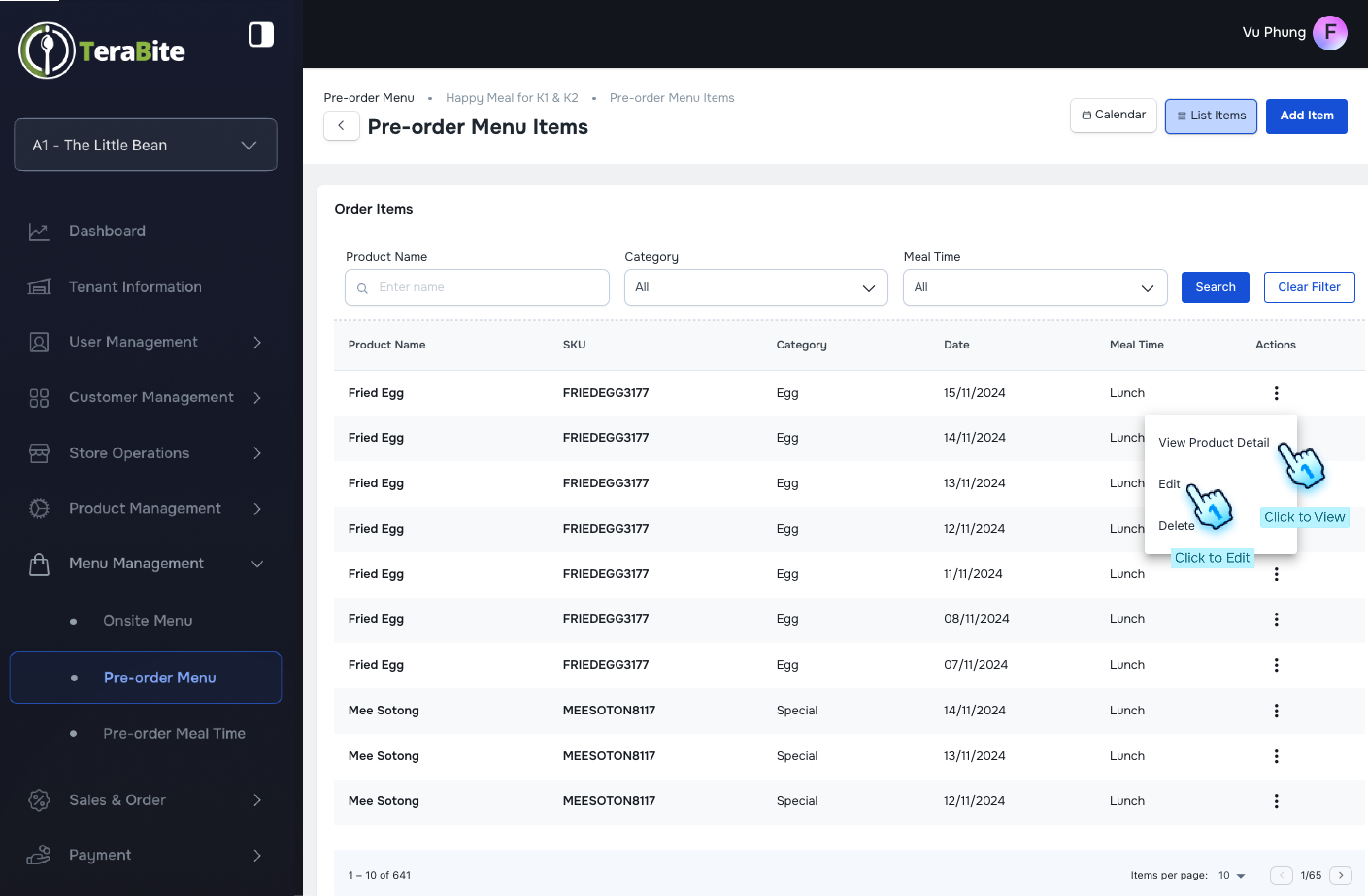
- Perform action
- Click on the three-dot menu to reveal available action
- View Product Detail
- Click on View Product Detail button to navigate to Product Detail Page
- Edit Items and Select Edit Options
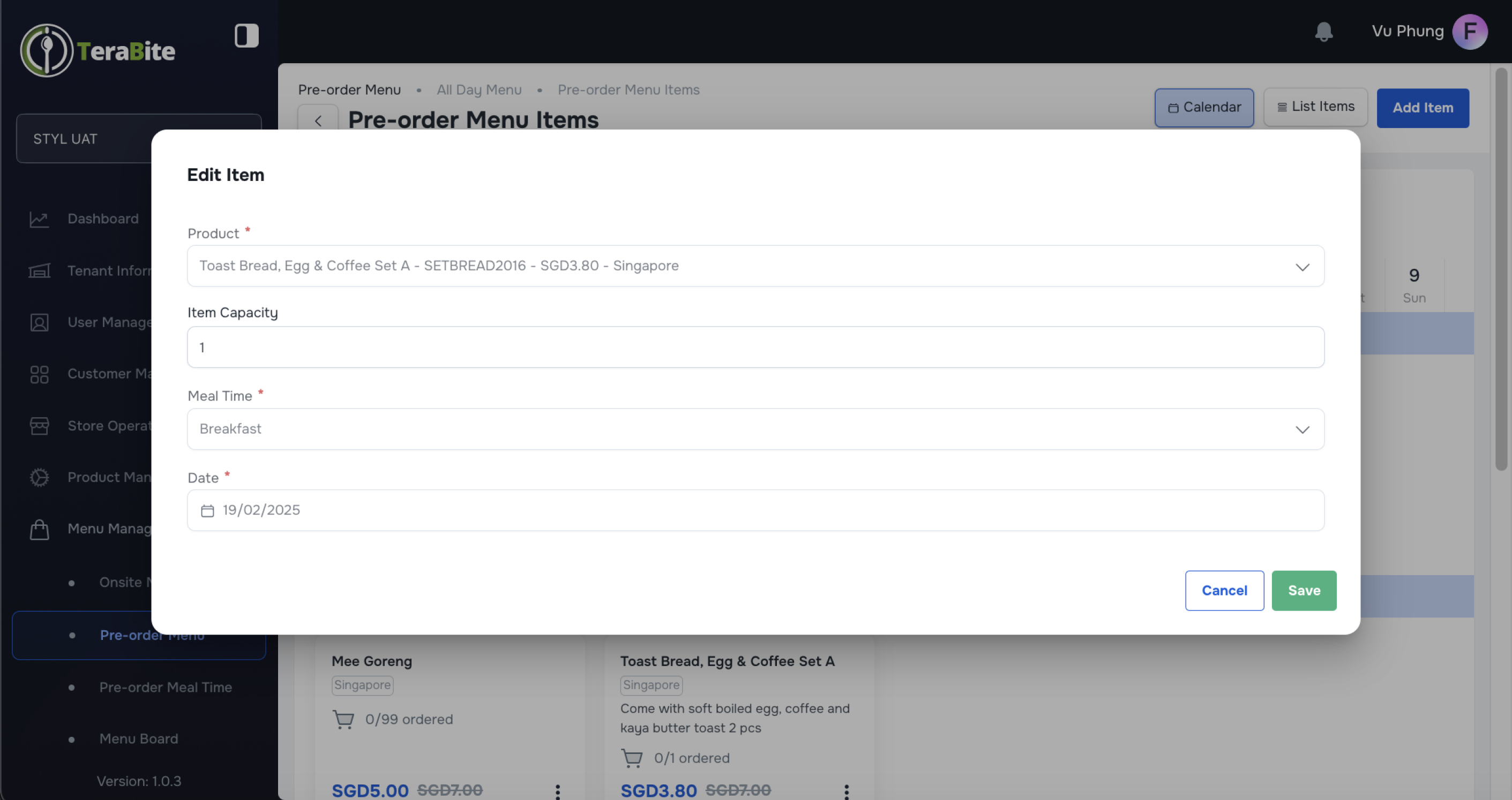
- Click on Edit button
- Edit Items capacity and Click "Save" button
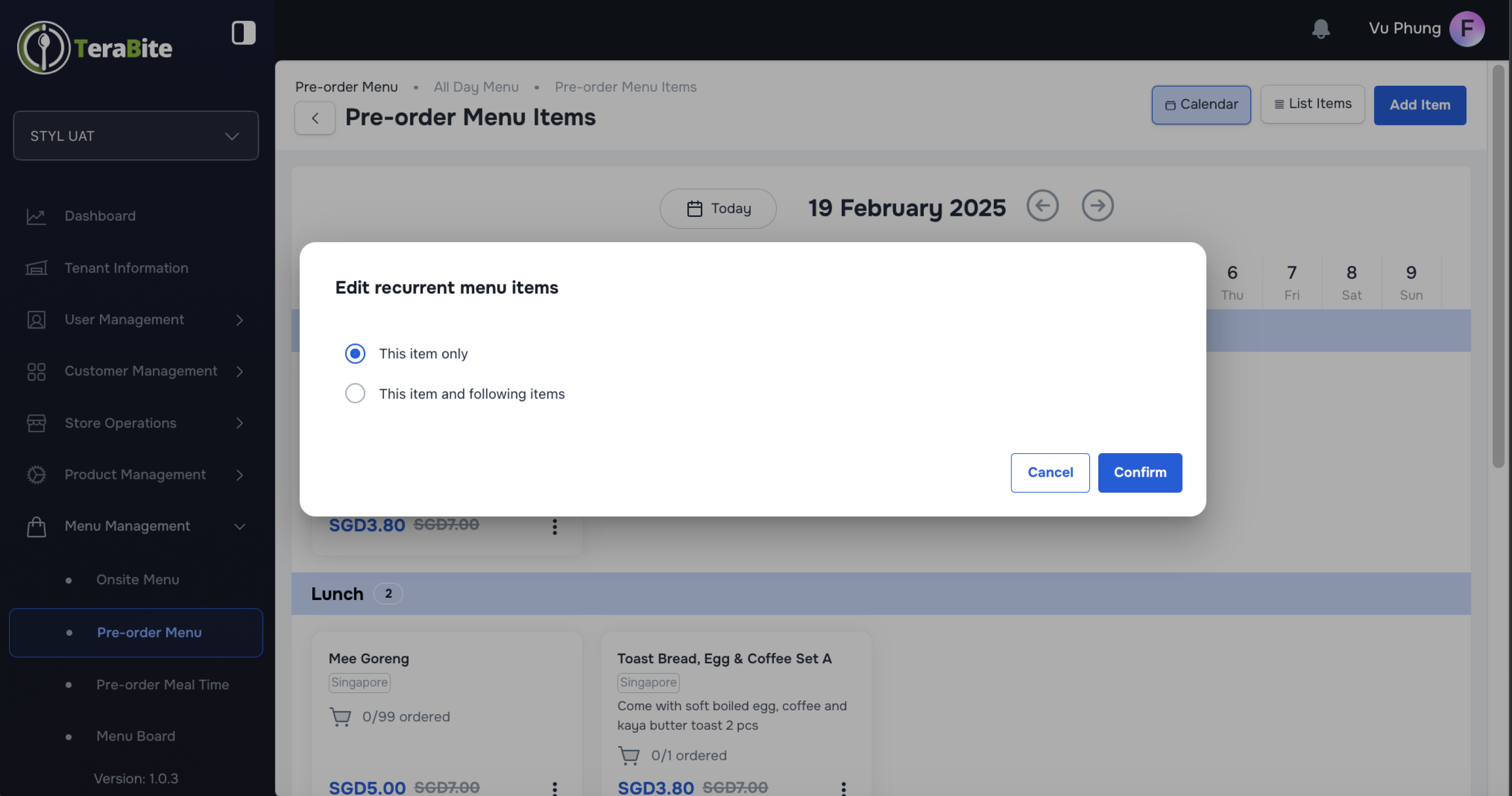
- Click on the each options such as:
- This item only: Only apply for the item in this day within the pre-order menu
- This item and following items: Apply to this day and the following days appear the item within the pre-order menu. *Note: The same items exclude in this recurring days will not be impacted. Eg. User add item A to pre-order menu 1 with "Repeated On" Monday, Tuesday, Wednesday. At the second time, user add item A to pre-order menu 1 again with "Repeated On" Thursday. When user edit the items within the first recurrring days, the item on Thursday will not be impacted.
- Click "Save" to finish
- Delete Items and Select Delete Options
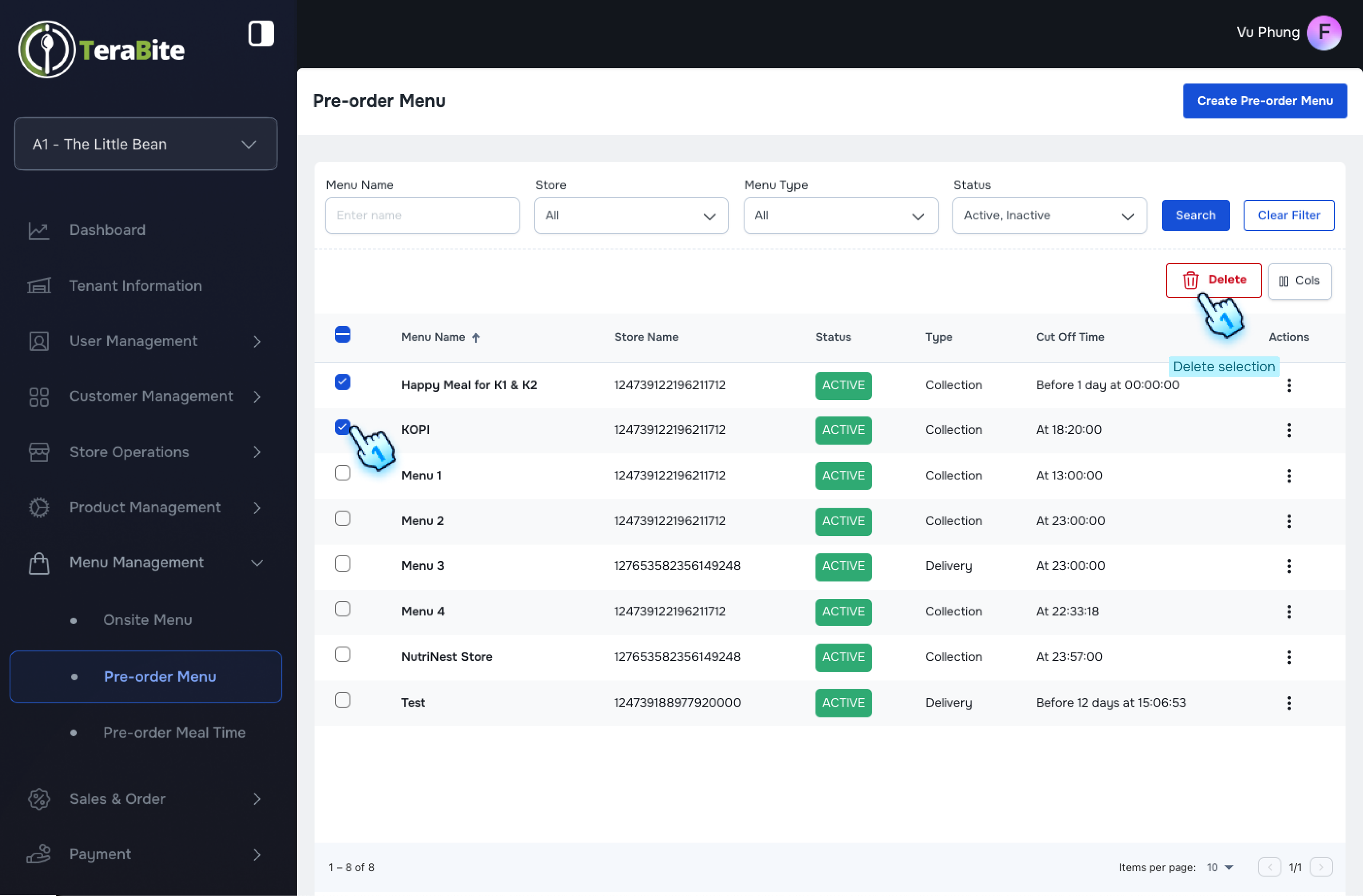
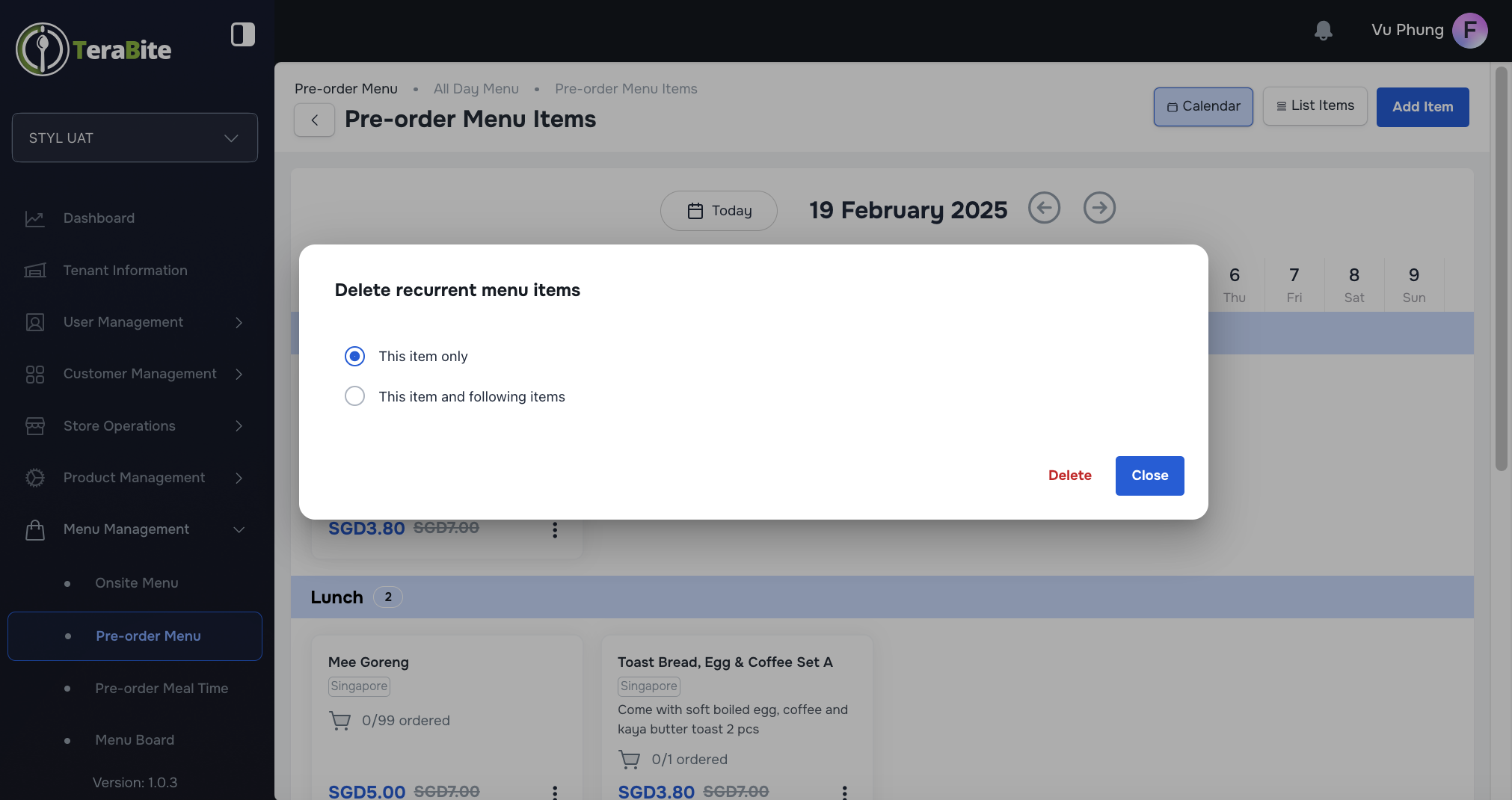
- Click on Delete button
- Click on the each options such as:
- This item only: Only delete the item in this day within the pre-order menu
- This item and following items: Delete the item this day and the following days later appear the item within the pre-order menu. *Note: The same items exclude in this recurring days will not be impacted. Eg. User add item A to pre-order menu 1 with "Repeated On" Monday, Tuesday, Wednesday. At the second time, user add item A to pre-order menu 1 again with "Repeated On" Thursday. When user delete the item within the first recurrring days, the item on Thursday will not be impacted.
- Click "Save" to finish
#
View Menu List and Change Status
- Access Pre-order Menu List
- Navigate to the Pre-order Menu section, where menus are displayed with their respective statuses: Active and Inactive.
- Perform Actions Based on Menu Status
- Click on the three-dot menu in each row to reveal available actions for each pre-order menu based on its current status.
- Actions per Status:
- Active: Options are View, Edit, Deactivate, and Delete.
- Click the "Deactivate" button in the three-dot menu and confirm by clicking the "Deactivate" button in the confirmation dialog.
- Inactive: Options are View, Edit, Activate, and Delete.
- Click the "Activate" button in the three-dot menu and confirm by clicking the "Activate" button in the confirmation dialog.
#
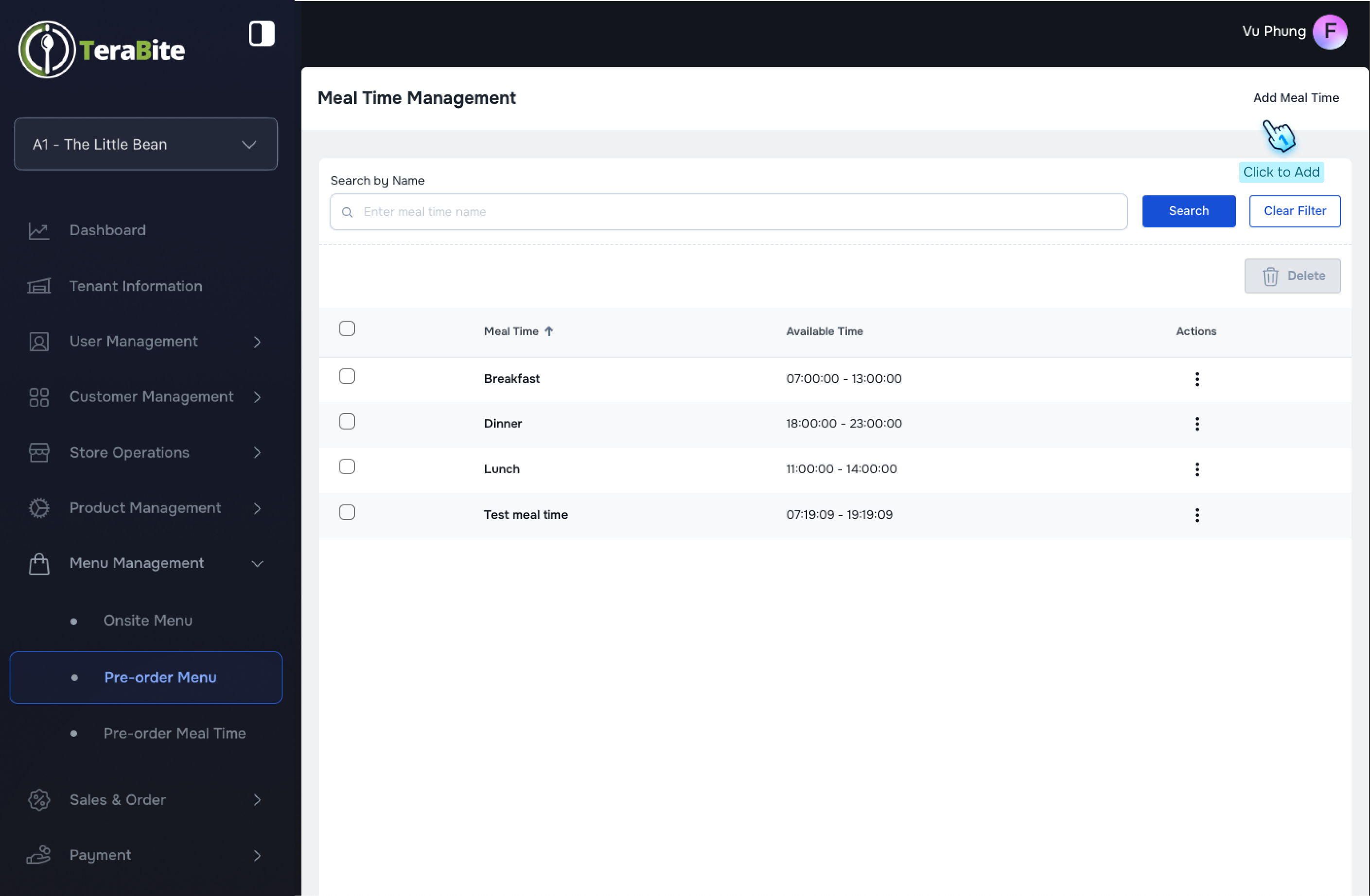
Meal Time Management
- Access Meal Time Section
- Navigate to the Meal Time section within the Pre-order Menu module.
- Initiate Meal Time Addition
- Click the "Add Meal Time" button.
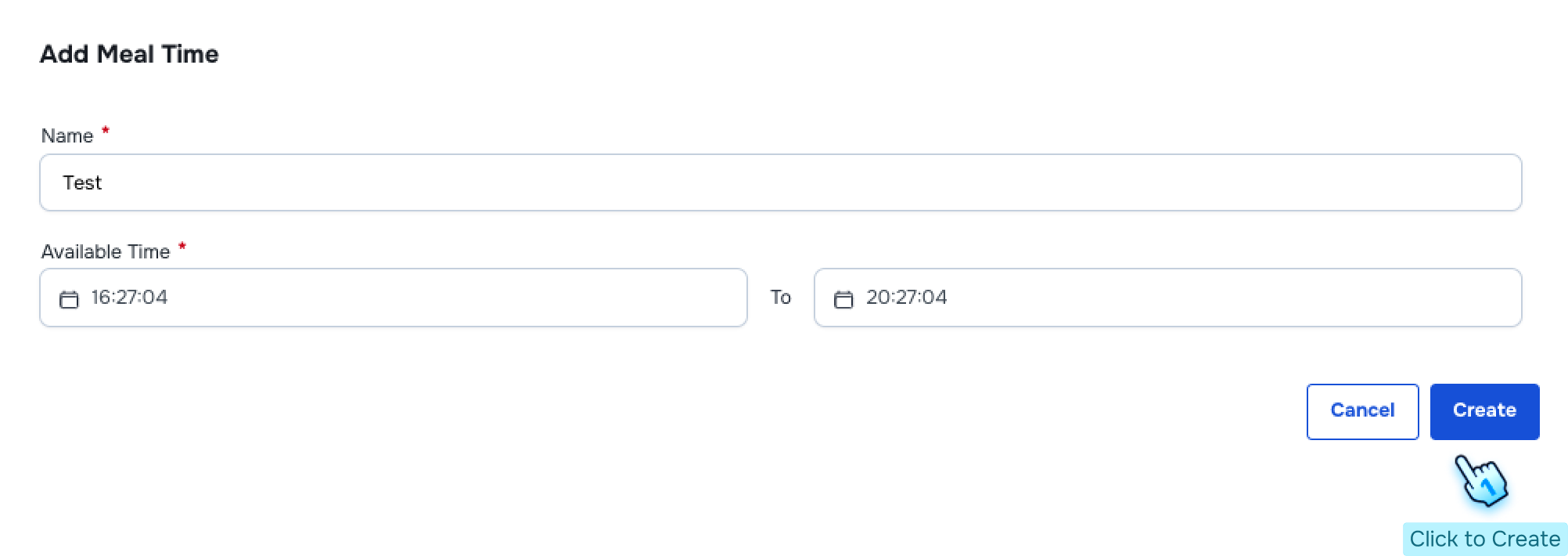
- Fill Required Information
- Complete all required fields in the meal time form.
- Finalize Meal Time Creation
- Click the "Create" button to finish.
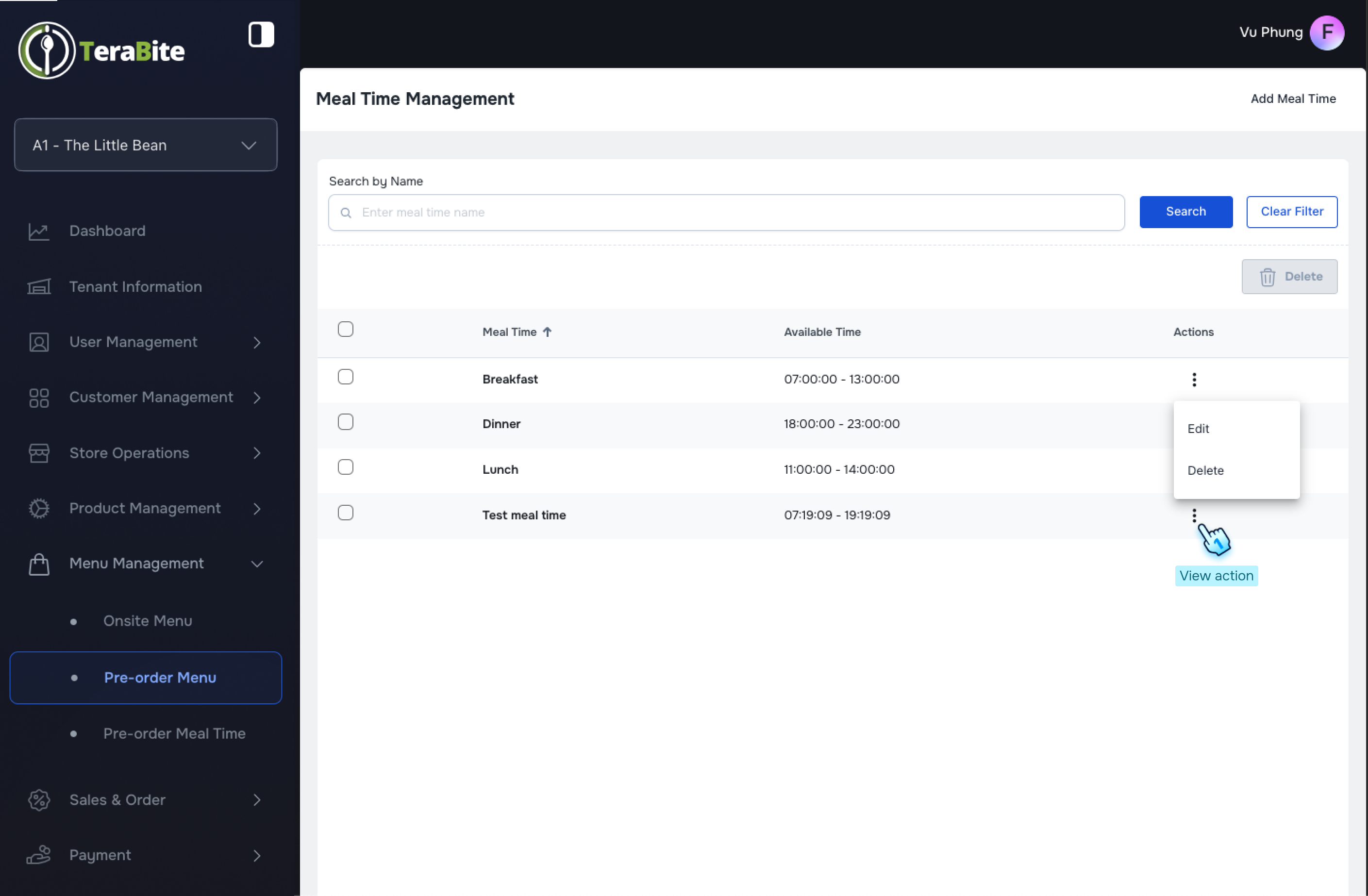
- Edit or Delete Meal Times
- Click the Edit/Delete button in the three-dot menu of each pre-order menu if necessary.
#
Conclusion
This document provides a comprehensive guide for managing pre-order menus, including creation, viewing, status changes, and meal time management within the Pre-order Menu module, ensuring efficient order processing and customer satisfaction.
#
Screen flow
#
Create and Delete Pre-order memnu
#
View and Edit Pre-order memnu
#
Meal time management