#
Healthier Choice, Nutrient, and Allergen Management
#
Description
This document outlines the procedures for adding and managing healthier choices, nutrients, and allergens within the product management module.
#
Healthier Choice management
#
Add a Healthier Choice
- Access Healthier Choice Management
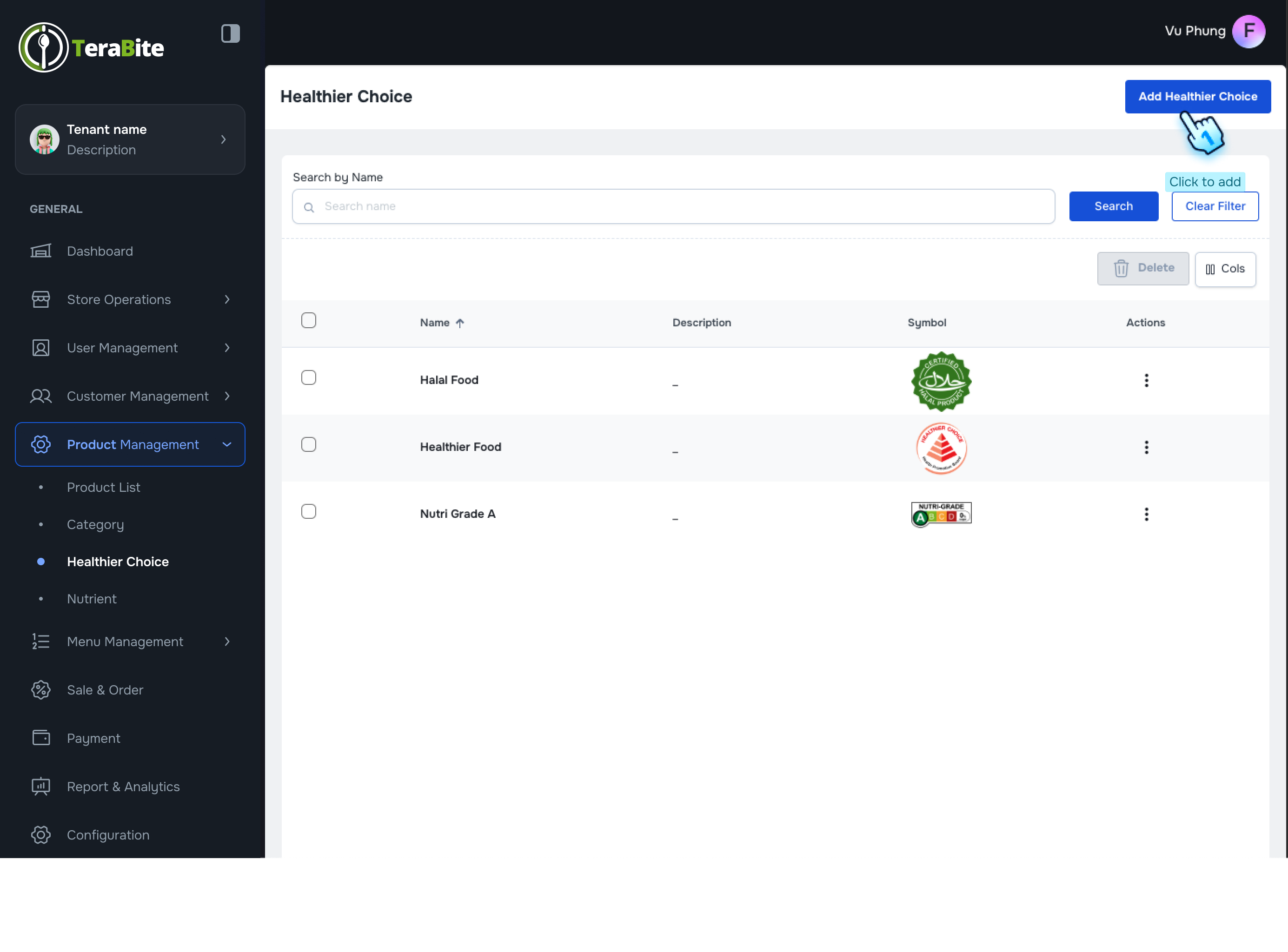
- Navigate to the Healthier Choice section in the Product Management module.
- Initiate Healthier Choice Addition
- Click on the "Add Healthier Choice" button.
- Enter Healthier Choice Information
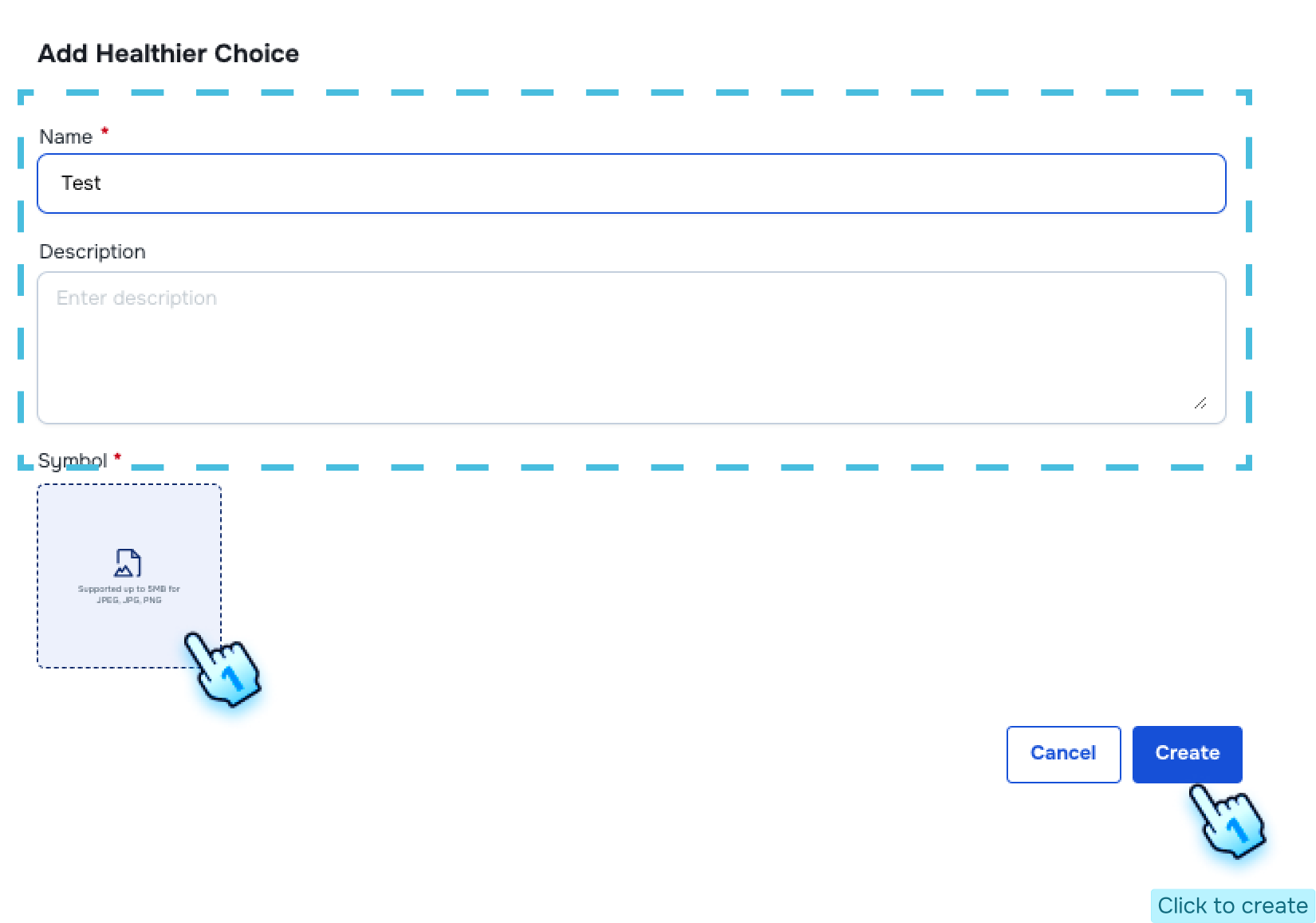
- Fill in the required fields including:
- Name
- Description
- Upload Photo (if applicable)
- Submit Healthier Choice Information
- Click the "Create" button to finalize the addition of the healthier choice.
#
View Healthier Choices
- Access Healthier Choice Management
- Navigate to the Healthier Choice section in the Product Management module.
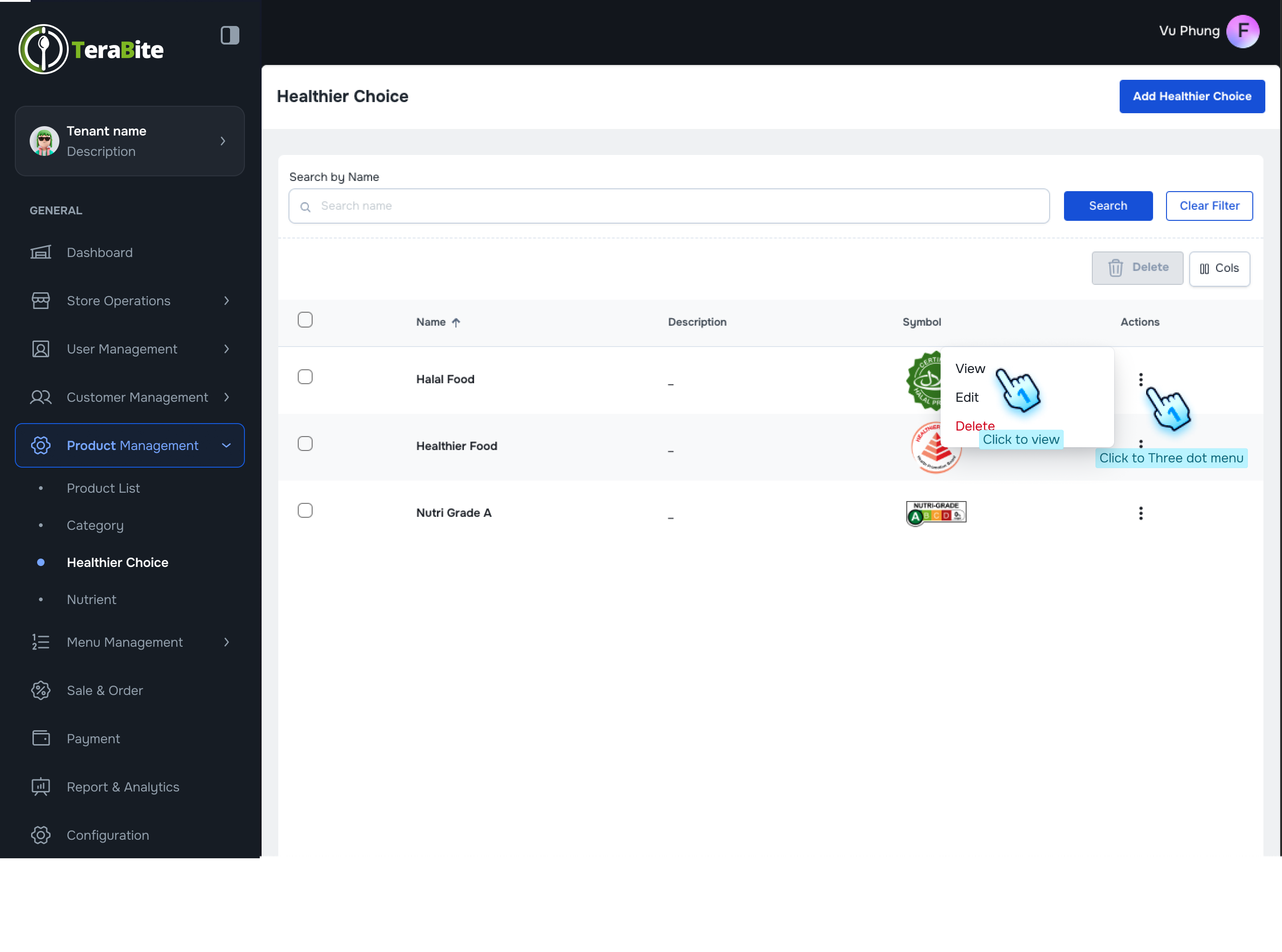
- Perform Actions on Healthier Choices
- Click on the three-dot menu in each row to reveal available actions for each healthier choice.
- Available Actions:
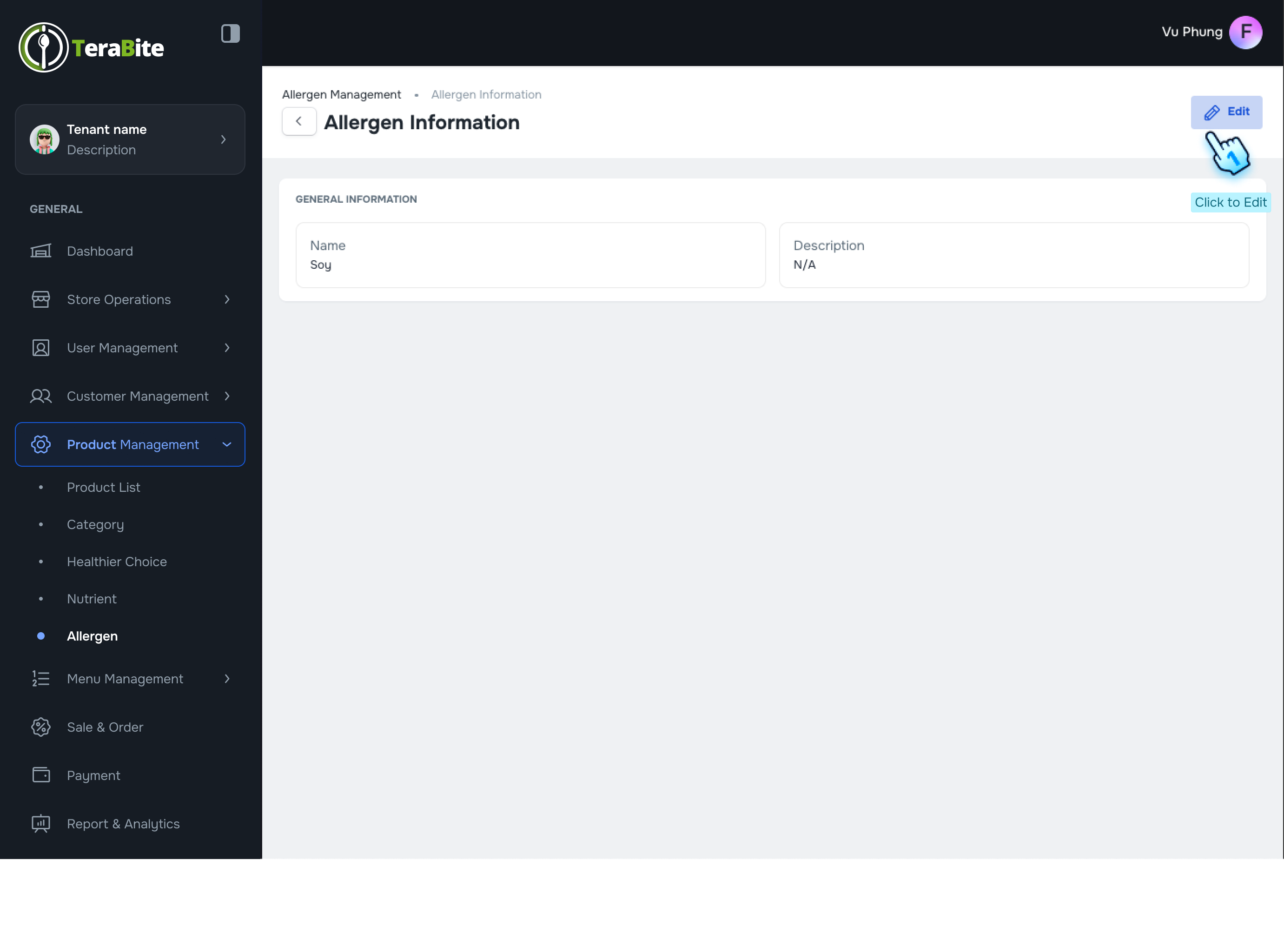
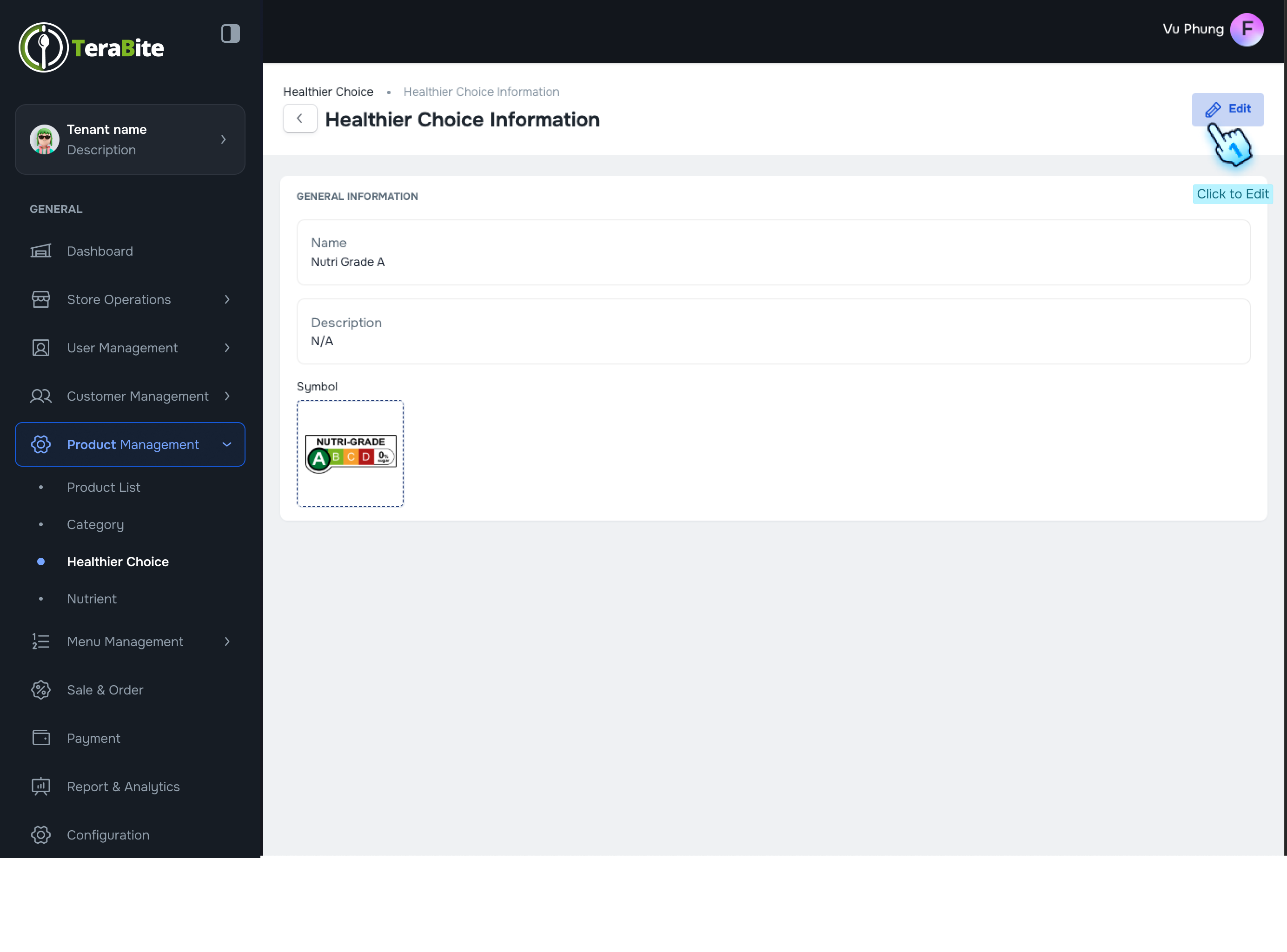
- View:Opens a detailed view page which includes an Edit button.
- Edit: The edit function will follow the same steps as the Add Healthier Choice action.
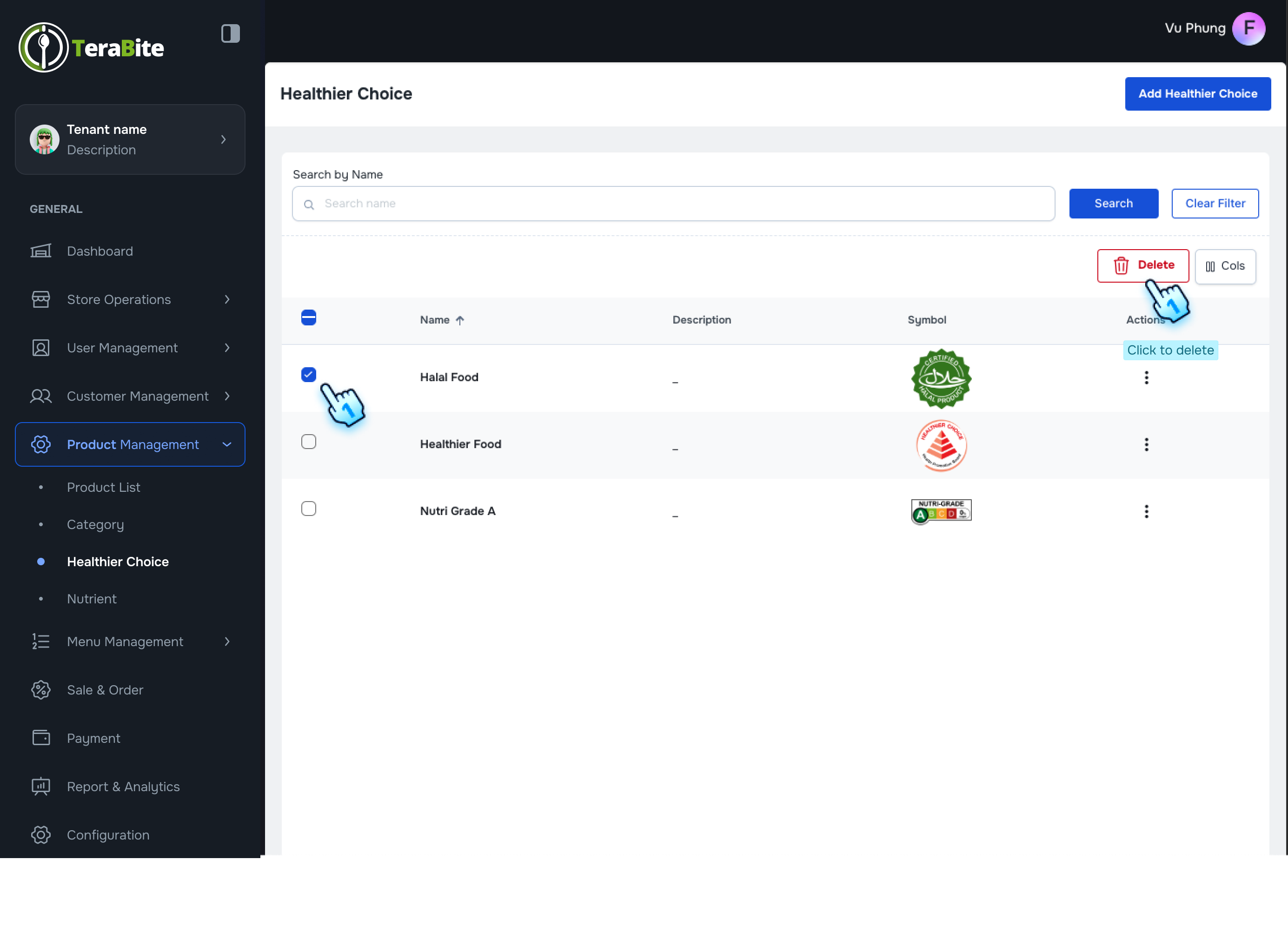
- Delete: Permanently remove the selected healthier choice.
#
Nutrient Management Procedure
#
Add a Nutrient
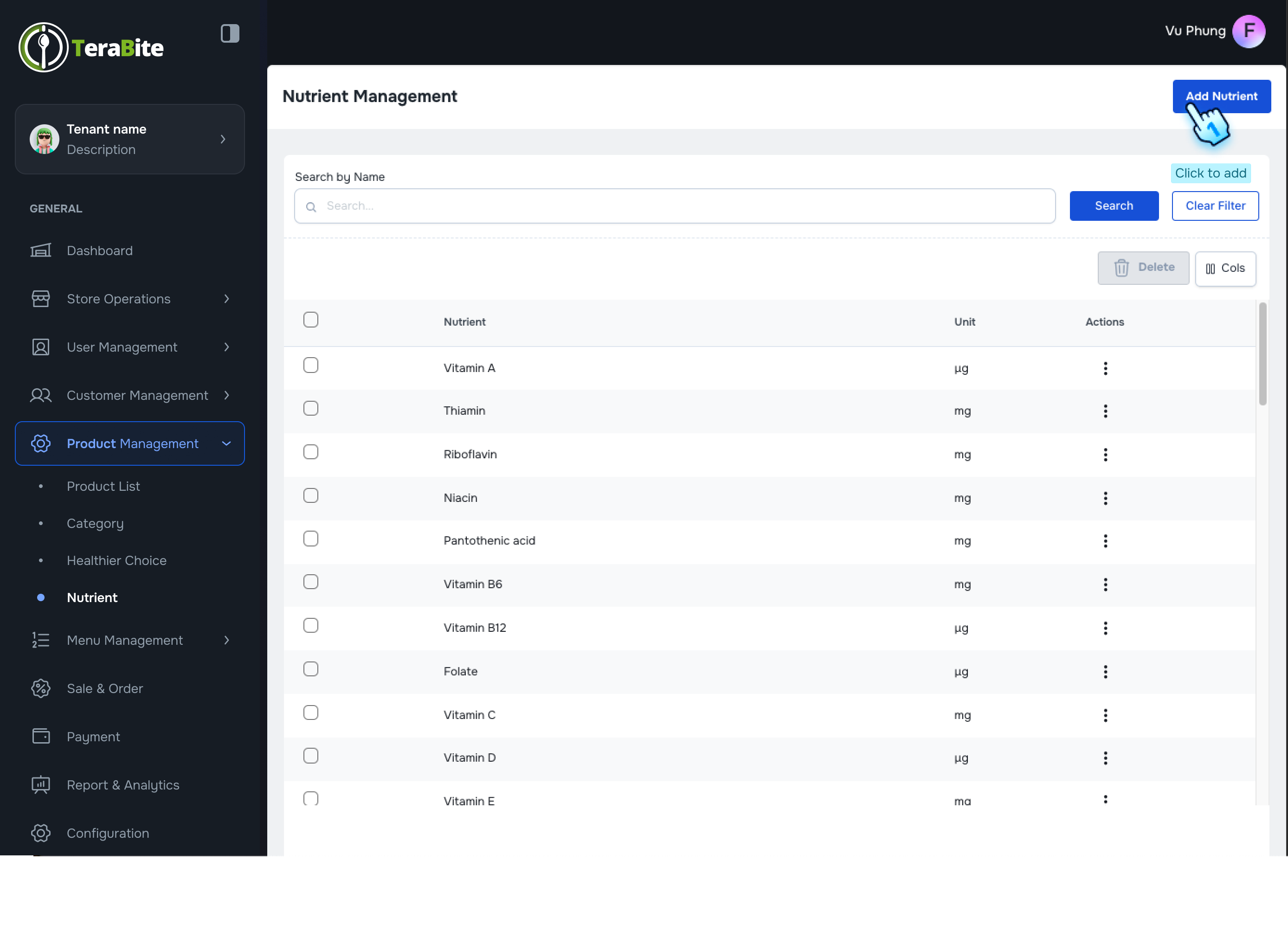
- Access Nutrient Management
- Navigate to the Nutrient section in the Product Management module.
- Initiate Nutrient Addition
- Click on the "Add Nutrient" button.
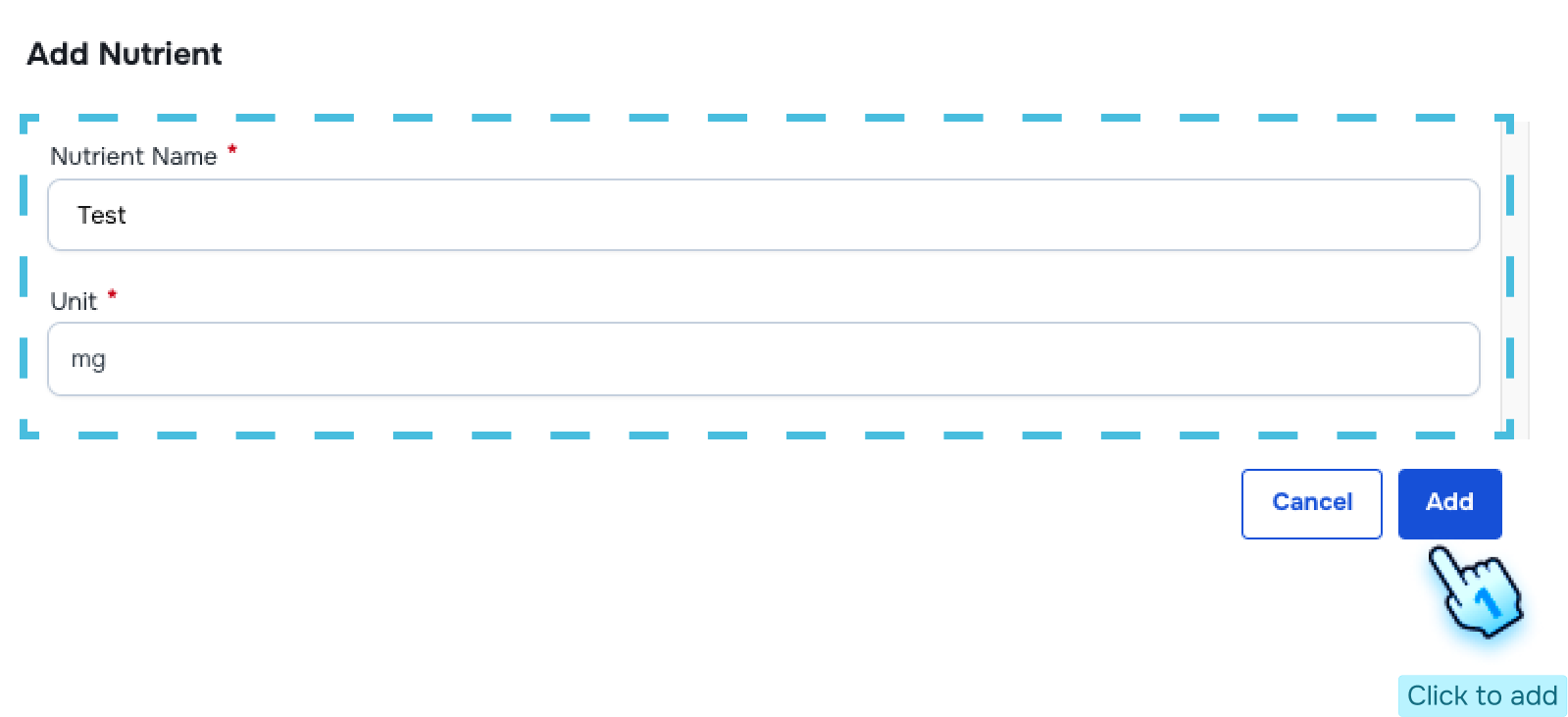
- Enter Nutrient Information
- Fill in the required fields including:
- Nutrient Name
- Unit
- Submit Nutrient Information
- Click the "Add" button to finalize the addition of the nutrient.
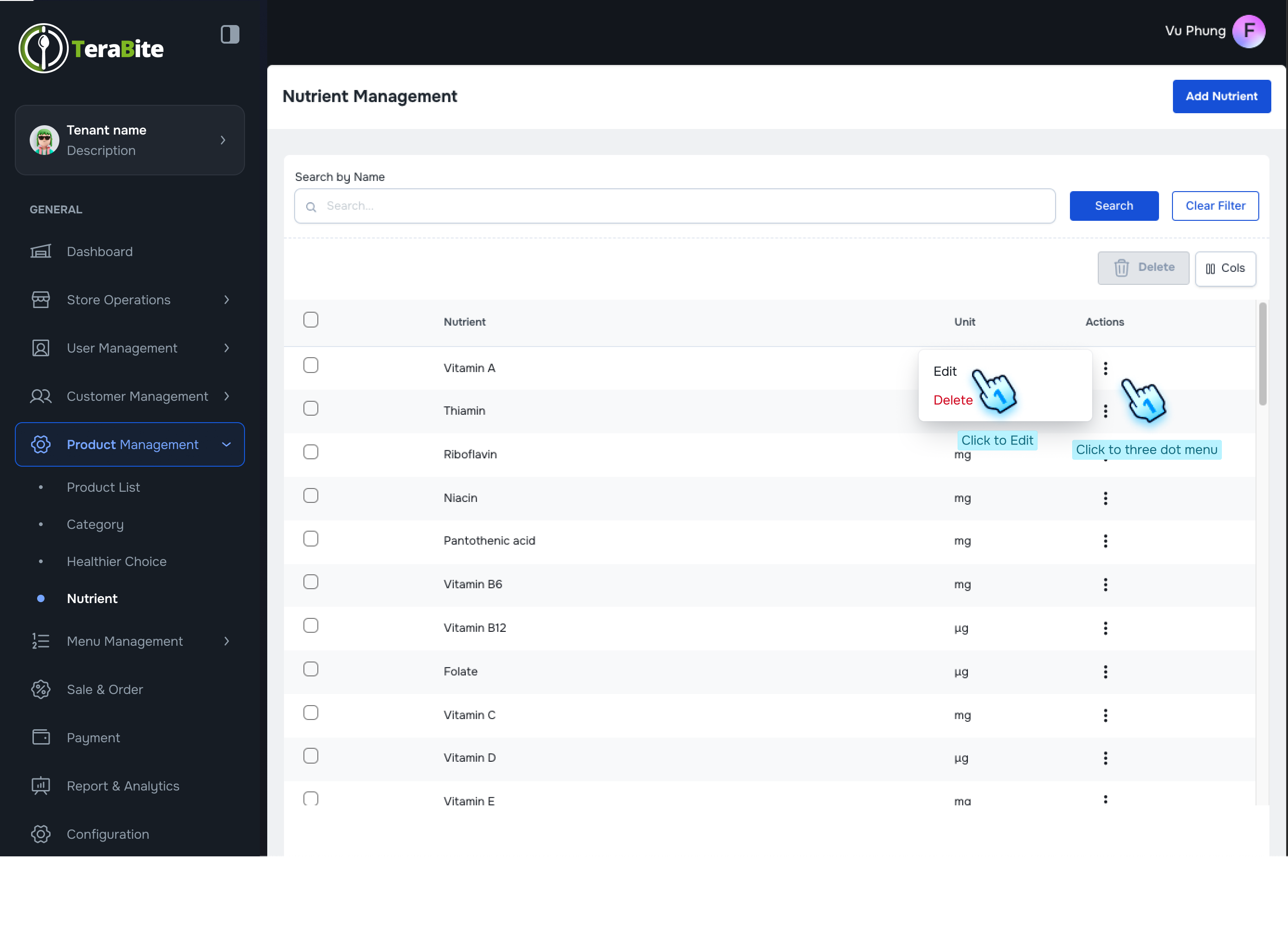
- View Nutrient List
- The list of nutrients will be displayed on the Nutrient Management page.
- Edit Nutrient (if necessary)
- The edit function follows the same steps as the Add Nutrient action.
#
Allergen Management Procedure
#
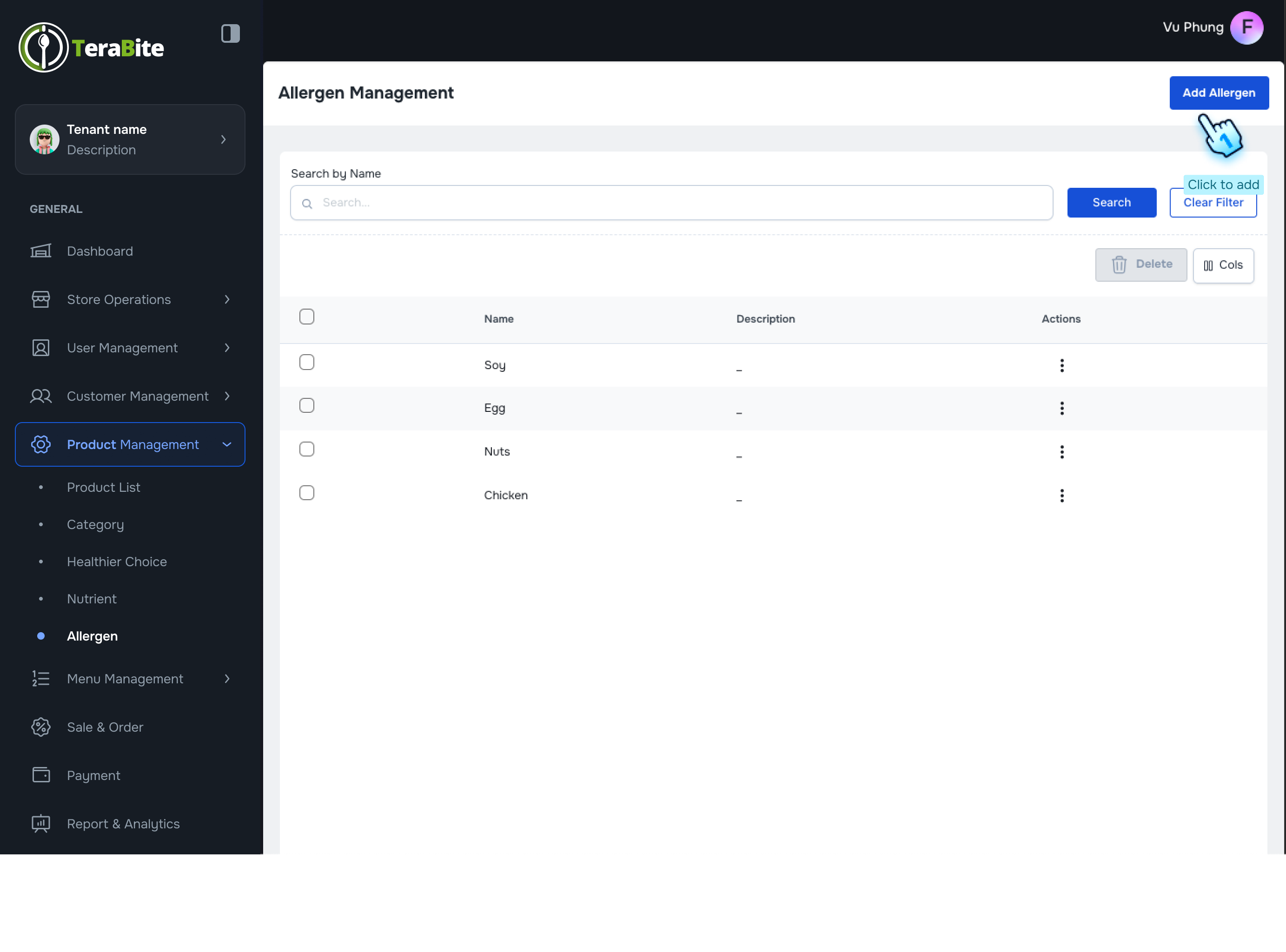
Add an Allergen
- Access Allergen Management
- Navigate to the Allergen section in the Product Management module.
- Initiate Allergen Addition
- Click on the "Add Allergen" button.
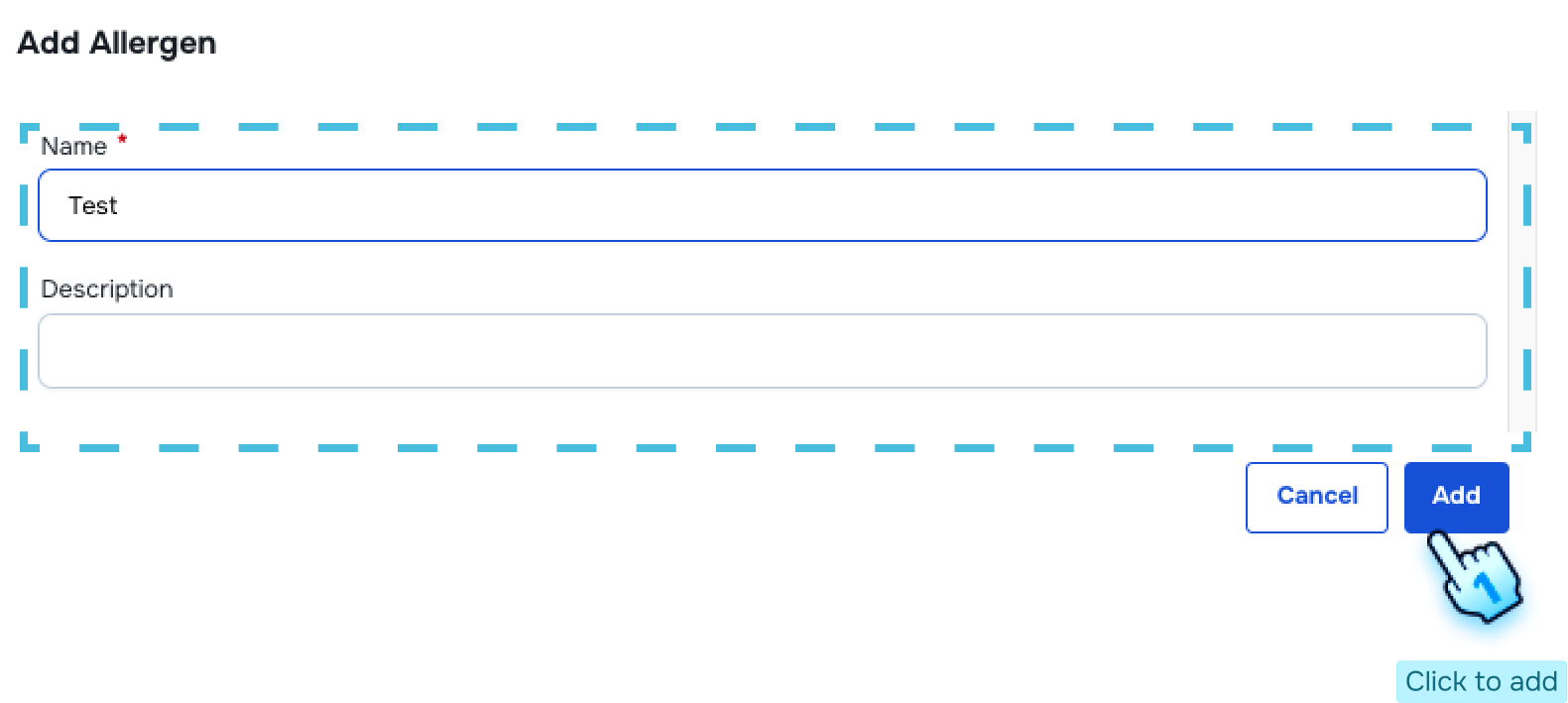
- Enter Allergen Information
- Fill in the required fields including:
- Allergen Name
- Description
- Submit Allergen Information
- Click the "Create" button to finalize the addition of the allergen.
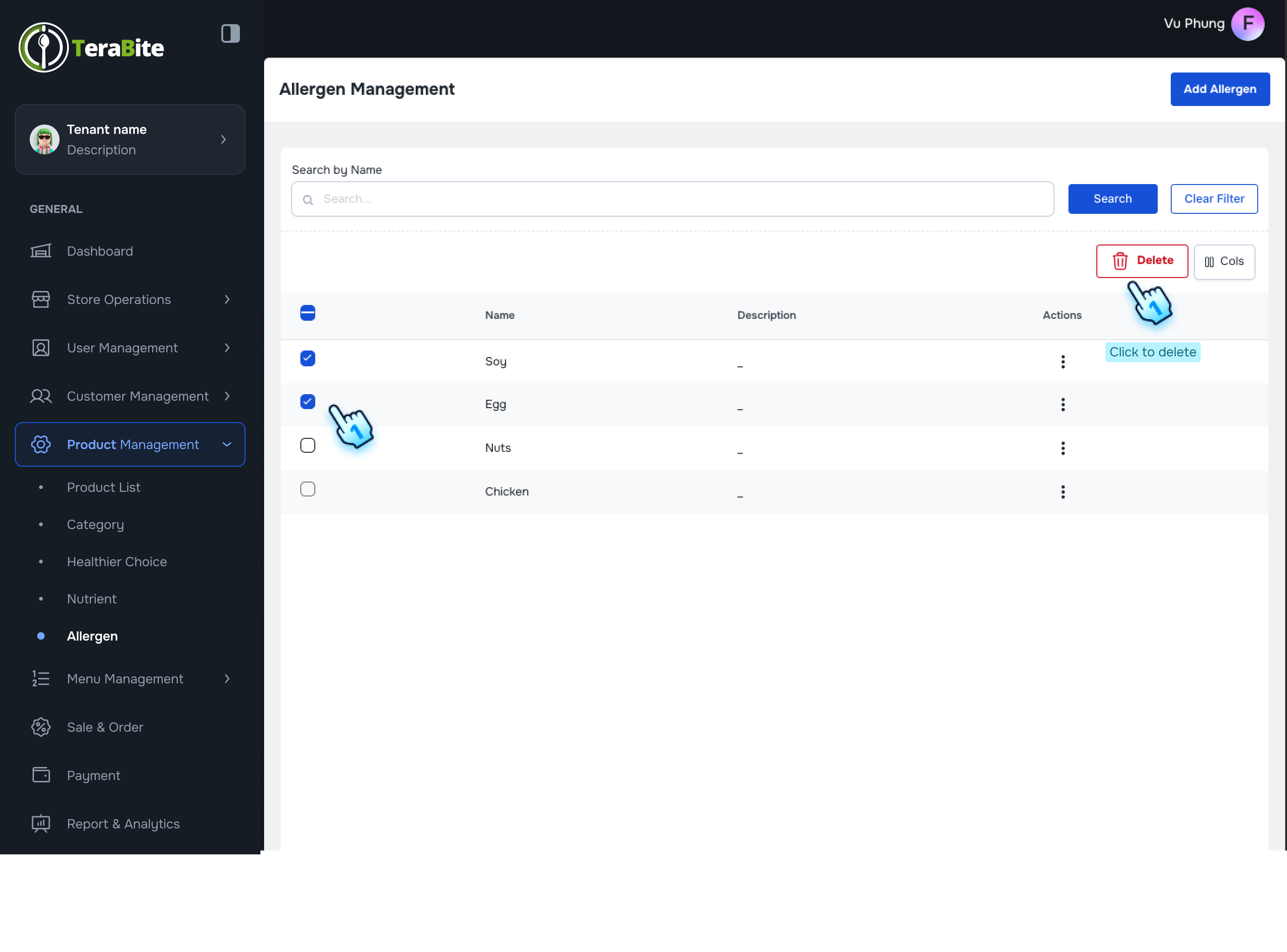
- View Allergen List
- The list of allergens will be displayed on the Nutrient Management page.
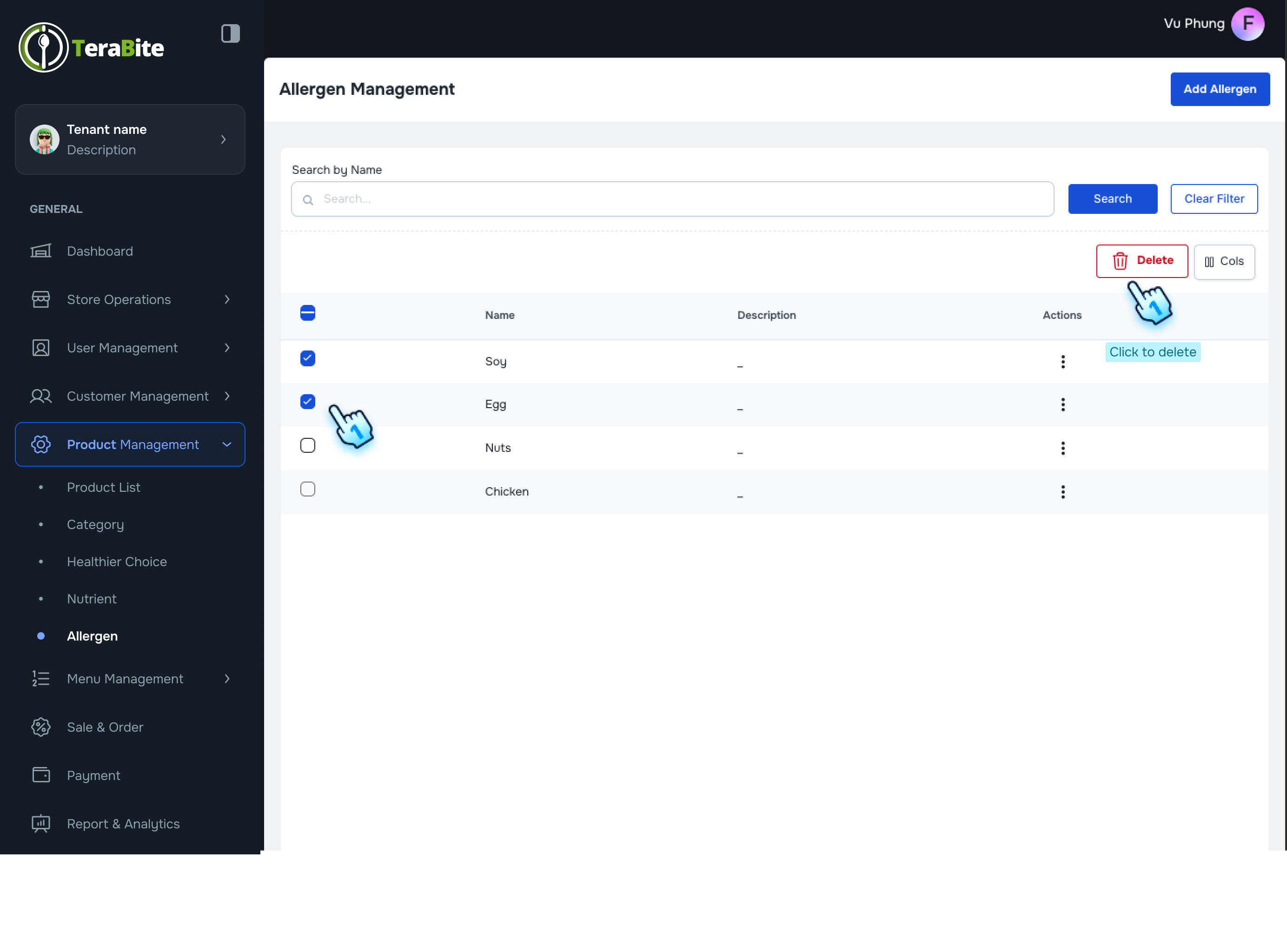
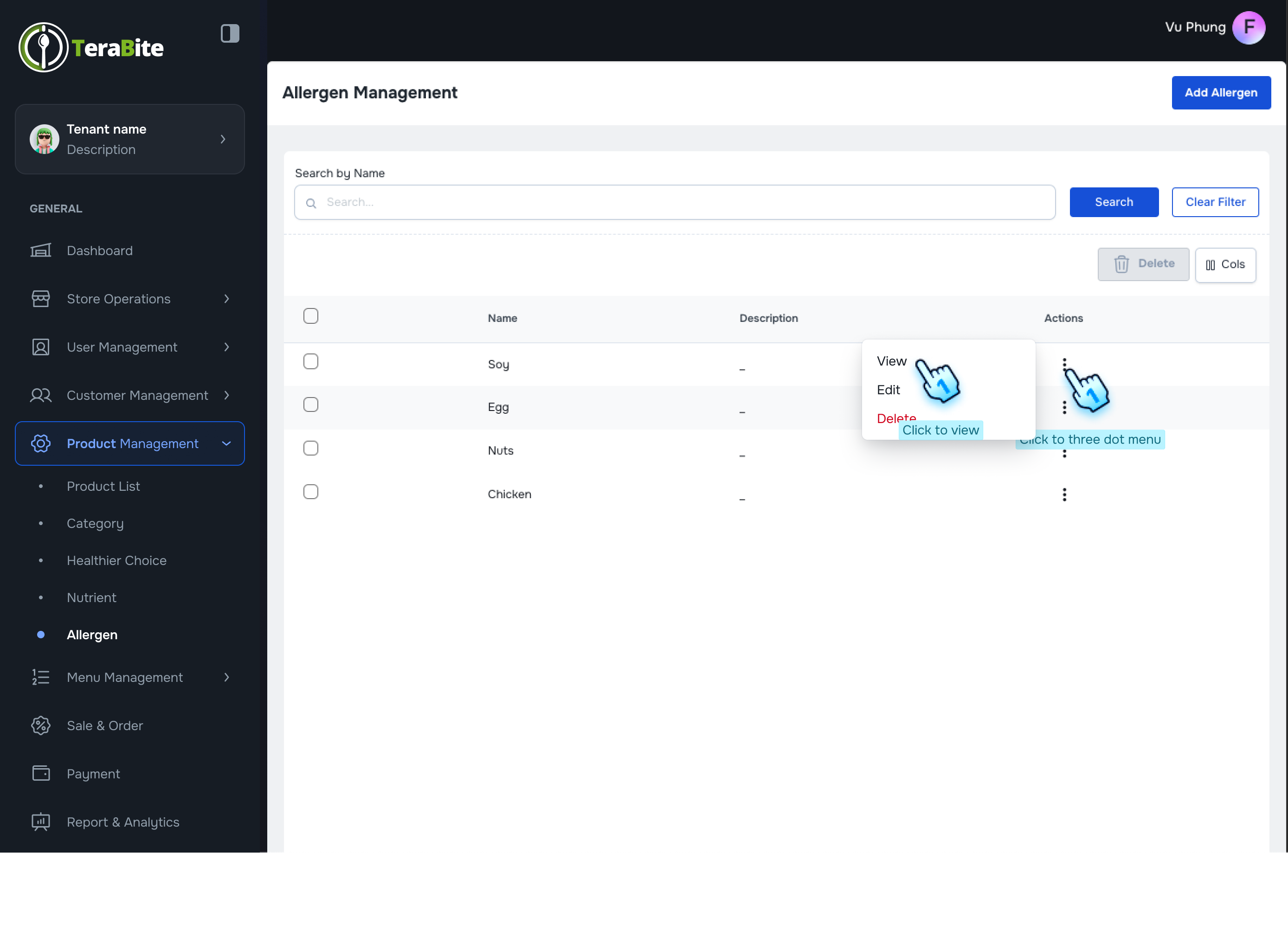
- Perform Actions on Allergens
- Click on the three-dot menu in each row to reveal available actions for each allergen.
- Available Actions:
- View: Opens a detailed view page which includes an Edit button.
- Edit: The edit function will follow the same steps as the Add Allergen action.
- Delete: Permanently remove the selected allergen.
#
Conclusion
This document provides a structured approach for managing healthier choices, nutrients, and allergens within the product management module, ensuring efficient organization and accessibility of product information.
#
Screen flow
#
Healthier choice
#
Nutrition
#
Allergen