#
Report and Analytics
#
Description
This document outlines the steps to access and filter the Preorder Consumption report within the Report & Analytics module. By following these steps, users can effectively analyze consumption data over a specified time frame.
#
View Preorder Consumption Report
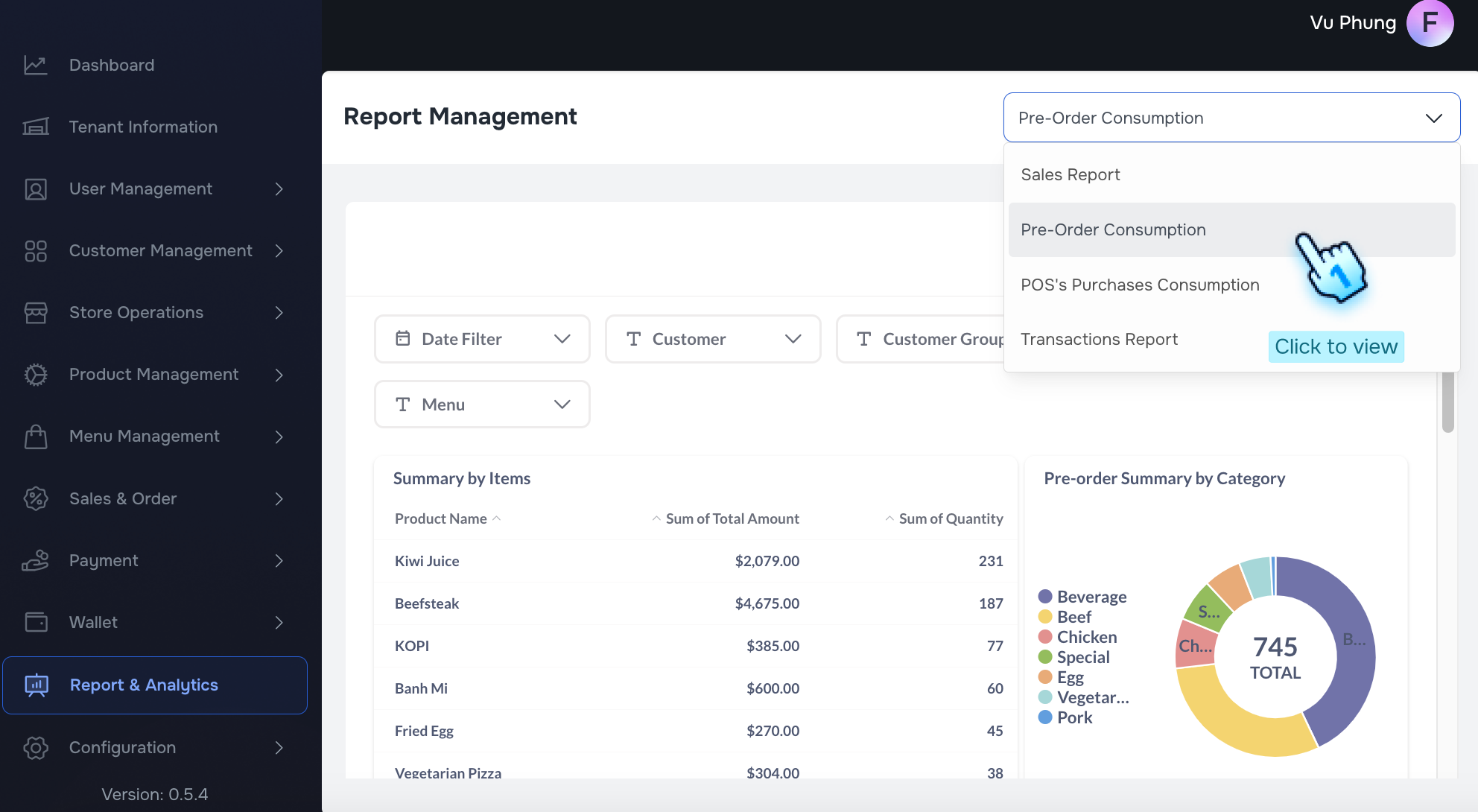
- Select Preorder Consumption
- Navigate to the Report & Analytics module and select Preorder Consumption.
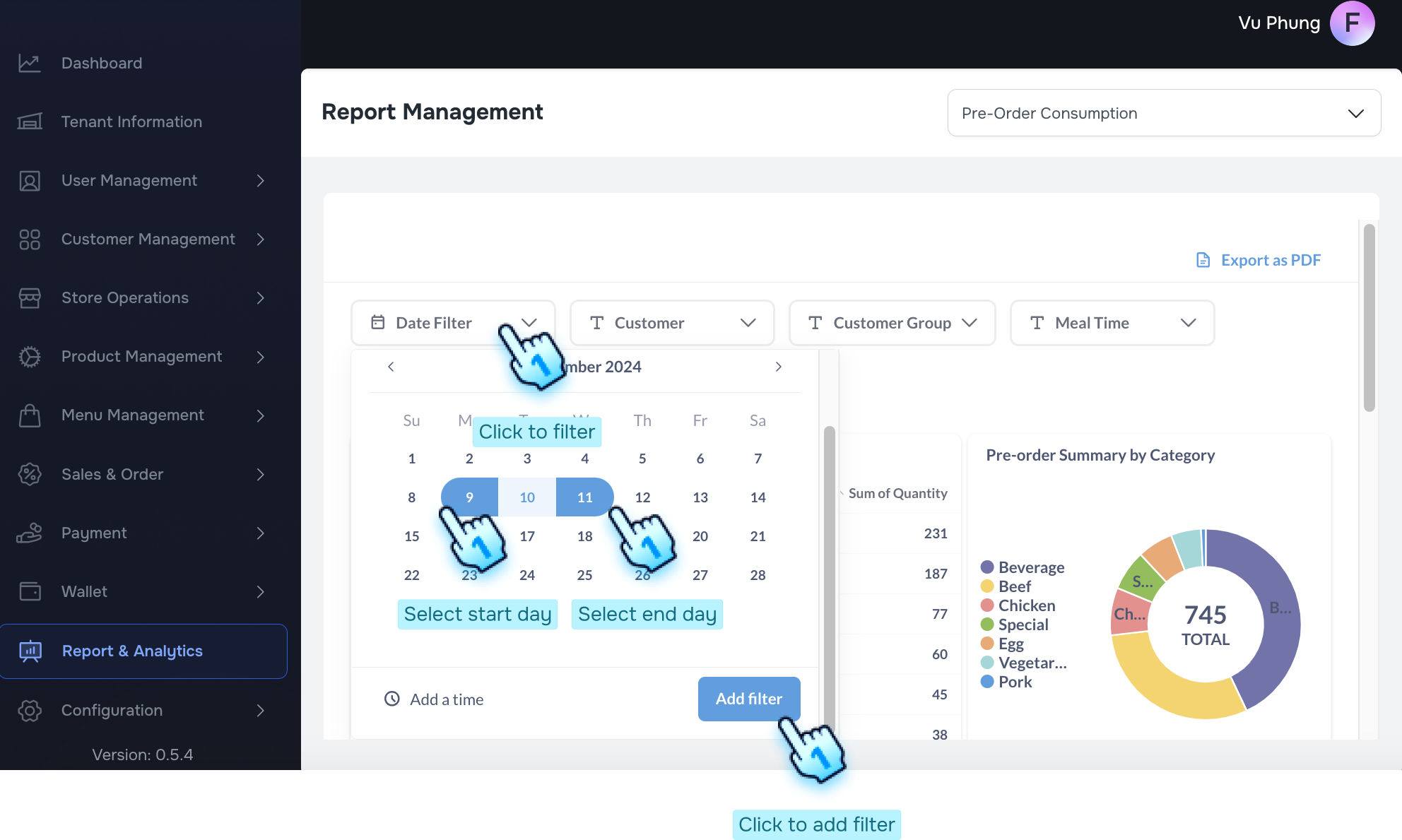
- Filter the Day
- Locate the date filter options available on the interface.
- Select Start Day and End Day
- Choose the desired Start Day and End Day for the report.
- Click "Add Filter" Button
- After selecting the dates, click the "Add filter" button to apply the date range. This action will refine the data displayed in the report.
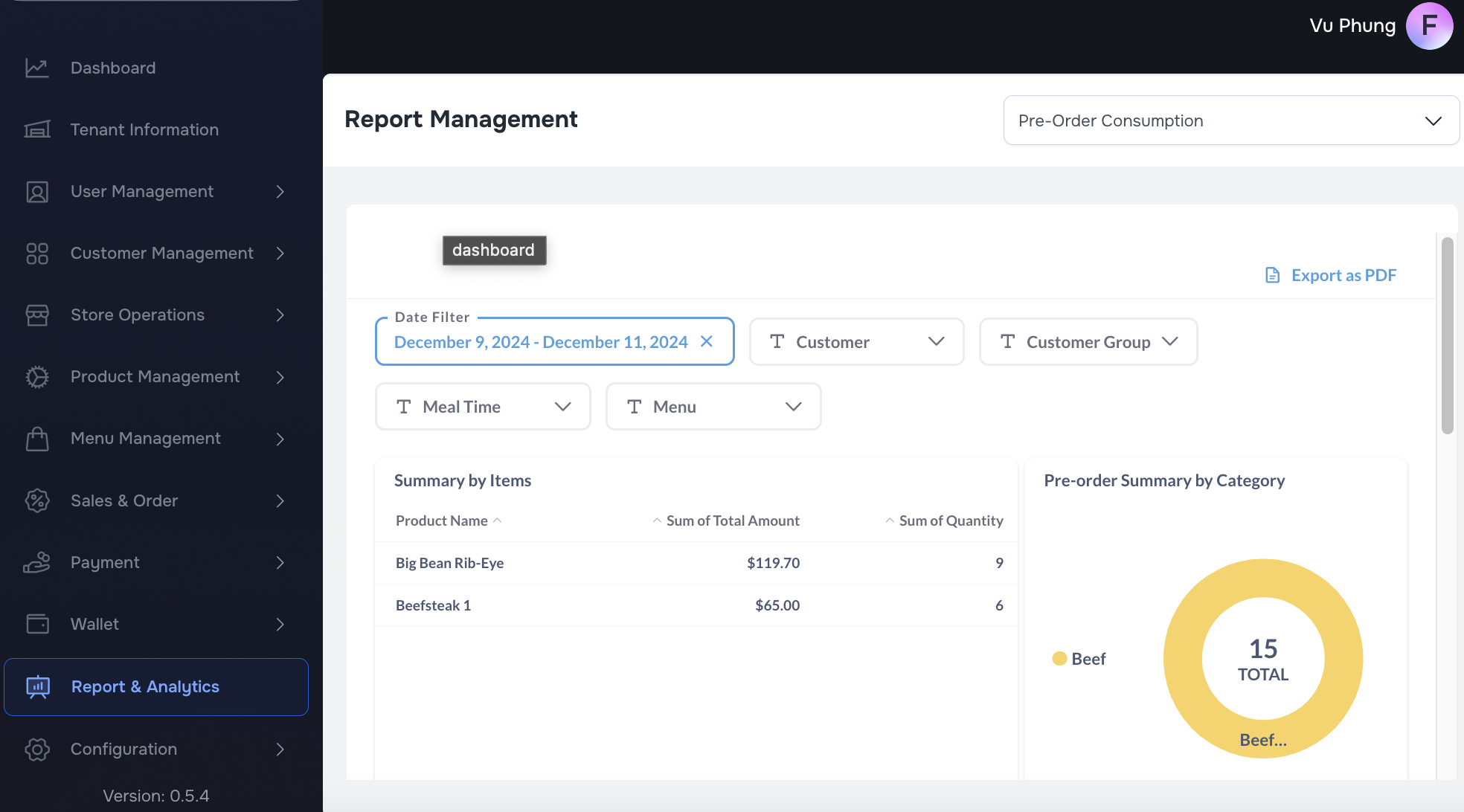
- View Data as Filtered
- The report will display data based on the applied filters. Review the results to gain insights into preorder consumption during the selected period.
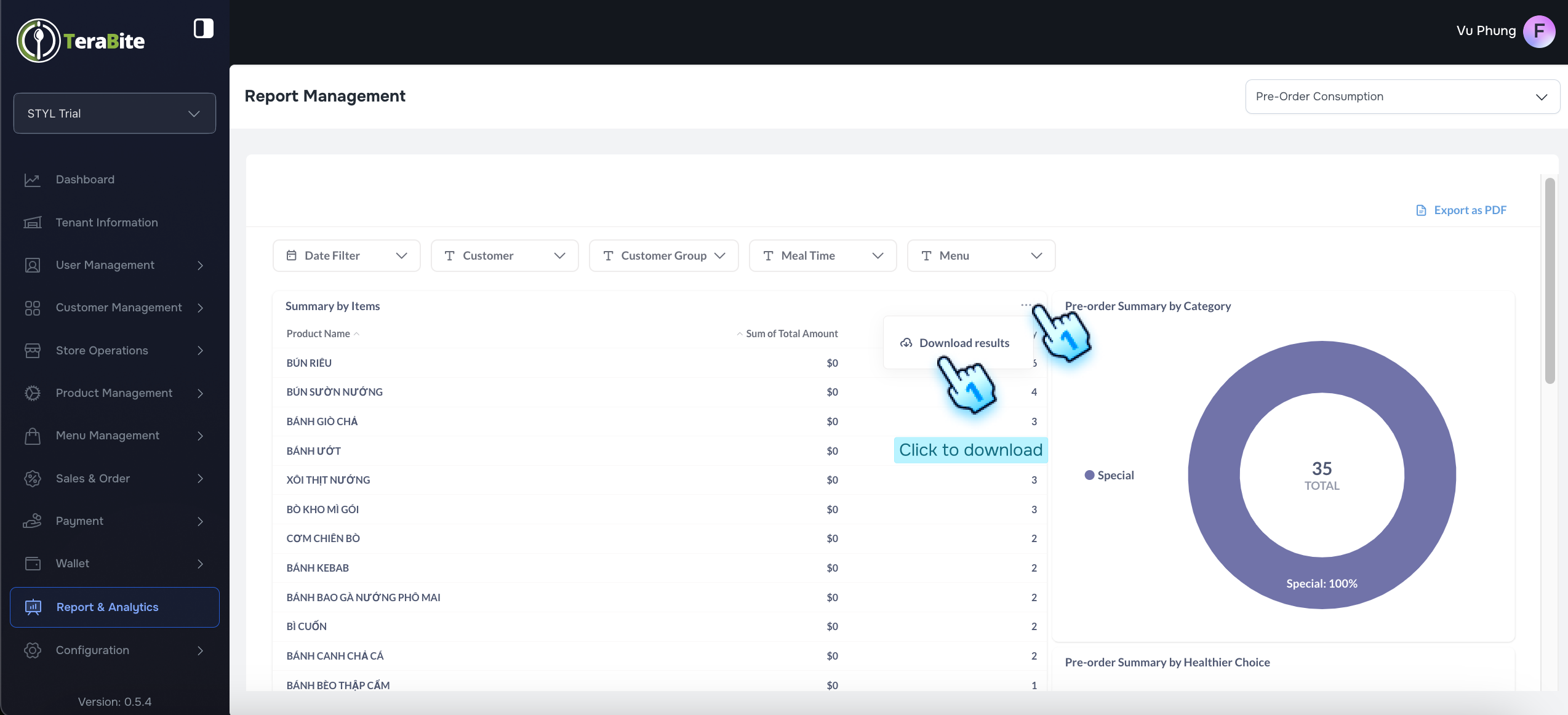
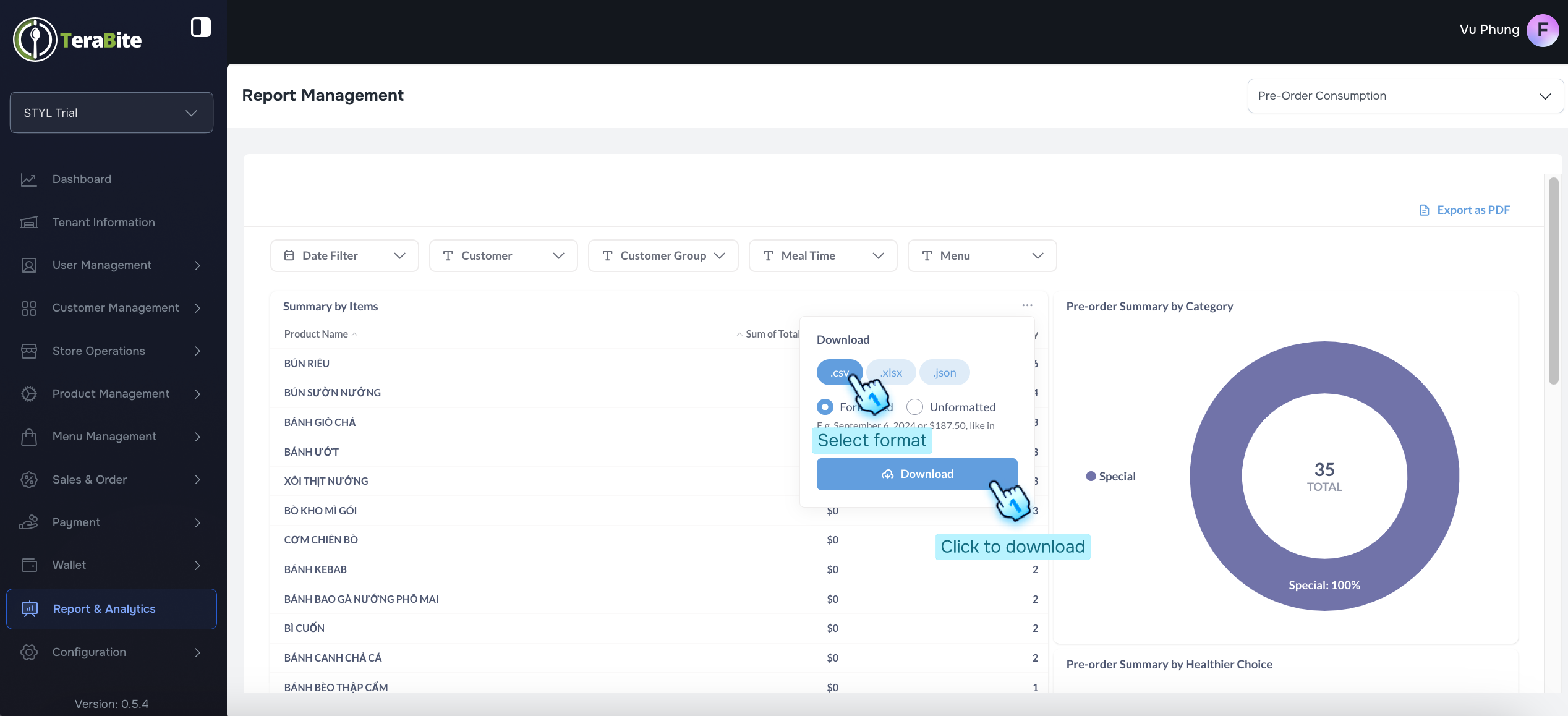
- Click three dot menu to Download the ressults
- After data displays in any visual, click on three dot menu
- Click on "Download result' button
- Select file format
- Click on "Download" button
#
View POS Purchase Consumption Report
- Select POS Purchase Consumption
- Navigate to the Report & Analytics module and select POS Purchase Consumption.
- Filter the Day
- Locate the date filter options available on the interface.
- Select Start Day and End Day
- Choose the desired Start Day and End Day for the report.
- Click "Add Filter" Button
- After selecting the dates, click the "Add filter" button to apply the date range. This action will refine the data displayed in the report.
- View Data as Filtered
- The report will display data based on the applied filters. Review the results during the selected period.
- Click three dot menu to Download the results
- After data displays in any visual, click on three dot menu
- Click on "Download result" button
- Select file format
- Click on "Download" button
#
View Transaction Report
- Select Transaction Report
- Navigate to the Report & Analytics module and select Transaction Report.
- Filter the Day
- Locate the date filter options available on the interface.
- Select Start Day and End Day
- Choose the desired Start Day and End Day for the report.
- Click "Add Filter" Button
- After selecting the dates, click the "Add filter" button to apply the date range. This action will refine the data displayed in the report.
- View Data as Filtered
- The report will display data based on the applied filters. Review the results during the selected period.
- Click three dot menu to Download the ressults
- After data displays in any visual, click on three dot menu
- Click on "Download result' button
- Select file format
- Click on "Download" button
#
Conclusion
By following these steps, users can efficiently access the Preorder Consumption report and analyze the data relevant to their needs. The ability to filter by specific date ranges enhances data analysis and supports informed decision-making.
#
Screen flow