#
Order/Pre-order History Management
#
Description
This document outlines the procedures for viewing order details and pre-order details within the Sales and Order module.
#
View Order Details
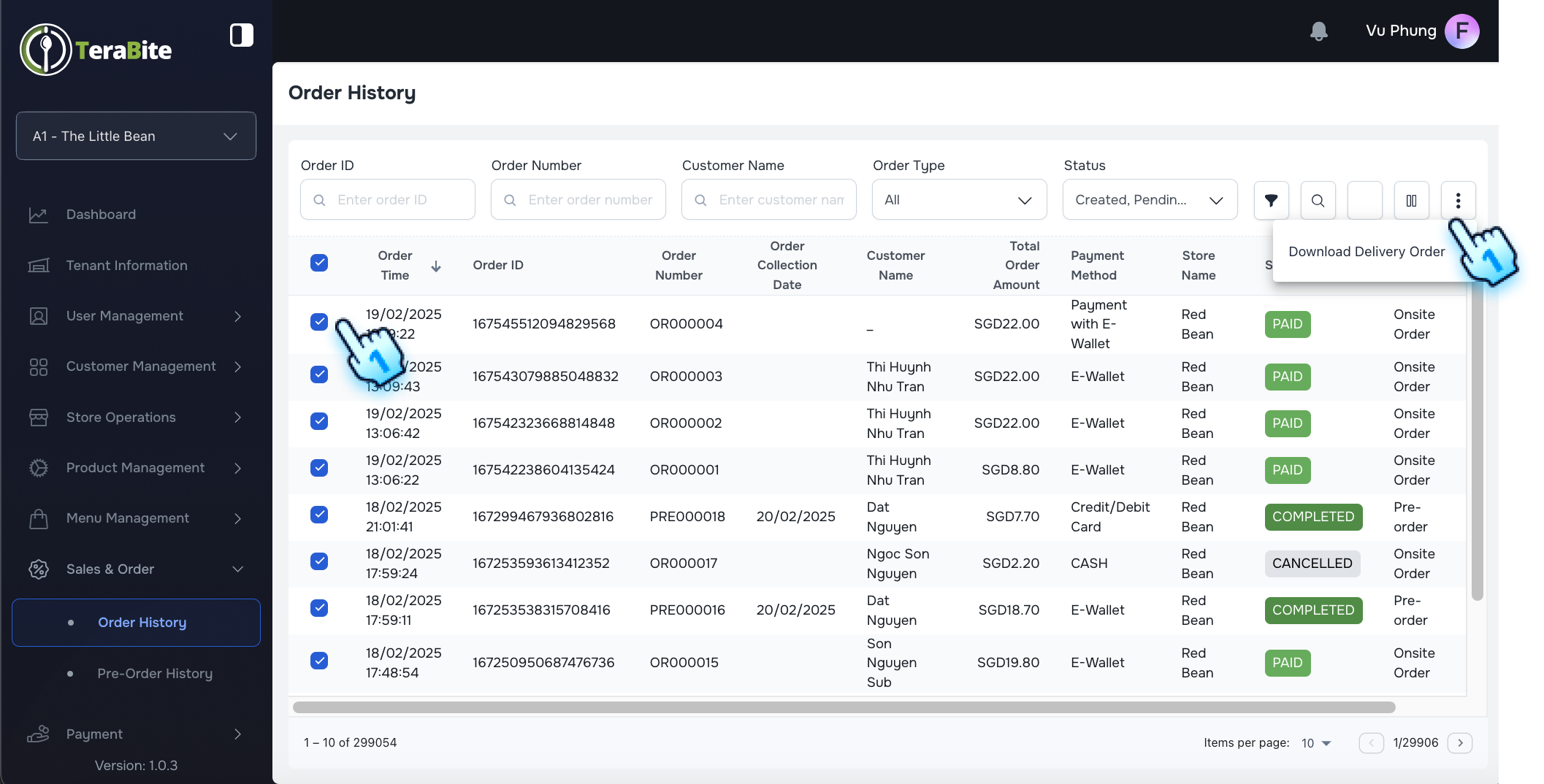
- Access Order History
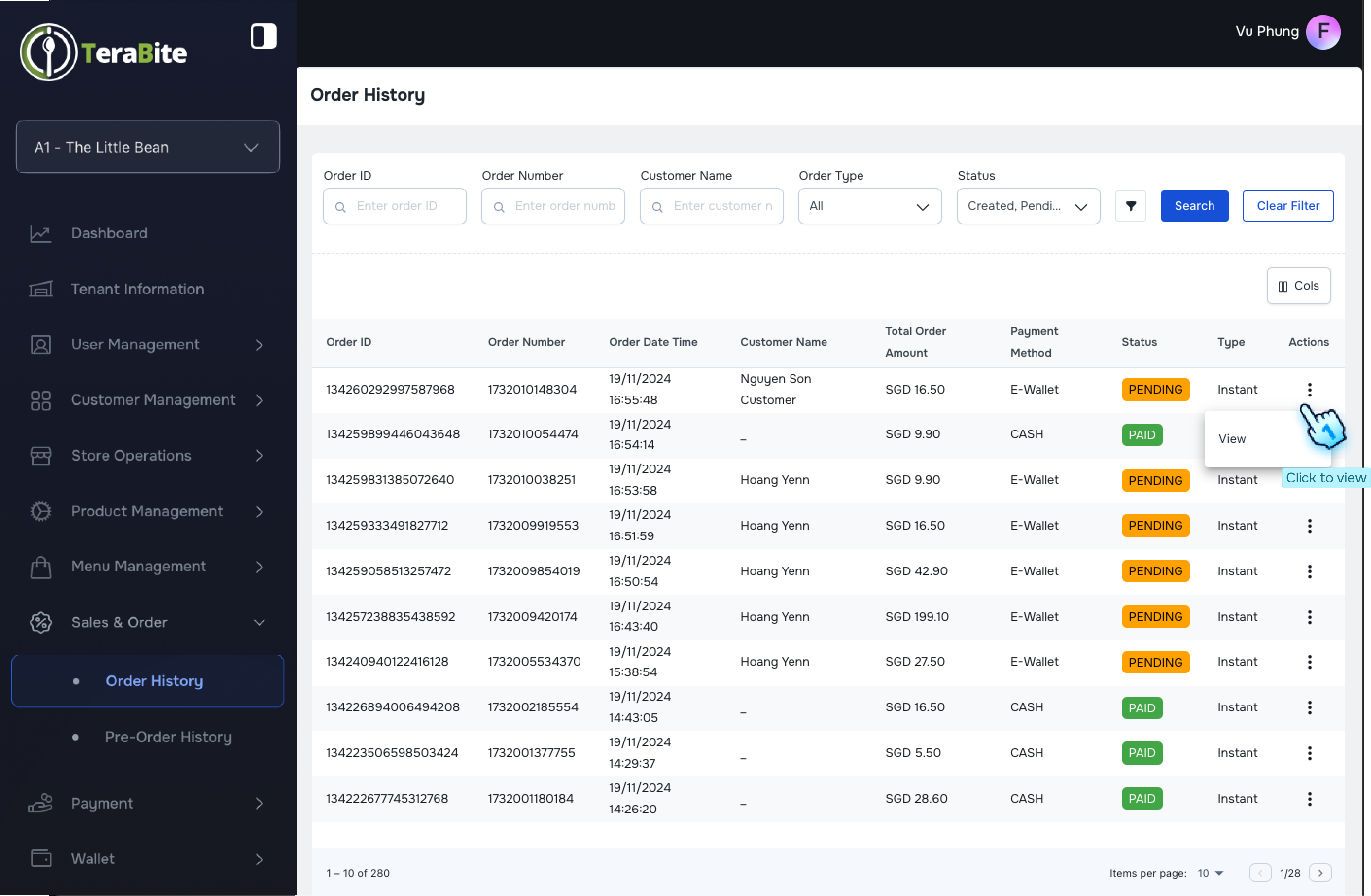
- Navigate to the Order History section in the Sales and Order module.
- Select Order
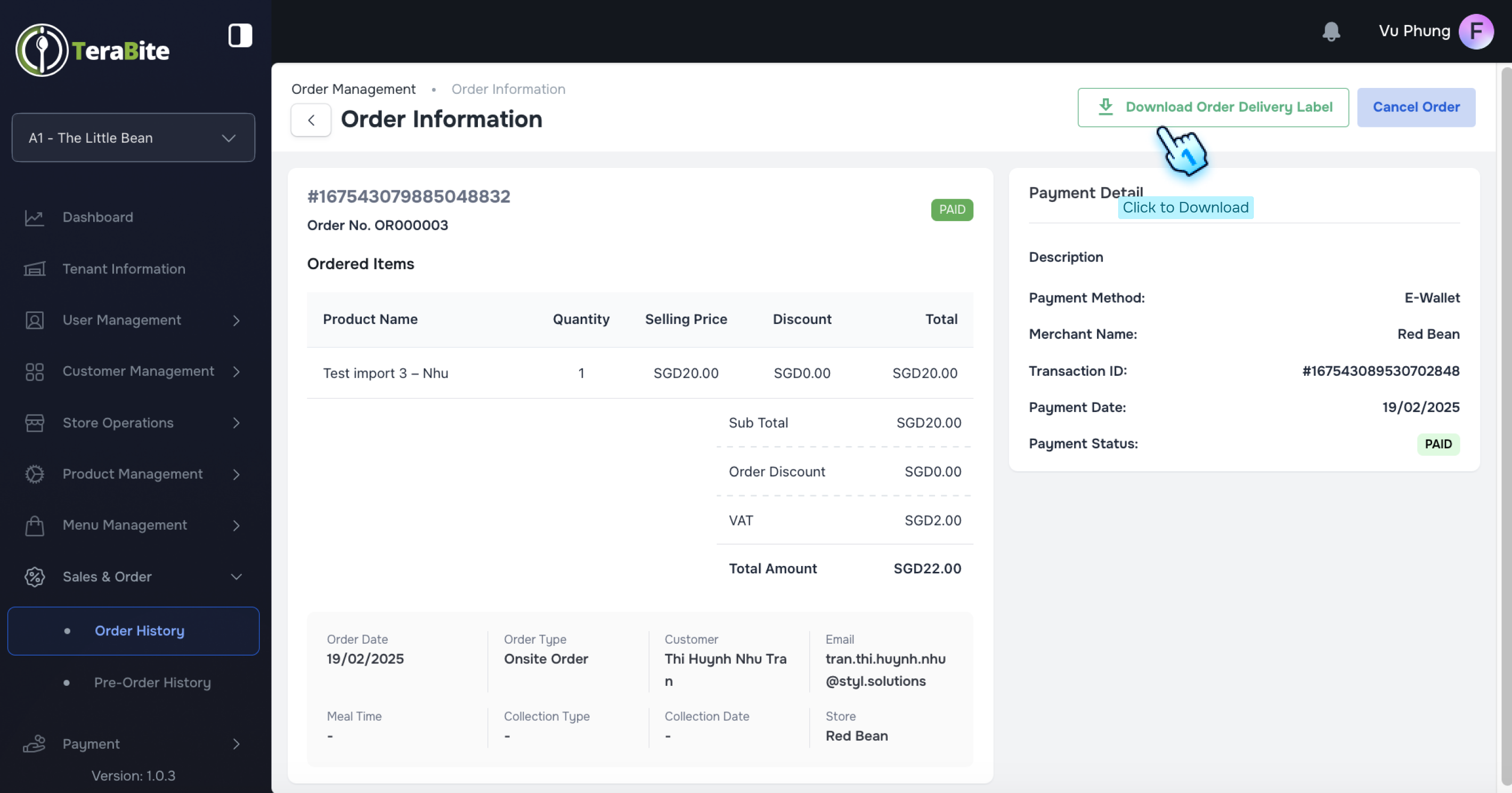
- Click on "View" button in the three-dot menu to review the order details.
- Cancel Order (if necessary)
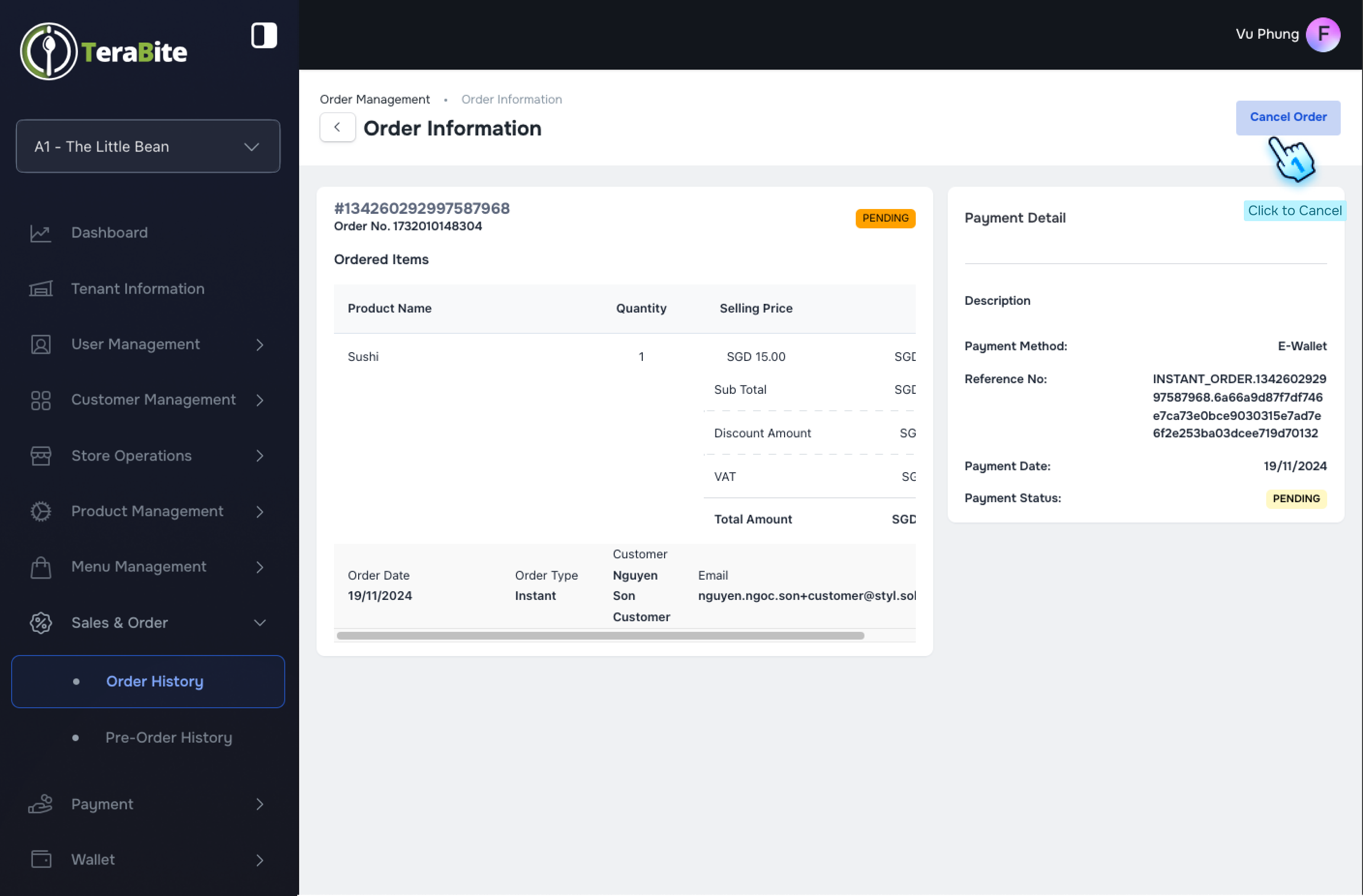
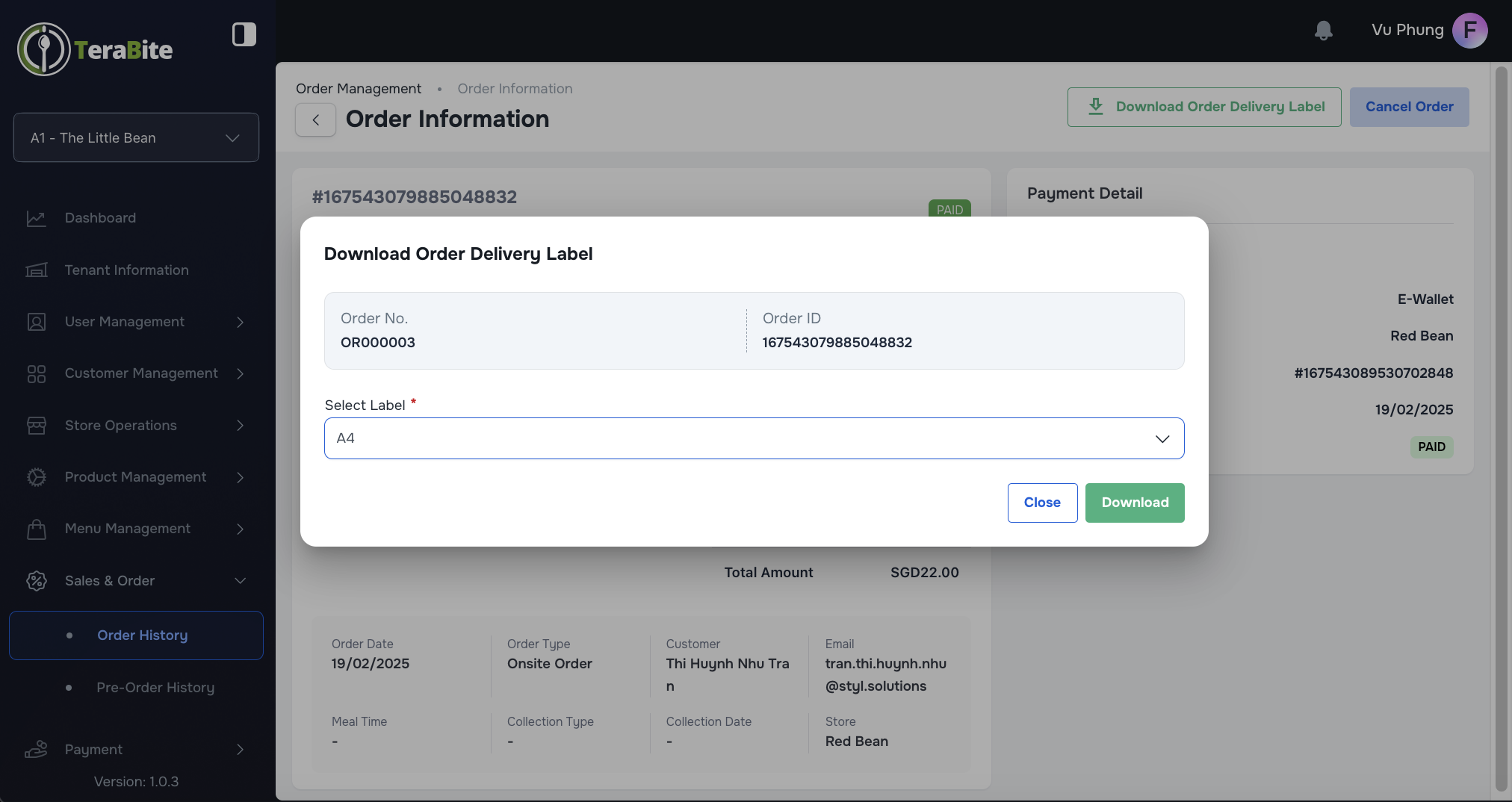
- Click the "Cancel Order" button if you wish to cancel the order.
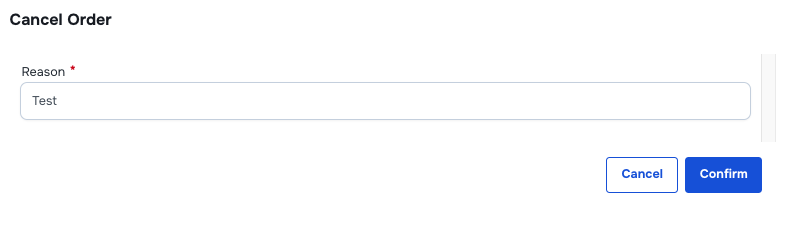
- Enter the reason for cancellation in the provided textbox.
- Click the "Confirm" button.
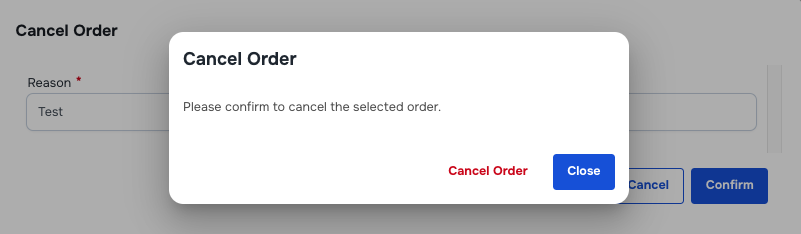
- Click the "Cancel Order" button in the confirmation dialog to finalize the cancellation. Condition: When the user has the permission and order status is not Cancel, the Cancel button is displayed
#
View Pre-order Details
- Access Pre-order History
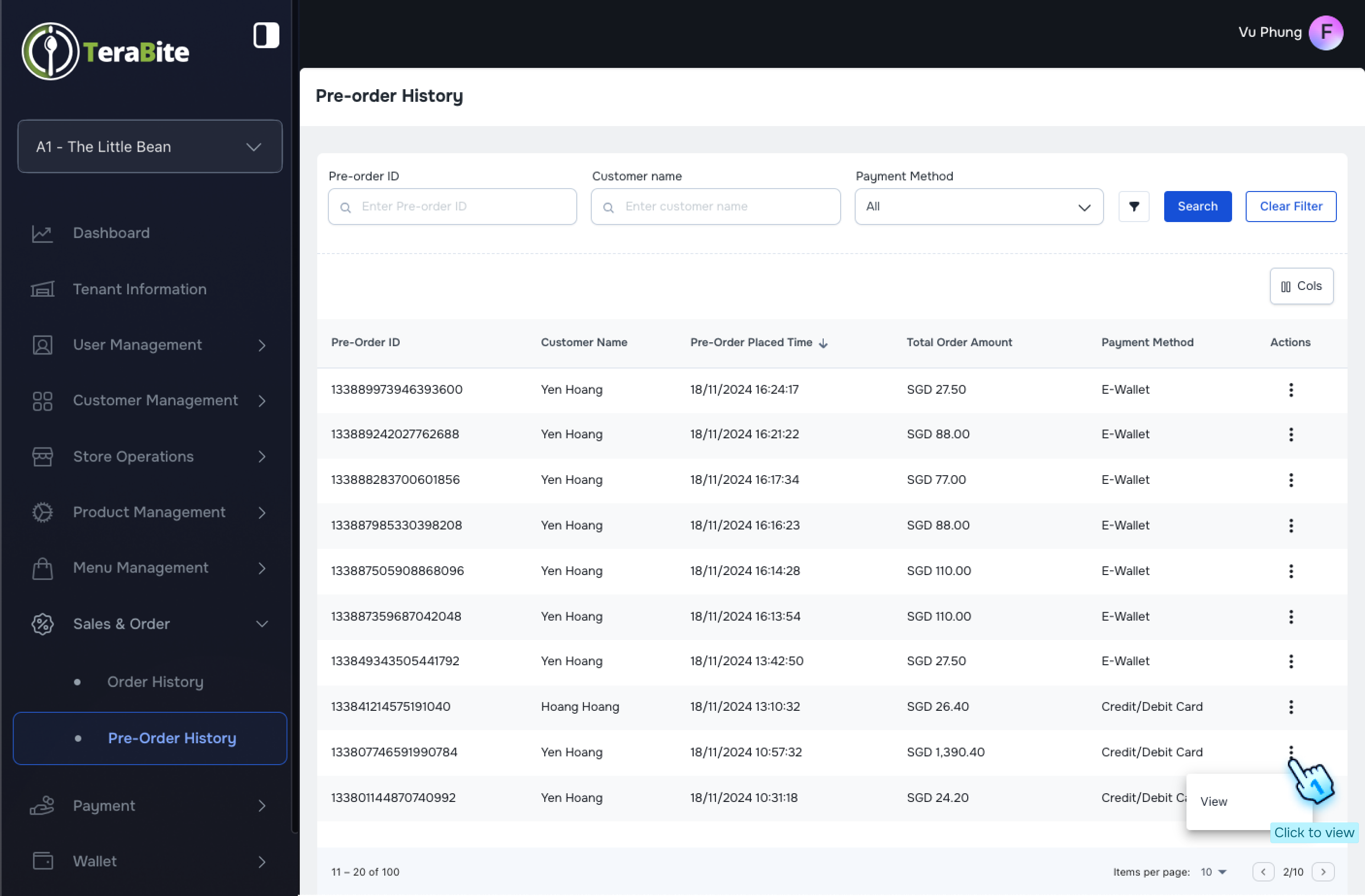
- Navigate to the Pre-order History section in the Sales and Order module.
- Select Pre-order
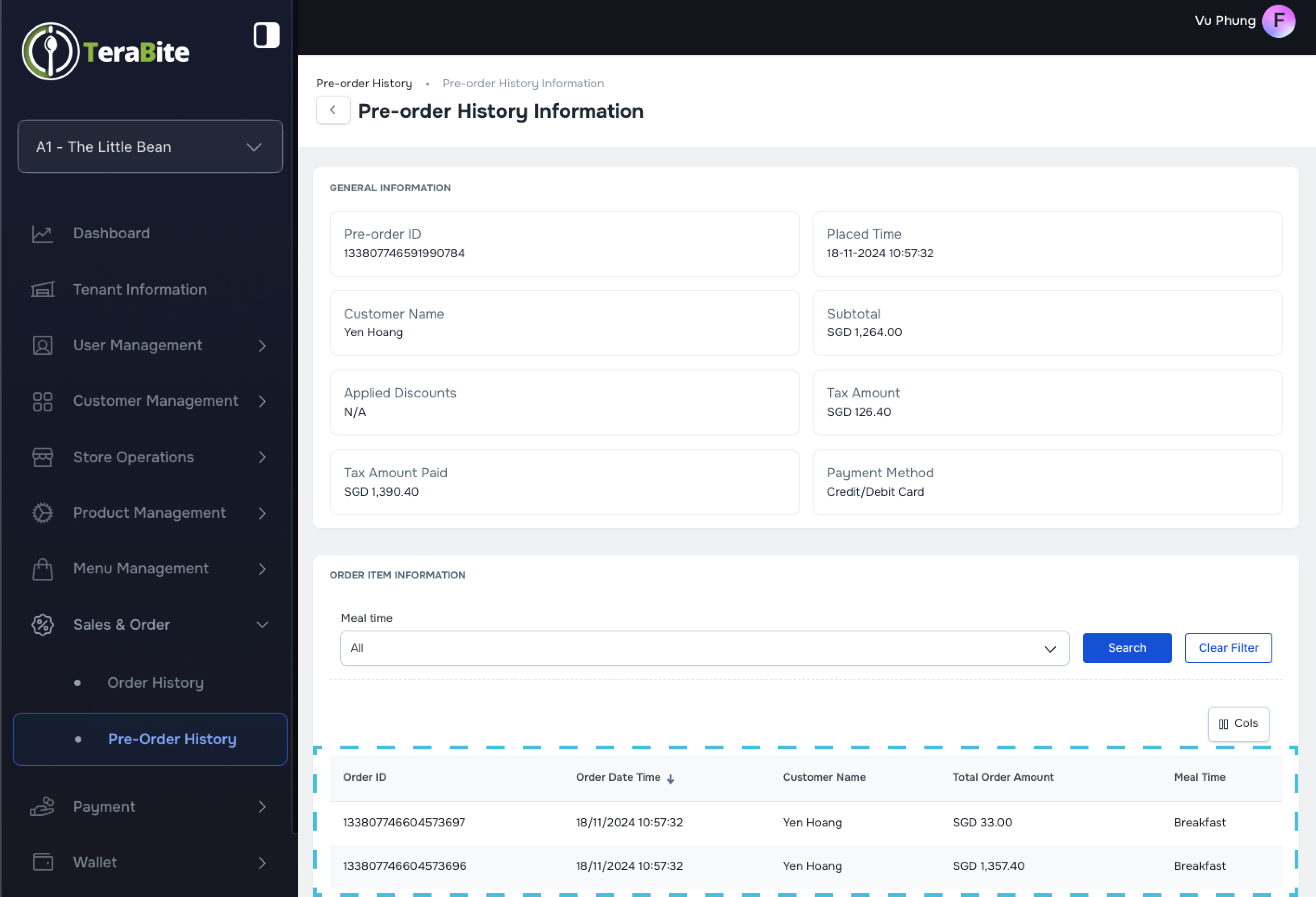
- Click to View button in the three-dot menu to review the pre-order details.
- Display Pre-order by date
- The partial pre-orders list will be displayed by planned date.
#
Conclusion
This document provides a structured approach for managing and reviewing order and pre-order histories within the Sales and Order module, ensuring efficient order management and customer service.
#
Screen flow
#
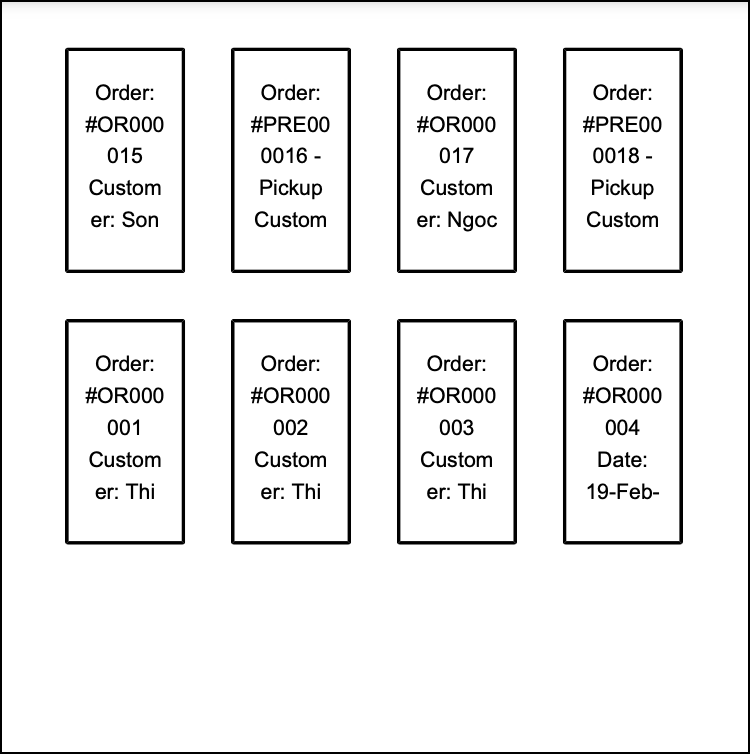
Order history
#
Pre-order history