#
Order Delivery Label
#
Description
This document outlines the steps to create and manage order delivery labels. Proper configuration of delivery labels ensures accurate and efficient processing of orders.
#
Creating a New Delivery Label
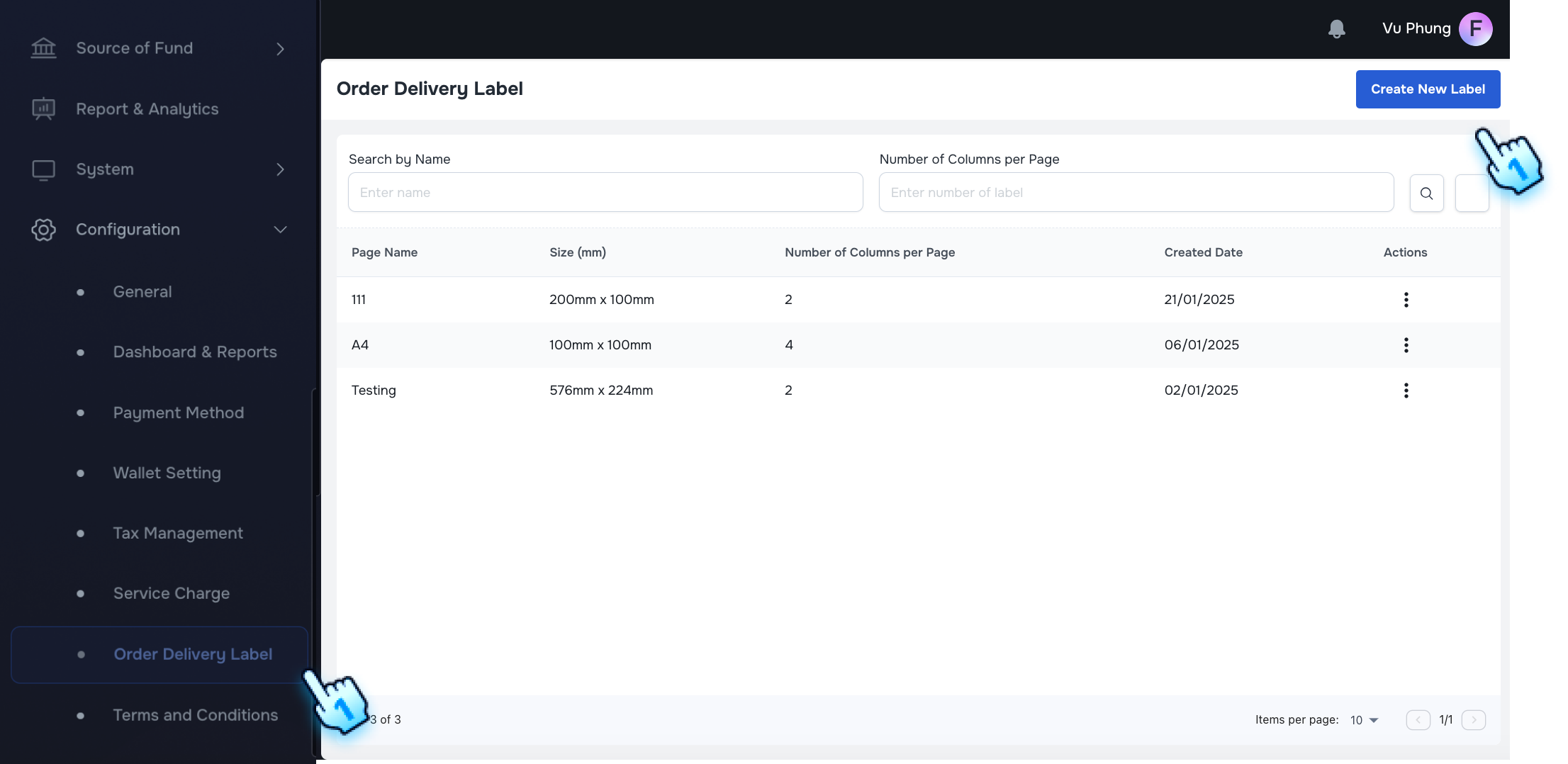
- Navigate to the Order Delivery Label section
- Go to the "Sales and Order" section and select "Order Delivery Label". The Order Delivery Label section will be displayed.
- Click to Create New Label
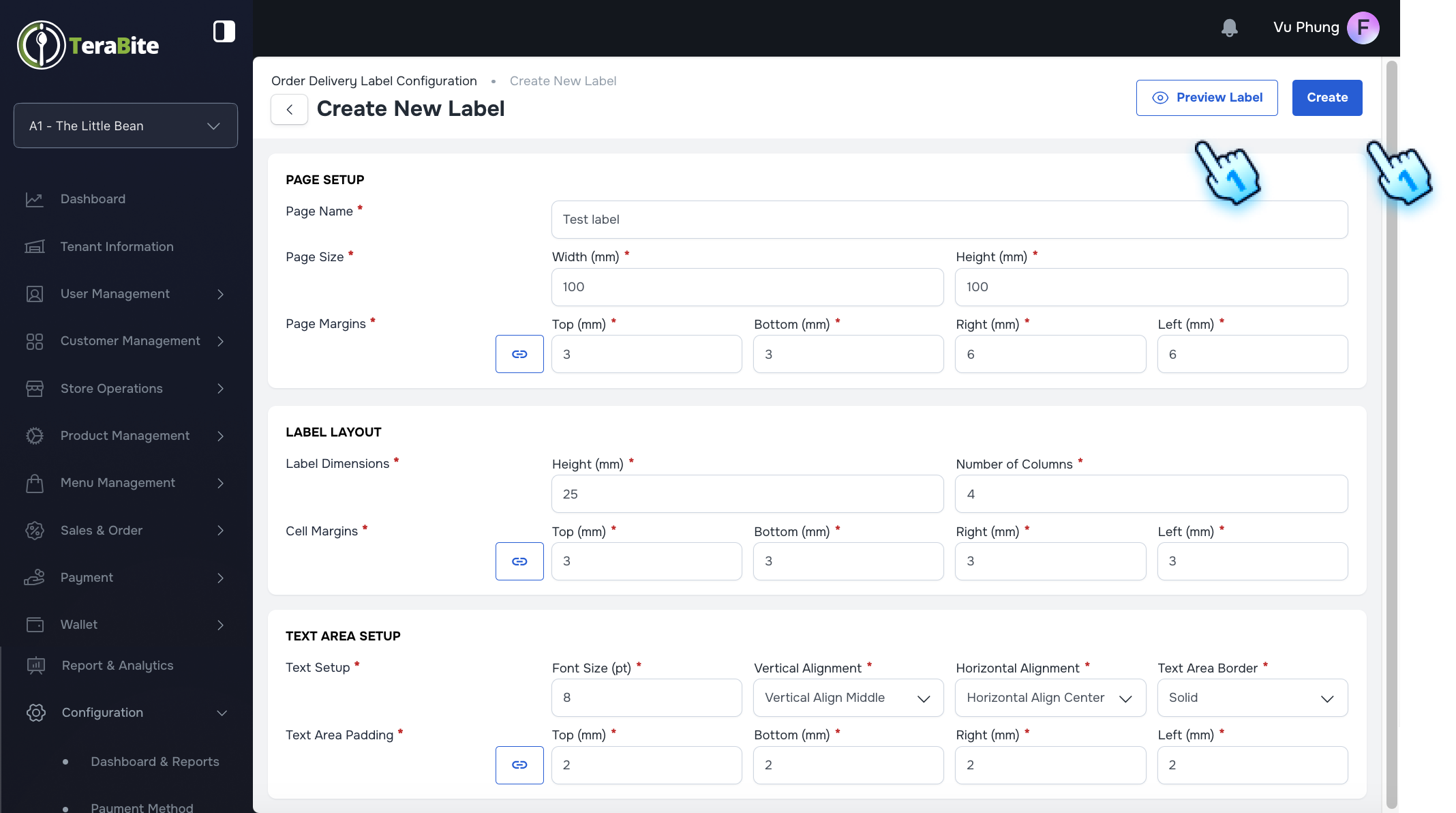
- Click the 'Create New Label' button. The Create Label form will be displayed.
- Enter the required print parameters
- Fill in the required print parameters in the form with below example:
- Page size: H: 300, W: 576
- Page Margin: T: 3, B: 3, R: 6, L: 6
- Label Dimension: H: 50, Column: 3
- Cell Margin: T: 5, B: 5, R: 3, L: 3
- Text setup: Font size: 9, Vertical Align Top, Horizontal Align Left, Dotted
- Text Area Padding: T: 1, B: 1, R: 1, L: 1
- Select options to Show Product Items and/or Show Product Options.
Note: Click button to Apply All
- Click to enable 'Apply All'.
- Enter a value in one of the boxes (Top, Bottom, Right, or Left). The other remaining values will be applied accordingly.
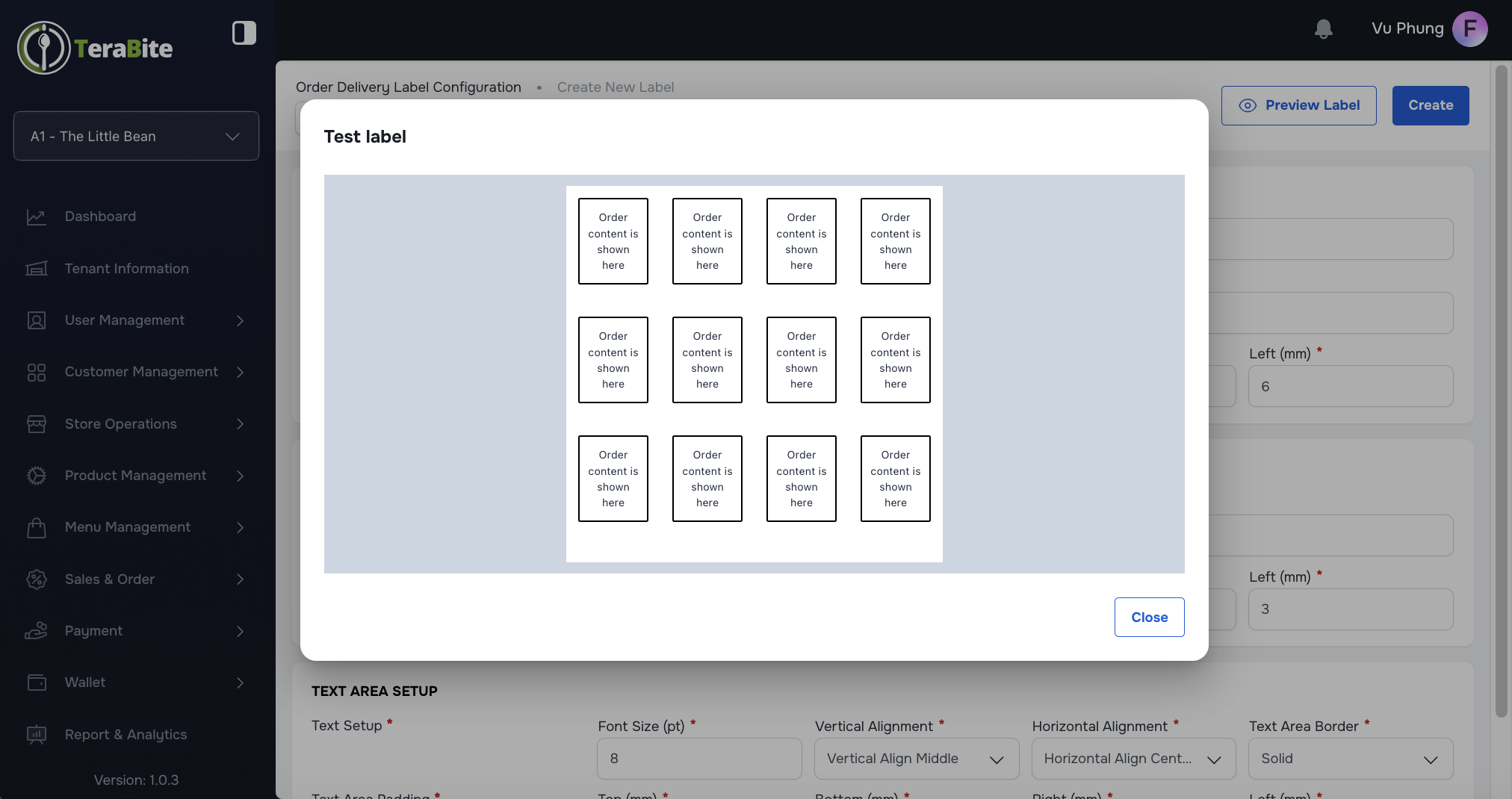
- Preview Label to Ensure Accuracy
- Click the 'Preview' button to view a preview of the label. The label preview will be displayed accurately.
- Click Create Button to Finish
- Once satisfied with the preview, click the 'Create' button. The label will be created successfully.
Exceptional Cases for Creating Labels:
- Missing fields: If you leave required fields empty and try to submit, an error message will be displayed under each empty field.
- Invalid inputs: An error message will appear if you enter invalid values (e.g., negative numbers, text, or special characters) into the parameter fields.
#
Managing Existing Labels
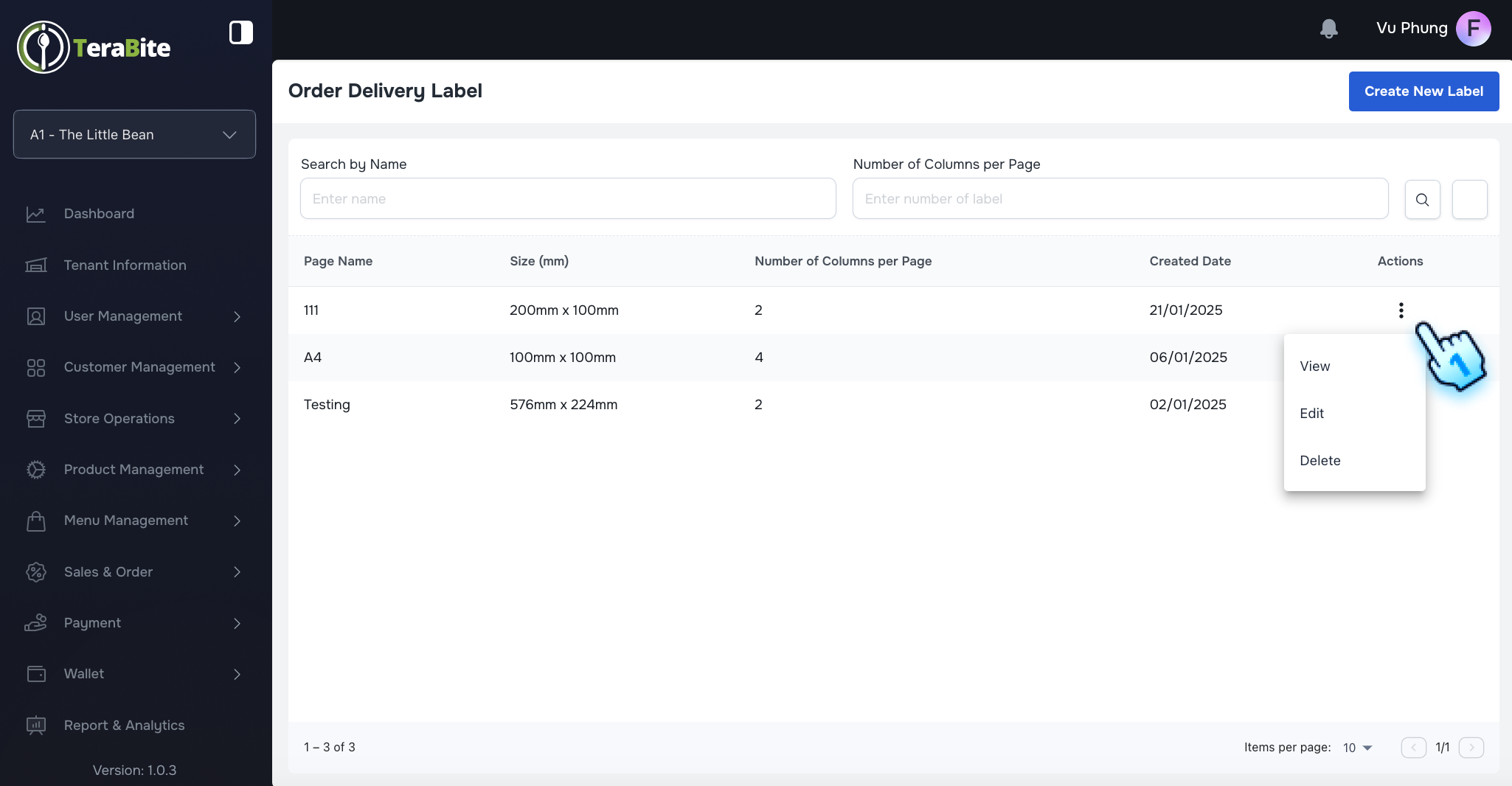
- Access the three-dot menu to perform actions
- From the list of created labels, click the three-dot menu to view available actions: View, Edit, and Delete.
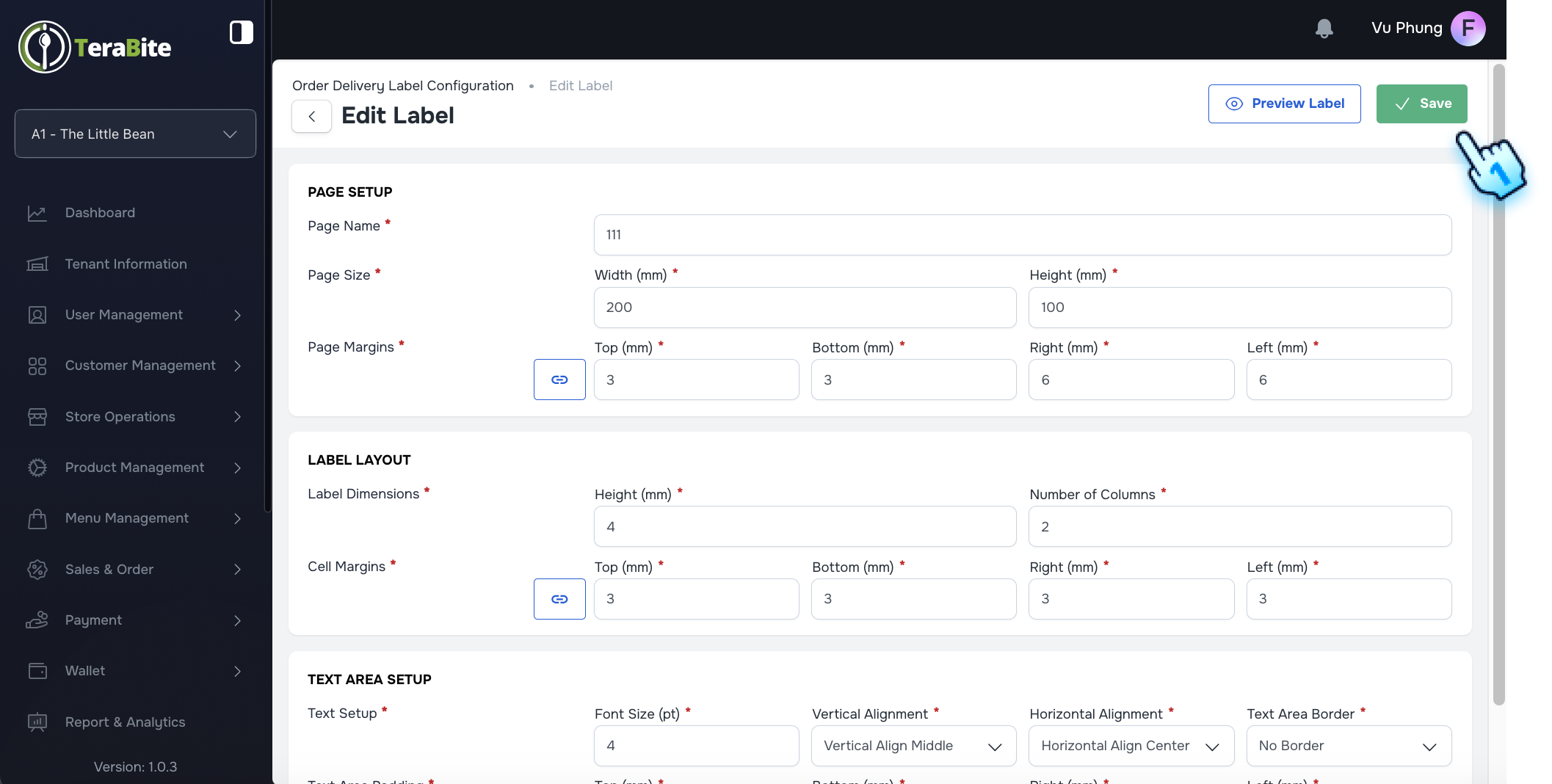
- Edit the Label Information
- Select 'Edit' from the menu. The Edit form for the label will display with existing information loaded.
- Update necessary information and click Save
- Modify the label information as needed and click the 'Save' button. The changes will be saved successfully.
Exceptional Case for Editing Labels:
- Incomplete fields: If you leave required fields empty and attempt to save, an error message will be displayed for the incomplete fields.
#
Printing Delivery Labels
Single Print from Order History
- Navigate to Order History
- Access the Order History page. The order history will be loaded correctly.
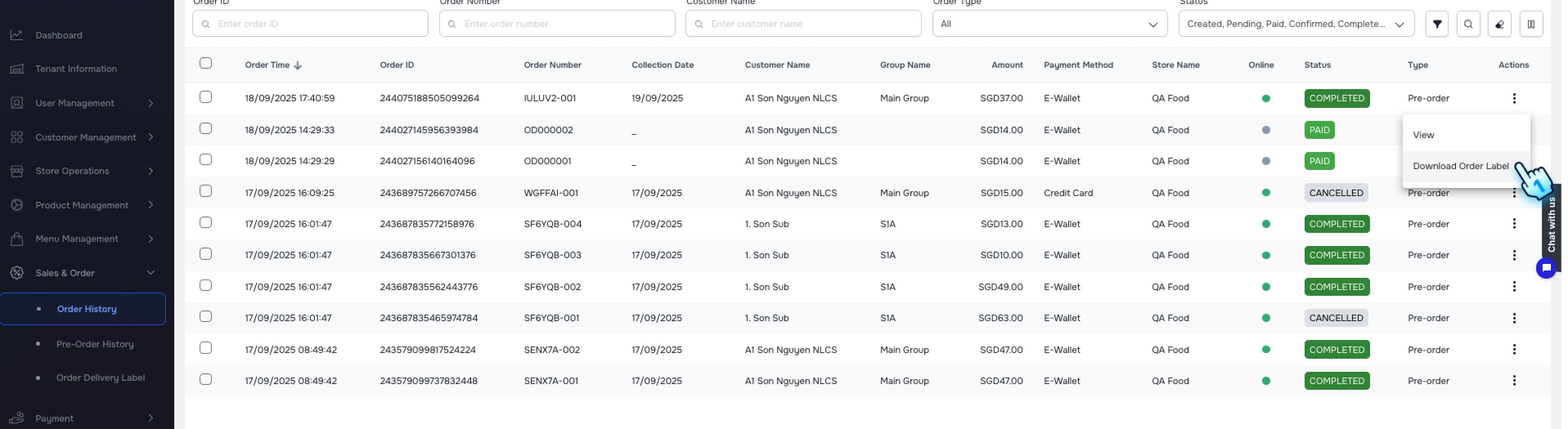
- Click to Download Order Delivery Label
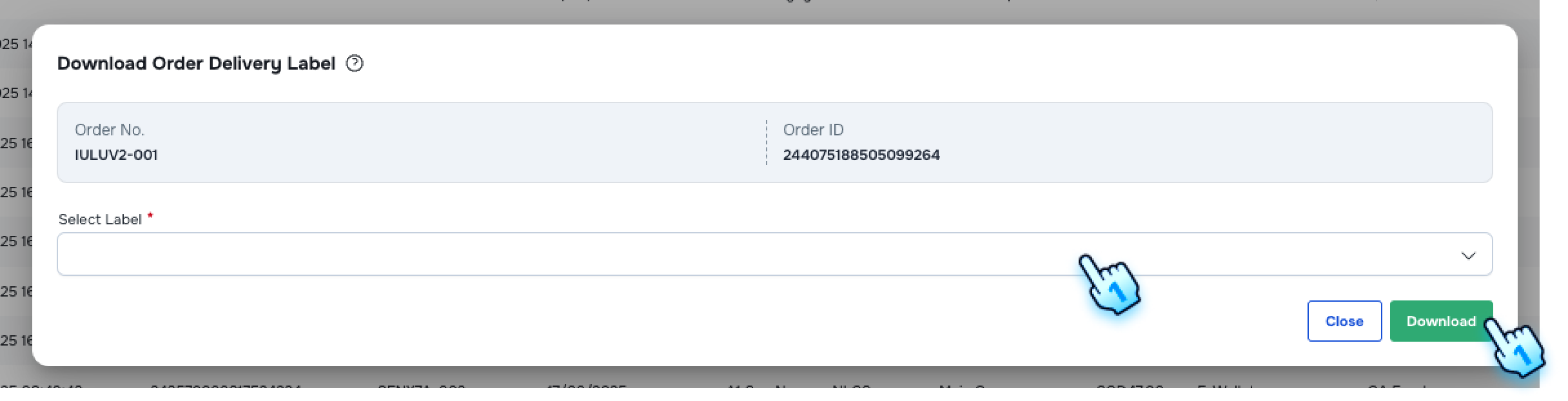
- In the three-dot menu of a specific Pre-Order, click 'Download Order Delivery Label'. A download form will appear, prompting you to select a label template.
- Select Label template
- Choose a template from the list. The selected label template will be applied and downloaded.
Multiple Print from Pre-order List
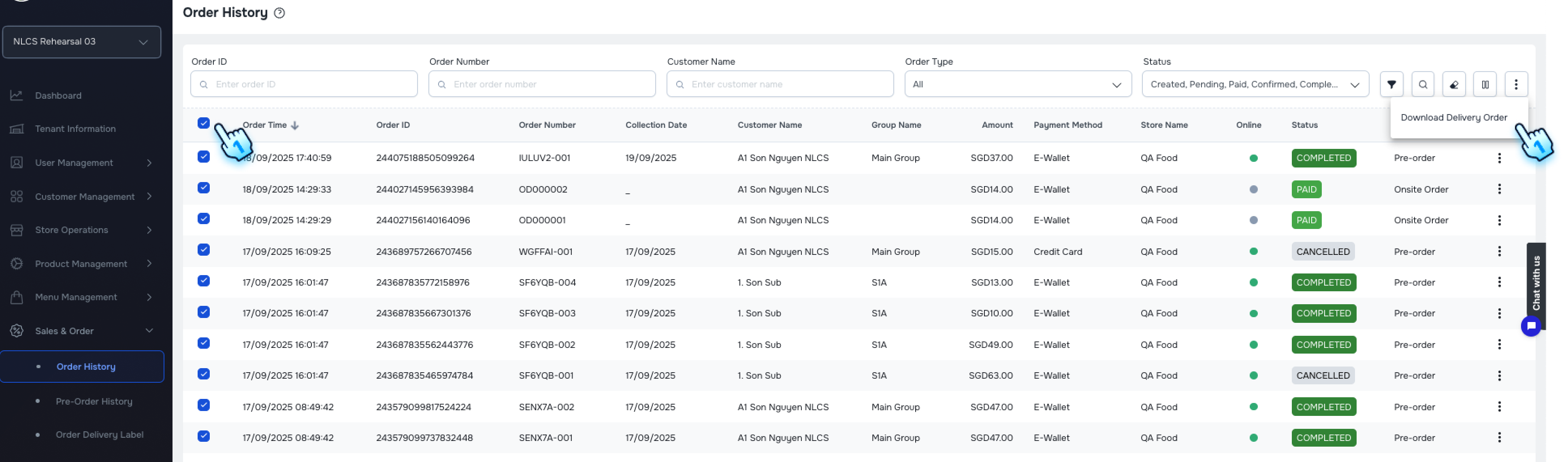
- Check on pre-orders in the pre-order list
- Select one or more pre-orders by checking the boxes. A three-dot menu will appear in the top bar.
- Click Download Order Delivery Label
- From the three-dot menu, select 'Download Order Delivery Label'. The Download Order Delivery form will be displayed.
- Select Label template
- Choose a template from the dropdown menu. All selected labels will be generated and downloaded.
#
Conclusion
By following these steps, users can efficiently configure and manage order delivery labels, ensuring that all relevant information is accurately represented. For further assistance, please refer to additional documentation or contact support.
#
Screen flow
#
Configure Order Delivery Label
#
Managing Existing Labels
#
Printing Delivery Labels