#
App Network Mode Management
#
Description
This document outlines the procedures for managing network modes (online and offline) within the application.
#
Offline Mode Management
- Showing Offline Mode Dialog on App Launch
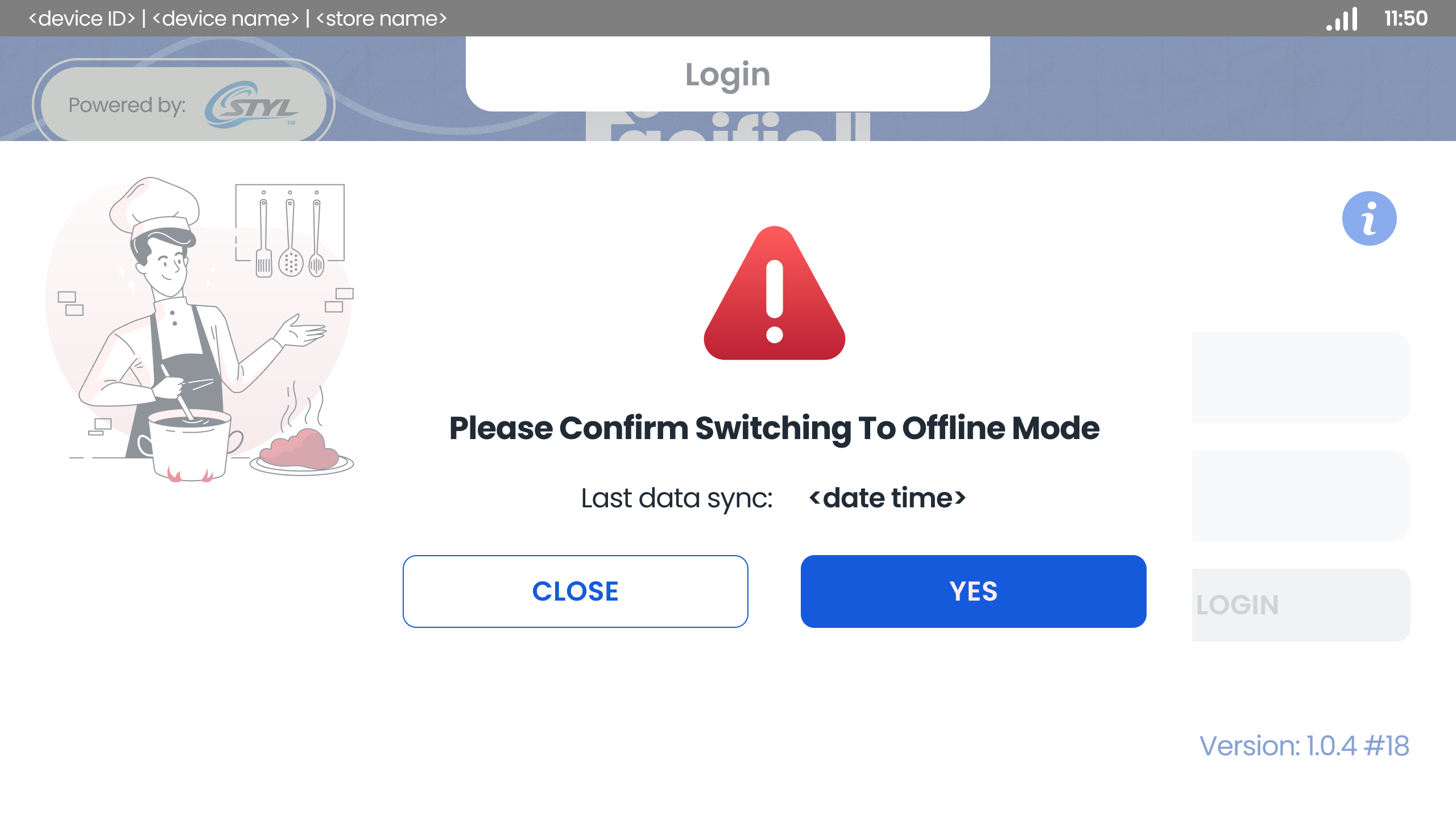
- User launches the app without a network and the offline mode dialog is displayed.
- Switching to Offline Mode when operating
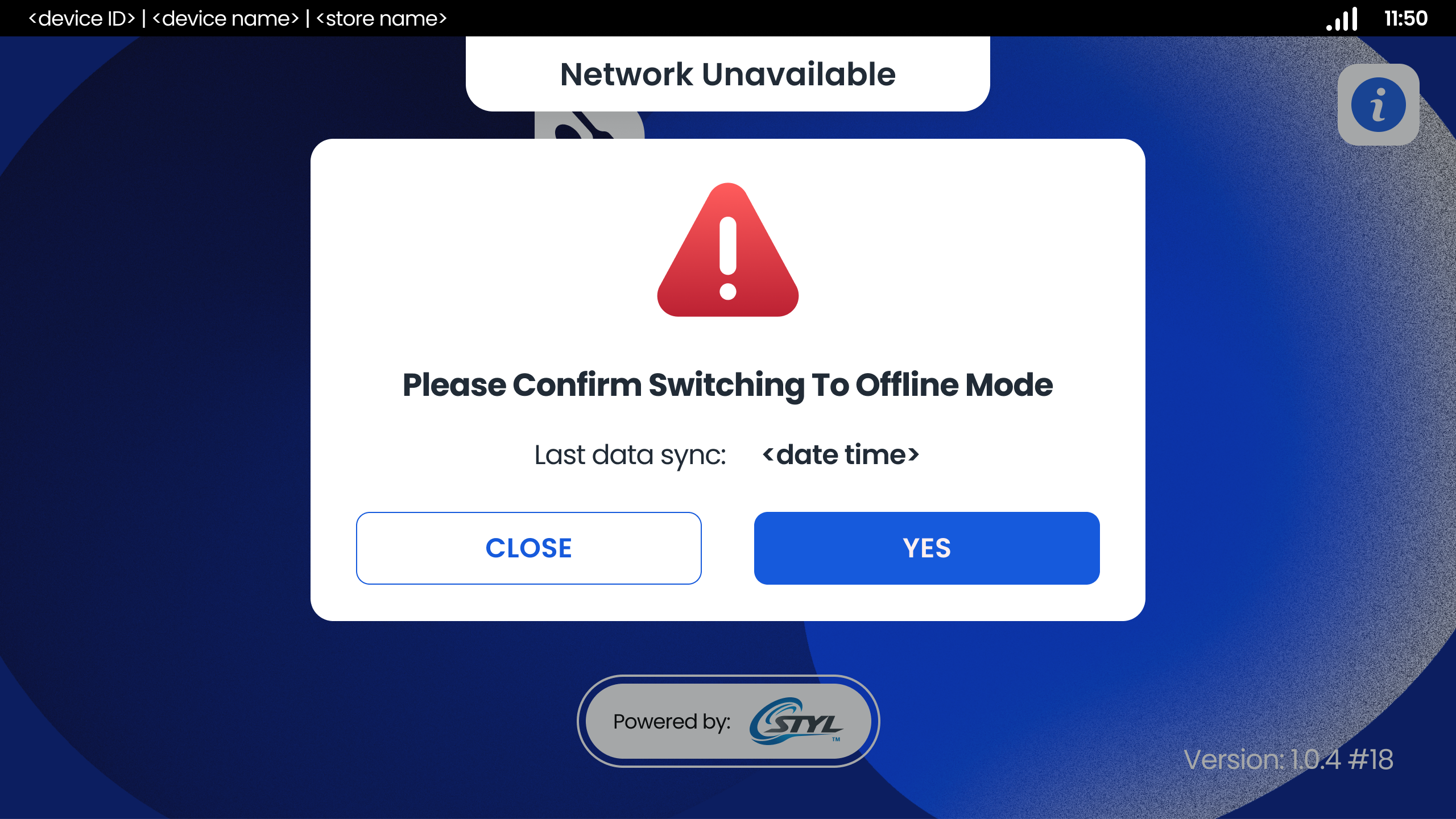
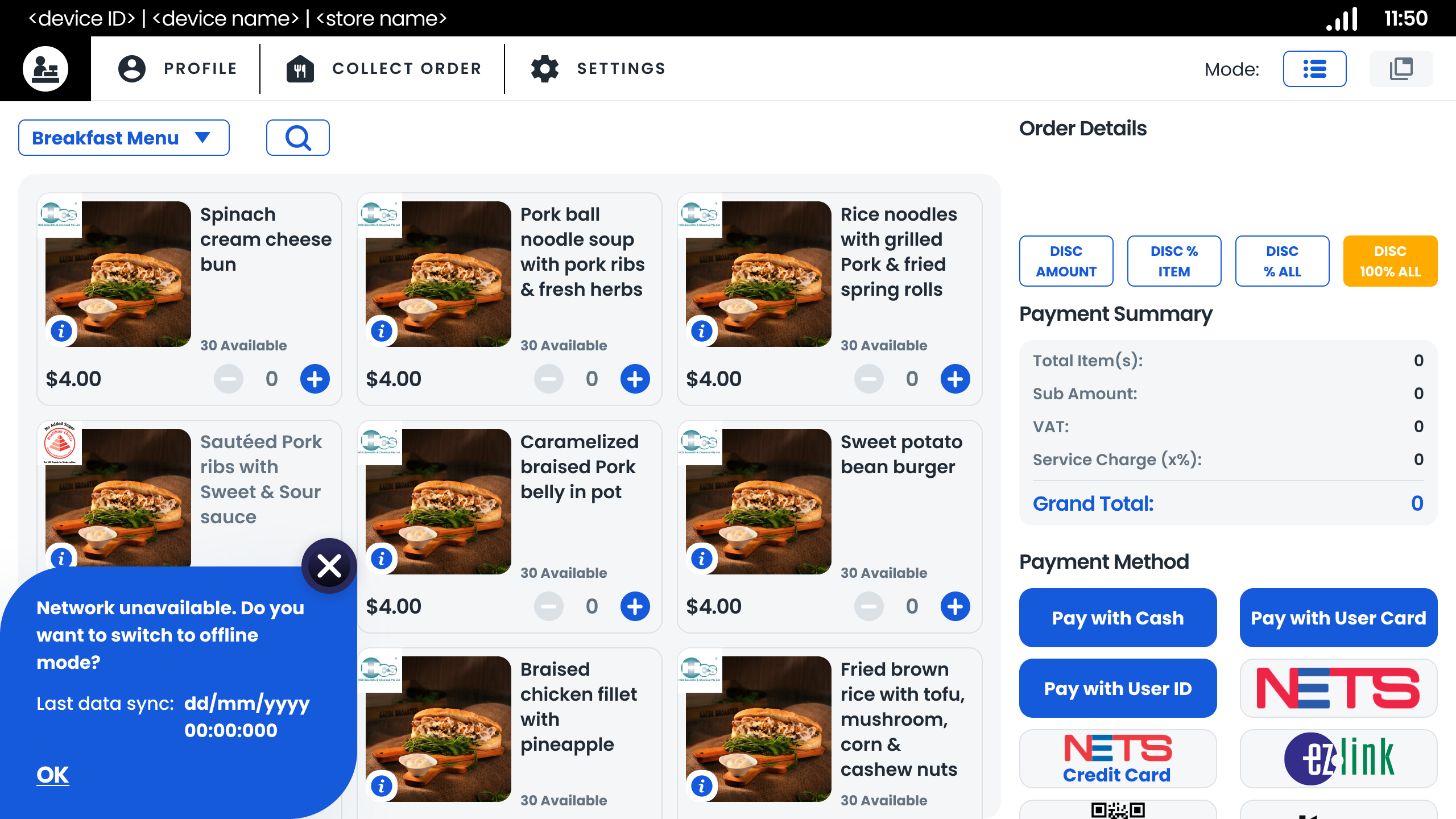
- The network unavailable dialog display when Network is disconnected
- Selects "YES" at the network unavailable prompt to navigate to the login page for Offline mode
- Switching to Online Mode When Network Becomes Available
- The app is in offline mode, and when the network becomes available,
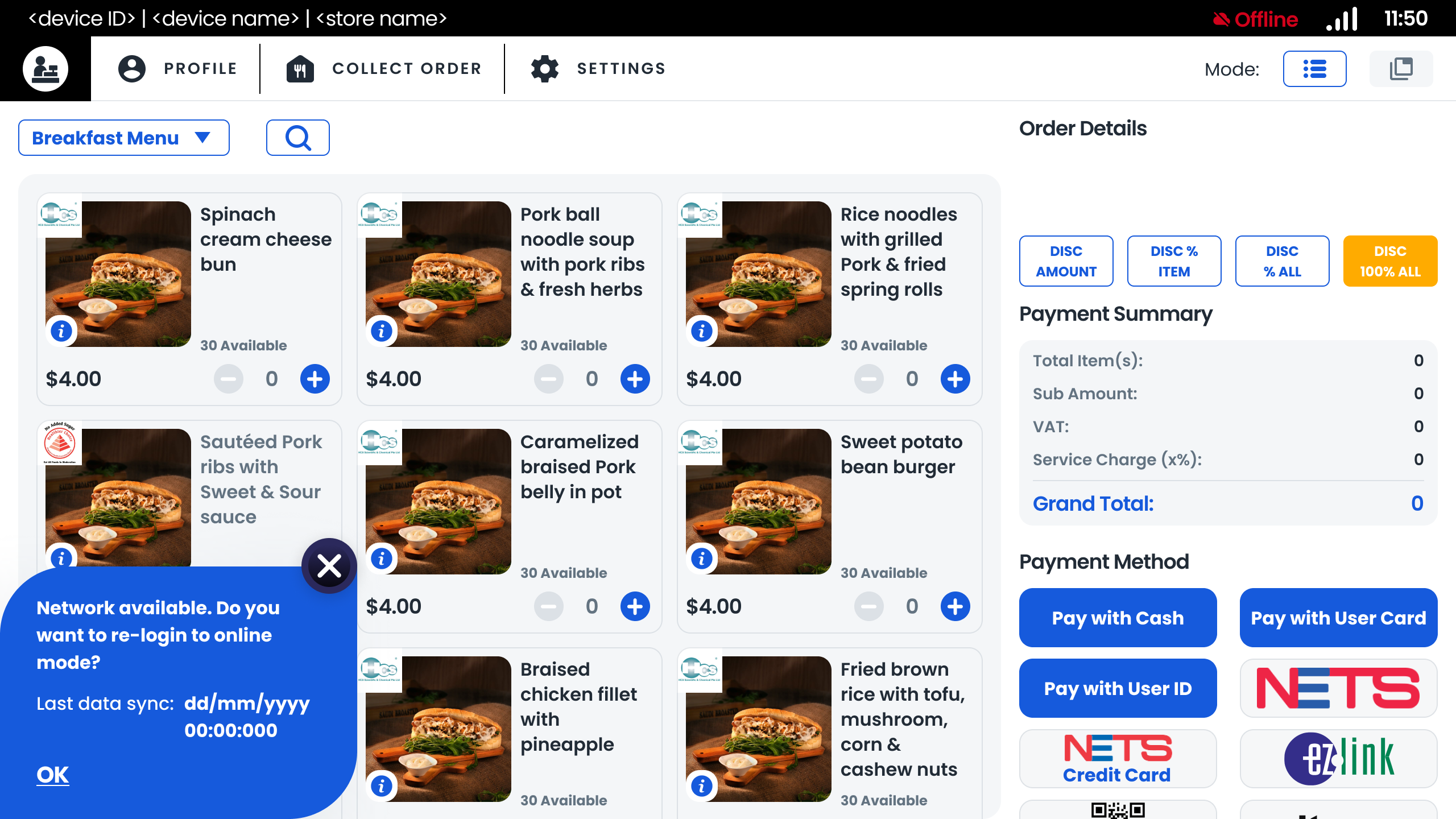
- The network available dialog display
- Click "Back to Online Mode" to navigate to the login page for online mode.
#
Transaction Management in Offline Mode
- Offline Mode Switch to Online Mode - Submit Transaction Offline to BackOffice
- The app is in offline mode, and when the user switches to online mode, offline transactions are sent to the Back Office.
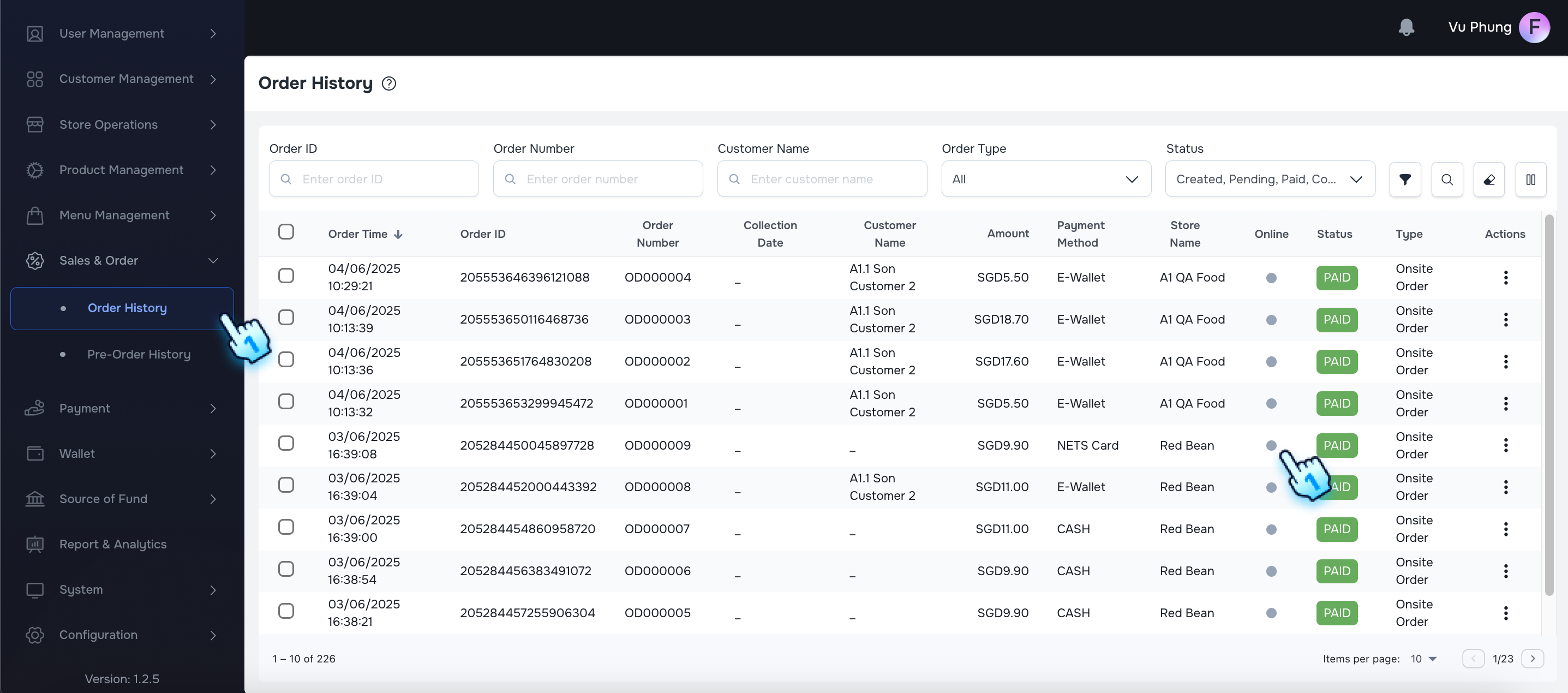
- On Back Office, offline transactions will be shown with a grey dot on Online column in Sales & Order/Order History,
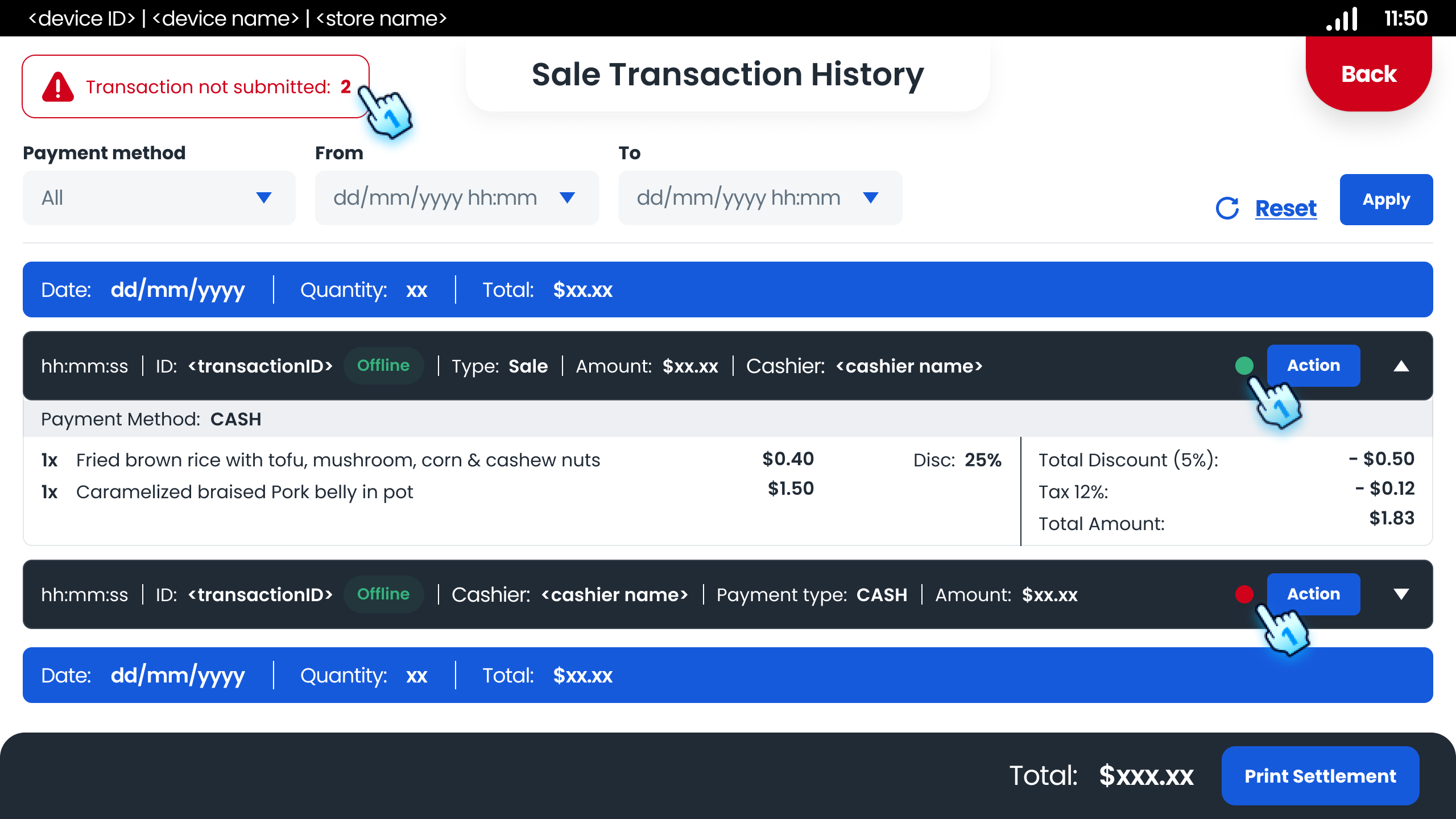
- On POS, successfully submitted transactions will display green dots, while failed submissions will show red dots in Sales Transaction History.
- Quantity of Submitted Transactions Based on Status Will Display on the Progress Bar
- User is in online mode, and when the system submits transactions, the quantity of offline transactions based on status is displayed in the status bar on the top left corner.
#
Conclusion
This document provides a structured approach to managing network modes within the application, ensuring smooth transitions and proper handling of transactions in both online and offline states.
#
Screen flow
#
Offline Mode Management
#
Transaction Management in Offline Mode