#
Collection of Orders
#
Description
This section provides instructions for managing pre-orders, including searching, filtering, and collecting orders.
#
Searching for Pre-Orders
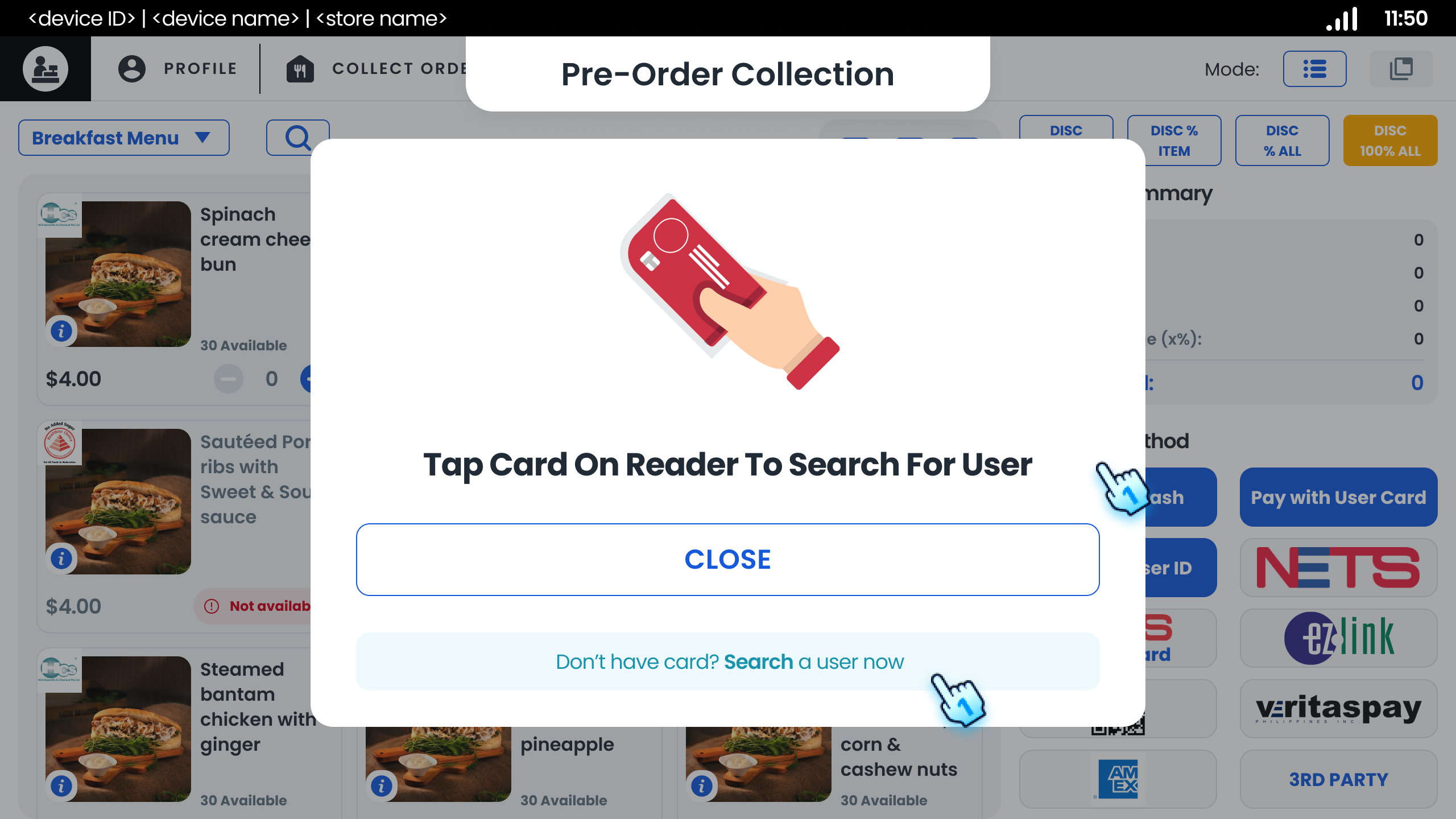
- Using Card Tap
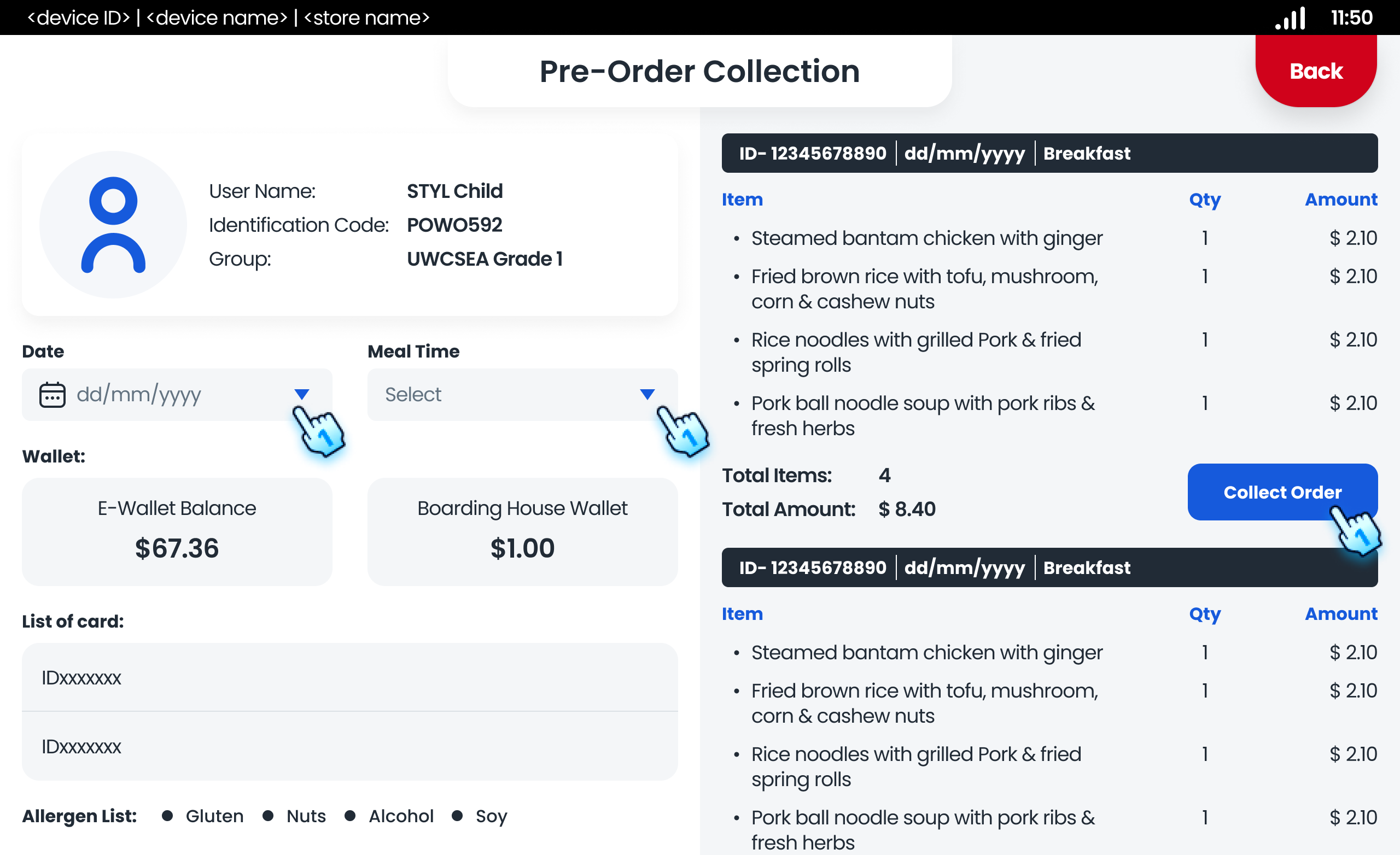
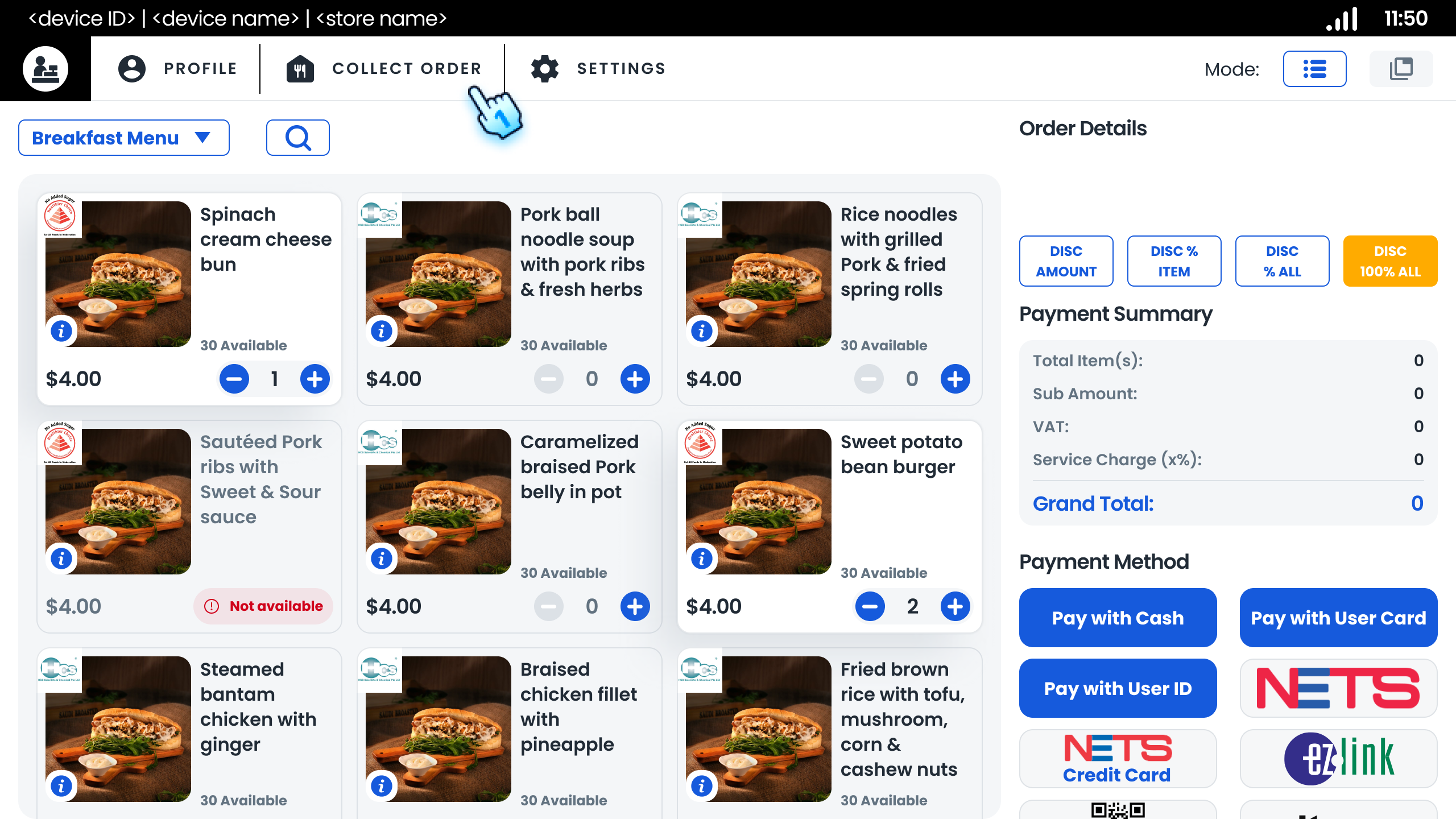
- Tap the customer's card to display their pre-order details.
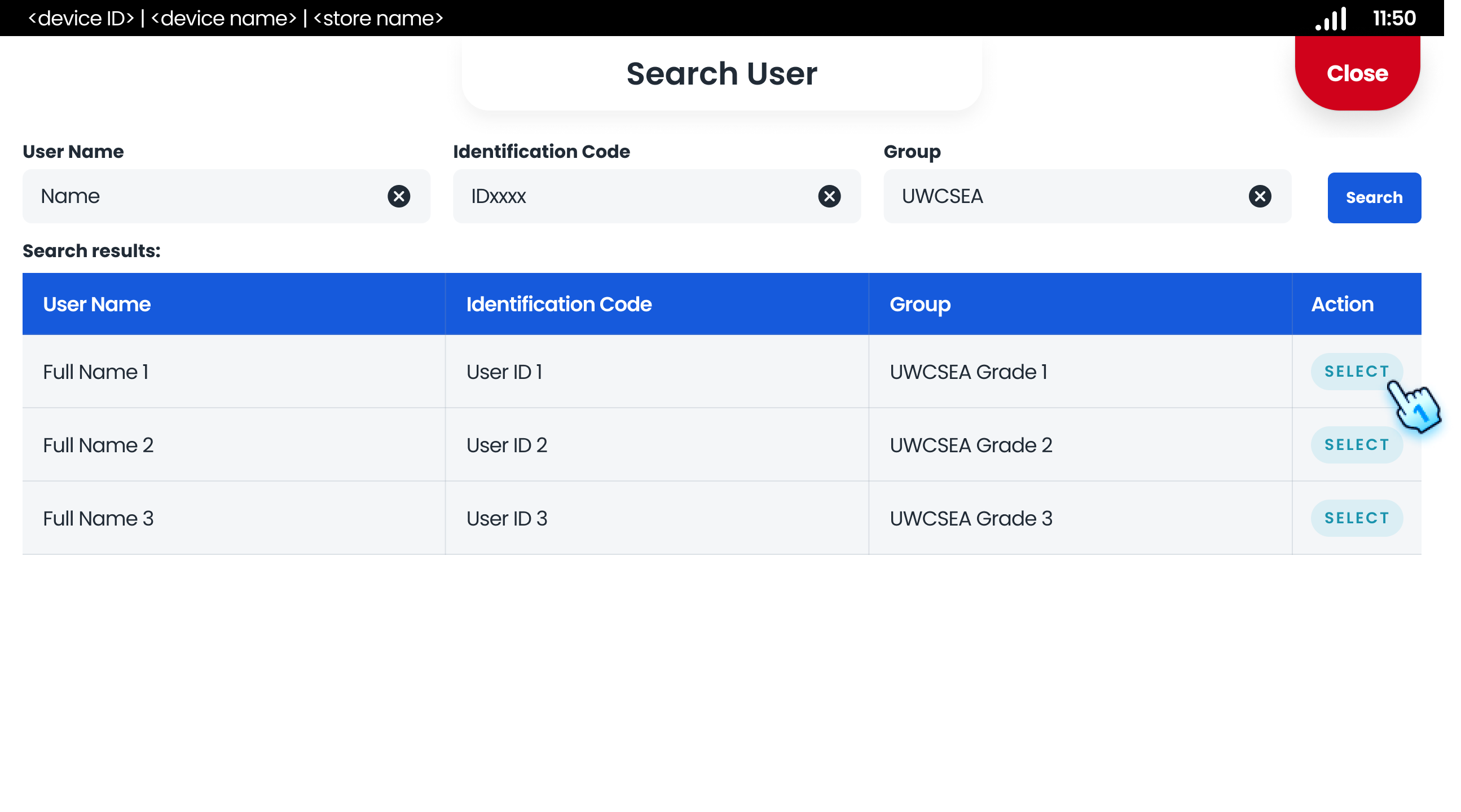
- Manual Search
- Search for the customer by name, number, or group if the card is not available.
- Filtering Orders
- By Date
- Use the date picker to filter orders by a specific date.
- By Mealtime
- Select a mealtime filter to display relevant orders.
#
Collecting Orders
- Initiate Collection
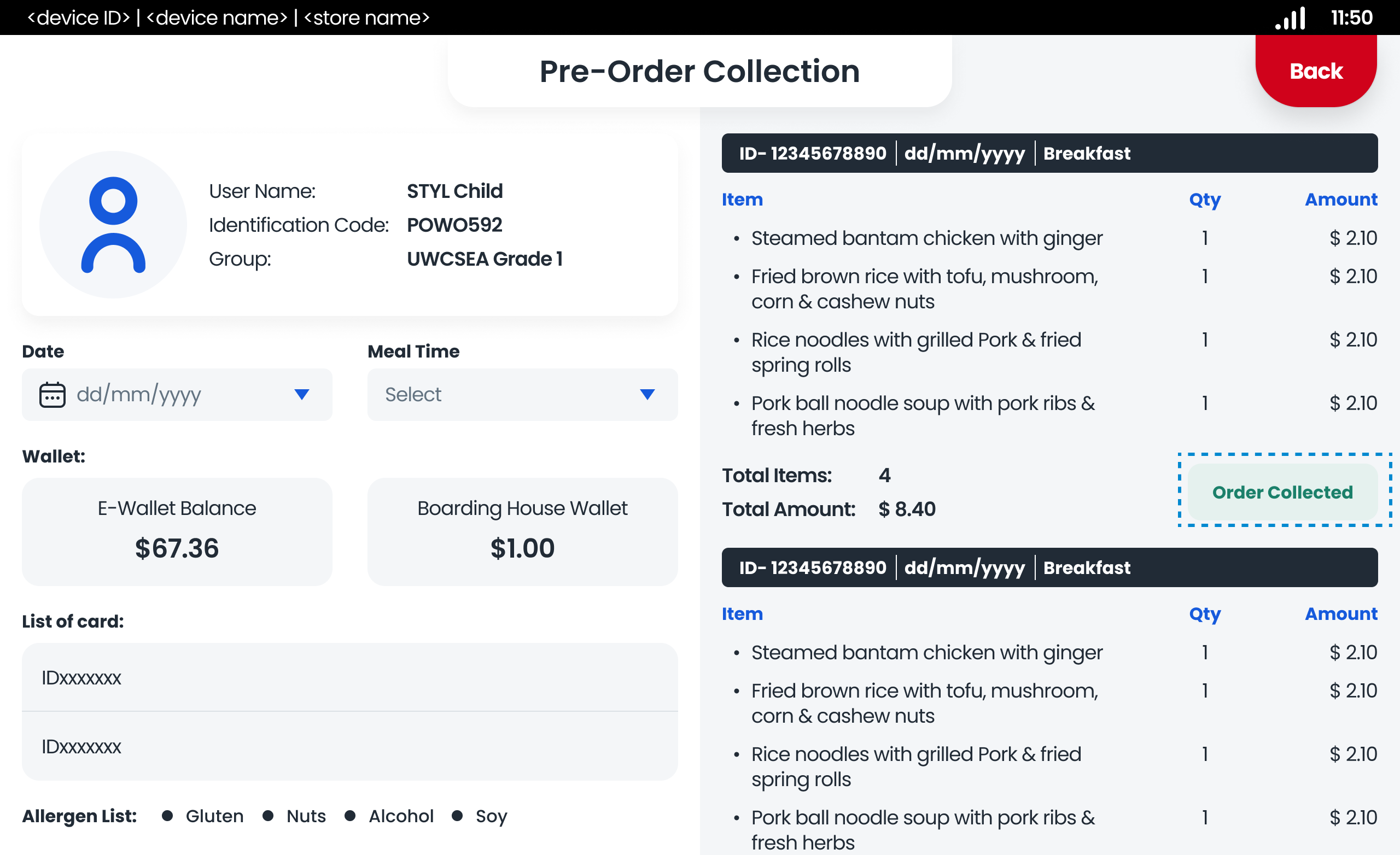
- Click the "Collect Order" button to start the collection process.
- Confirm Collection
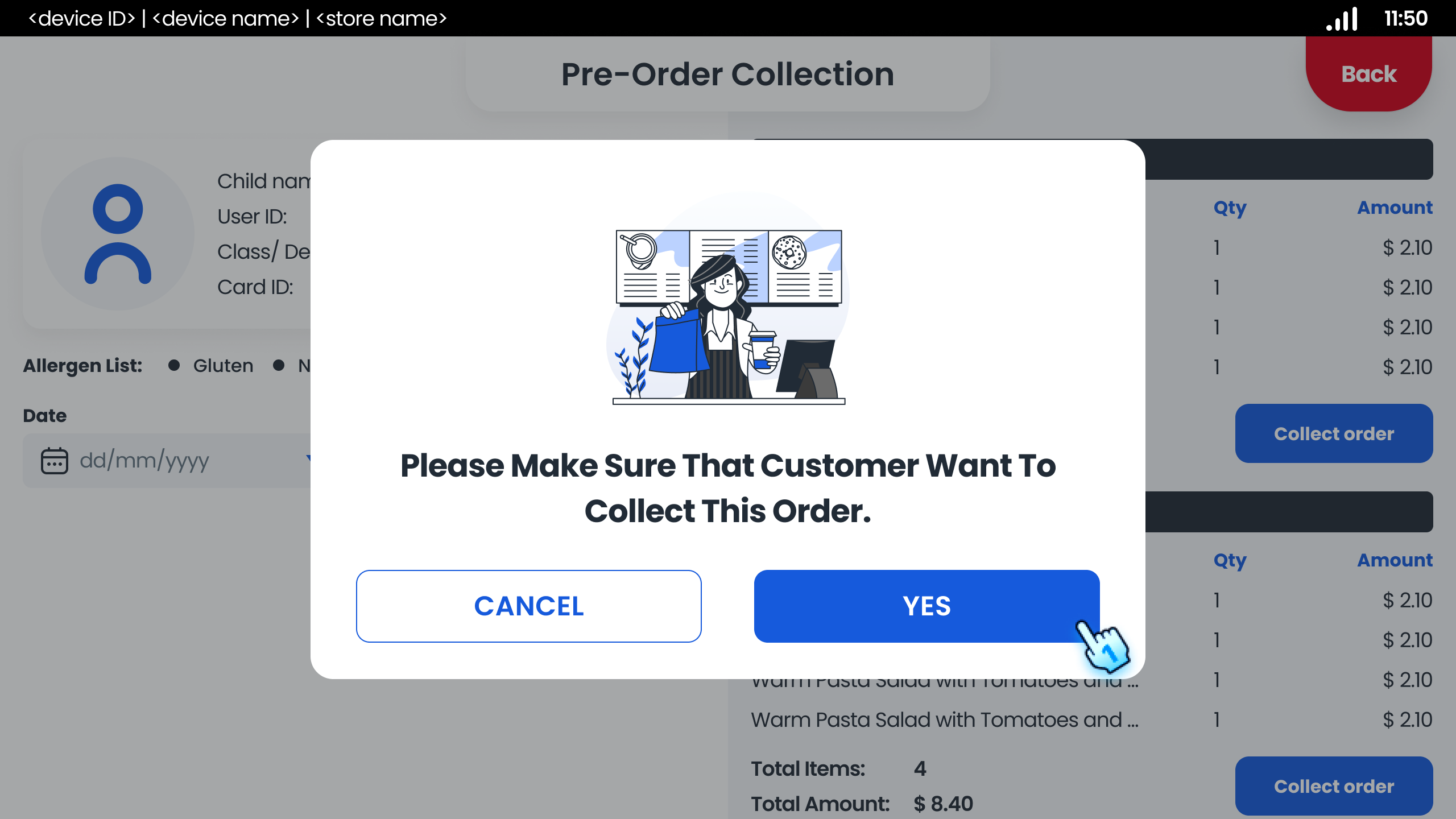
- Confirm the collection by clicking "Yes" on the confirmation dialog.
#
Conclusion
The collect order module streamlines the process of managing and collecting pre-orders, ensuring efficient service for customers.
#
Screen flow
#
Searching for Pre-Order
#
Collecting Orders