#
Payment process
#
Description
This section outlines the procedures for processing payments using various methods, including cash, e-wallet, and NETS cards.
#
Payment Processing
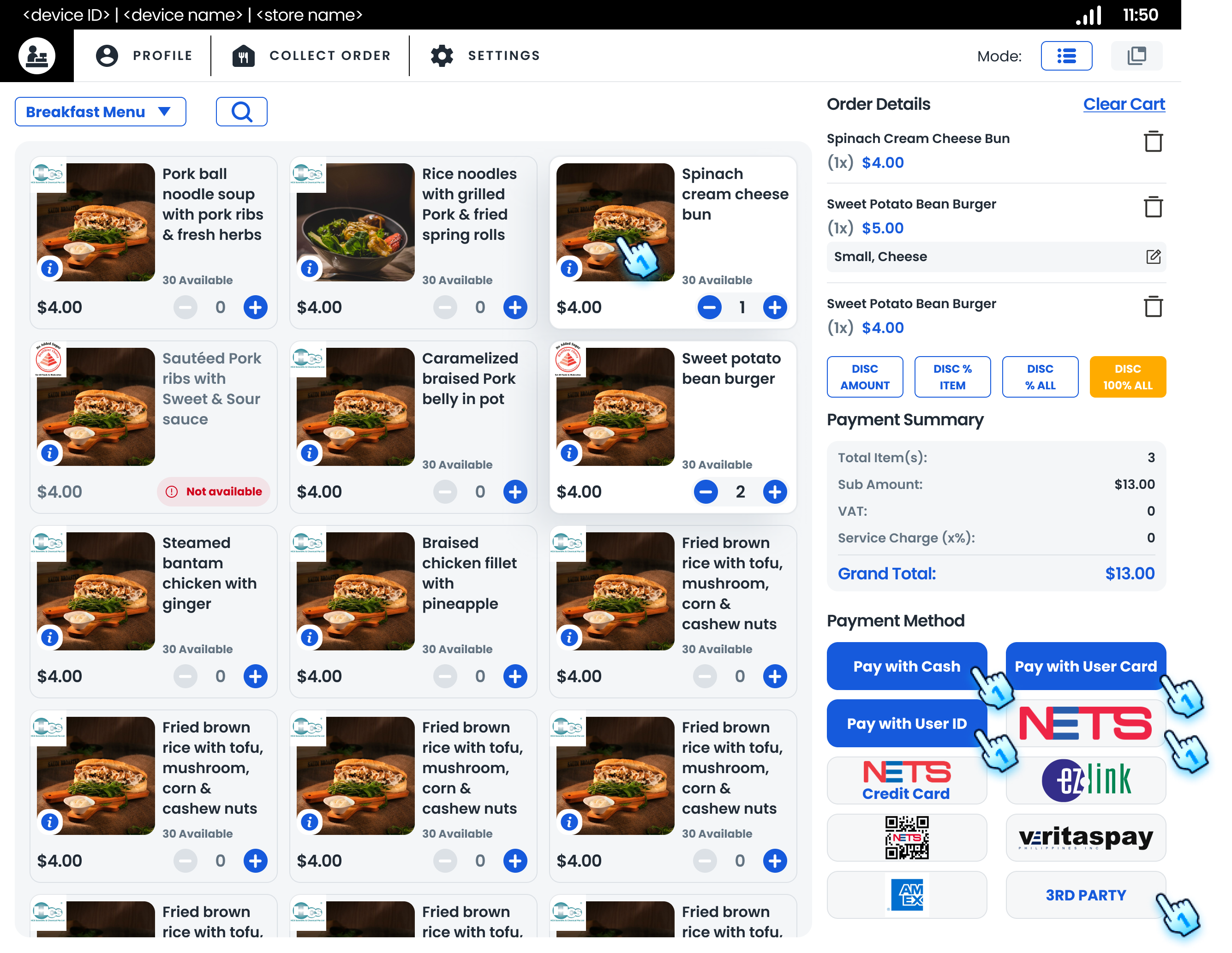
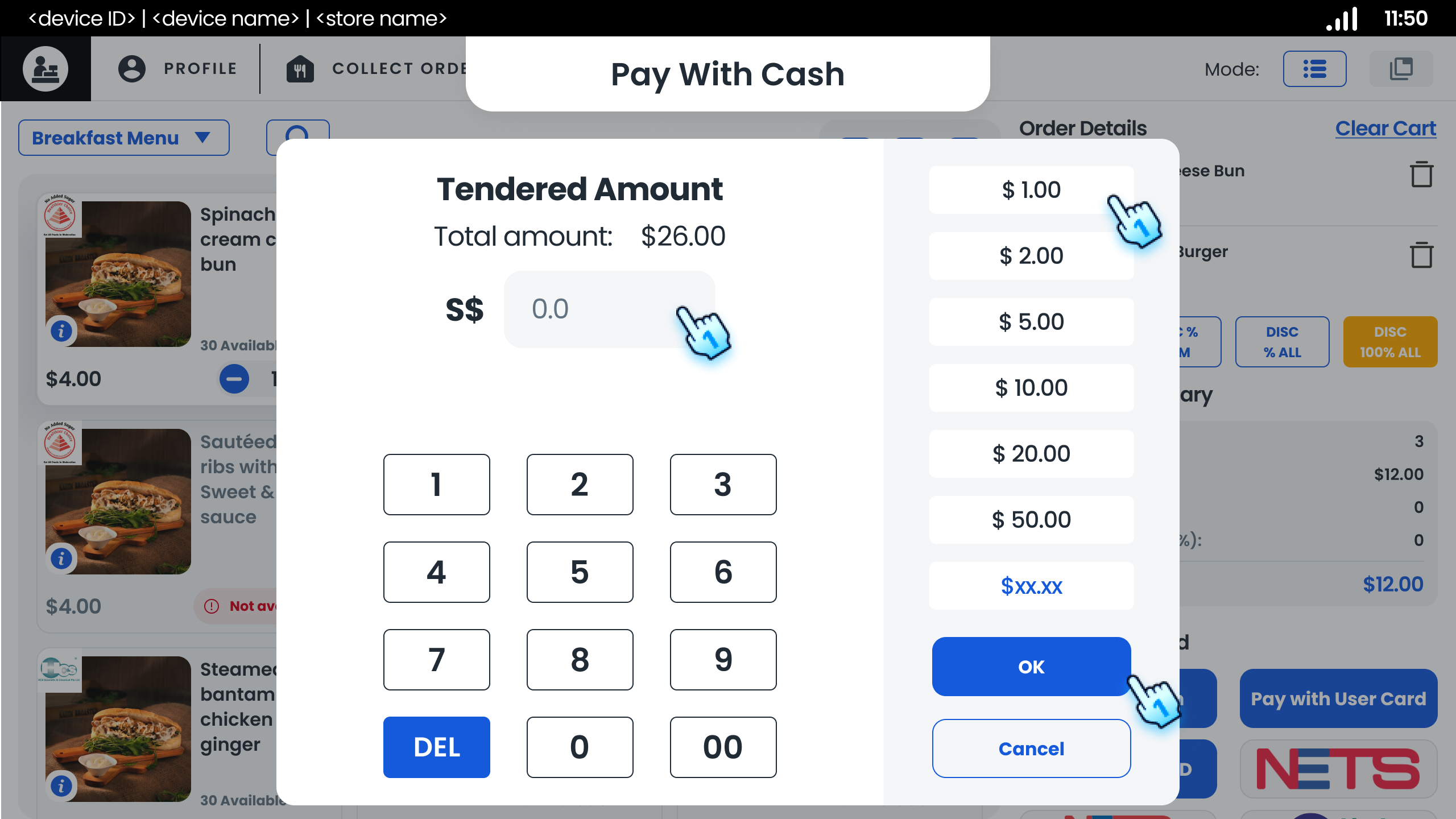
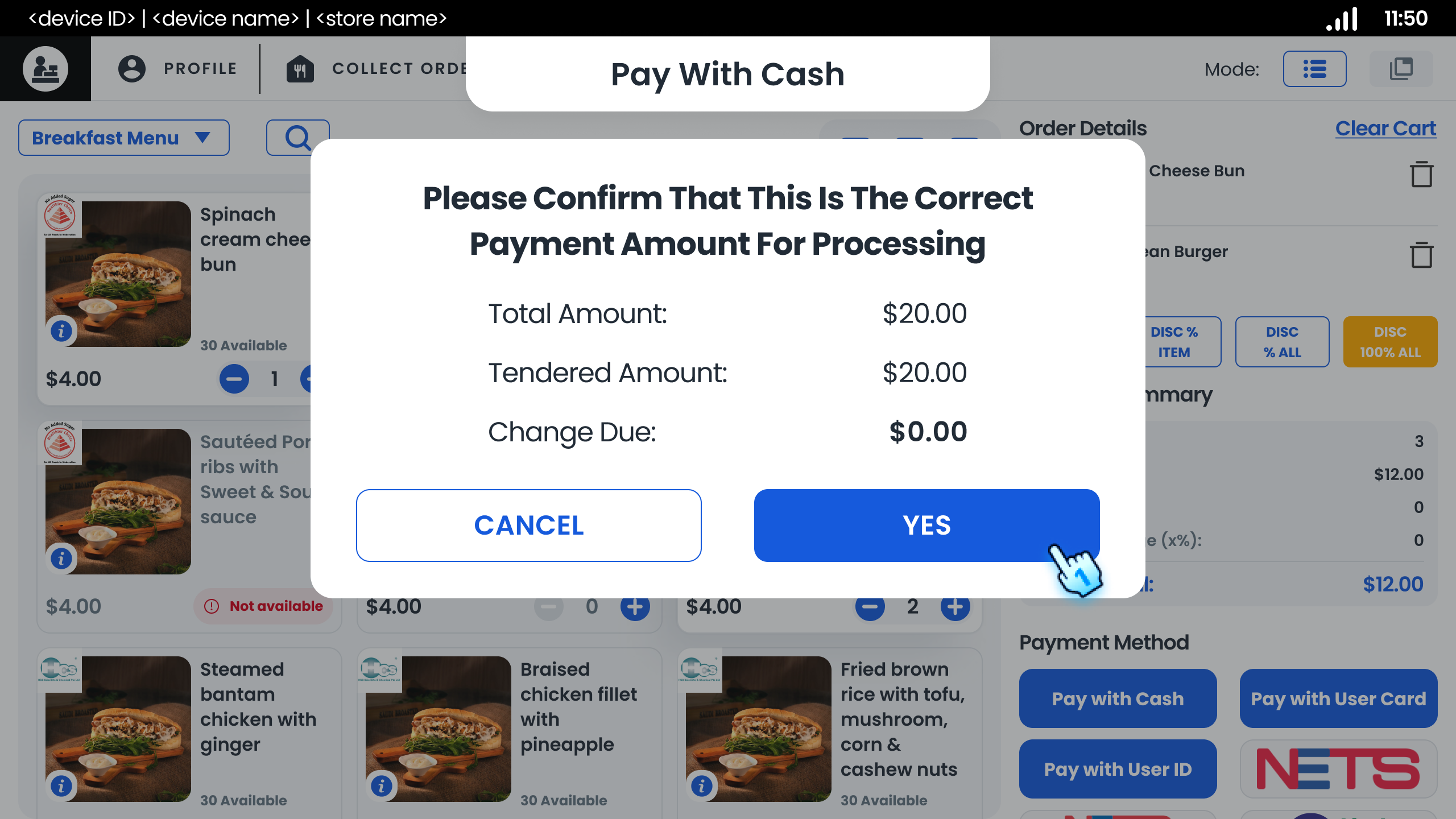
- Cash Payment
- Select the "Pay with Cash" option.
- Enter the amount tendered or choose a recommended amount.
- Confirm the payment to view the total, tendered amount, and change due.
- E-Wallet Payment
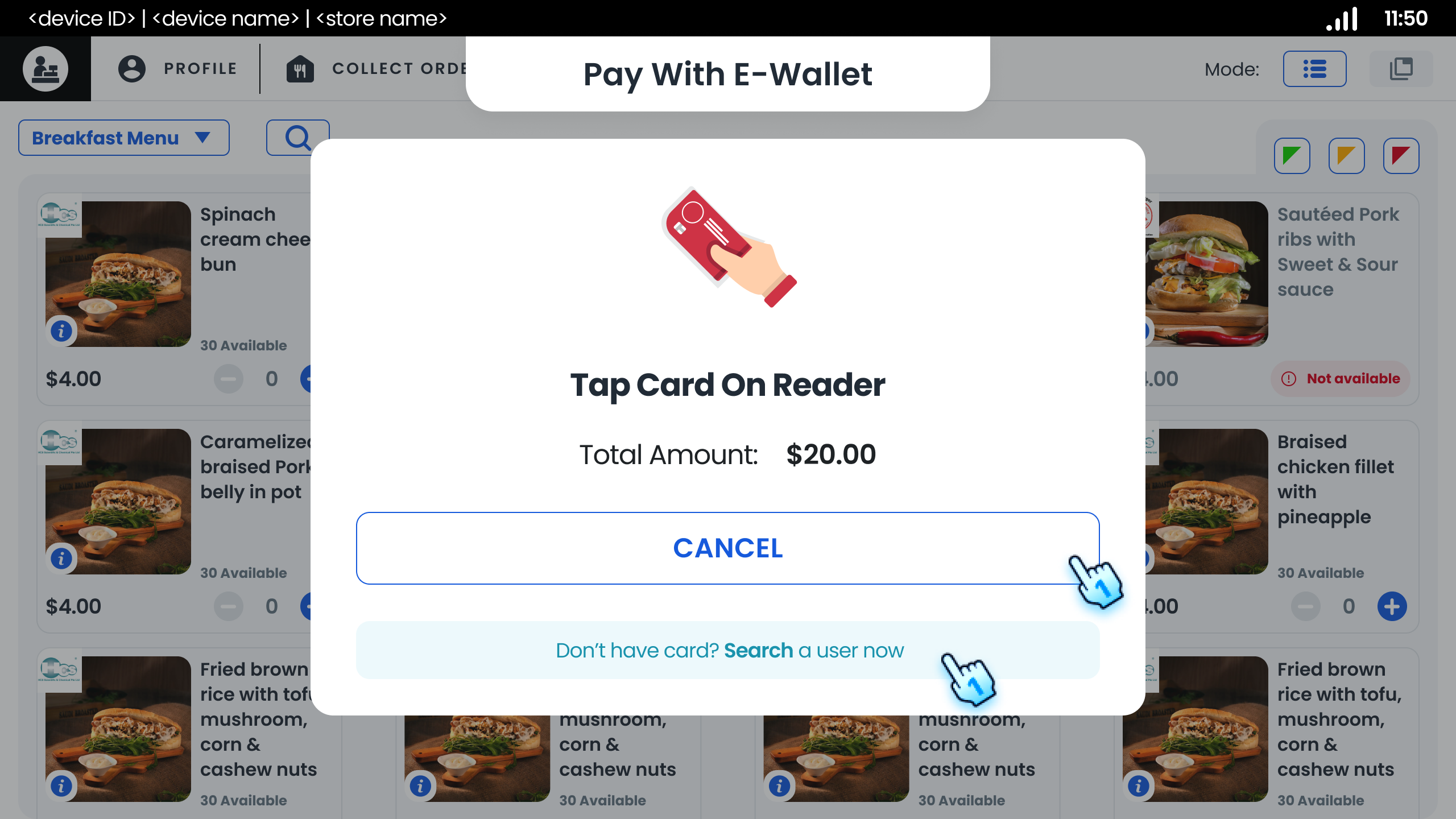
- Select the e-wallet option.
- Tap the customer's card on the reader or
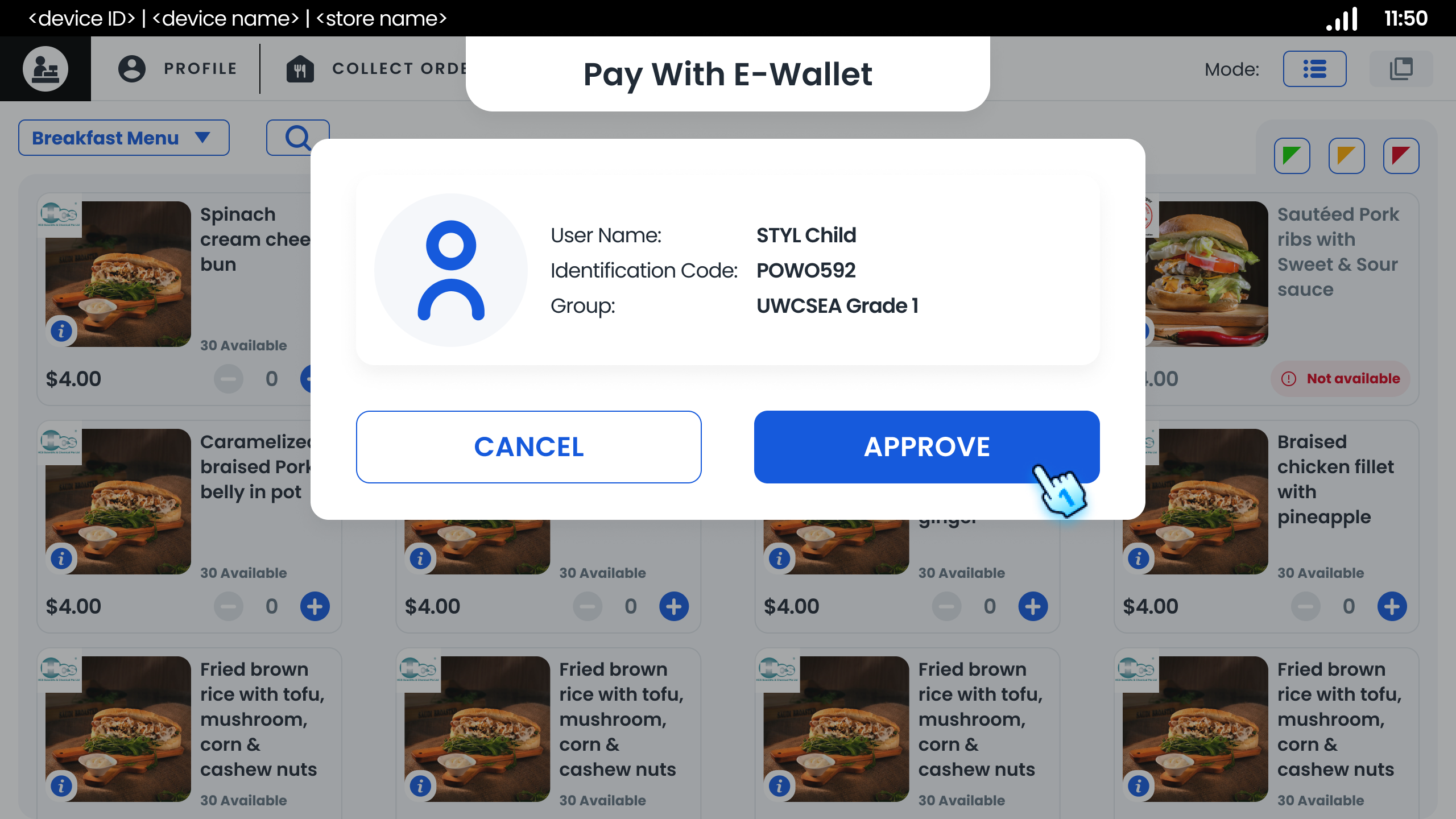
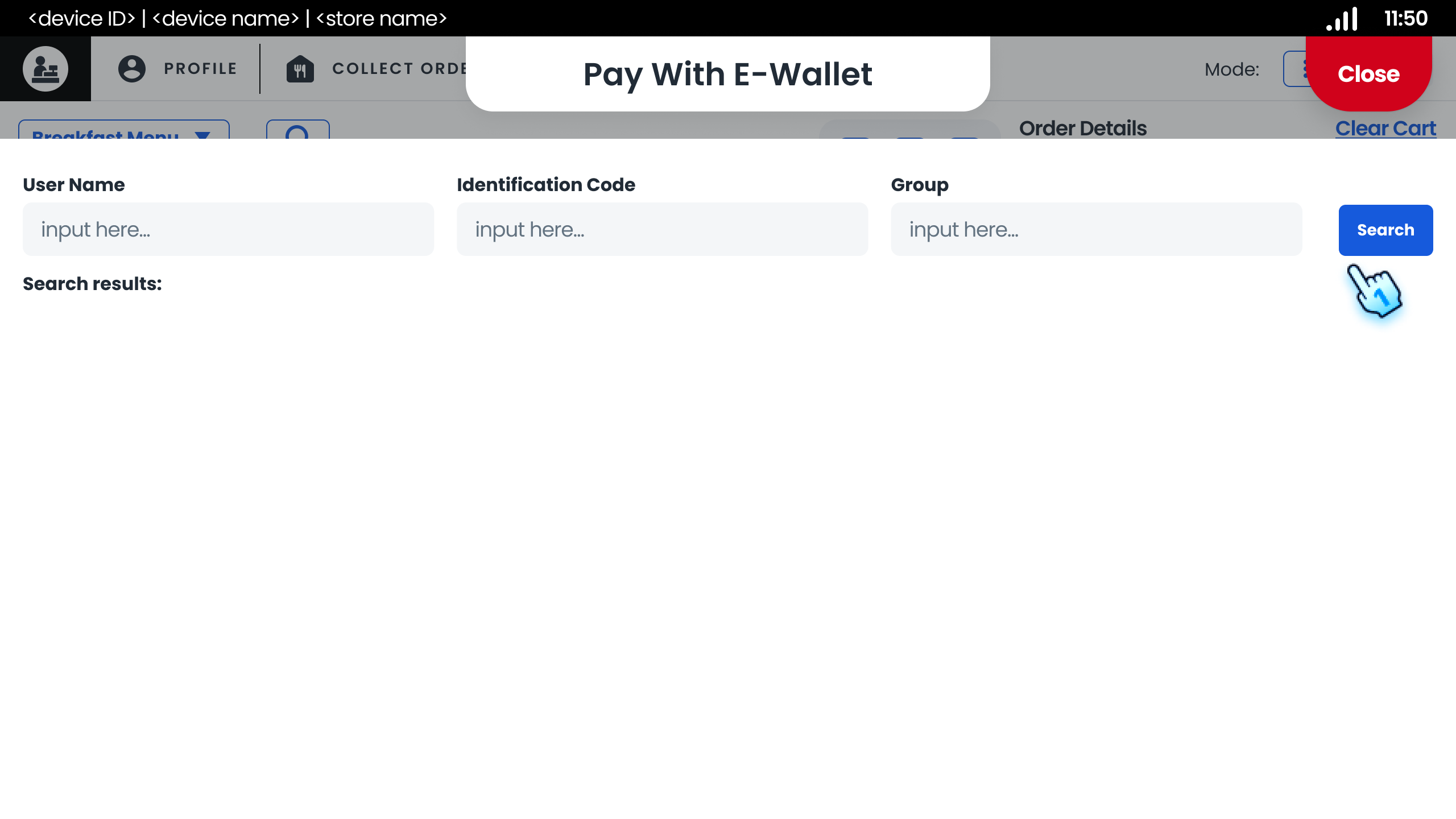
- Search for the customer manually:
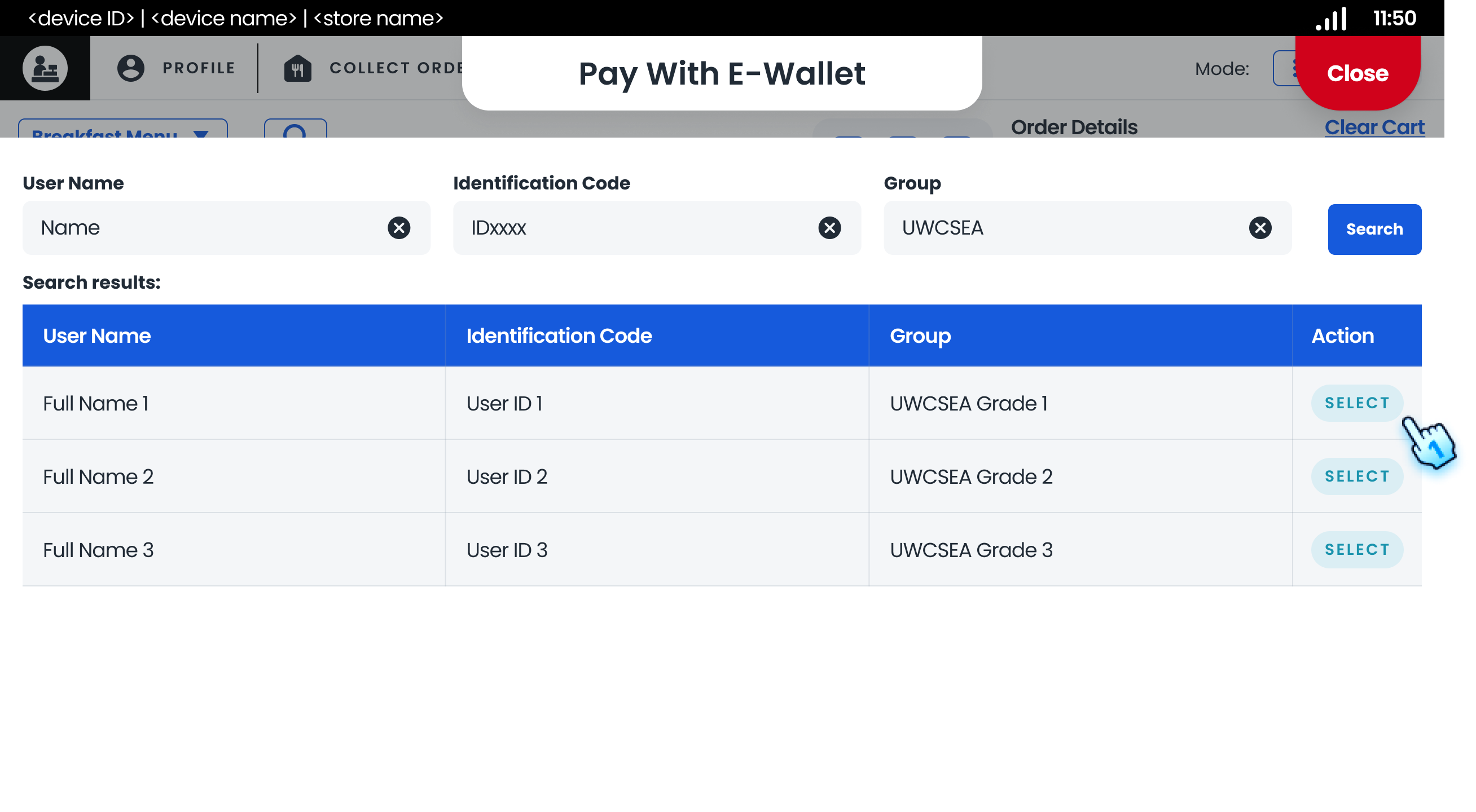
- Search by User Name, Identification Code, Group
- Select Customer
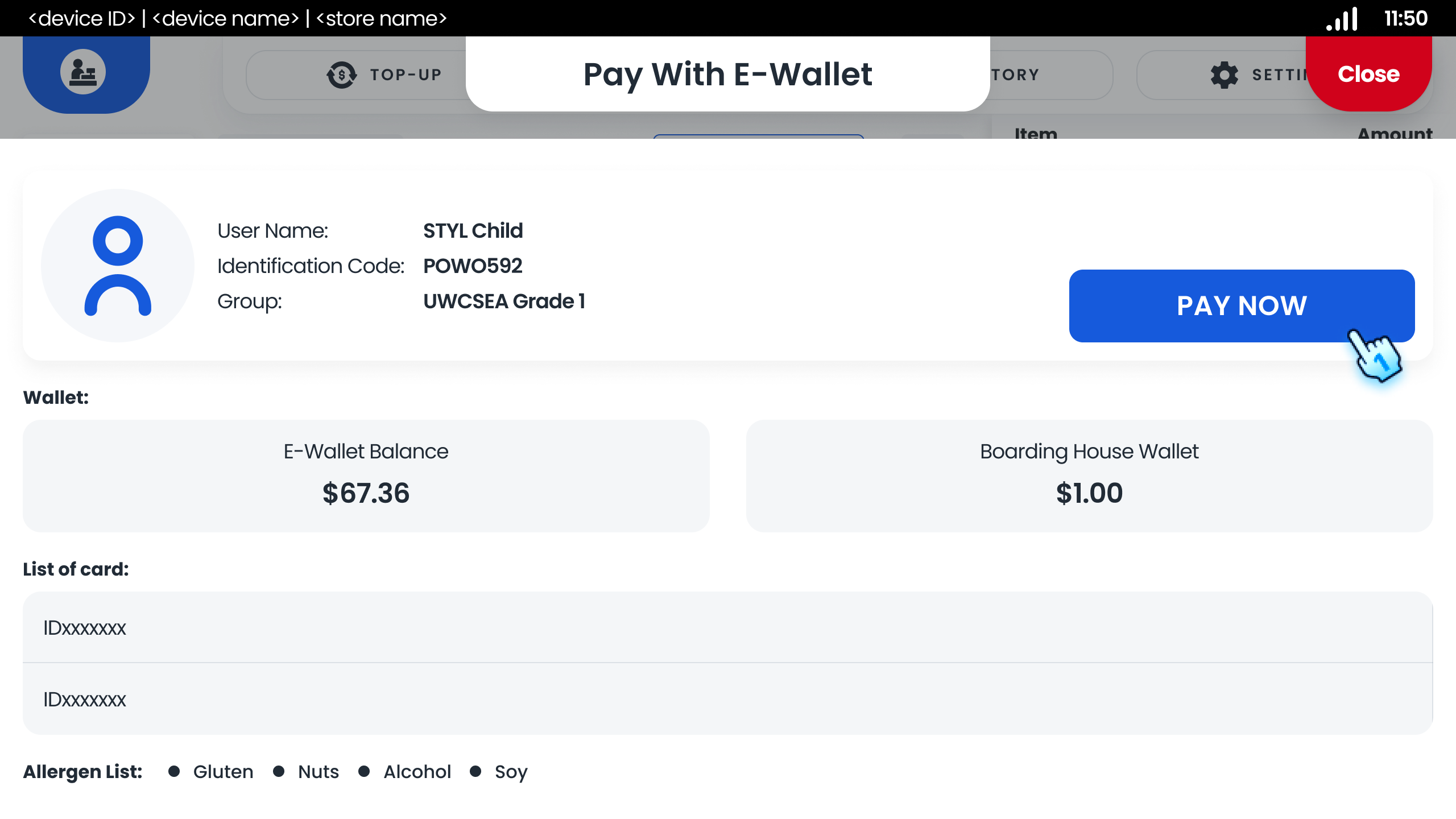
- Tap "Pay Now" button
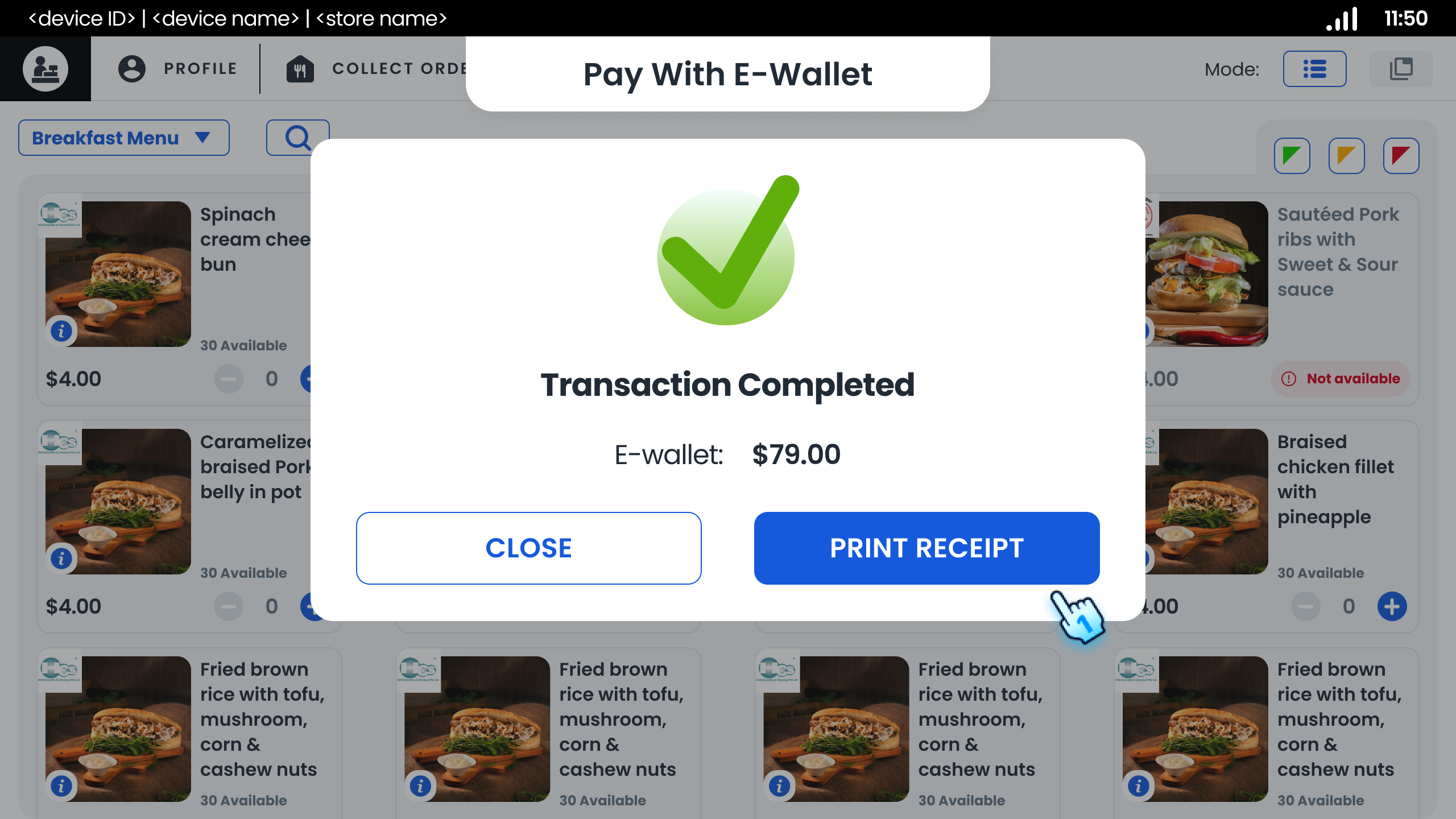
- Confirm the payment to process the transaction.
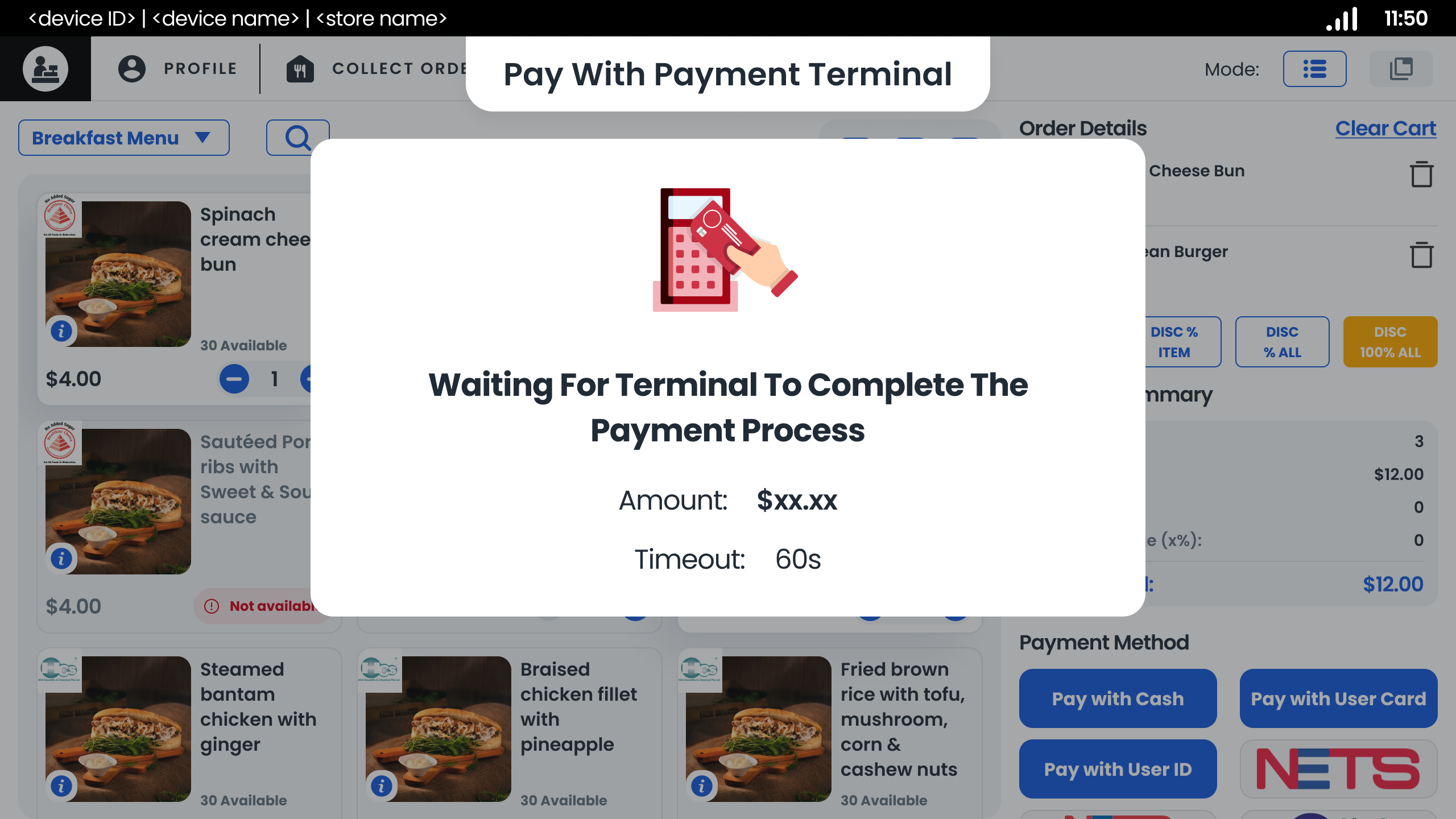
- Terminal Payment (NETS, EZlink, etc.)
- Select the option.
- Tap the customer's card on the reader.
- Confirm the payment to complete the transaction.
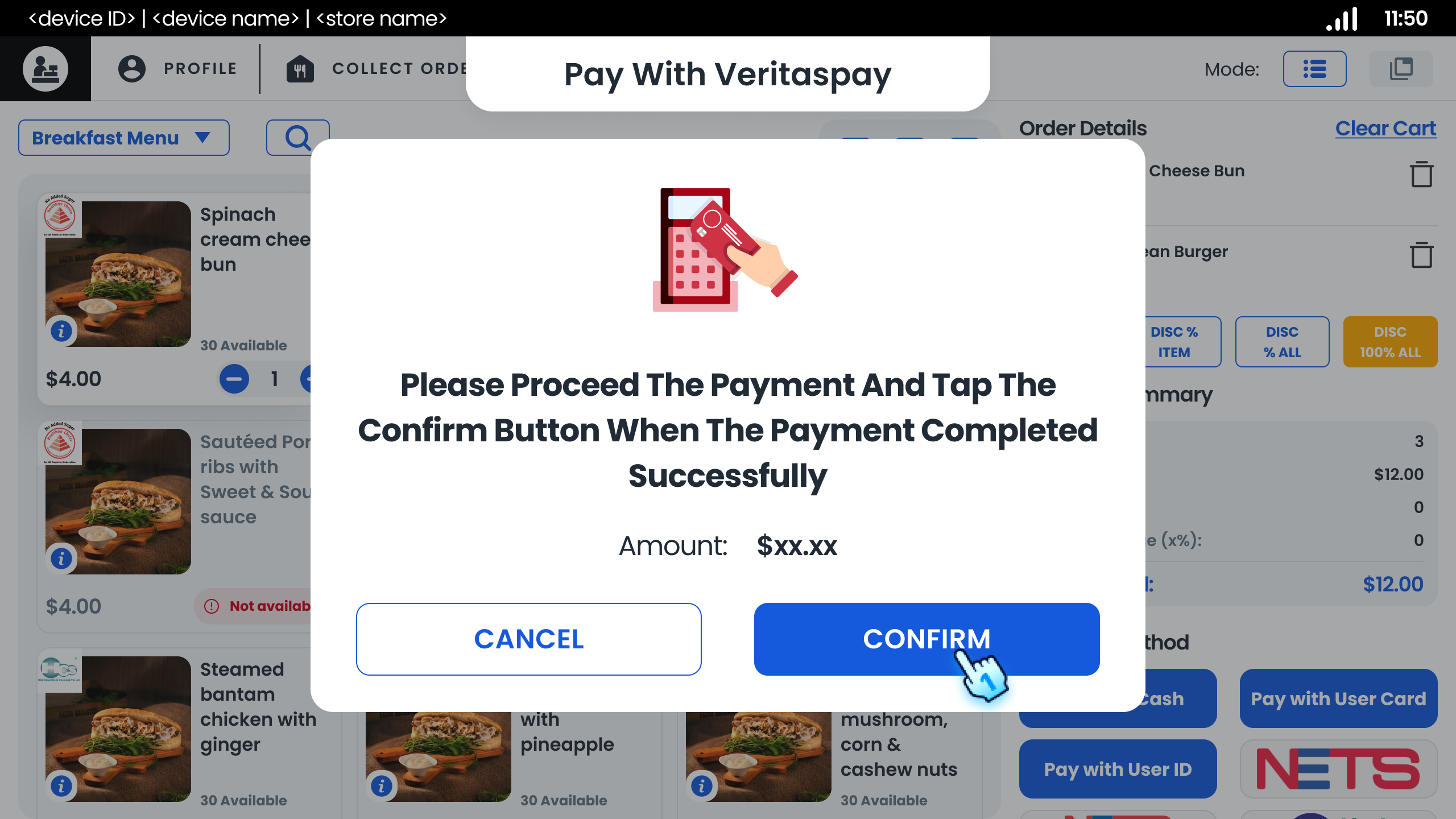
- Third party Payment
- Select the option.
- Tap "Confirm" button in the dialog for Completed Payment.
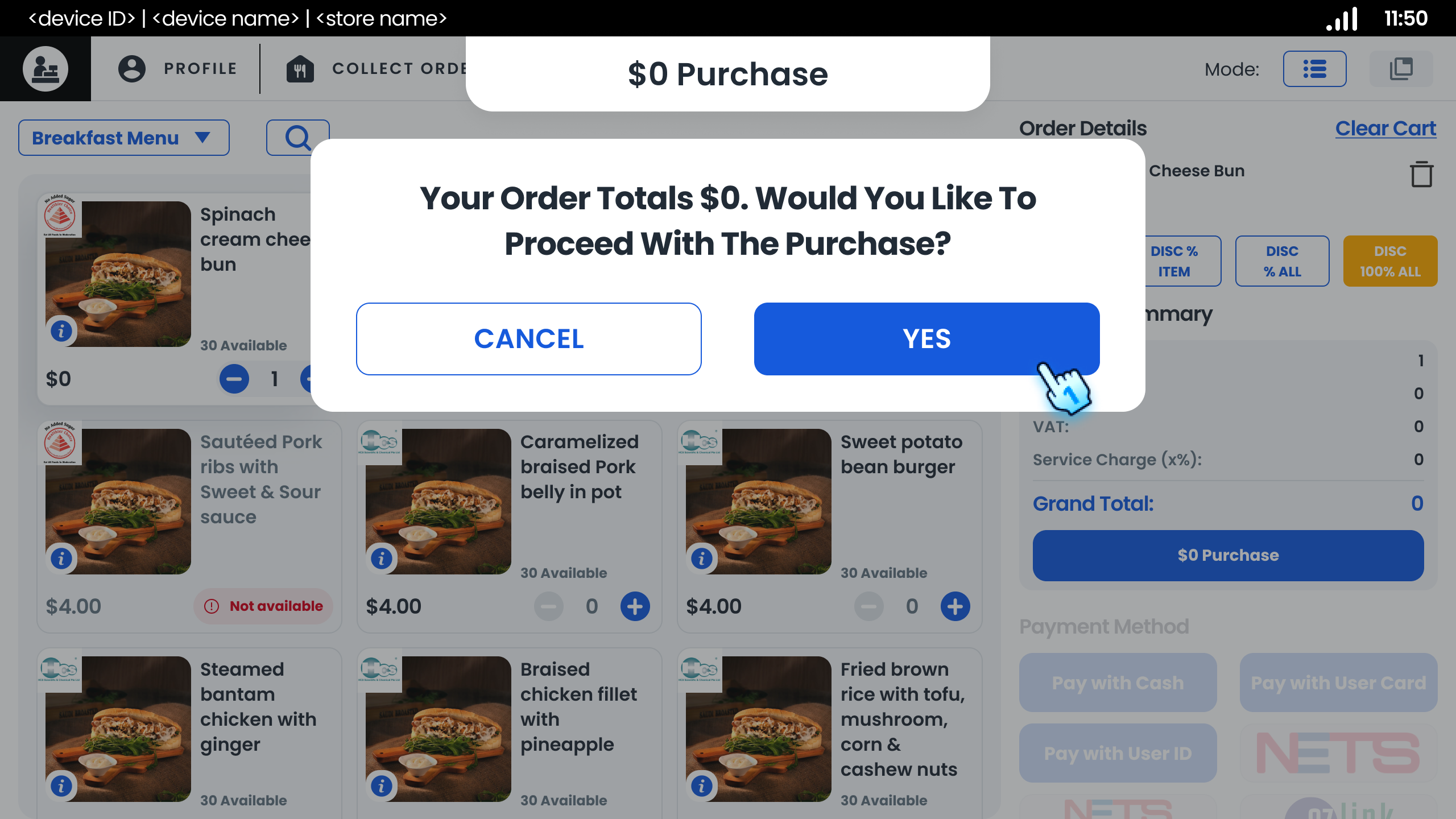
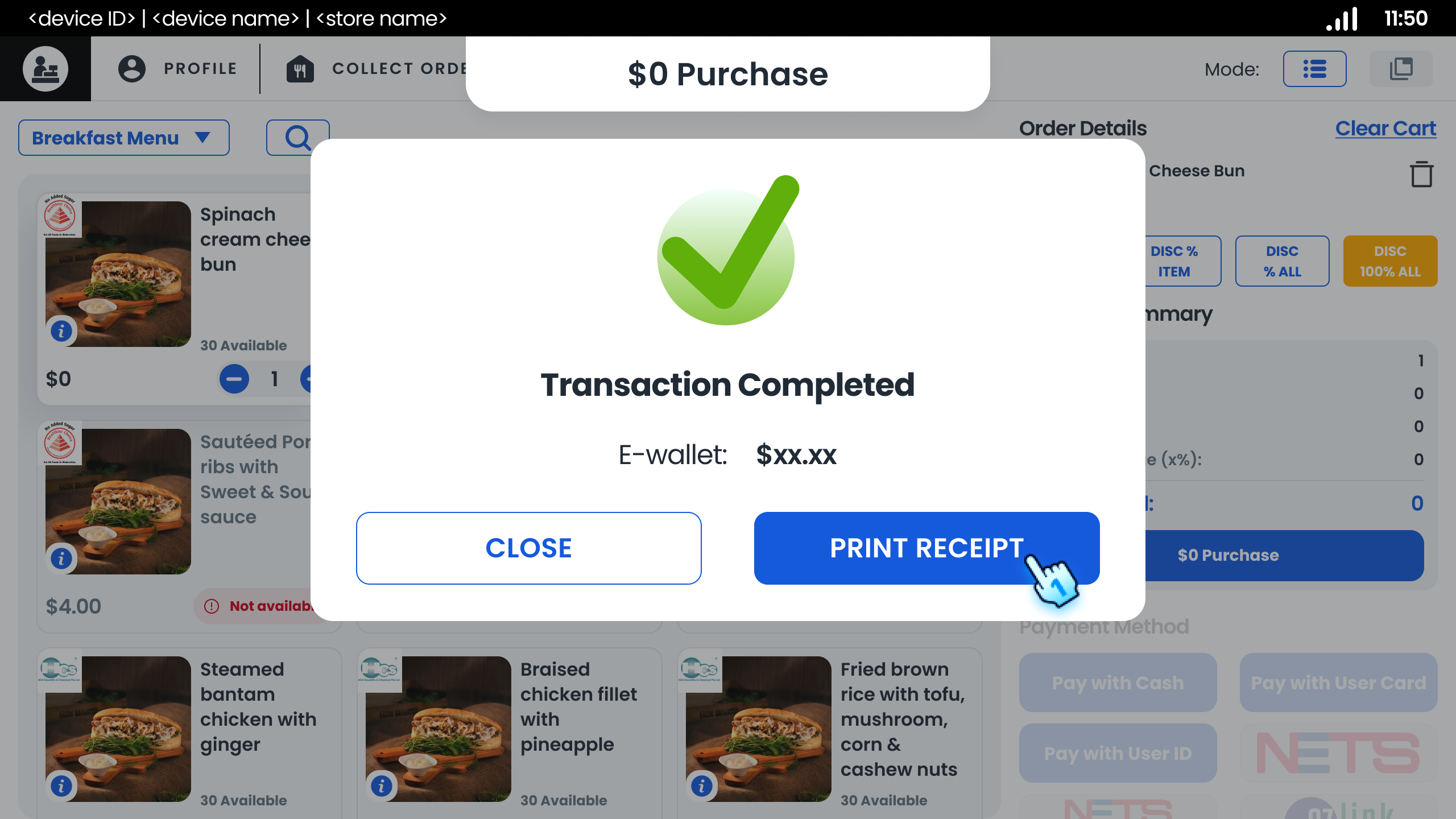
- 0$ items Payment
- Tap Proceed with 0$
- Tap "Yes" button in the dialog for confirmation.
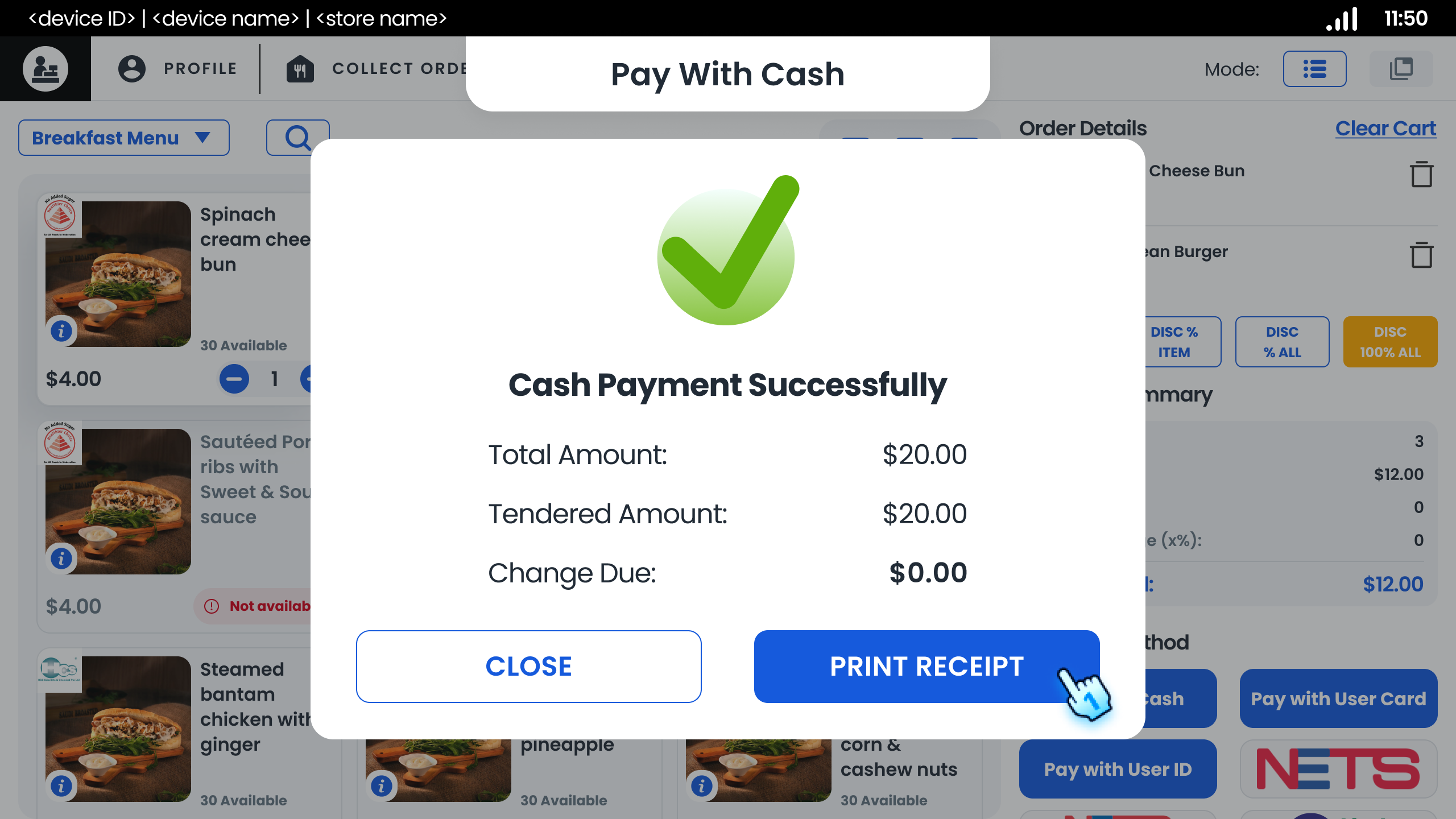
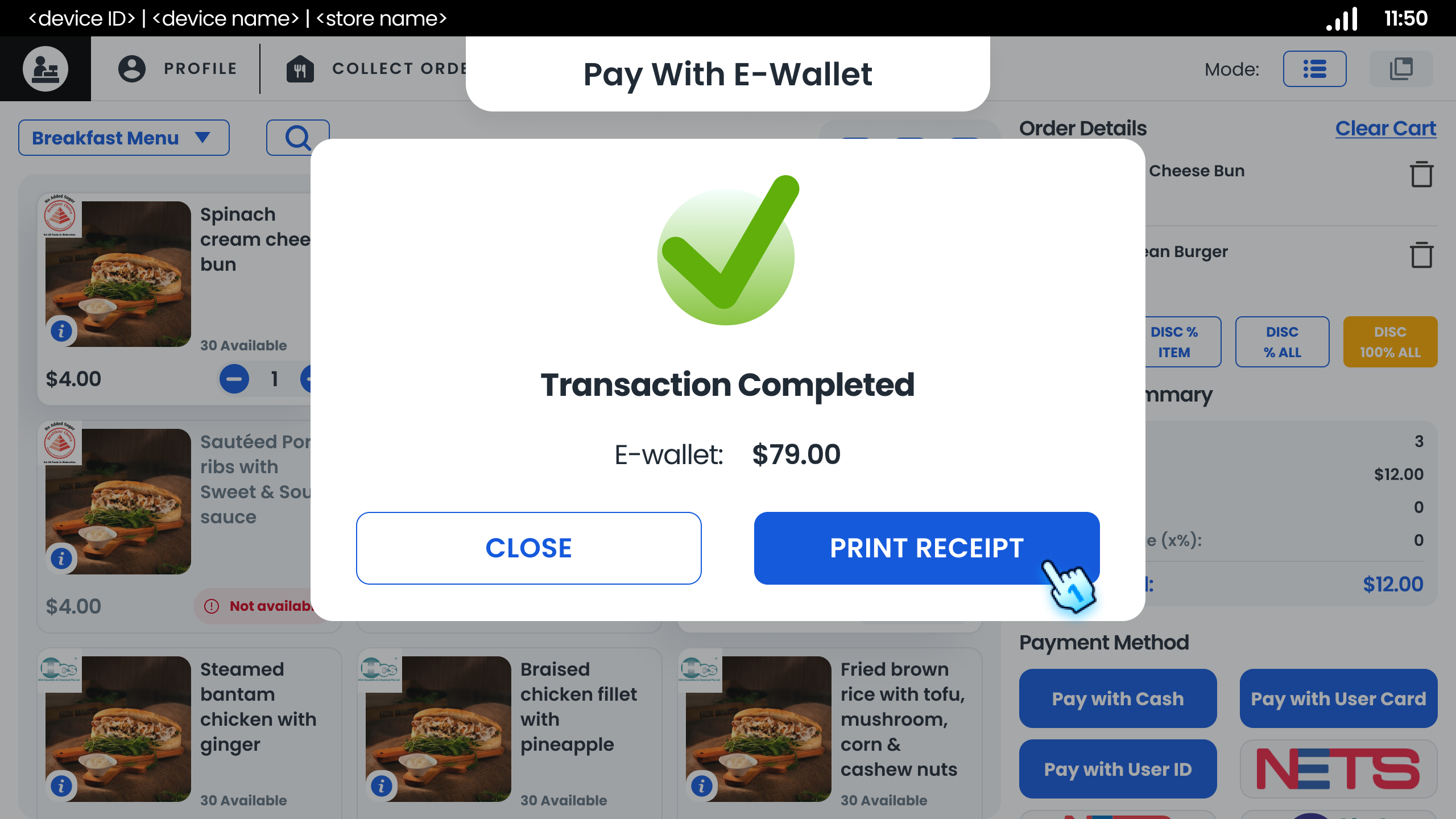
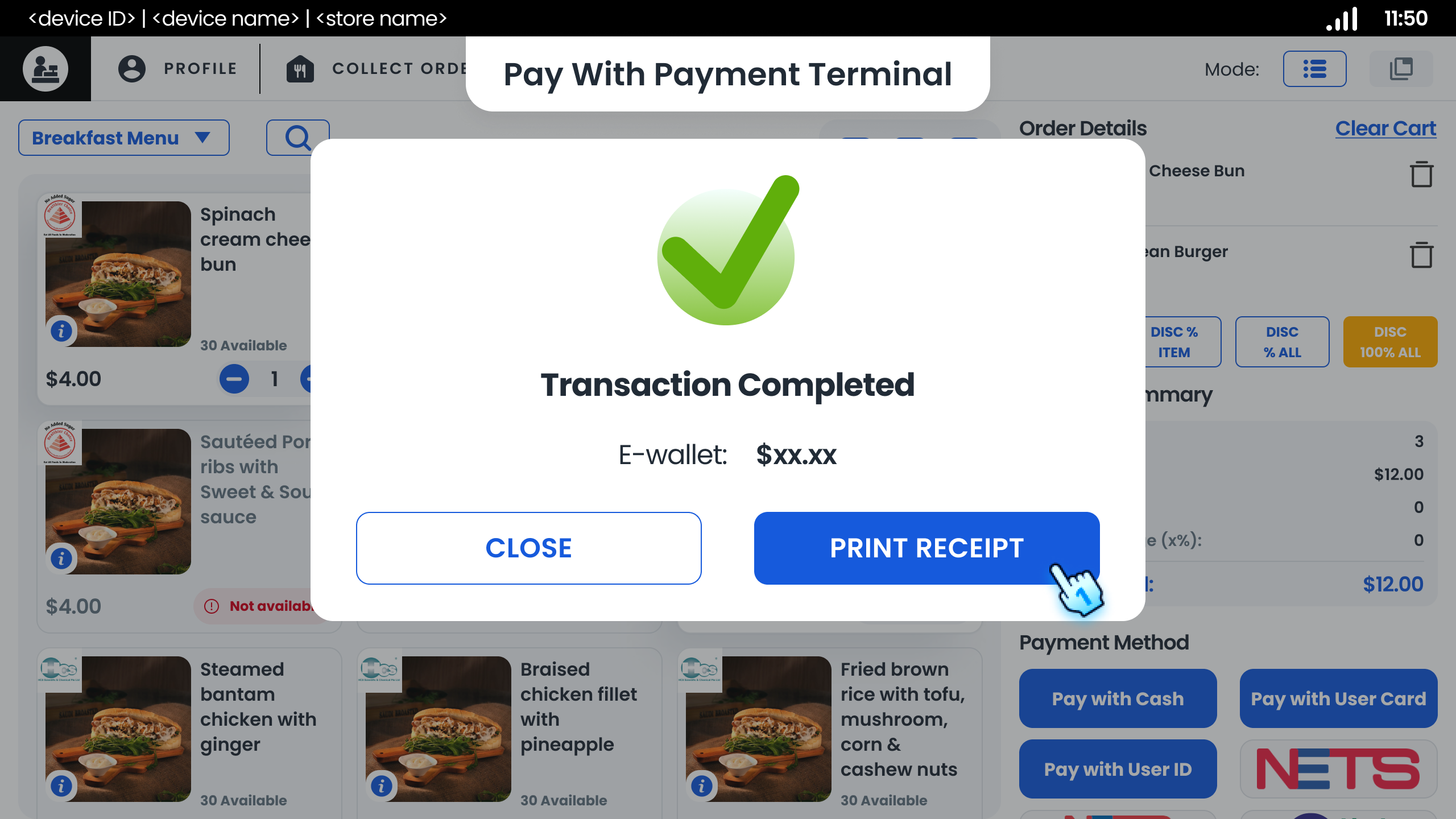
- Print Receipt after Payment Success
- Tap on Print Receipt button on the Success Dialog for any Payment method
#
Handling Issues
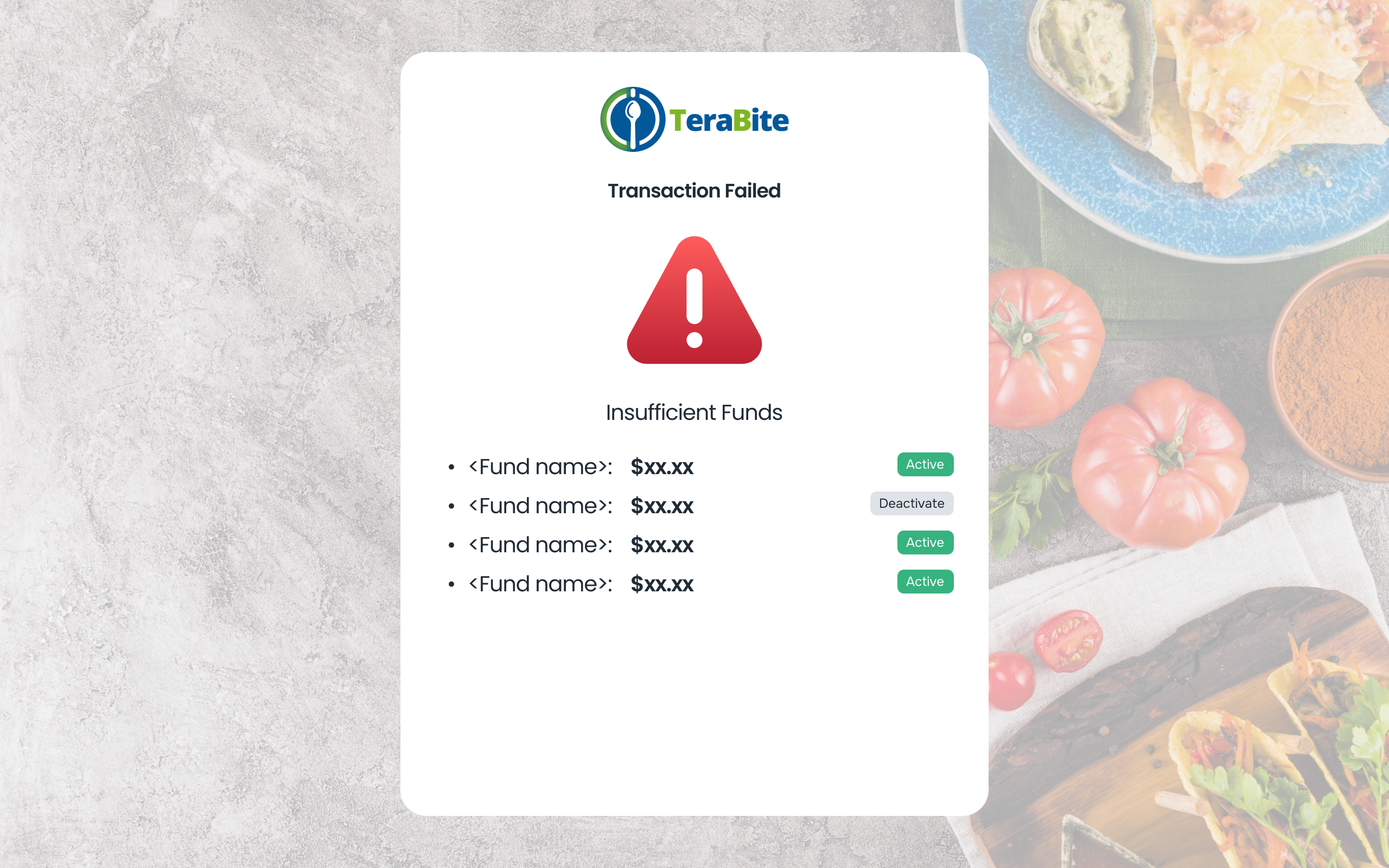
- Insufficient Funds
- If the card balance is insufficient, an error message will be displayed.
- Inactive/Expired Cards
- An error message will indicate if the card is inactive or expired.
#
Conclusion
The payment module supports multiple payment methods, ensuring flexibility and convenience for both cashiers and customers, while also handling potential payment issues effectively.
#
Screen flow
#
Payment Processing