# Sales process

# Description

This section provides guidelines for managing sales transactions, including menu navigation, item selection, and discount application within the POS system.

# Menu Navigation

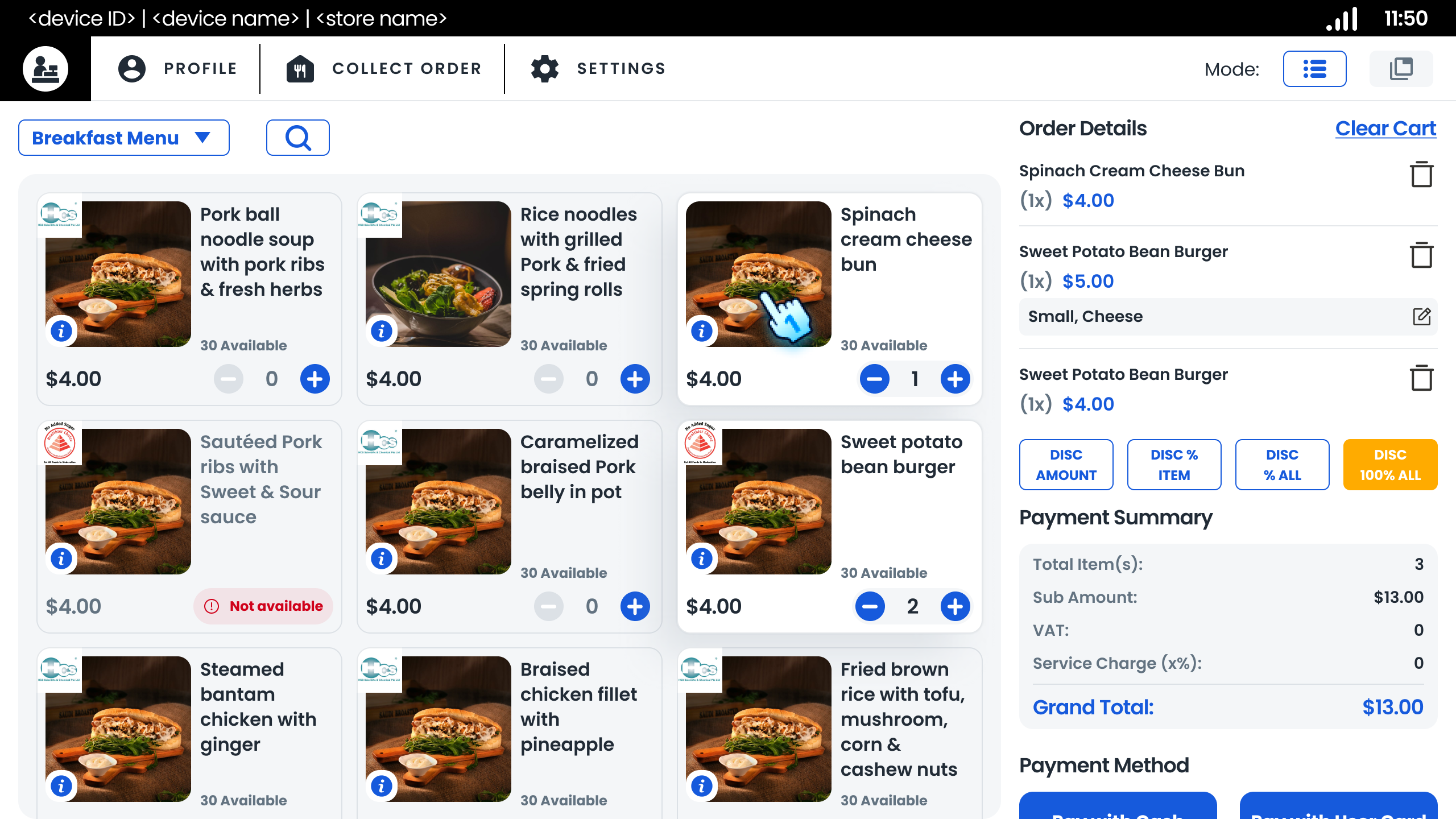
  1. Access Menu Items
  • Log in to the POS system.
  • Navigate to the menu section to view available items.
  1. Filter Menu Items
  • Use the mealtime filter (e.g., breakfast, lunch) to display relevant items.
  • Search for specific items by name using the search icon.

# Item Selection and Cart Management

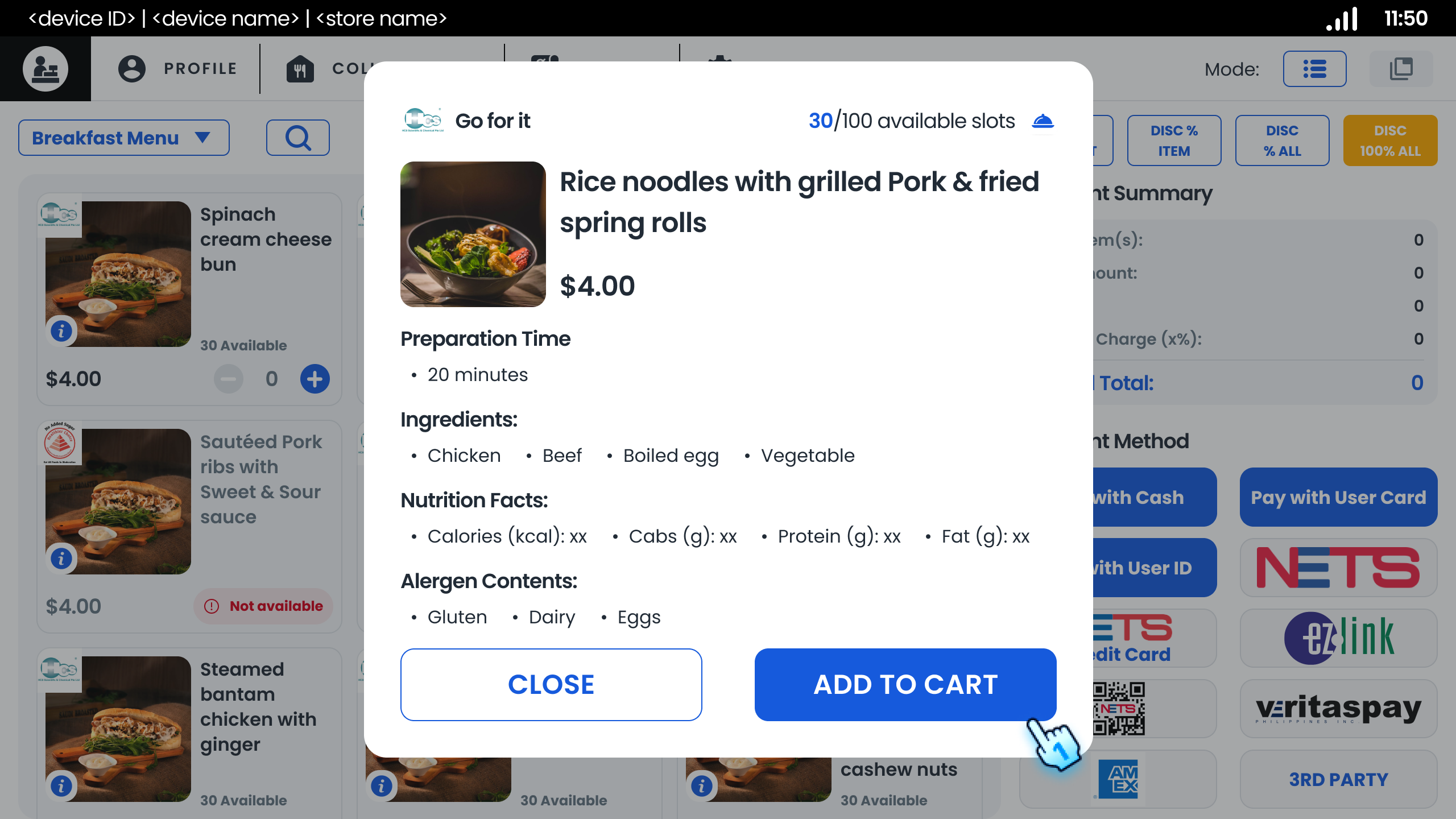
  1. View Item Details
  • Tap on a menu item to view its details and options.
  1. Add Items to Cart
  • Tap the (+) icon to add items to the cart.
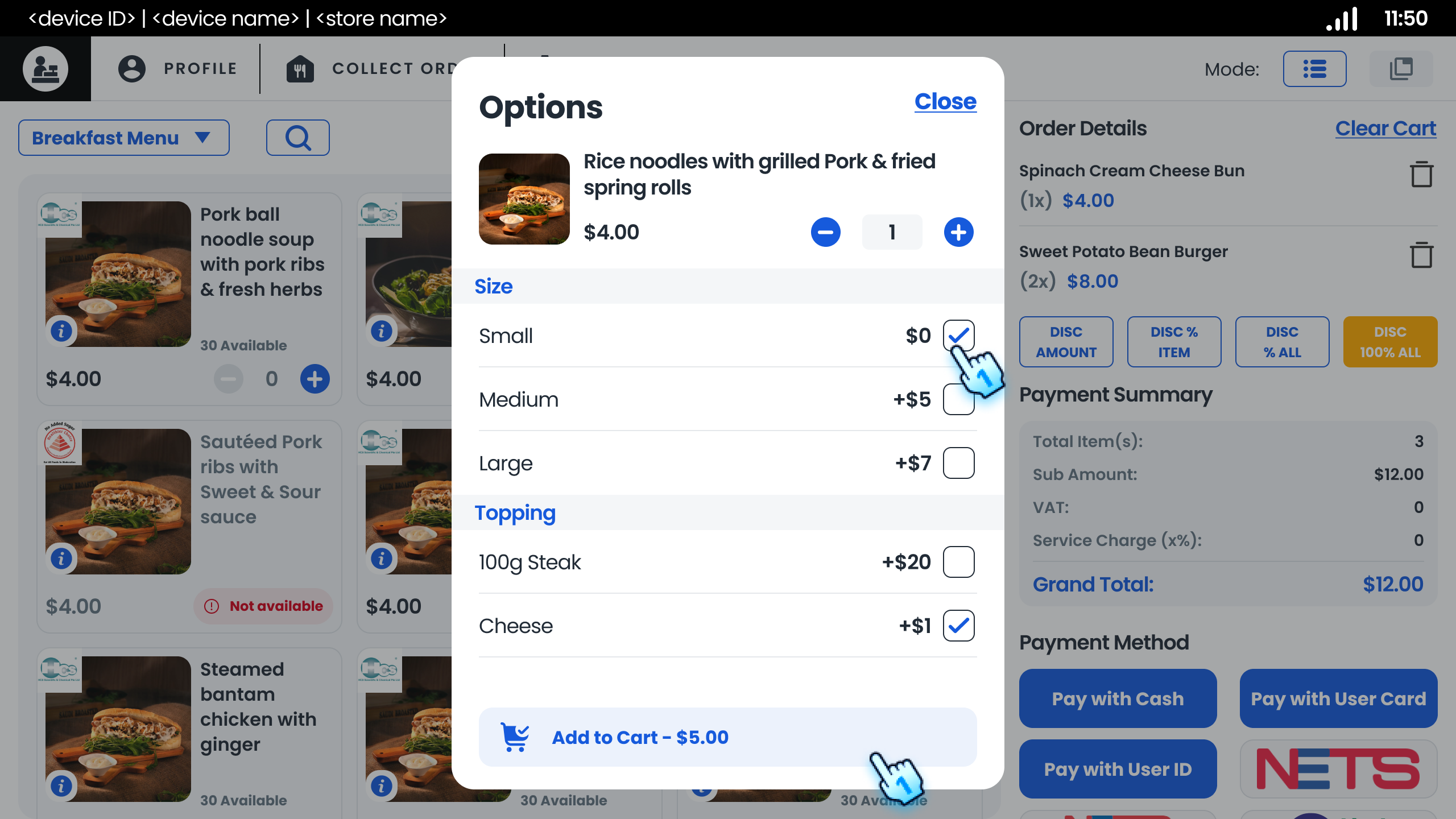
  • For items with options, select the desired options before adding to the cart.
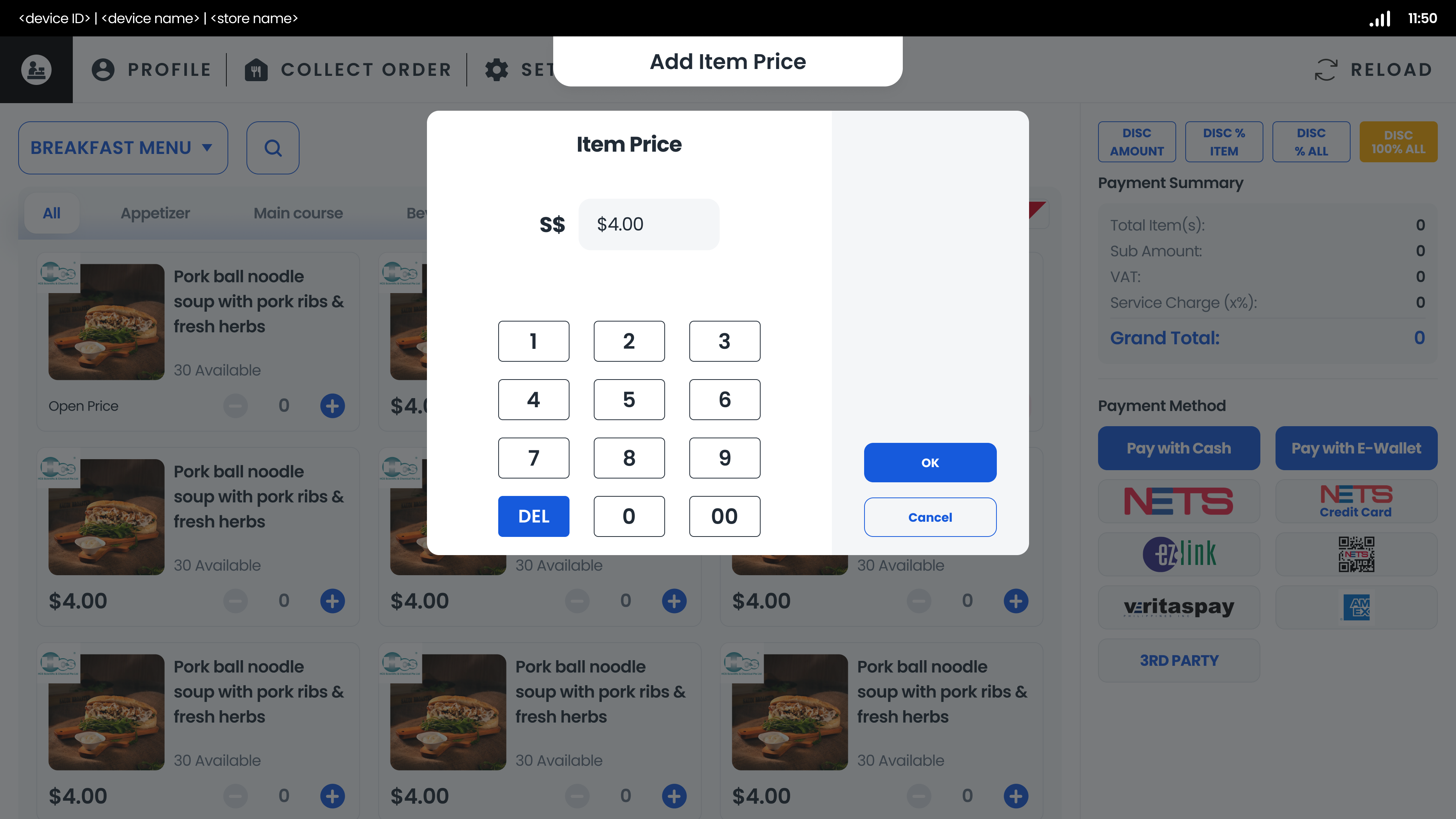
  • For open price items, enter the price before adding to the cart.
  1. Modify Cart Items
  • Use the (-) icon to decrease the quantity of an item in the cart.
  • Remove items entirely by decreasing the quantity to zero.

# Discount Application

  1. Apply Discounts
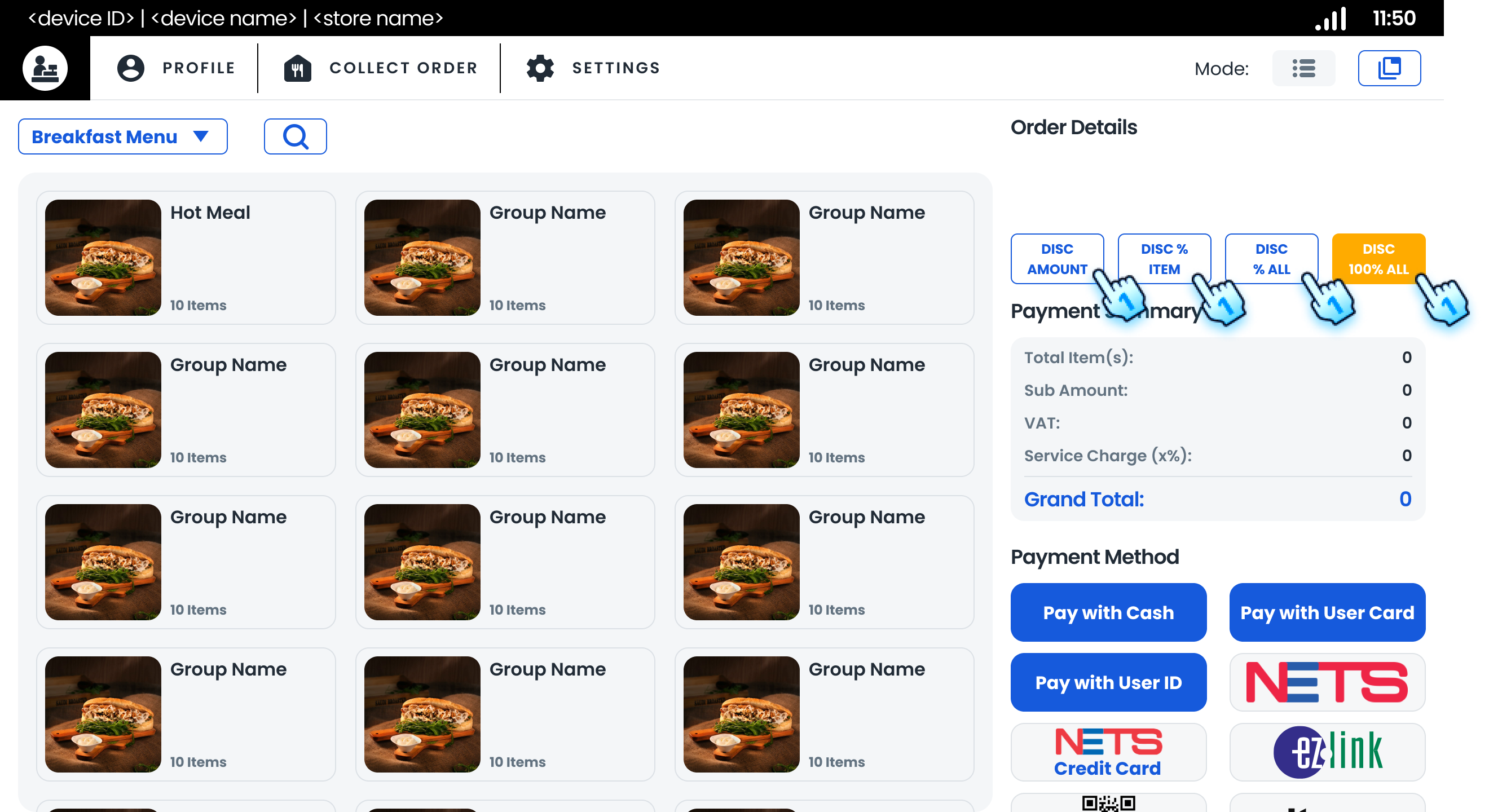
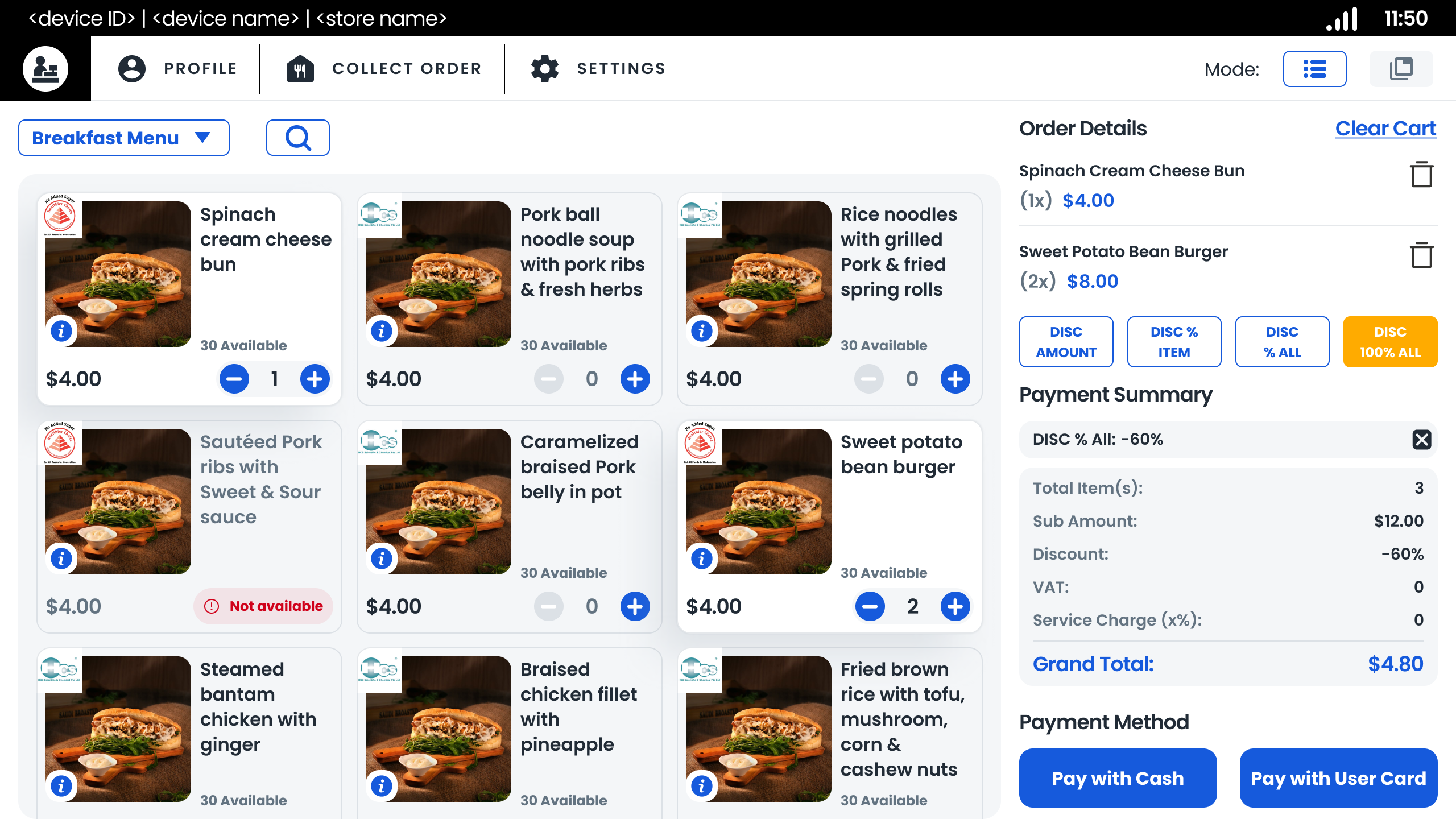
  • Select a discount type (e.g., amount, percentage) for individual items or the entire order.
  • Enter the discount value within the allowed threshold.
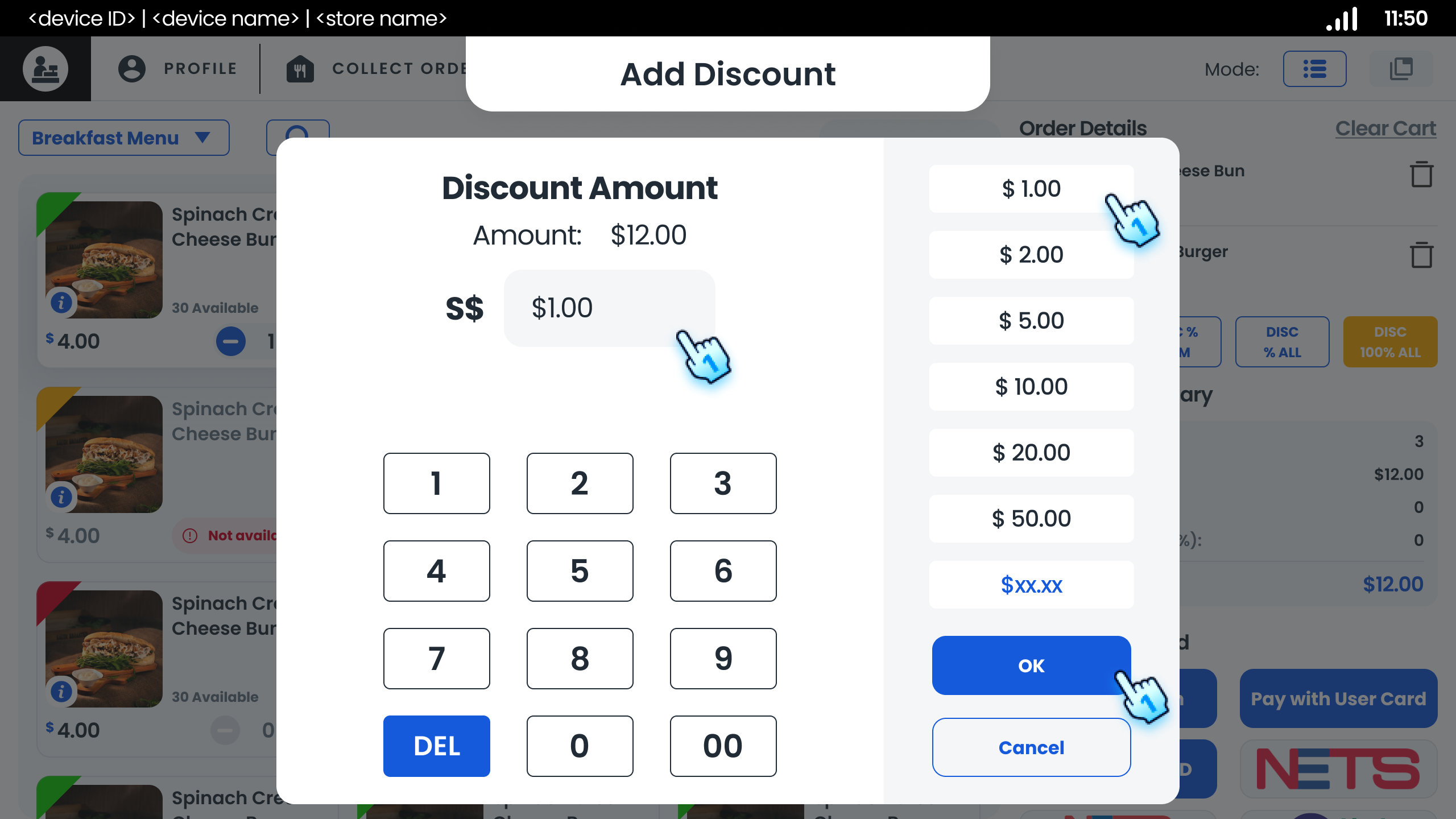
  • For Amount discount, there is an option to select the speed button
  1. Handle Discount Exceptions
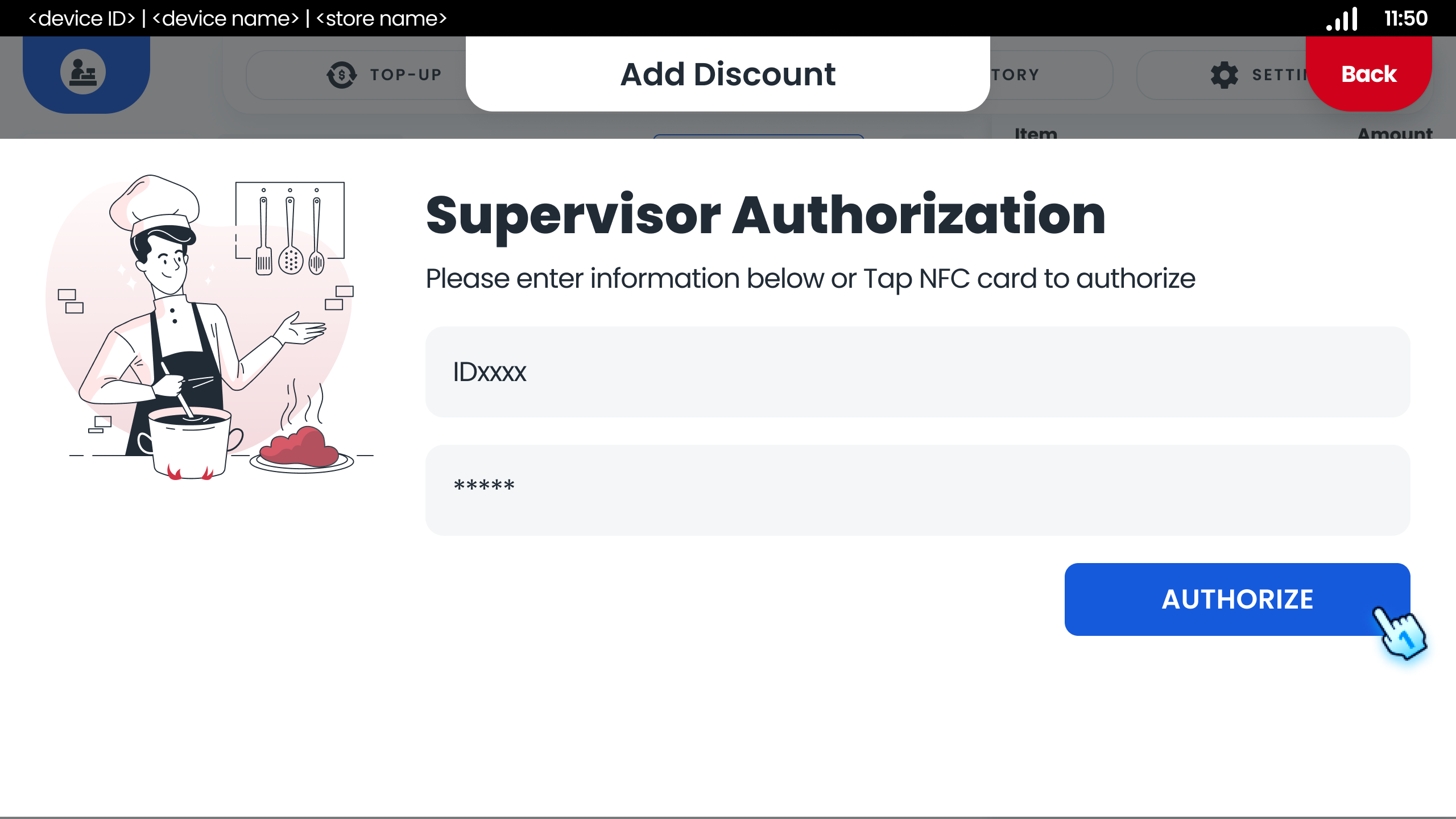
  • If the discount exceeds the threshold, supervisor authorization will be required.

# Conclusion

The sales module allows cashiers to efficiently manage transactions, from item selection to discount application, ensuring a smooth and accurate sales process.

# Screen flow

# Menu Navigation
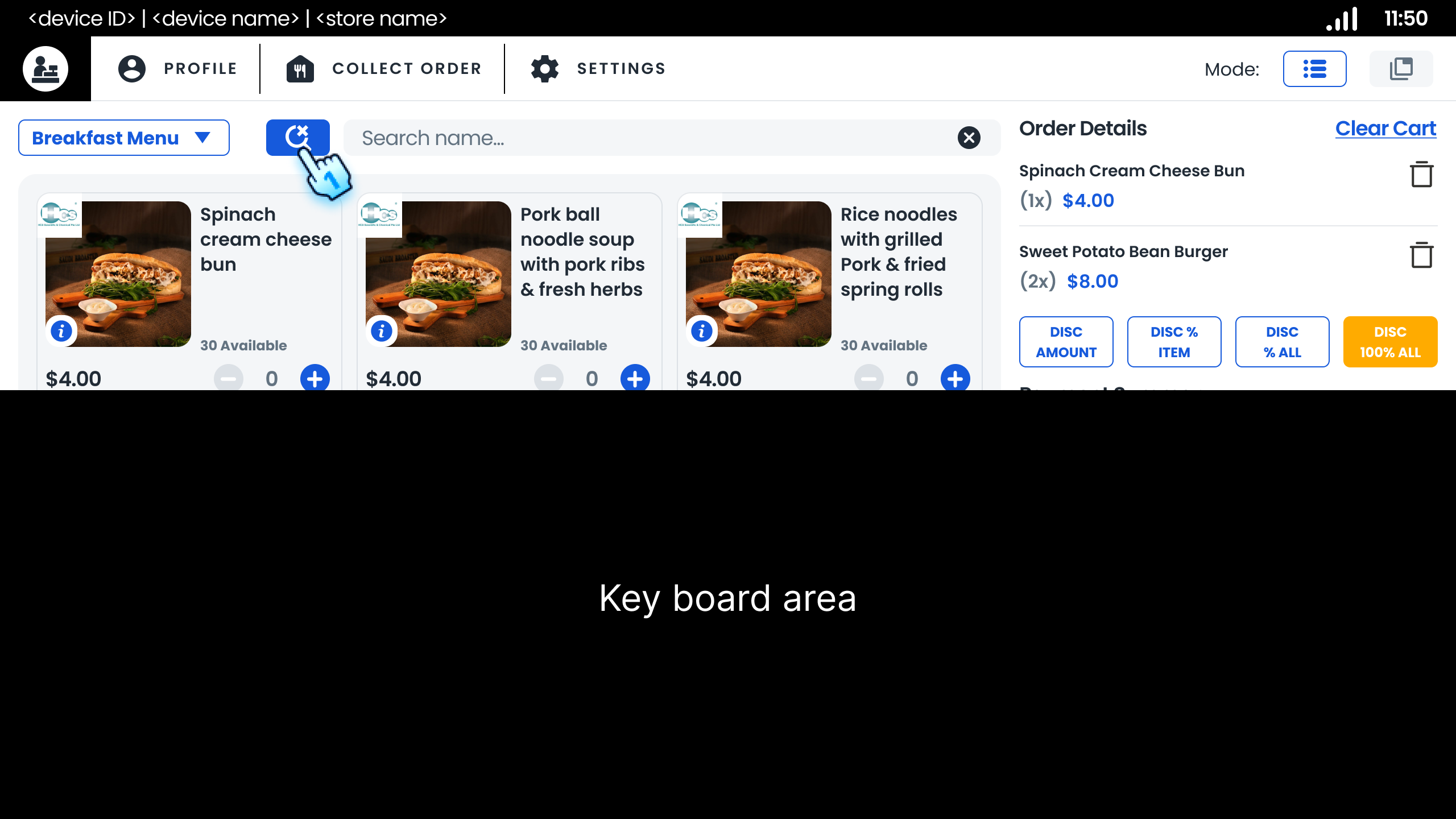
Click to search icon and enter the keyword
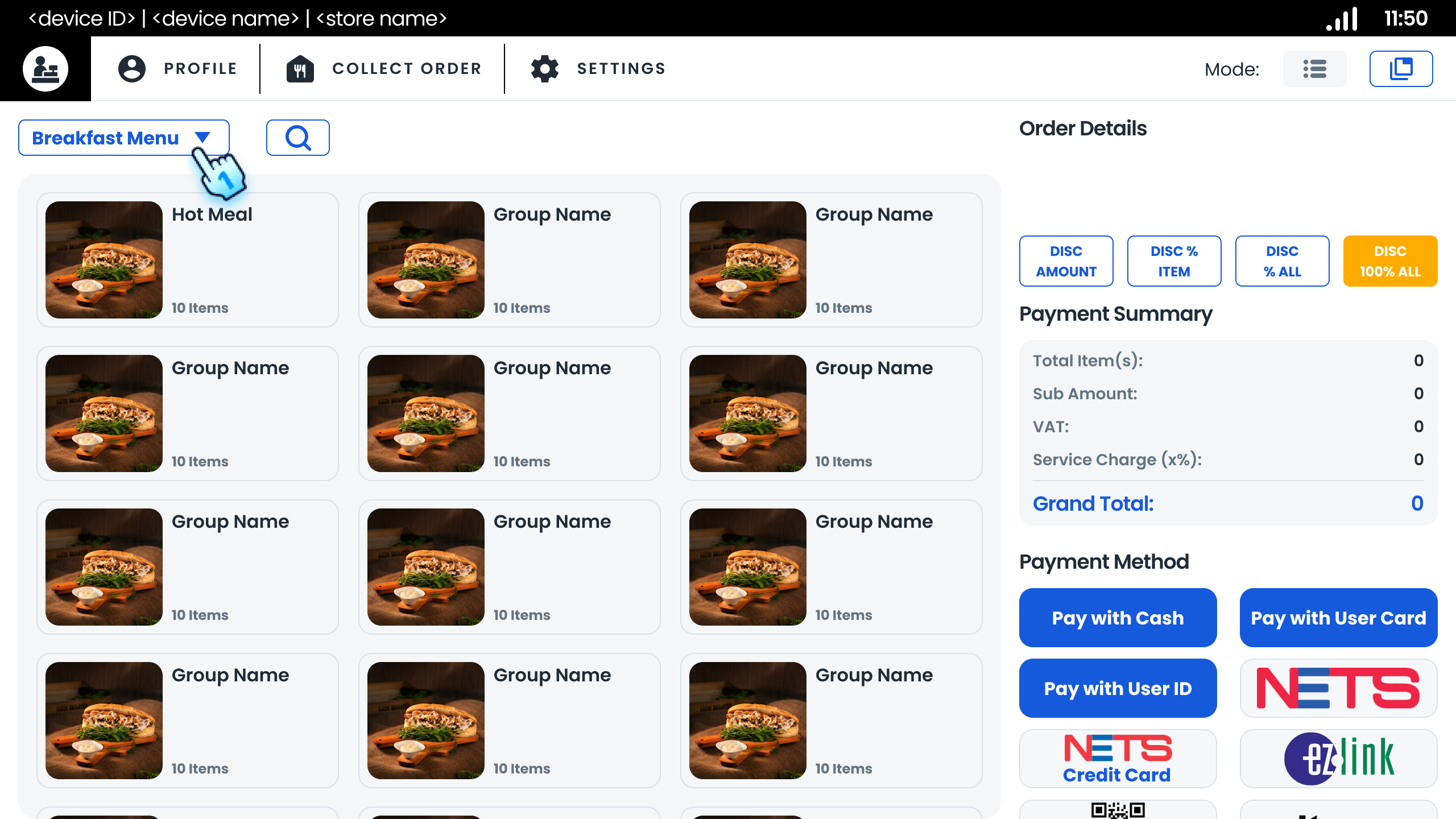
Click to dropdown list of mealtime to filter item list
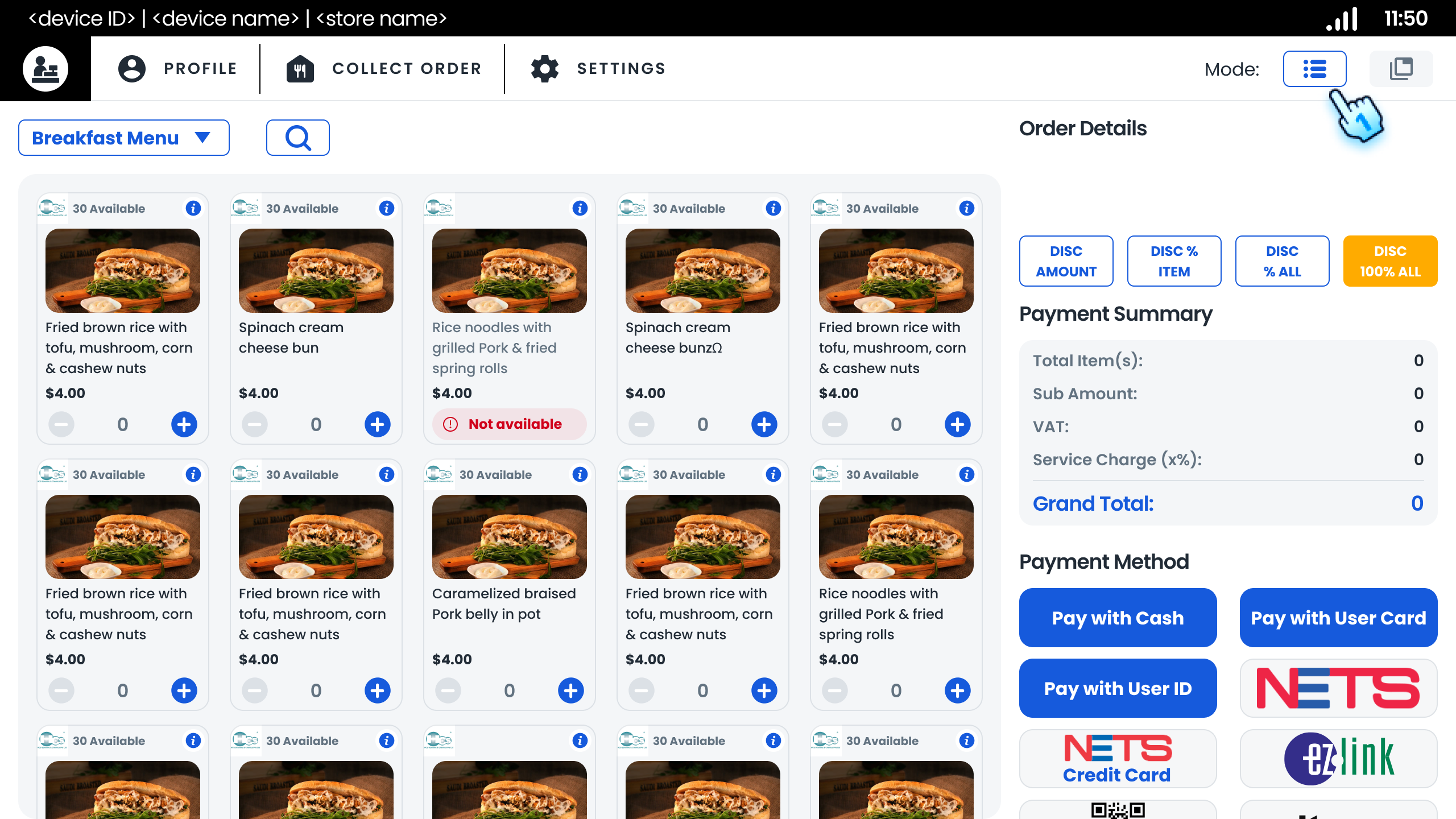
Click to Mode icon to switch 3 columns and 5 colums mode

# Item Selection and Cart Management
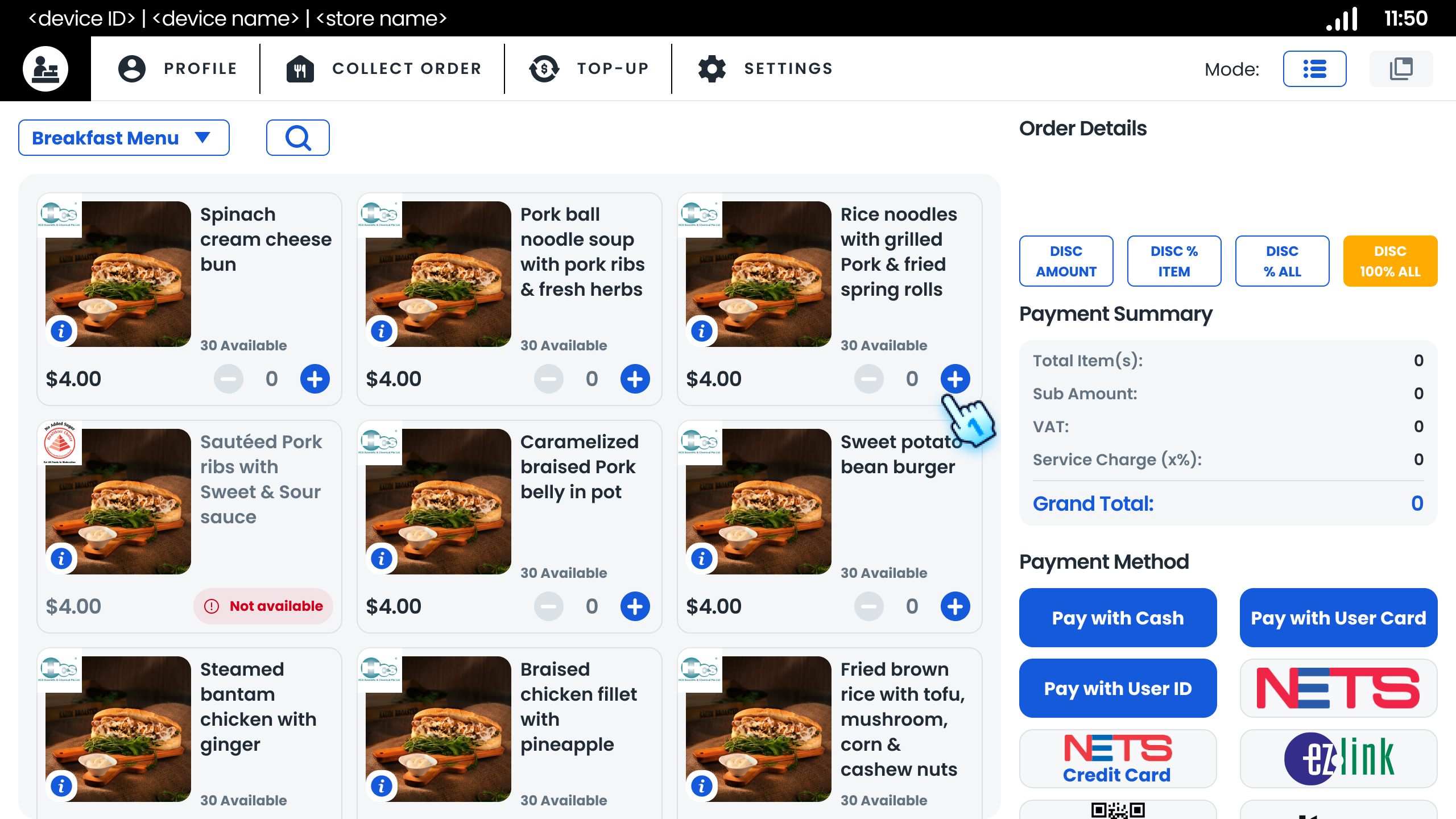
Click to "+" button to add items to cart
Select options and Click to "Add to Cart" button if the items have options
Enter the price and Click to "OK" button if the items have open price
Click to each item image to view item detail
View item detail and Click to "Add to cart" button

# Discount Application

Click to each Disount method button to apply Discount
For Amount Discount Items, Enter amount or select the speed button
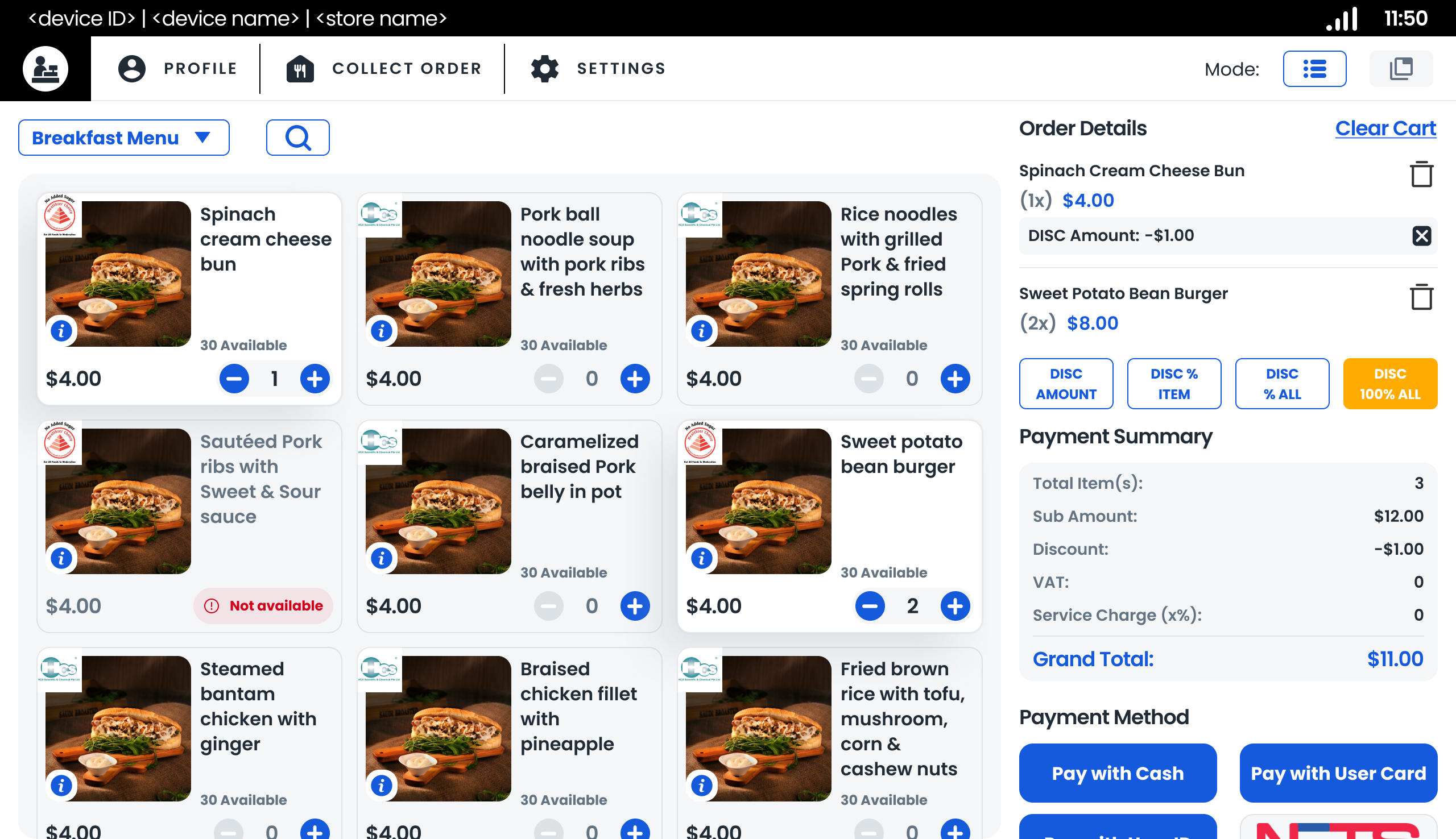
Discount summary for Amount Discount Items
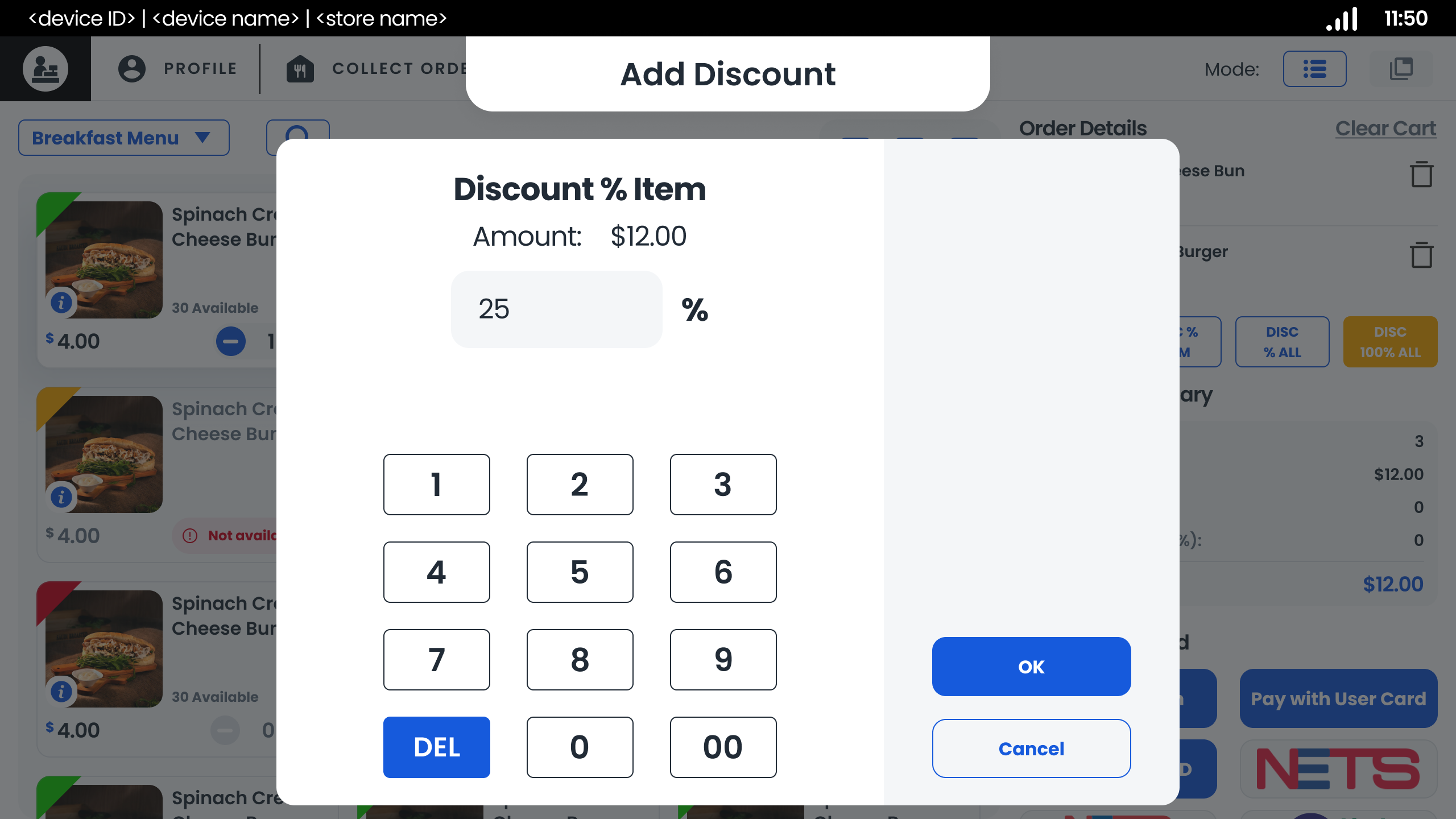
For Percentage Discount Items, Enter the percentage
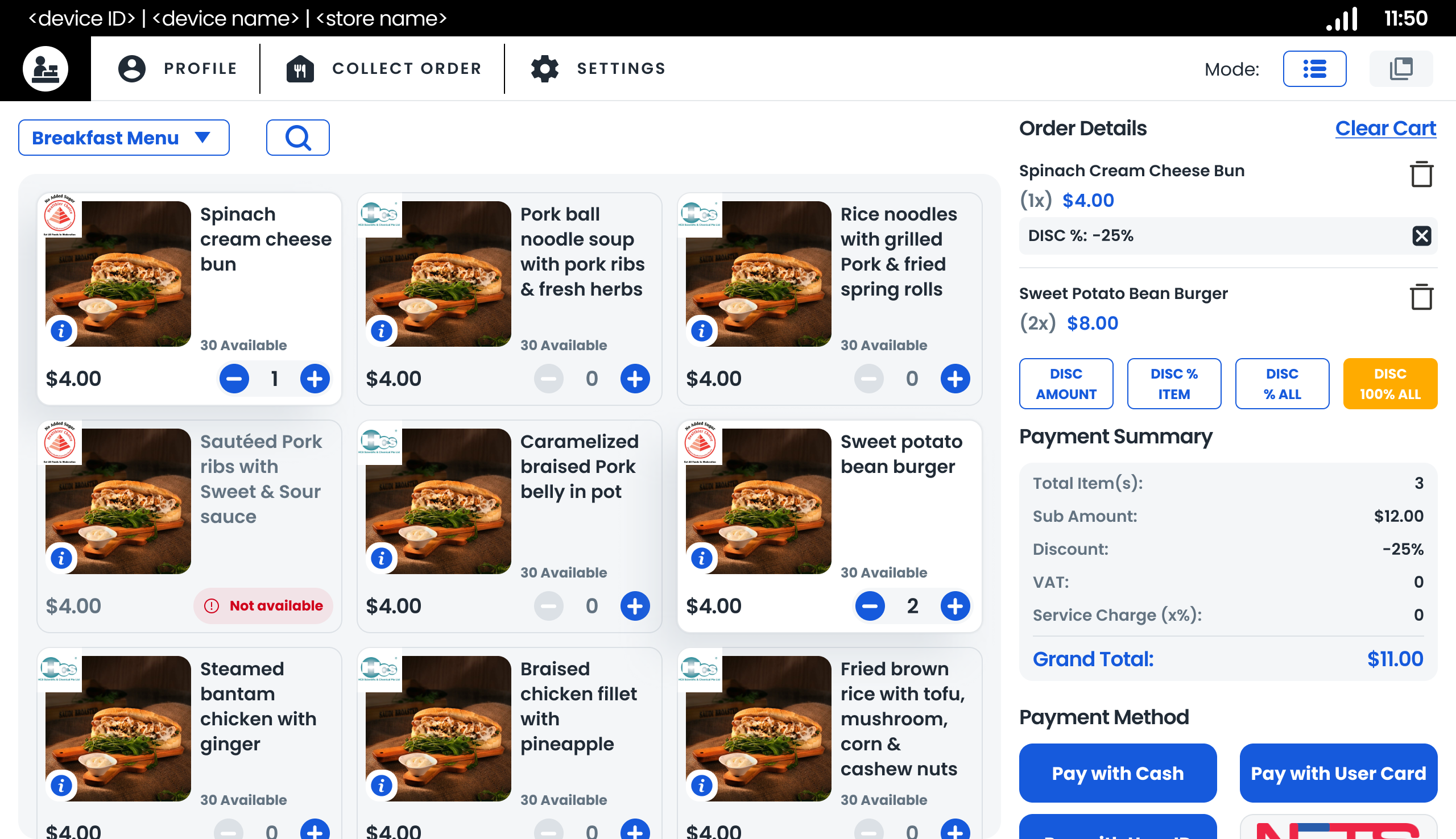
Discount summary for Percentage Discount Items
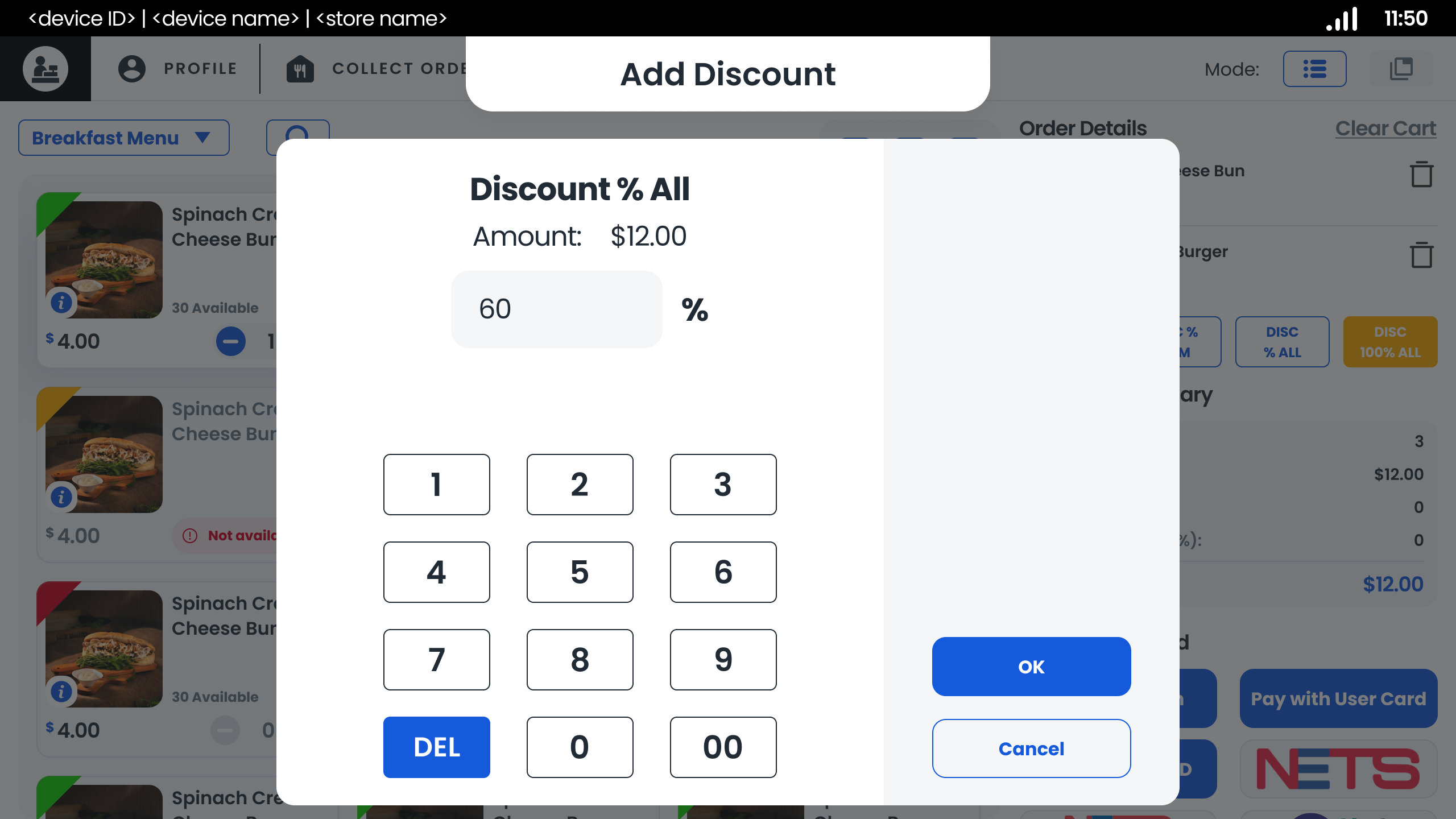
For Percentage Discount Order, Enter the percentage
For discount exceed threshold, Supervisor Authorization needed
Discount summary for Percentage Discount Order