#
Top-up process
#
Description
This section provides guidelines for managing top-up transactions, including initiating top-ups, processing payments, and handling exceptions.
#
Initiating Top-Up
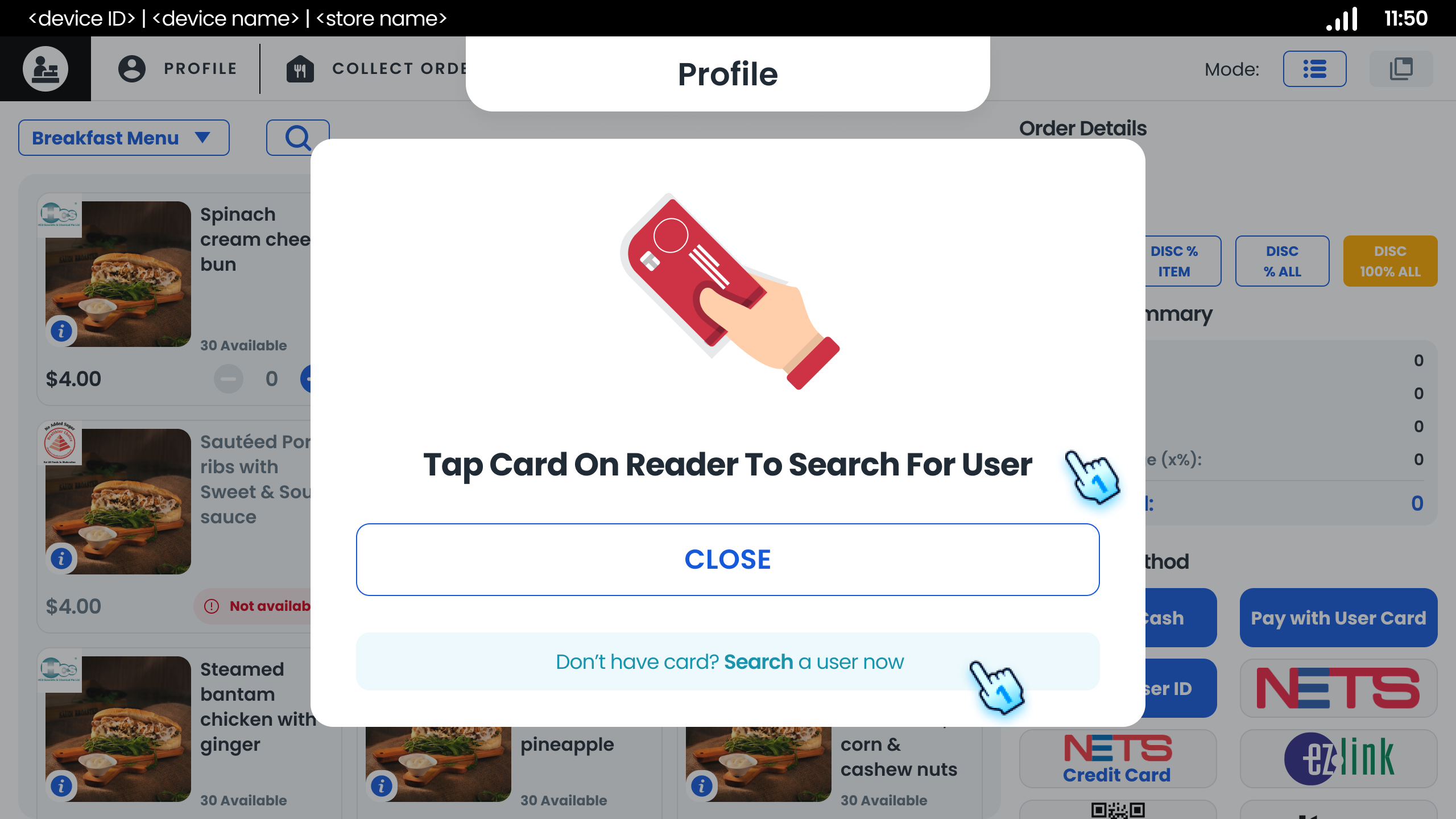
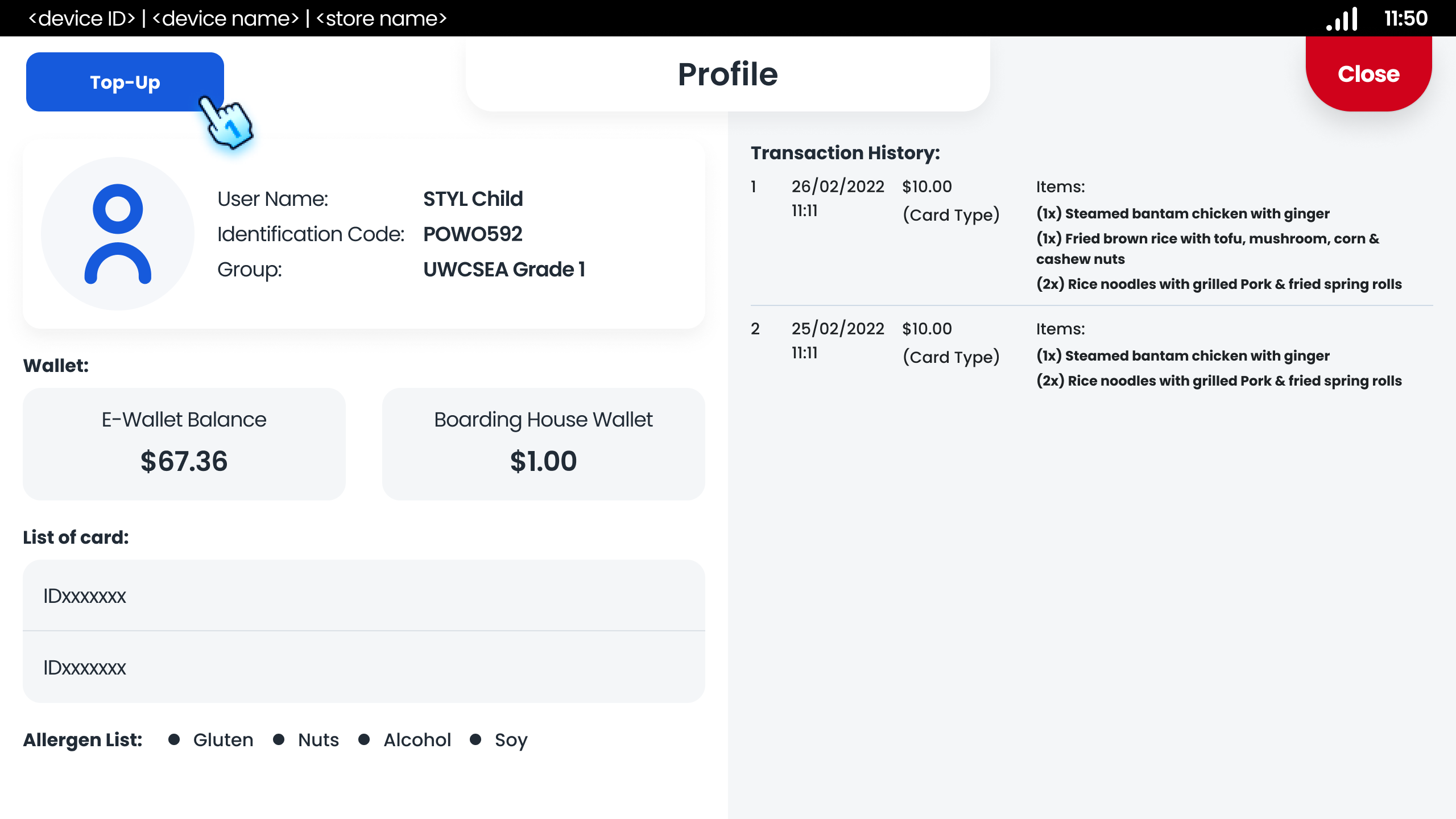
- Tap a Valid Card
- Initiate the top-up process by tapping a valid card.
- The top-up button will be displayed on the top left corner.
- Select Top-Up Button
- On the customer profile, tap the "Top-Up" button to proceed to the top-up page.
#
Processing Payments
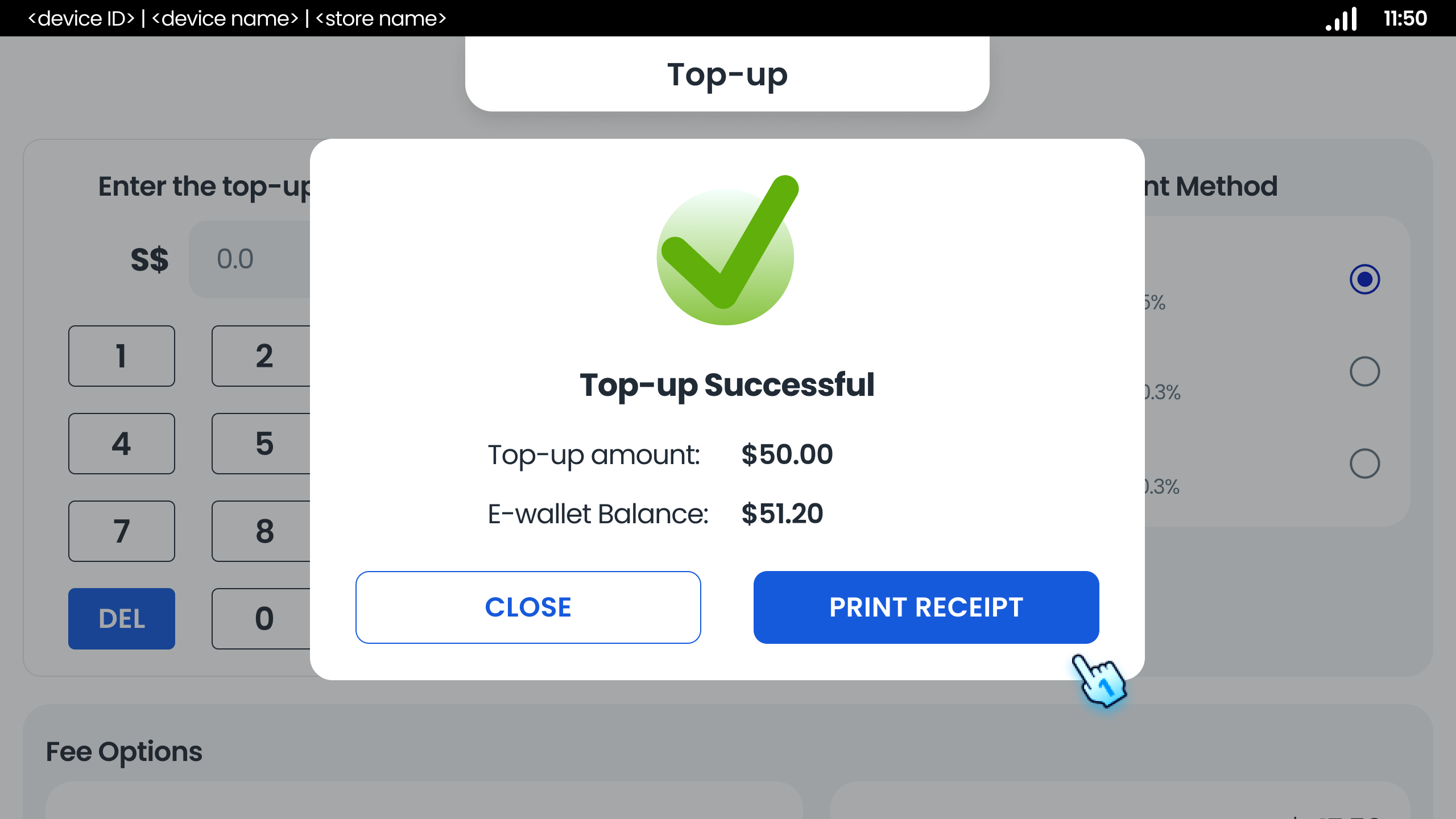
- Enter Top-Up Amount
- On the top-up page, enter the desired top-up amount.
- Use speed buttons (e.g., 1, 2, $5) for quick selection.
- Select Payment Methods
- Cash Payment
- Credit Card Payment
- NETS Card Payment
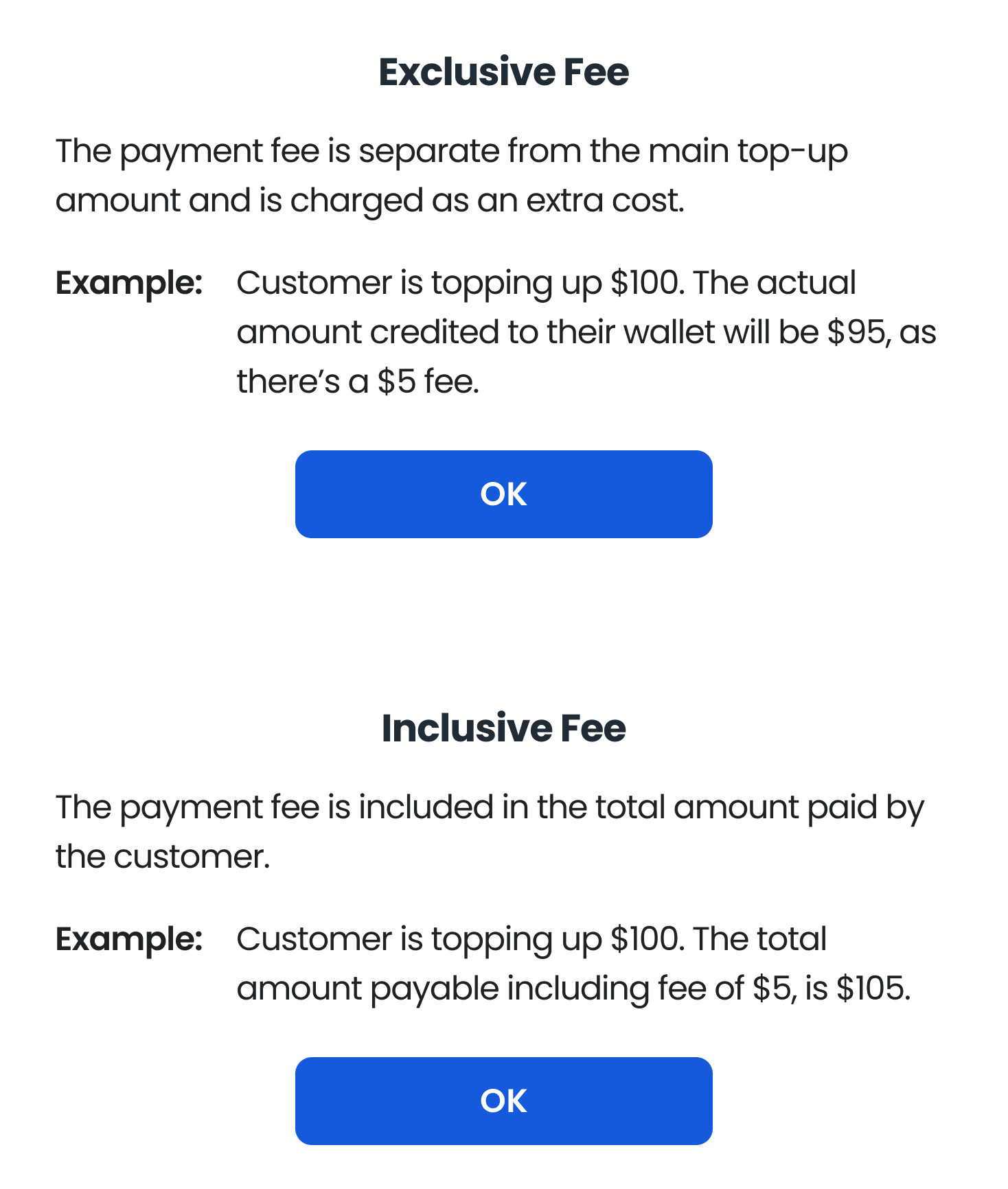
- Fee Option
- Select options for the top-up with inclusive or exclusive fees.
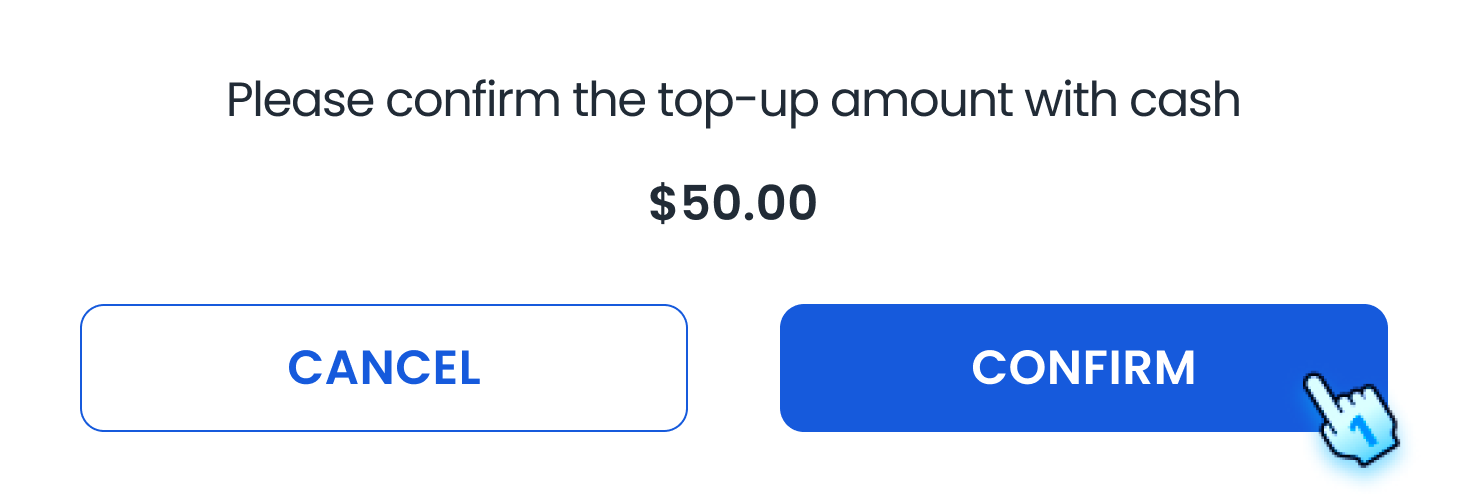
- Cancel Top-Up
- If needed, cancel the top-up process by tapping "Cancel" on the confirmation dialog.
#
Handling Exceptions
- Insufficient Balance
- If the card has insufficient balance, an error message will be displayed.
- Payment Failure
- If the payment process fails, a popup will allow you to retry or finish the process.
- Incorrect Card
- If a different card is tapped than the selected payment method, an error message will be displayed.
#
Conclusion
The top-up module allows cashiers to efficiently manage customer account top-ups using various payment methods, ensuring a smooth and accurate process while handling potential exceptions effectively.
#
Screen flow
#
Initiate Top-up
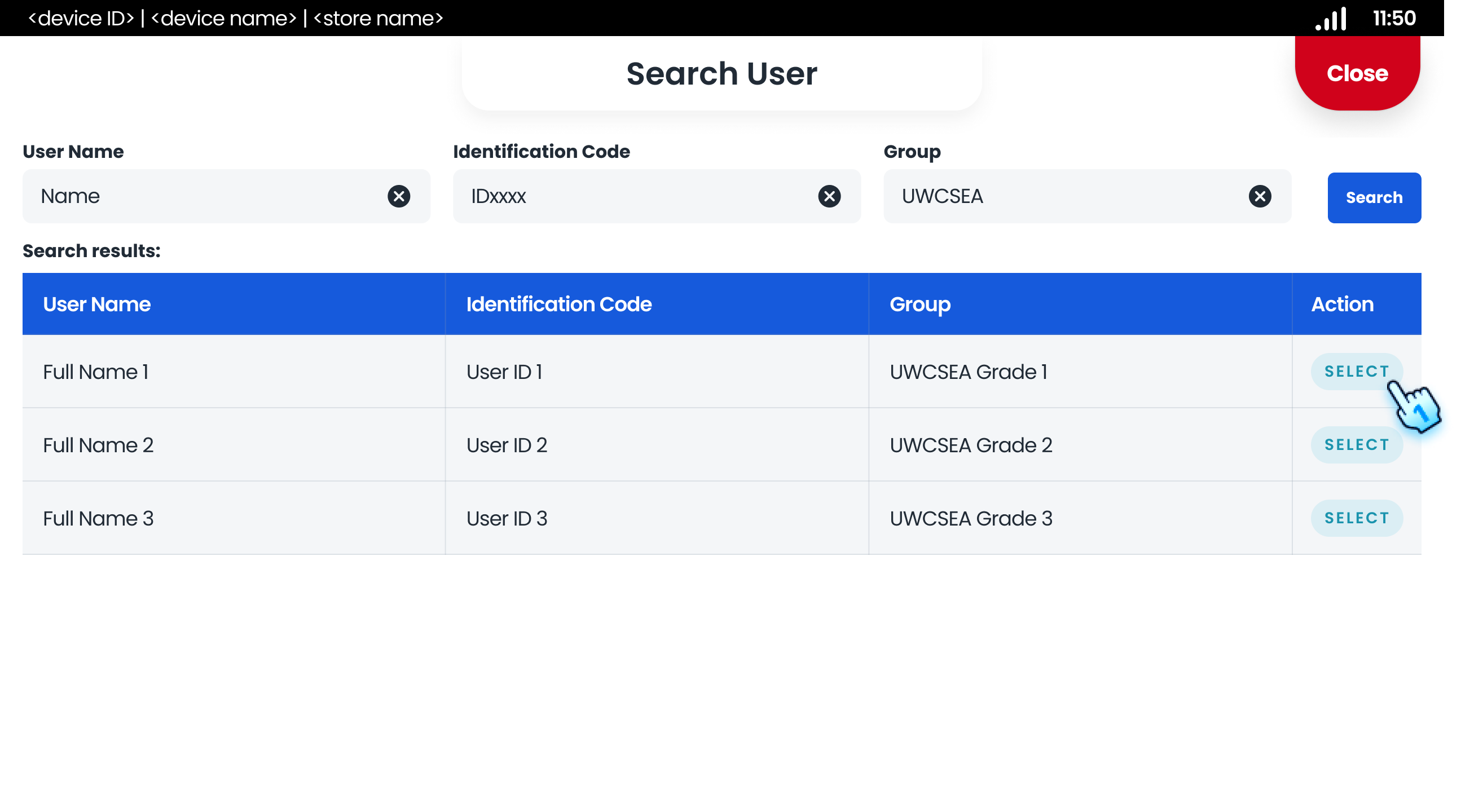
#
Processing Payments